Table of Contents
Gemini can summarize supported files directly in Google Drive, so you can review the main points without downloading and re-uploading the document. The feature appears only on eligible Google Workspace or Google AI plans and may be disabled by an administrator.
Summarize a file from the Drive list
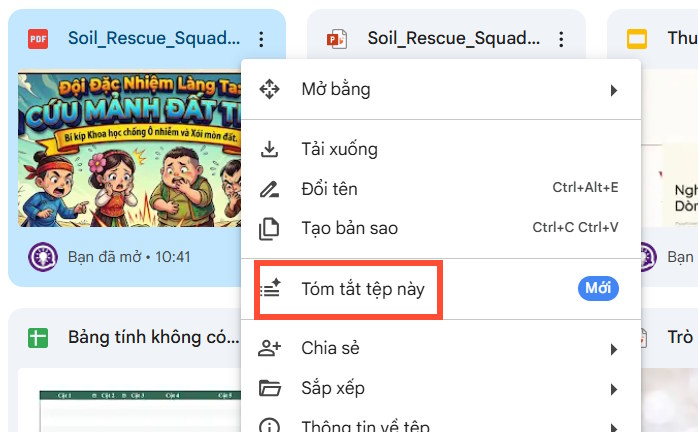
- Open Google Drive in a desktop browser and locate the file.
- Right-click the file or select its three-dot menu.
- Choose Summarize this file. If the command is not listed, open the file and look for the Gemini button in the upper-right corner.
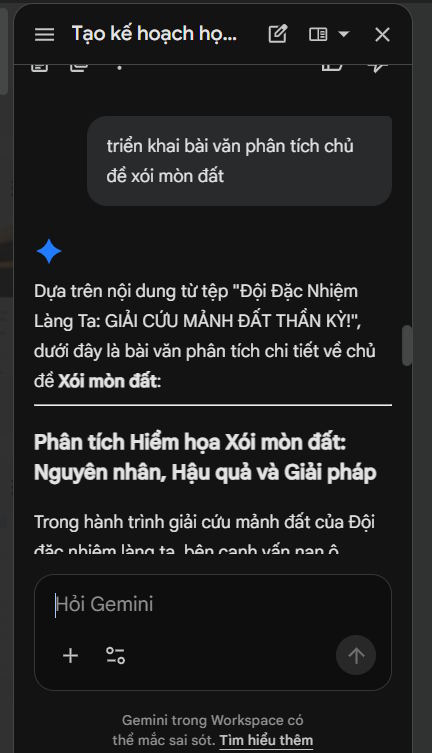
Gemini opens a side panel and displays a short summary. Depending on the Drive layout, the panel normally appears on the right; interface placement can change as Google updates the service.
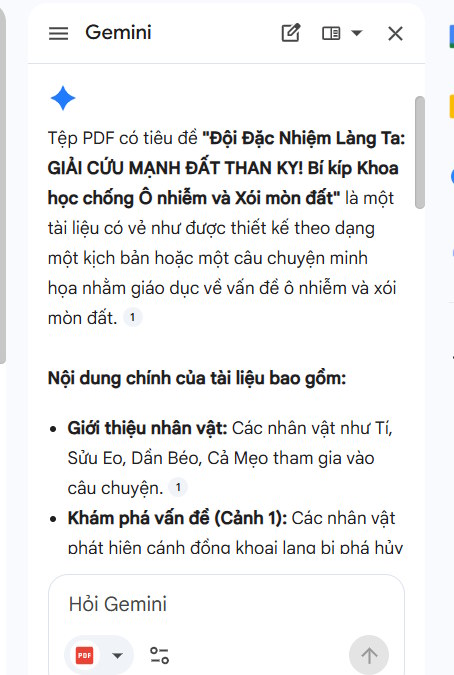
Summarize a file after opening it
Open a supported document, presentation, spreadsheet, or PDF in Drive. Select the Gemini icon to open the side panel, then choose a suggested action such as summarizing the file. You can also type a direct request, for example: Summarize the three main decisions and list every deadline mentioned.
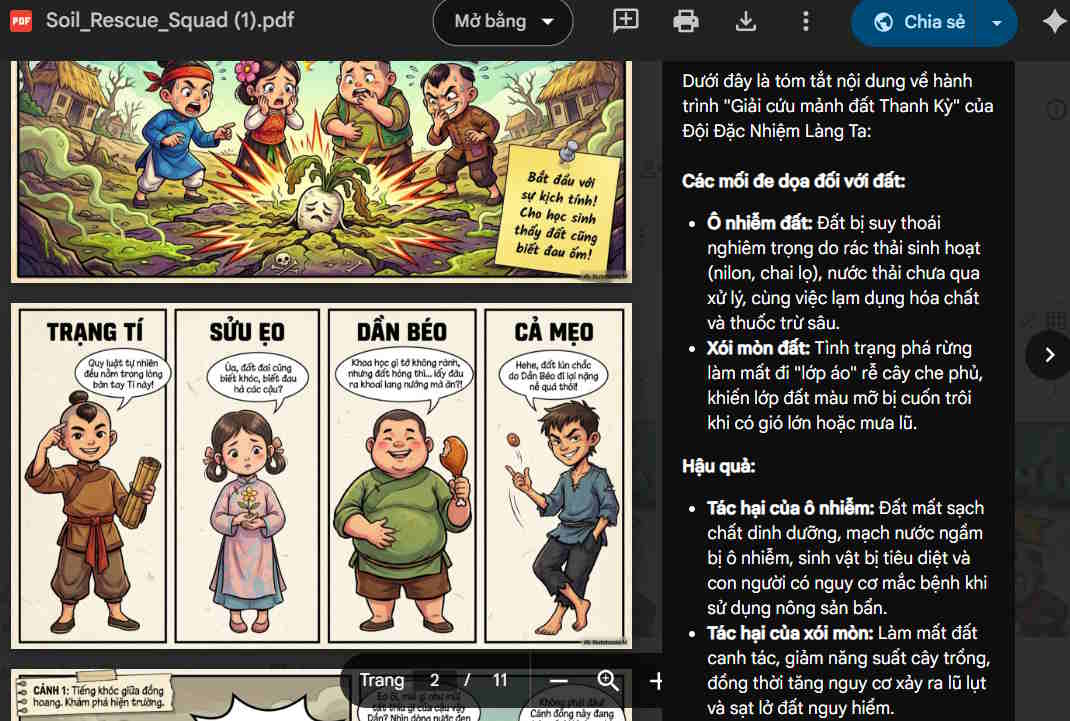
The panel may offer suggested prompts based on the file. Select one, or choose Ask Gemini to enter a more specific question.
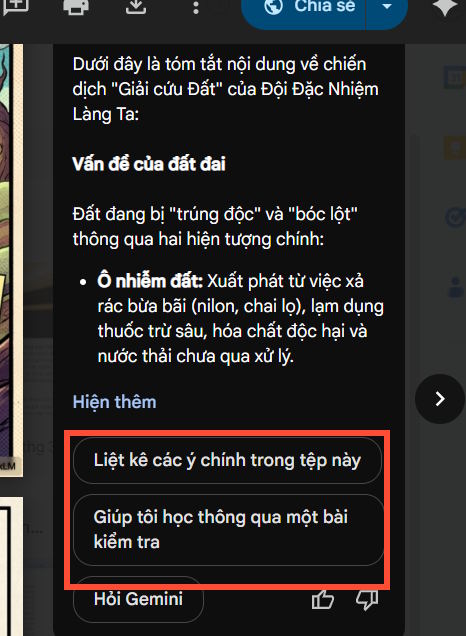
Follow-up questions are most useful when they name the desired output. Try asking Gemini to identify action items, compare sections, extract dates, or explain a term using only the current file.
Check the summary before using it
An AI summary can omit context or misinterpret a passage. Check important names, figures, dates, and decisions against the original file, especially before sending the summary to other people. Gemini does not replace the document's access controls, but you should still avoid putting sensitive information into prompts unless your organization permits it.
If the Gemini option is missing
- Confirm that you are using an eligible account and that Gemini is enabled for your Workspace organization.
- Try opening the file and using the Gemini side panel instead of the three-dot menu.
- Check that the file type is supported and that you have permission to open it.
- Refresh Drive or try a supported desktop browser if the panel does not load.
Related Articles
 Gemini Can Now Summarize Responses in Google Forms3 minutes read
![[Infographic] How to Become a 'Power' User of Google Drive](/data/thumbs_200x120/[infographic]-how-to-become-a-power-user-of-google-drive_thumbs_200x120_bhOH17wjk.jpg) [Infographic] How to Become a 'Power' User of Google Drive13 minutes read
[Infographic] How to Become a 'Power' User of Google Drive13 minutes read 4 Google Apps That Work Better with Gemini: Explained5 minutes read
 How to Transform a Cluttered Google Drive into a Searchable Knowledge Base7 minutes read
 Gemini 3.1 Pro or Gemini 3 Pro: Better?8 minutes read
 4 Google Apps Work Significantly Better with Gemini AI: Explained8 minutes read
Reader Comments 0
Sign in with email or Google to join the discussion.