Table of Contents
Claude Skills, also called Agent Skills, are folders of reusable instructions that help Claude follow a repeatable process. Instead of pasting the same style guide, checklist, or workflow into every conversation, you can place the guidance in a skill and let Claude load it when the request matches.
A skill is useful for repeatable work, not for storing every fact you might want Claude to know. Good examples include reviewing a pull request against a checklist, turning research notes into a standard brief, or creating presentations with an organization's template.
How a Claude Skill works
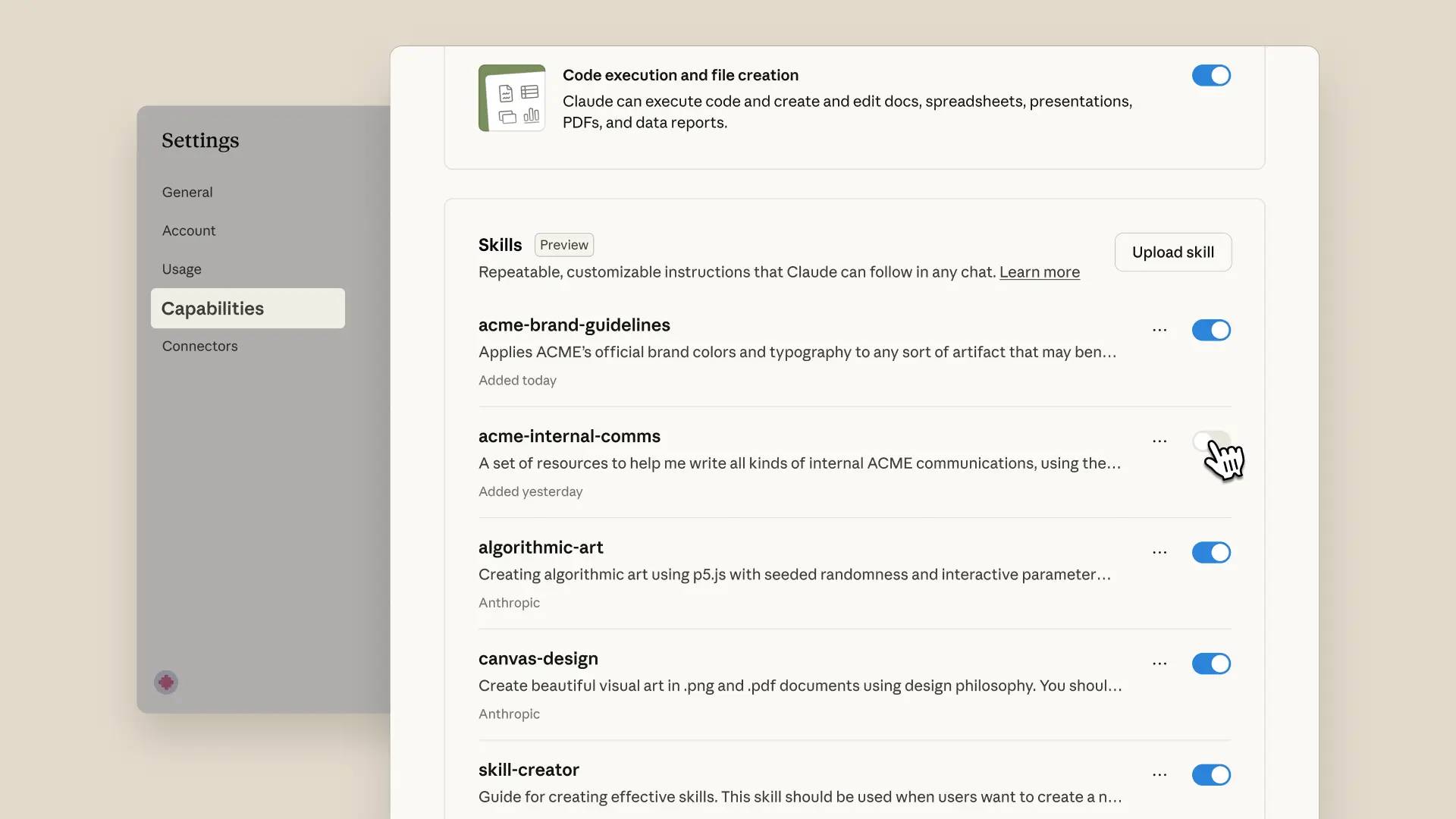
Every skill has a SKILL.md file with a name, description, and instructions. It can also include reference files, templates, examples, and executable scripts. Claude initially uses the skill's metadata to decide whether it is relevant, then loads more of the instructions and resources as needed.
This progressive approach lets several skills coexist without putting every instruction into every conversation. A request could use one skill to analyze data and another to format the result, although each step still needs review.
When to create a skill
A skill is a good fit when the same task has a stable input, process, output, and quality standard. Consider creating one when:
- you repeatedly paste the same instructions or checklist;
- the output must follow a consistent structure or brand style;
- the workflow needs templates, examples, or reference material;
- a small script can perform a deterministic step more reliably than prose instructions.
Do not turn a one-off question or a constantly changing exploratory project into a skill. For a collection of background documents that you mainly want to discuss, a Claude Project may be a better fit.
What is inside a skill?
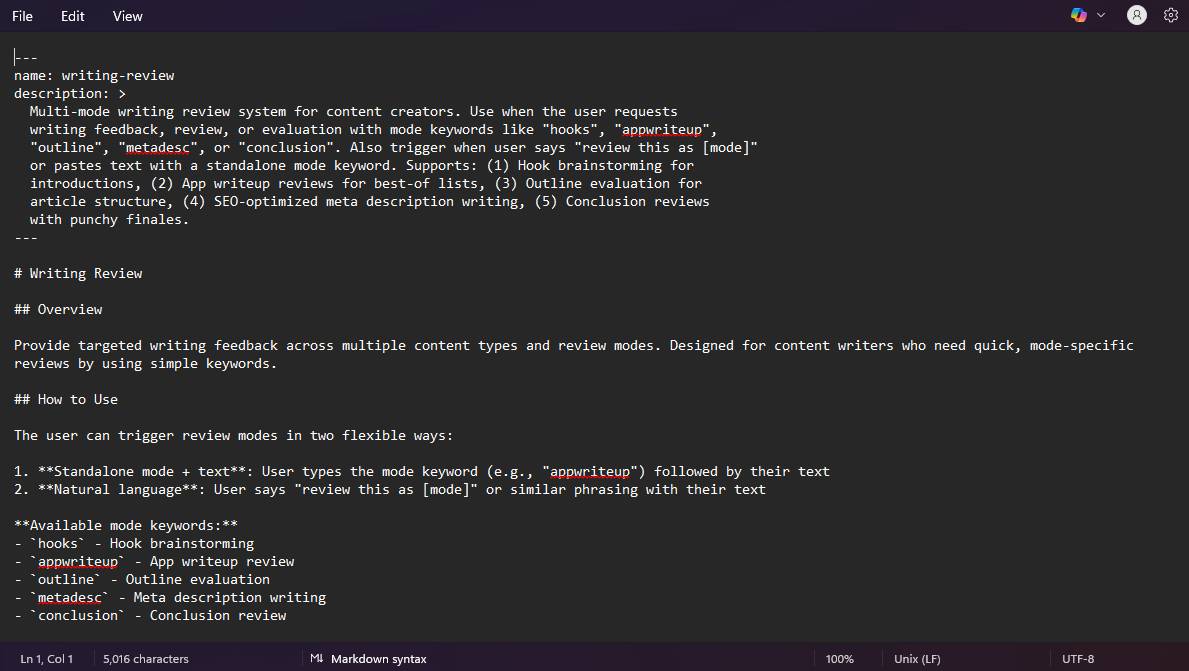
A simple skill can contain only one file:
newsletter-editor/
└── SKILL.md
A larger skill might separate instructions from supporting material:
newsletter-editor/
├── SKILL.md
├── references/
│   ├── voice-guide.md
│   └── editorial-checklist.md
├── assets/
│   └── newsletter-template.md
└── scripts/
    └── check-links.py
The description in SKILL.md should clearly state what the skill does and when it should be used. Keep the main instructions concise, then link to supporting files only where they are needed.
Plan a skill before building it
Define four elements first:
- Input: What will the user provide—a CSV file, draft, folder, or pasted text?
- Process: What ordered steps should Claude perform?
- Output: What file type, structure, and level of detail are required?
- Constraints: Which facts, formatting rules, approvals, or safety limits must be respected?
Start with one narrow job. A “weekly newsletter editor” with a known workflow is easier to test than a general content skill expected to handle every format.
Create and install a skill in Claude
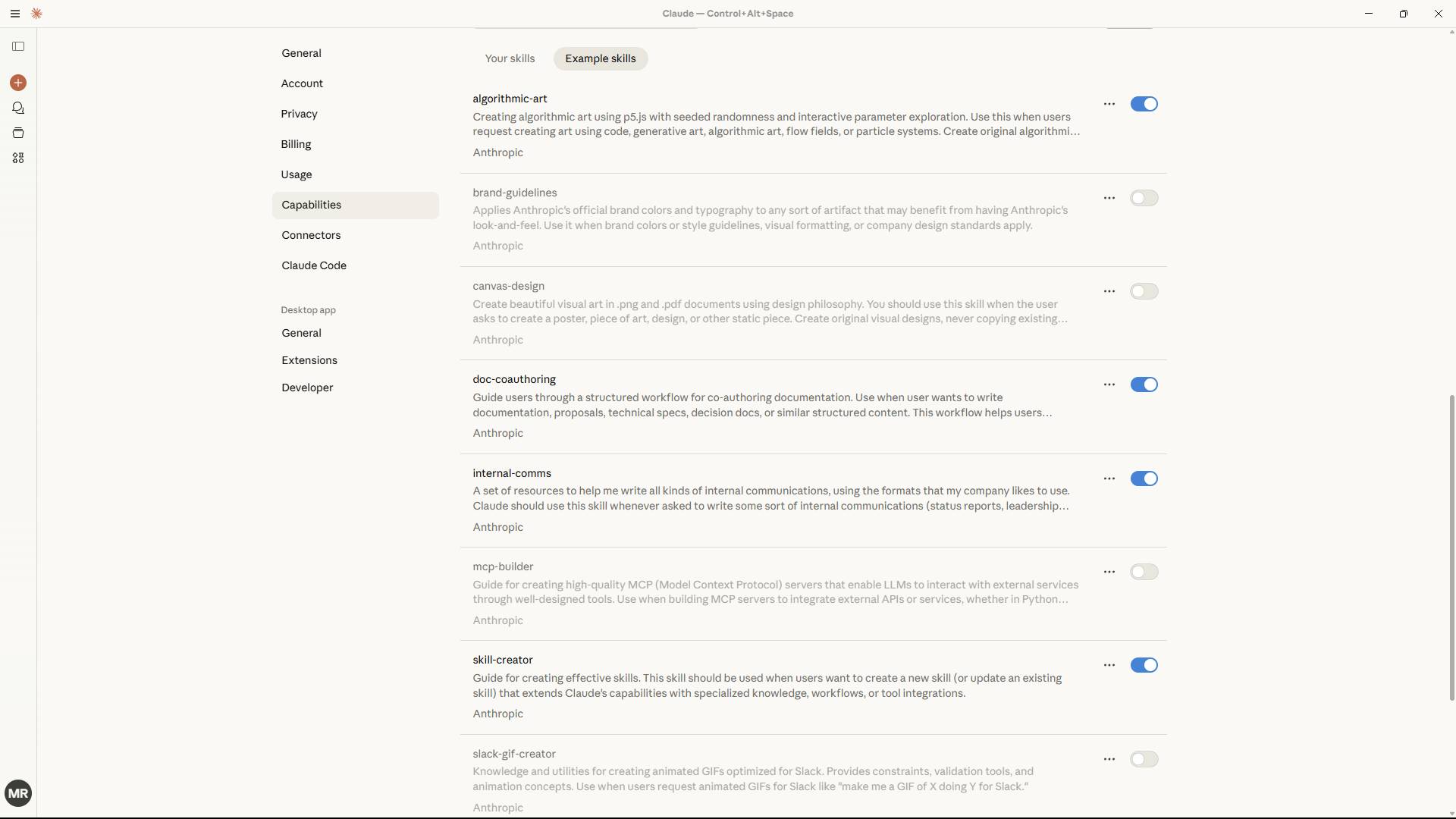
The exact controls depend on the Claude product and account. In Claude's web or desktop app, check Settings > Capabilities for Skills and file-creation features. If the example skill creator is available, enable it and start a conversation describing the planned input, workflow, output, and constraints.
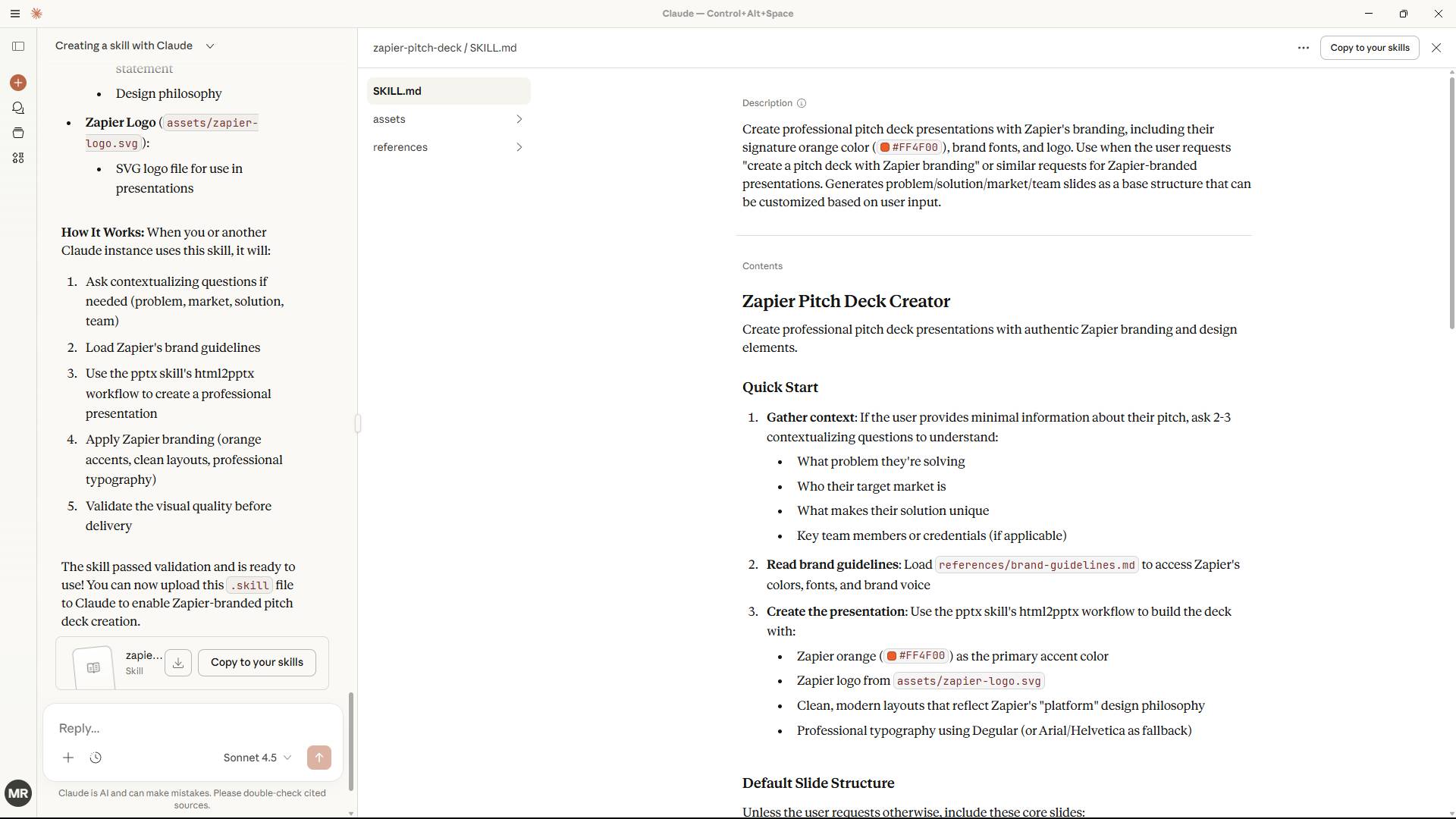
- Ask the skill creator to build a first version from your plan.
- Inspect the generated
SKILL.mdand every included script. - Install or copy the skill using the option offered by your Claude interface.
- Run a controlled test, revise ambiguous instructions, and keep a backup of the working version.
In Claude Code, skills are stored in the supported skills directories and can be shared with a project or kept for one user. Follow Anthropic's current Claude Code skills documentation for directory locations and supported metadata, because these details can change.
Test a skill before relying on it
Use the same representative input several times and compare the results. Check whether required sections appear, constraints are followed, scripts complete safely, and errors are explained clearly. Also test an invalid or incomplete input to see whether the skill asks for clarification instead of guessing.
When a skill includes code, read the script and understand what it can access before running it. Do not include credentials or confidential material in a skill package. Treat downloaded skills as software: review their instructions and scripts before installation.
Invoke and maintain your skills
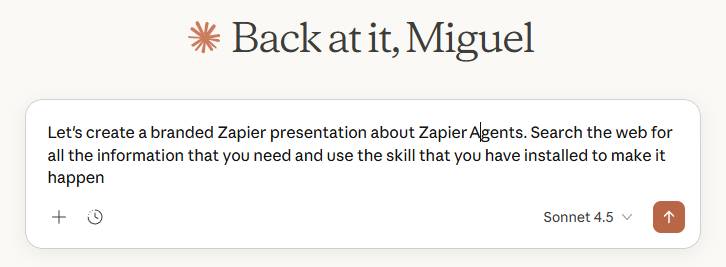
Claude may select a skill automatically from its description, but an explicit request is clearer: Use the newsletter-editor skill to review this draft. If multiple skills could apply, name the one you want and specify the required output.
Update the skill when the real workflow changes, and rerun the saved tests after every edit. Version the folder so you can identify which instructions produced an output and return to a known-good copy if a revision causes problems. Anthropic's Skills overview provides current product availability and setup information.
Related Articles
 How to use Claude Skills to improve work efficiency4 minutes read
 How to Add Skills to the Claude Console to Expand AI Capabilities7 minutes read
 10 Essential Skills for Claude (and Any Programming Agent)15 minutes read
 How to Learn About Claude Opus 4.68 minutes read
 What Is the Difference Between Claude Code Skills and Plugins?10 minutes read
 Claude Code Skills vs. Slash Commands: What Changed15 minutes read
Reader Comments 0
Sign in with email or Google to join the discussion.