Table of Contents
You can copy most ChatGPT responses directly into Microsoft Word, but tables, equations, and Markdown formatting may not survive a normal paste. The right method depends on the content: use Word's paste options for ordinary text, convert tab-separated text into a table, and place LaTeX code inside Word's equation editor.
Paste ChatGPT text without unwanted formatting
Copy the response in ChatGPT, then use Ctrl + Shift + V in Word when the installed Word version supports plain-text paste. You can also right-click and choose Keep Text Only from Paste Options. This removes ChatGPT's fonts, colors, and other source formatting so the text adopts the current Word style.
If that shortcut is not available, paste the text into Notepad first, copy it again, and then paste it into Word. This also strips formatting, although headings, lists, links, and bold text will be lost.
Copy a ChatGPT table into Word
First copy the complete table from the ChatGPT response.

In Word, right-click at the insertion point and choose Keep Text Only. This gives Word clean text to convert, rather than a partially formatted web table.

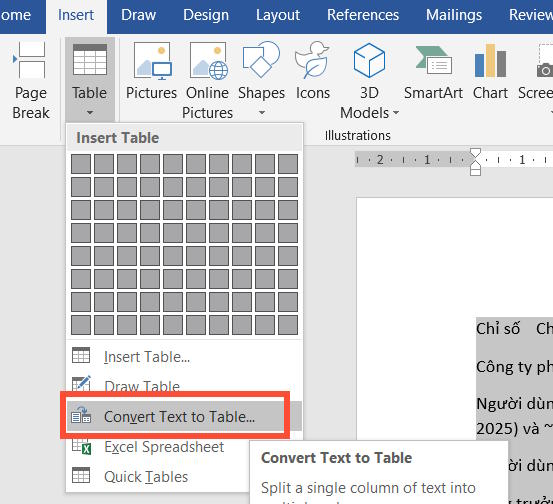
Select the pasted rows, then choose Insert > Table > Convert Text to Table.
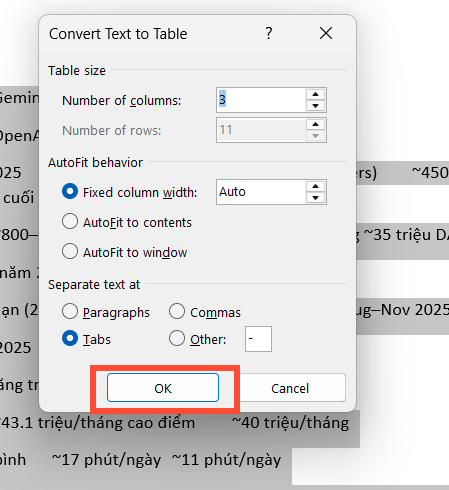
Check the proposed number of columns and the separator setting. ChatGPT tables commonly use tabs after plain-text pasting, so choose Tabs under Separate text at when the preview is incorrect. Select OK to build the table.
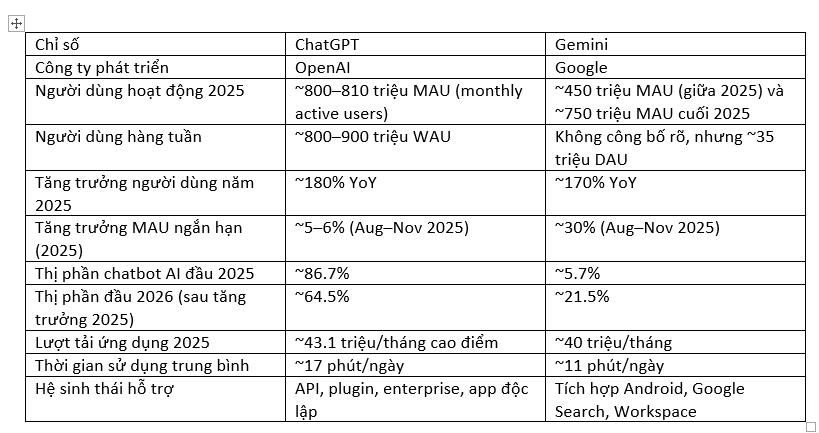
Review the result for merged headings, multiline cells, or missing separators. You can then apply a Word table style and adjust column widths.
Copy a mathematical formula into Word
Ask ChatGPT to return the expression as LaTeX, preferably without explanatory text. For example: Return only the LaTeX for this equation.
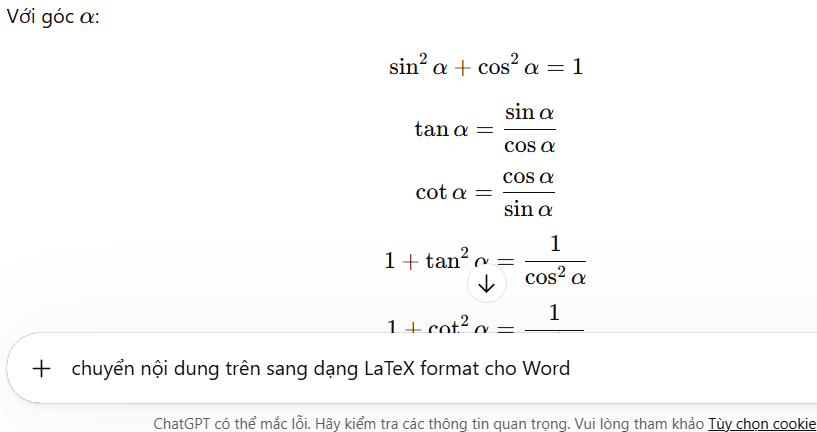
Copy the LaTeX expression itself. If the response includes delimiters such as (, ), [, or ], omit them unless your version of Word accepts them.
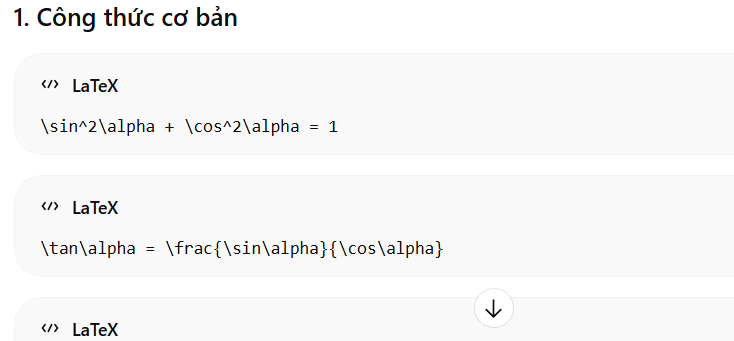
In Word, press Alt + = to insert an equation box, then paste the LaTeX code into that box. On macOS, use Insert > Equation if the shortcut differs.
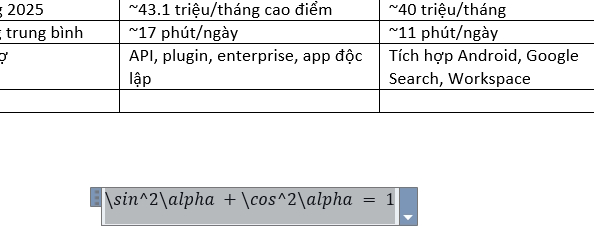
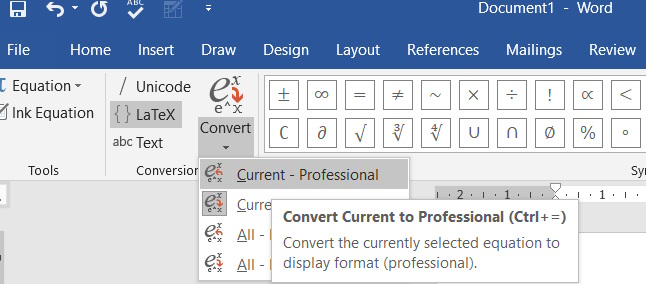
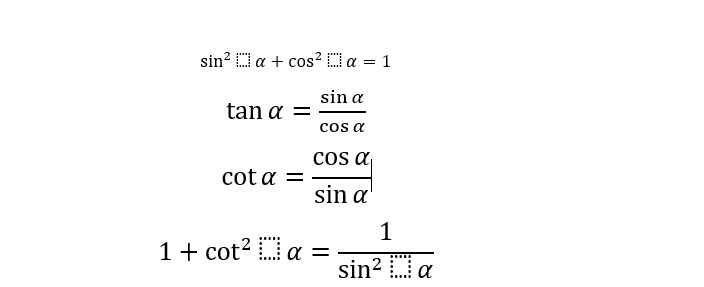
With the equation selected, open the equation Design tab. Set the input format to LaTeX when that option is shown, then choose Convert > Professional to display the typeset equation.
Check fractions, exponents, matrices, and special symbols against the original expression. AI-generated formulas can still contain mathematical errors even when Word renders them correctly.
Quick fixes for common paste problems
- Wrong font or spacing: paste as text only, then apply Word styles.
- Table appears in one column: undo the conversion and select the correct separator, usually tabs.
- LaTeX stays as plain text: make sure it was pasted inside an equation box rather than the document body.
- Bullets disappear: paste with source formatting, or recreate the list using Word's Bullets command after a plain-text paste.
Related Articles
 How to Copy Word Without Detailed Formatting Errors: Practical Guide6 minutes read
 How Can I Preserve the Formatting of Formulas in ChatGPT?4 minutes read
 How to Copy Word Data to Excel Keeps Formatting: Word Tips4 minutes read
 How to Transfer Tables from Word to PowerPoint4 minutes read
 Fix Error of Copy Paste Command Not Working in Word, Excel (20078 minutes read
 How to Fix Number Formatting Errors When Using Mail Merge in Word12 minutes read
Reader Comments 0
Sign in with email or Google to join the discussion.