Table of Contents
Stable Diffusion Web UI is a community-developed browser interface for running compatible diffusion models. The widely used AUTOMATIC1111 project provides text-to-image, image-to-image, inpainting, upscaling, metadata tools, scripts, and an extension system in one local interface.
The Web UI is not the Stable Diffusion model itself. You install the interface, obtain a compatible model checkpoint under its license, and run both on your own hardware. Installation details change as Python, PyTorch, drivers, and the project evolve, so compare this guide with the current official repository before proceeding.
Before installation
- Use a supported GPU when possible. CPU-only generation is possible in some configurations but is usually much slower, not “quick.”
- Check graphics memory and disk space. Model files take several gigabytes, and image size, batch size, and selected features affect memory use.
- Update the graphics driver. Do not manually copy CUDA or cuDNN files into system folders unless the current project documentation explicitly requires it for your configuration.
- Download trusted models. Check the publisher, file type, model card, license, and checksum where available.
- Back up important settings. Extensions and updates can introduce compatibility problems.
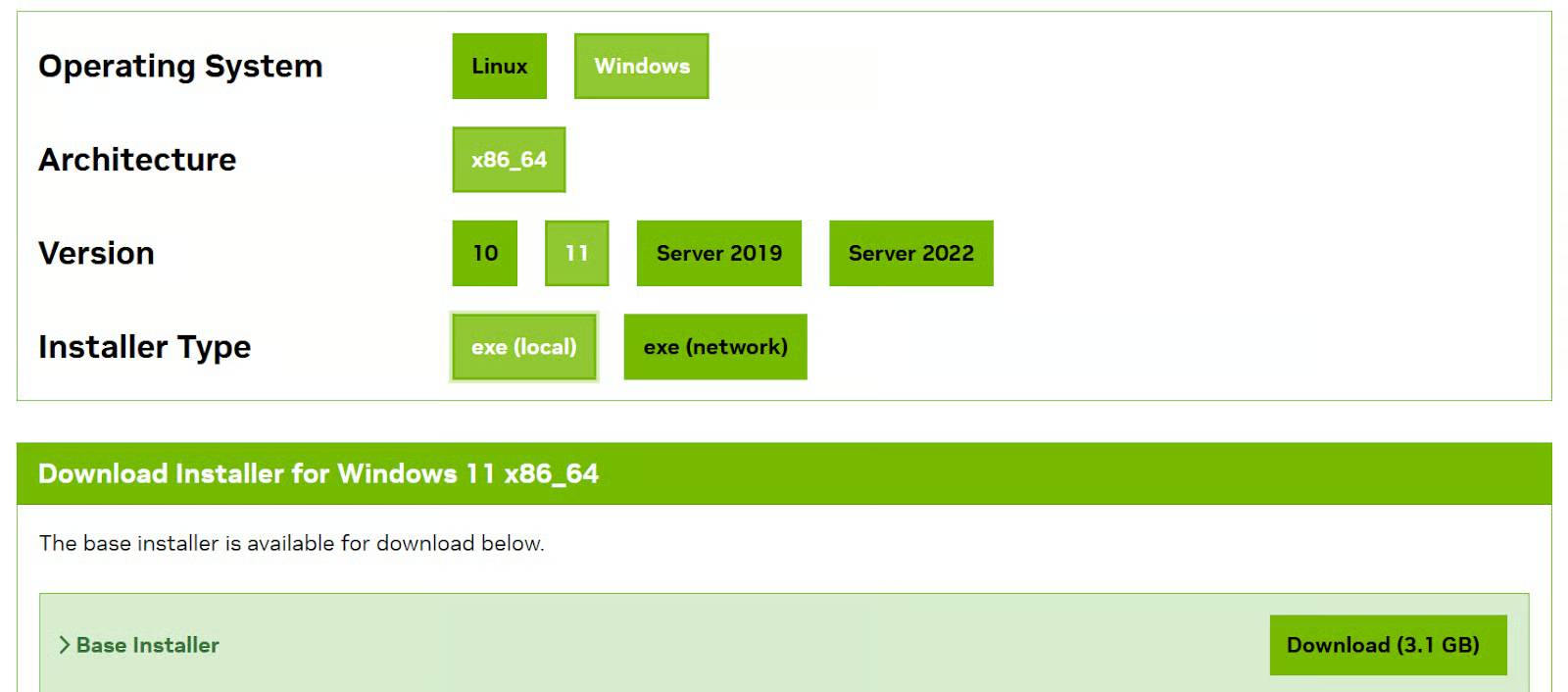

Install on Windows
Option 1: use the project's release package
- Open the Releases section of the official AUTOMATIC1111 repository and read the notes for the current package.
- Download the release asset identified by the project, then extract it to a normal user-writable folder with adequate free space.
- Run the included update script if the release instructions require it.
- Start the Web UI with the included run script and wait for dependencies to finish installing.
Do not run downloaded batch files as administrator unless the project's current documentation provides a specific reason. Inspect scripts before execution and obtain them only from the verified repository.
Option 2: clone the repository
Install the exact Python version currently supported by the project and Git for Windows. During Python installation, make the interpreter available to the current user. Then open a terminal in the parent folder and run:
git clone https://github.com/AUTOMATIC1111/stable-diffusion-webui.gitOpen the new folder and run webui-user.bat as a regular user. The first launch can take time while the environment and packages are prepared. If installation fails, keep the complete error text and compare the installed Python, driver, and Web UI versions with the current requirements.
Install on Linux
Package names vary by distribution. Install Git, a supported Python interpreter and virtual-environment package, plus the graphics libraries listed in the repository for your distribution. Avoid copying a long dependency command from an old article without checking current package names.
Clone the verified repository:
git clone https://github.com/AUTOMATIC1111/stable-diffusion-webui.git
cd stable-diffusion-webui
./webui.sh
If the script is not executable, inspect it and then apply the minimum required permission:
chmod u+x webui.sh
./webui.sh
Use webui-user.sh for supported local configuration instead of editing the main launcher. GPU-specific setup differs for NVIDIA, AMD, Intel, and Apple hardware; follow the current project and hardware-vendor instructions for the exact platform.
Add a compatible model
The Web UI needs at least one model checkpoint. Download a model only from a source you trust and read its license and recommended settings. Place the checkpoint in the model folder documented by the installed Web UI, commonly:
stable-diffusion-webui/models/Stable-diffusion/Restart the interface or refresh its model list, then select the checkpoint from the model menu. A model created for a different architecture or requiring additional components may not load correctly merely because the file extension looks familiar.
Open the Web UI safely
The launcher normally prints a local address in the terminal. Open that exact address in your browser. Do not expose the interface directly to the public internet. If remote access is necessary, place it behind authentication and appropriate network controls rather than relying on an obscure URL.
Extensions can execute code on the host computer. Install only necessary extensions from sources you have evaluated, and remove abandoned or unexplained components.
Create an image with txt2img
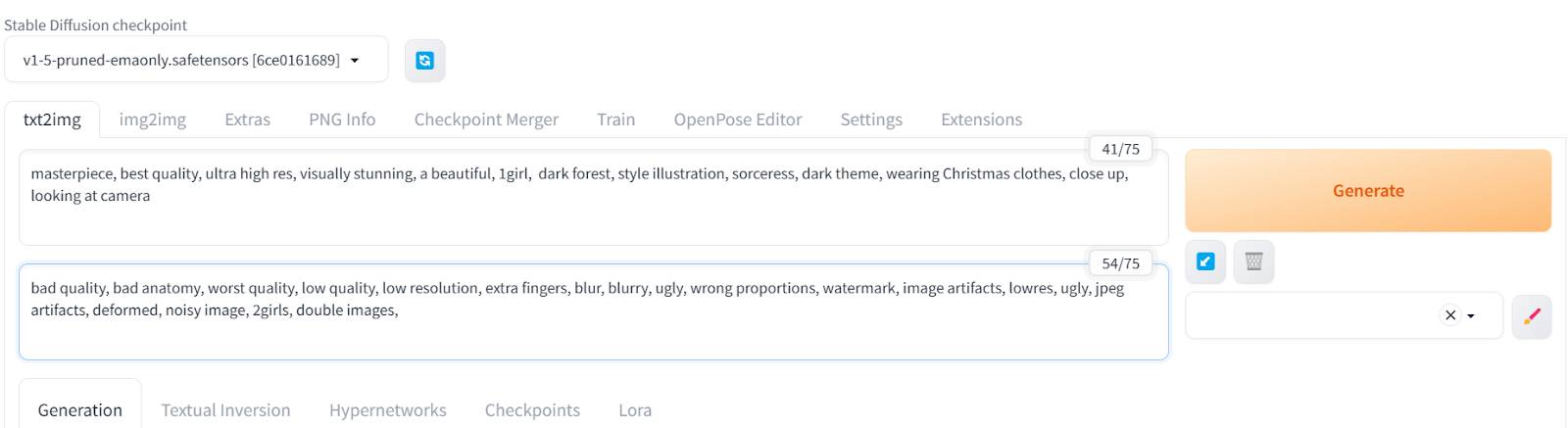
The txt2img tab creates a new image from a text description. Start with a simple prompt that identifies the subject, composition, environment, lighting, and visual medium. Add a negative prompt only for recurring unwanted qualities; an extremely long list is not automatically better.
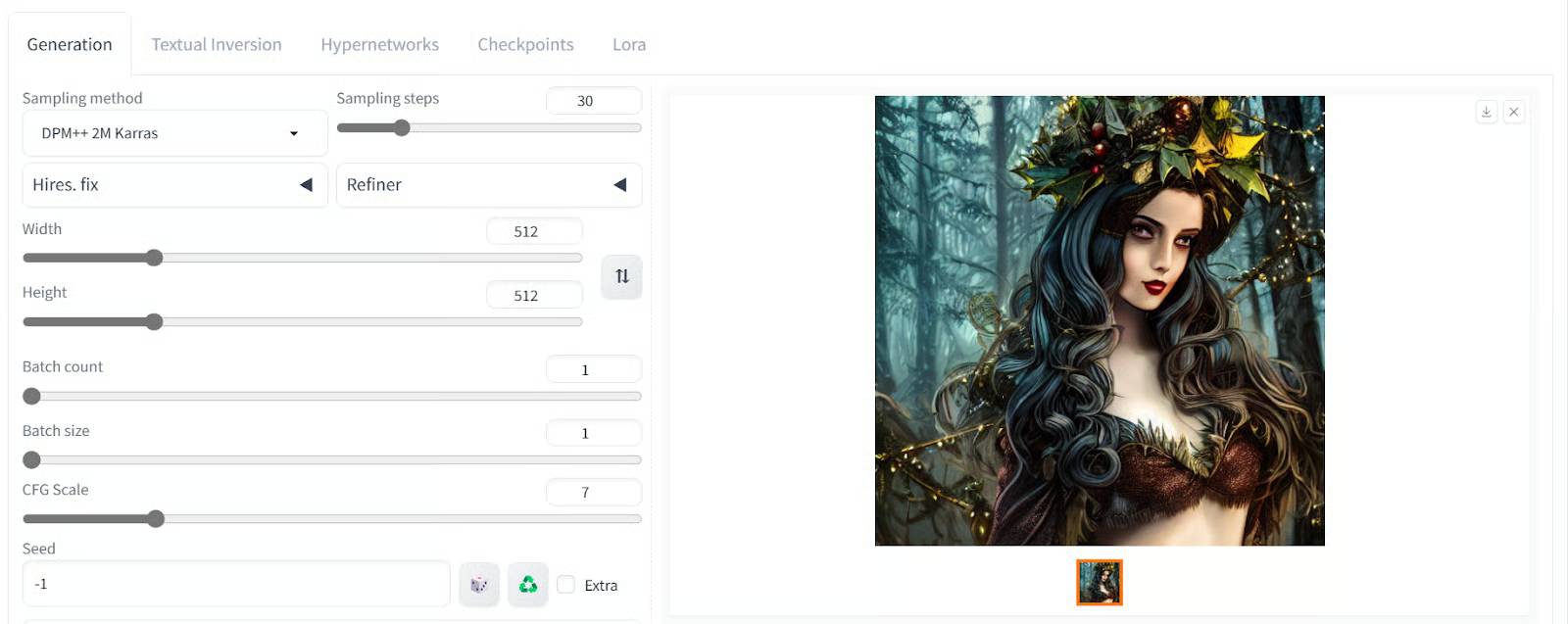
Settings that matter
- Sampling method: controls the numerical process used to generate the image; recommended ranges depend on model and sampler.
- Sampling steps: more steps can help up to a point, but do not guarantee more detail and take longer.
- Width and height: use dimensions suited to the model; very large initial sizes can exhaust GPU memory or distort composition.
- CFG scale: affects how strongly the output follows the text prompt; extremes can reduce quality.
- Seed: records the starting noise. Reusing the same seed and settings helps reproduce or compare a result, though software changes may affect exact output.
- Batch count and size: create variations; batch size has a larger effect on simultaneous memory use.
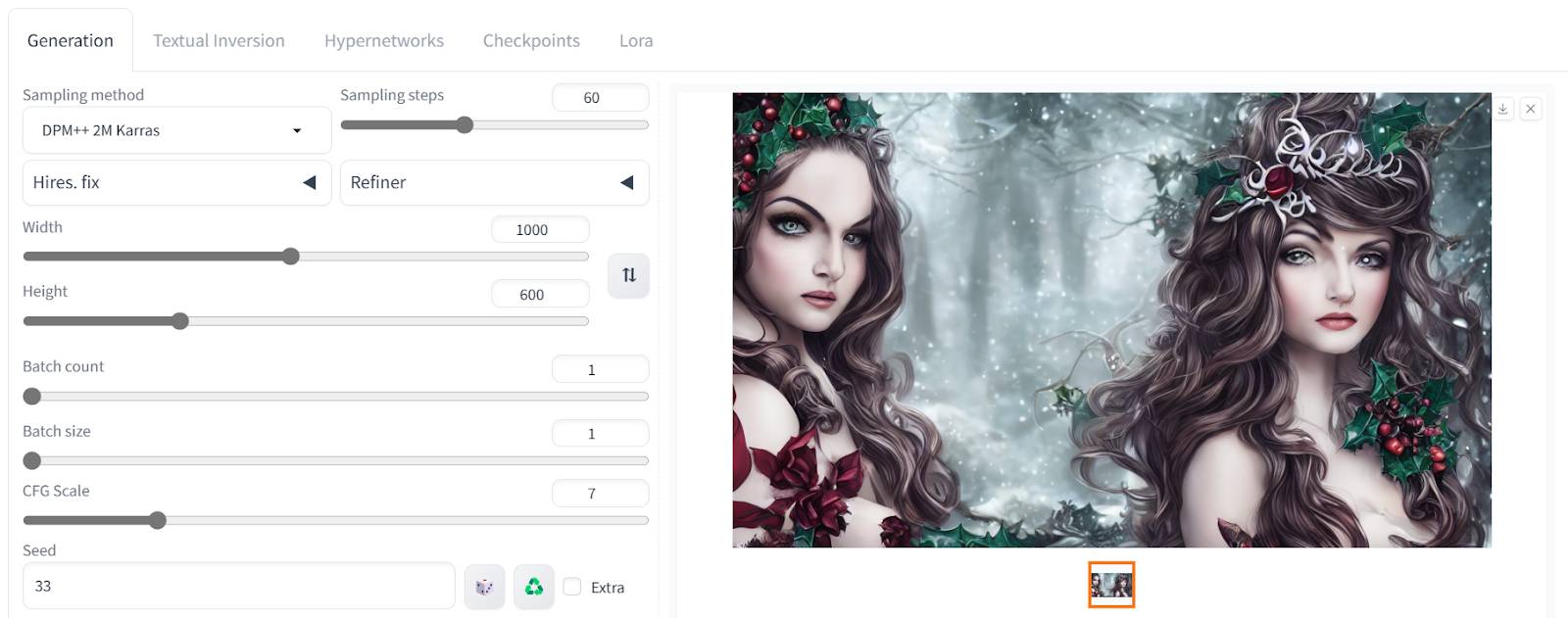

Save the prompt, negative prompt, model, seed, sampler, steps, image size, and any additional model components needed to reproduce useful work.
Transform an image with img2img
The img2img tab uses an input image as part of the generation process. The denoising strength controls how far the output may depart from that input: a lower value generally preserves more structure, while a higher value permits larger changes.
Use an image you have permission to modify. State the desired change in the prompt and compare several controlled values rather than changing many settings at once.


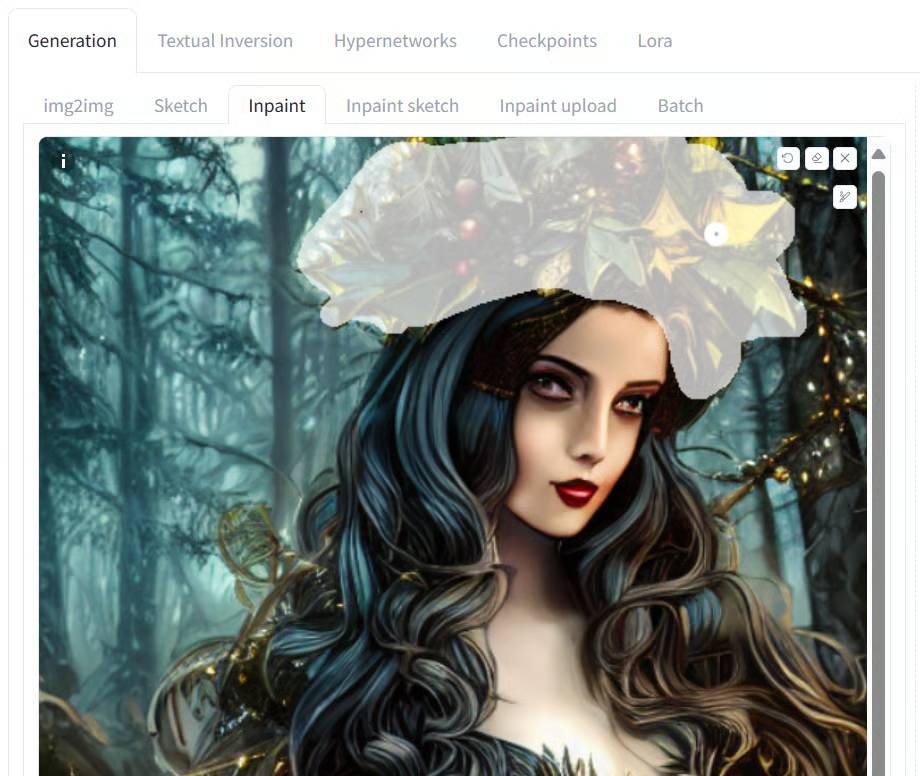
Edit a selected region with inpainting
Inpainting regenerates a masked portion while using the prompt and surrounding image as context. Paint the mask over the part to change, add a little margin when blending is difficult, and specify whether the mask or unmasked region should be processed.

If the result affects too much of the image, reduce denoising strength, tighten the mask, or choose settings that preserve the unmasked content. Save a copy of the source before editing.
Upscale in the Extras tab
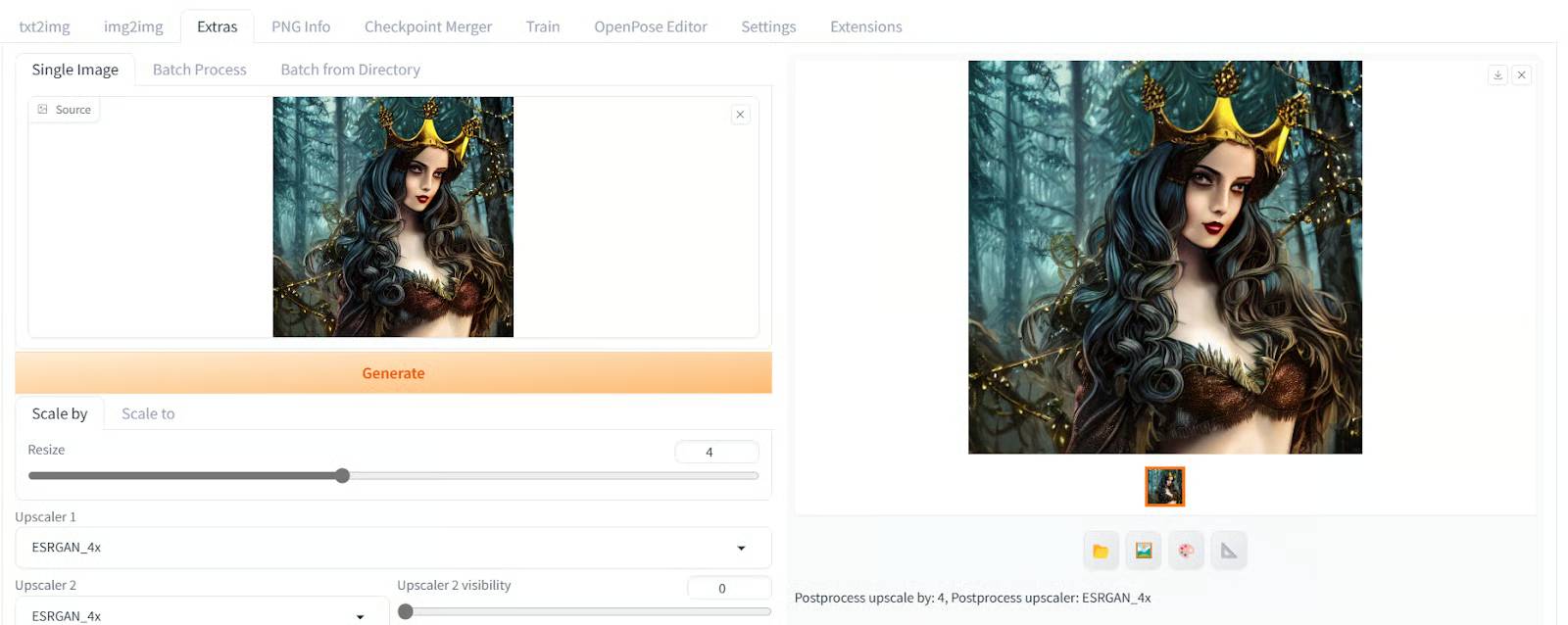
The Extras tab can resize an image using an available upscaler. Choose an algorithm and scale factor appropriate to the artwork and available memory.
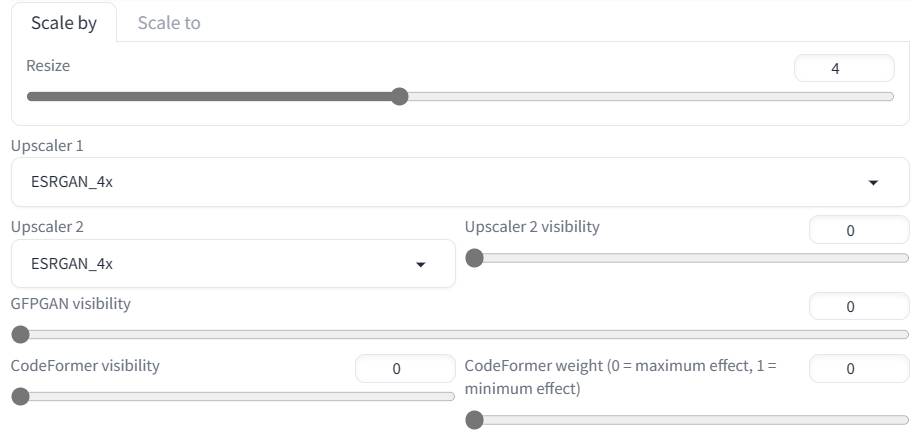
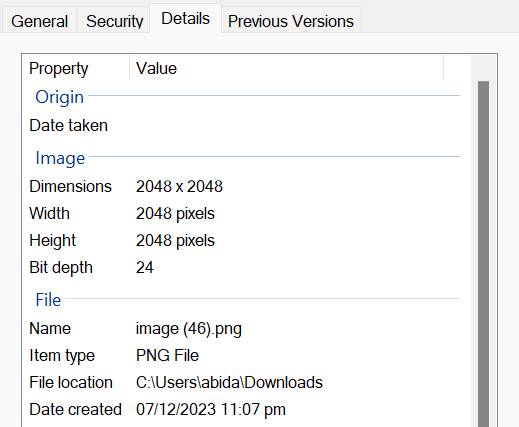
Upscaling creates additional pixels but cannot guarantee recovery of real detail that was absent from the source. Inspect faces, text, edges, repeated patterns, and textures at full size after processing.
Read generation settings with PNG Info
The PNG Info tab can display generation metadata saved in a compatible PNG file. It may include prompt and settings, depending on how the image was generated and whether another application stripped metadata.
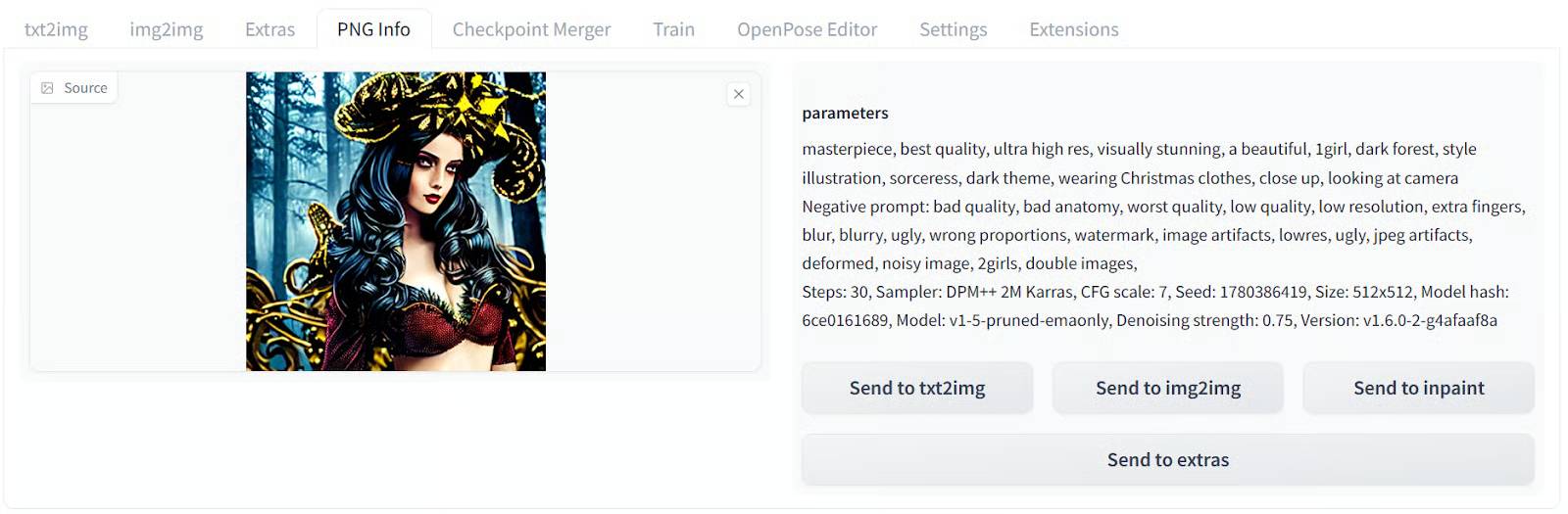
Metadata can expose prompts, model names, local workflow details, or other information. Review it before sharing a file publicly, and do not assume that removing visible information removes every embedded field.
Common installation problems
| Problem | What to check |
|---|---|
| Python or package error | Use the project's supported Python version and a clean environment |
| Out-of-memory error | Reduce image dimensions or batch size and review supported low-memory options |
| Very slow generation | Confirm that the intended hardware backend is active and that the model fits available memory |
| Model does not appear | Check the folder, file completion, architecture compatibility, and refresh or restart |
| Interface is unreachable | Confirm the launcher is still running and use the local address printed in its terminal |
| Failure after an update | Temporarily disable extensions and compare versions with current release notes |
Stable Diffusion Web UI offers substantial control, but that flexibility requires careful installation and maintenance. Begin with a trusted model and default settings, change one variable at a time, and keep the interface and its extensions private unless you have deliberately secured remote access.
Related Articles
 The Best Methods for Creating Free AI Images with Stable Diffusion14 minutes read
 Stable Diffusion - the Most Professional AI Drawing4 minutes read
 Krita AI Diffusion Plugin: Krita's Free AI Integration Makes Adobe Firefly8 minutes read
 7 Best AI Software Programs That Can Be Installed on Windows5 minutes read
 Google DiffusionGemma Explained: Architecture and Usage10 minutes read
 Consistency in AI: the Secret to Professional Content Production In 202617 minutes read
Reader Comments 0
Sign in with email or Google to join the discussion.