Table of Contents
You can create AI images on your own computer with a free Stable Diffusion interface. AUTOMATIC1111 offers a familiar panel of controls, Fooocus emphasizes a simpler prompt-first experience, and ComfyUI uses reusable node-based workflows. The best choice depends on how much control you want and how comfortable you are with setup.
Local generation avoids per-image cloud credits, but it is not cost-free: models take substantial disk space, generation speed depends on your hardware, and first-time setup usually downloads software and model files. Check the license of every model and generated asset before commercial use.
Which interface should you choose?
| Interface | Best for | Main trade-off |
|---|---|---|
| AUTOMATIC1111 | Users who want conventional controls, extensions, img2img, and inpainting | Many settings and extensions can make troubleshooting harder |
| Fooocus | Beginners who want useful defaults and less manual tuning | Less transparent control than a full node workflow |
| ComfyUI | Advanced, repeatable workflows and precise control over each processing stage | The node graph takes longer to learn |
If your computer is not suited to local generation, compare these free alternatives to Midjourney before installing a desktop interface.
Before downloading anything
- Use each project's official repository or website. Avoid repackaged installers from download sites.
- Check the project's current hardware and operating-system notes; support changes as the software and GPU libraries evolve.
- Prefer model files in
.safetensorsformat from a source you trust. Do not run scripts bundled with an unfamiliar model. - Keep models, extensions, and custom nodes separate from personal documents, and back up workflows or prompts you want to reuse.
- Remember that optional extensions can send data to online services even when the base interface runs locally.
1. AUTOMATIC1111: a control-rich web interface
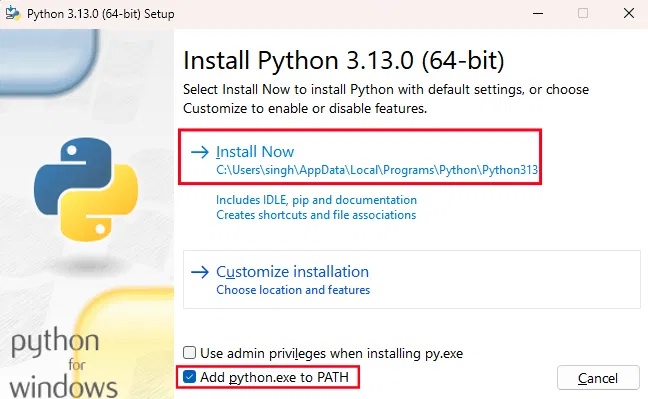
Start with the official AUTOMATIC1111 repository and follow the installation instructions for your operating system. On Windows, the official workflow uses Git, a supported Python version, and webui-user.bat. Run the launcher as a normal user rather than as administrator. macOS and Linux use a shell-based setup with different prerequisites.
Add a compatible model
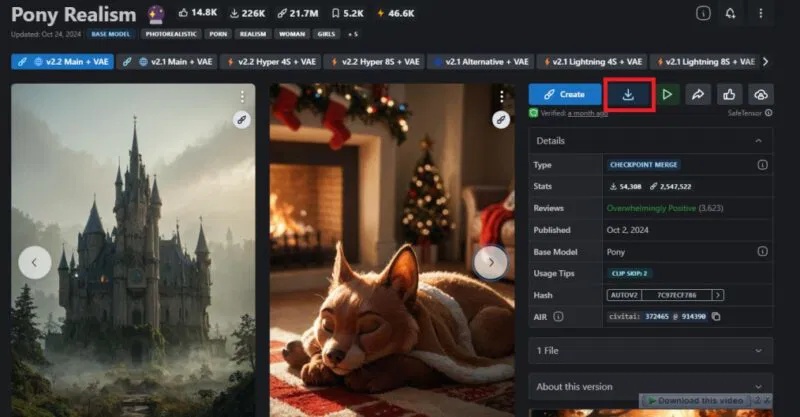
A checkpoint contains the learned weights used to generate images. Confirm that the checkpoint is compatible with the workflow and supporting files you plan to use. In a standard AUTOMATIC1111 installation, checkpoints are placed in models/Stable-diffusion; restart the interface or refresh its model list after adding one.
Launch the interface and make a first image
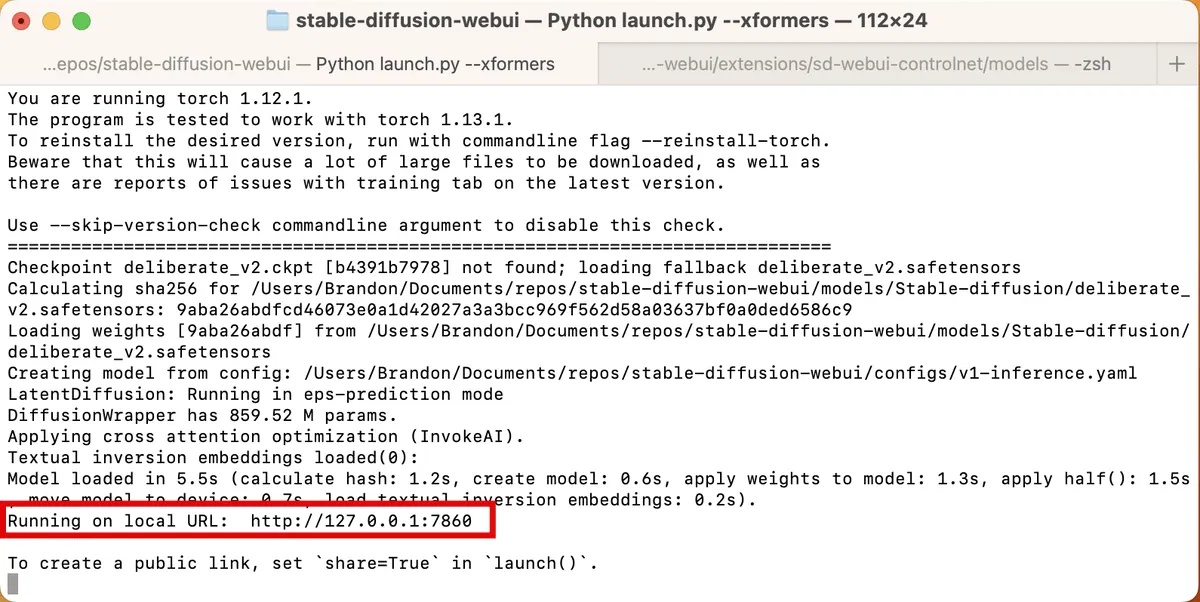
Run the launcher provided for your operating system. When startup finishes, open the local address shown in the terminal, commonly an address on 127.0.0.1. A local address is available only on your computer unless you deliberately enable sharing or remote access.
In txt2img, select the checkpoint and start with a moderate image size and a batch size of one. Larger dimensions and batches use more graphics memory. Increase them only after a basic generation succeeds.
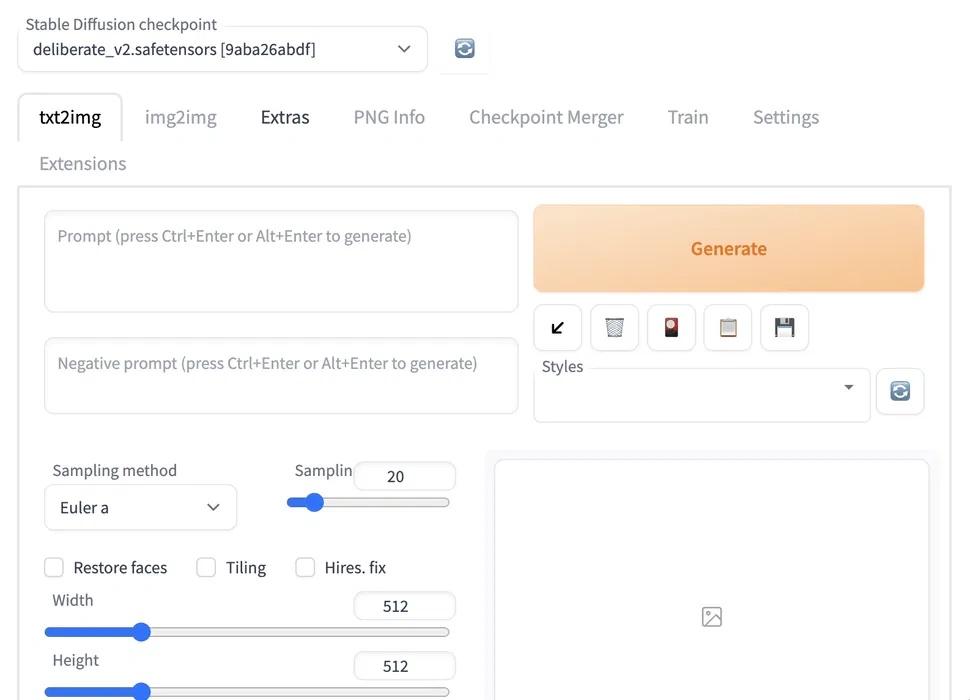
Write a prompt that identifies the subject, setting, composition, lighting, and visual treatment. Put genuinely unwanted characteristics in the negative prompt when the selected model responds to one. Studying examples in this guide to finding AI image prompts with Lexica can help you see how prompt details affect a result.
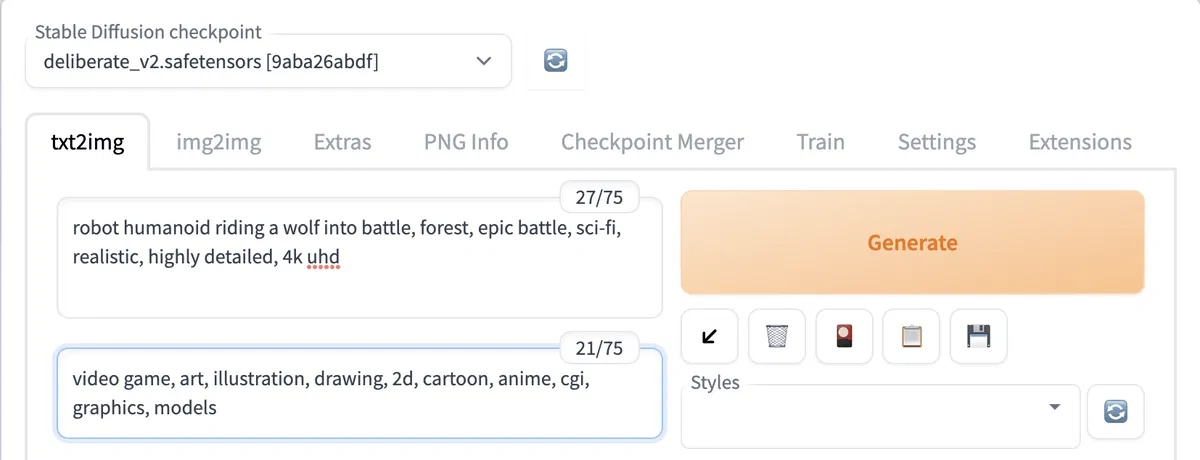
Generate one image, evaluate it, and change one variable at a time. CFG scale affects how strongly generation follows the text conditioning, but a higher number is not automatically better. Useful values vary by model, sampler, and workflow.
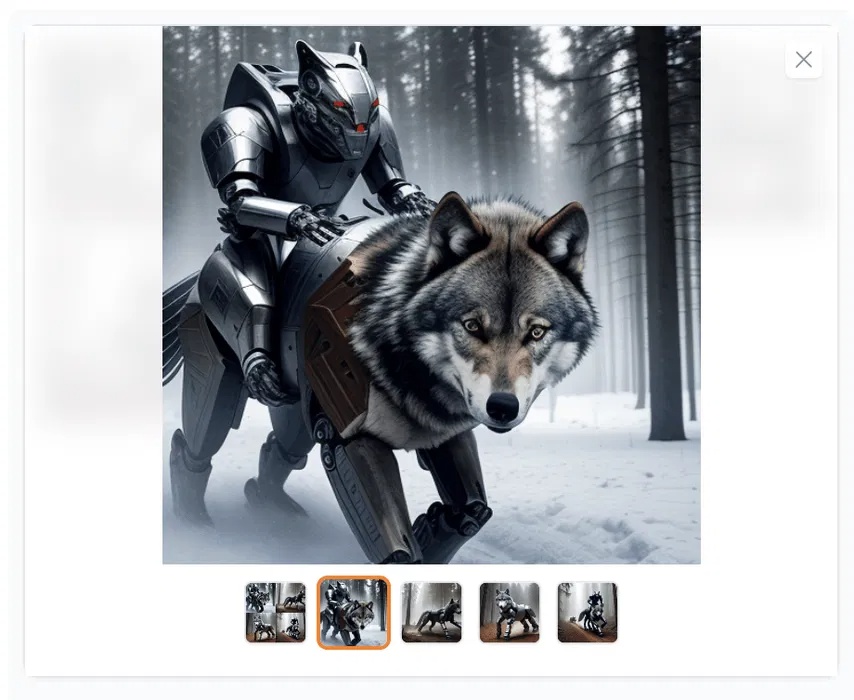
Use img2img to create a variation from an existing image and Inpaint to regenerate a masked area. Save the seed and generation settings with any result you may want to reproduce.
2. Fooocus: a simpler prompt-first workflow
Fooocus reduces the number of settings a beginner must choose. Download it only from the official Fooocus repository and follow the current platform instructions. The Windows package includes a launcher; the first run may download required model data and can therefore take much longer than later starts.
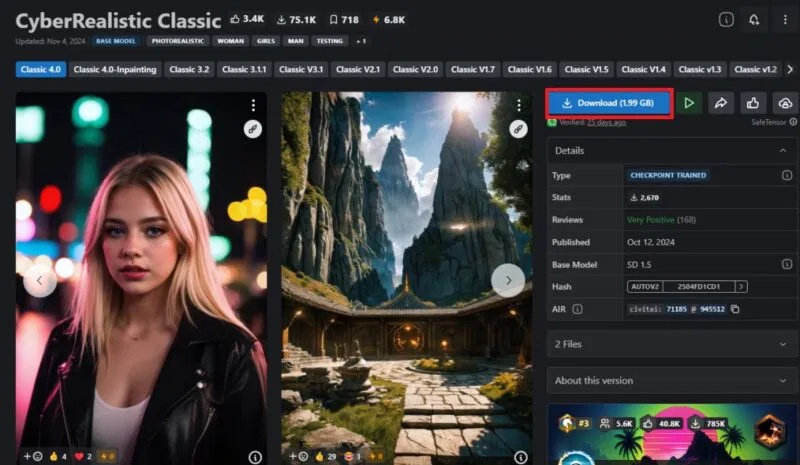
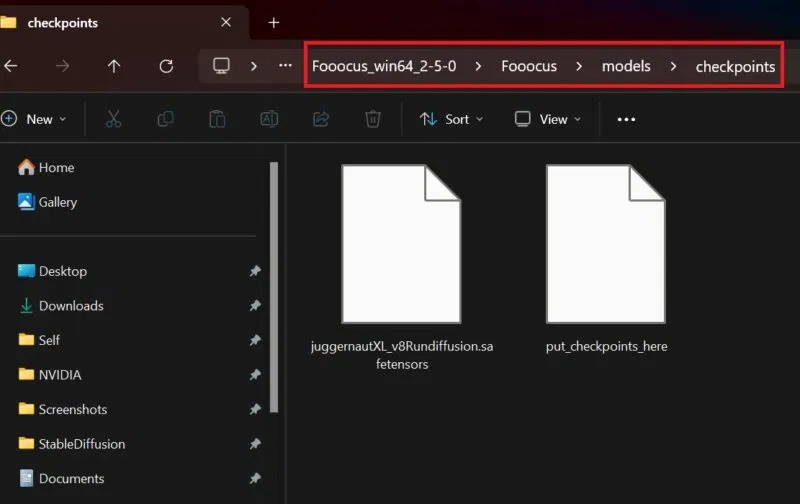
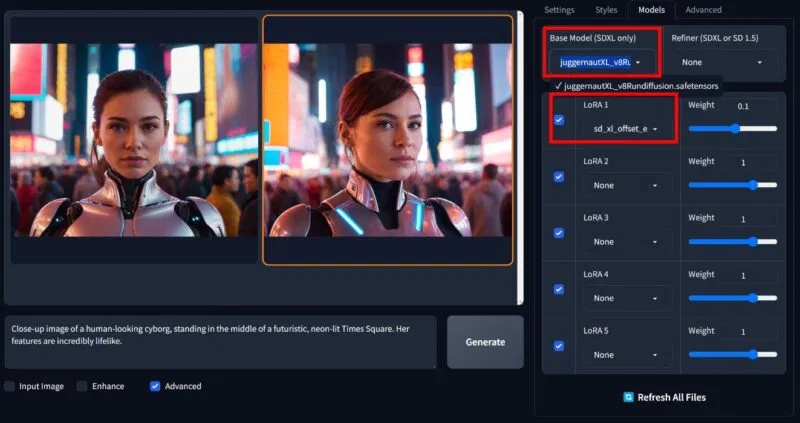
Fooocus can use additional compatible checkpoints. Place an optional checkpoint in its documented models/checkpoints folder, then restart or refresh the interface so the file appears. Do not assume that a checkpoint made for one model family will work with another.
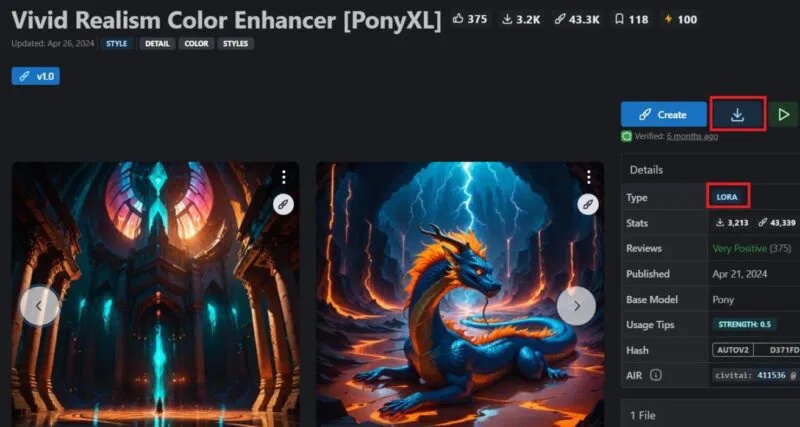
A LoRA is a smaller set of adaptation weights used with a compatible base model. It can influence a subject, style, costume, or other concept without replacing the whole checkpoint. Put trusted LoRA files in the documented models/loras folder and check which base model and trigger words the creator specifies.
Create and refine an image in Fooocus
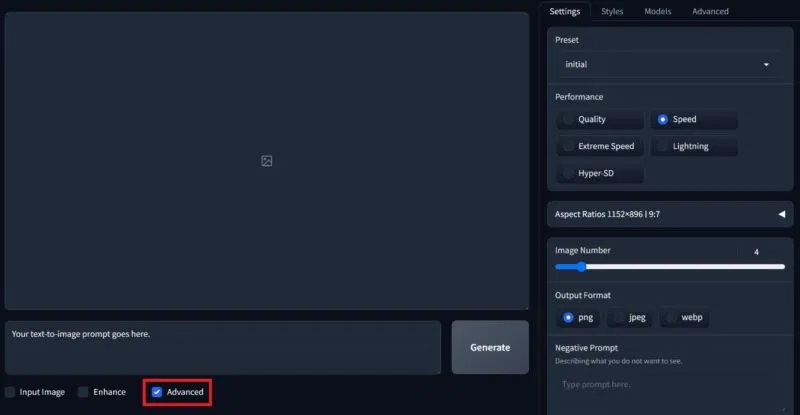
Start Fooocus with the launcher for your installation. Enter a clear prompt and generate with the default settings first. Open Advanced only when you need to change the aspect ratio, performance preset, output count, style, checkpoint, or LoRA.
For edits, use the available input-image, variation, inpaint, or outpaint controls rather than repeatedly rewriting the entire prompt. Interface labels can differ between releases, so treat the screenshots as orientation rather than an exact version contract.
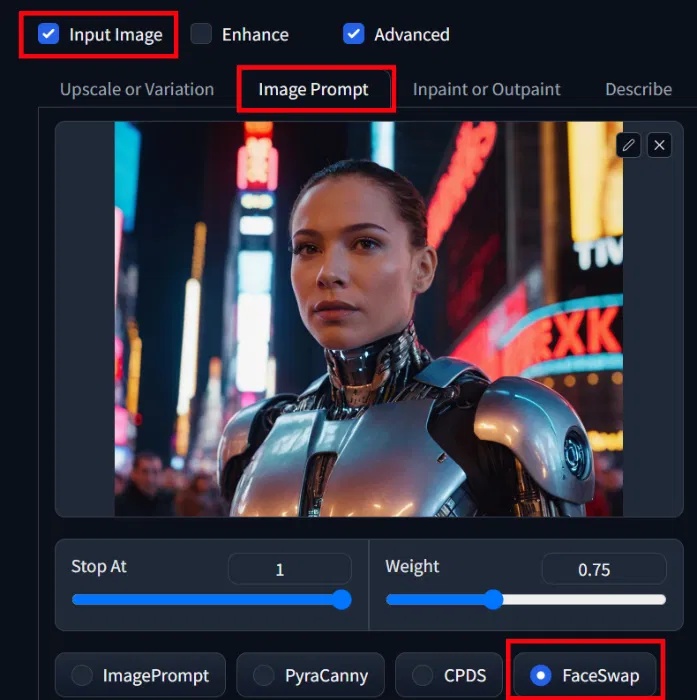
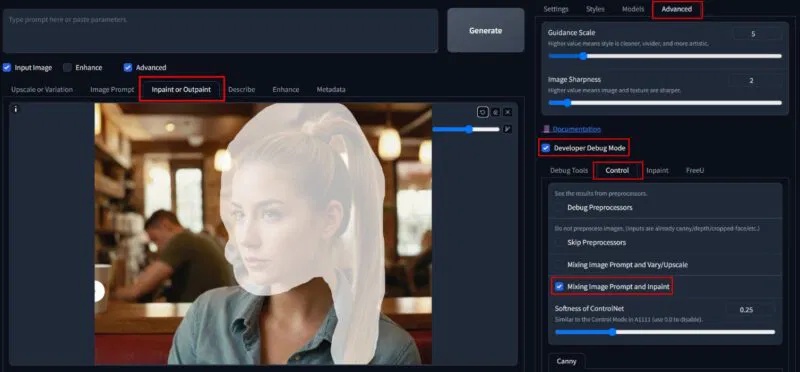
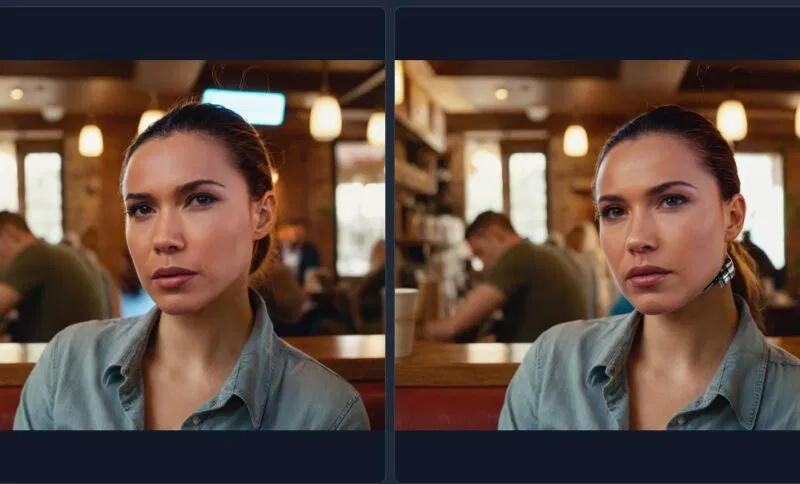
Use reference photos only when you have permission, especially for face-related edits. Do not create deceptive identity swaps or intimate imagery without consent.
3. ComfyUI: reusable node-based workflows
ComfyUI represents each generation stage as a node and saves the connections as a workflow. For the simplest supported setup, use the current desktop or installation route linked from the official ComfyUI repository. Portable and manual installations remain useful when you need control over Python and GPU dependencies.
After installation, place compatible checkpoints and LoRAs in the corresponding model folders, or configure shared model paths according to the official documentation. Update ComfyUI carefully and keep a copy of important workflows before changing custom nodes.
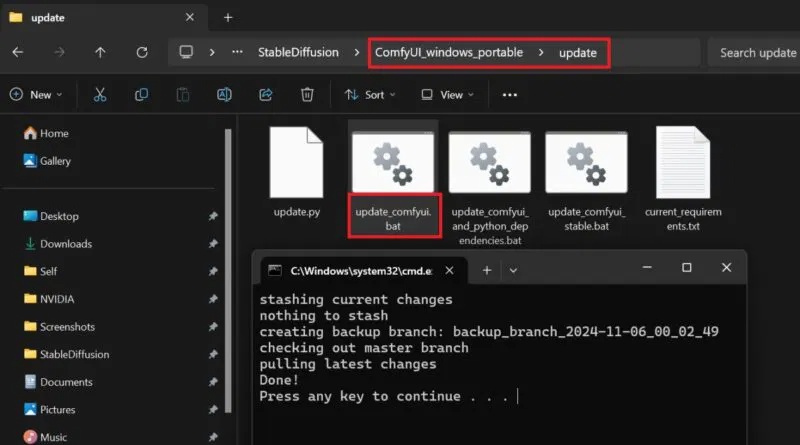
Launch the build intended for your hardware. CPU generation may work for some workflows but is generally much slower than a supported GPU. A startup error about CUDA, DirectML, MPS, or another accelerator usually requires platform-specific dependency guidance rather than a random driver or Python reinstall.
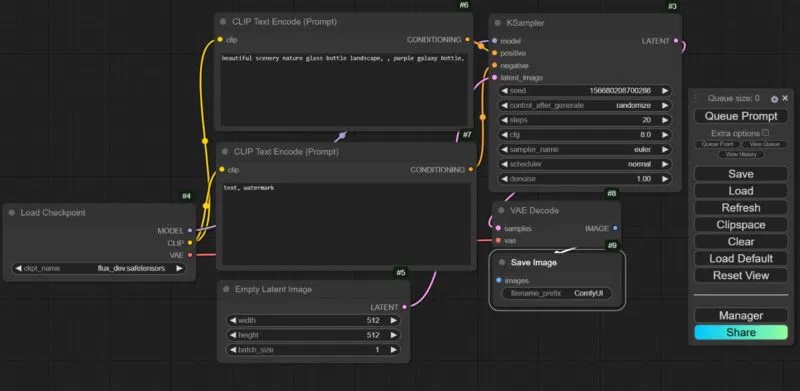
Understand the default workflow
- Load Checkpoint selects the base model and provides model, text-encoder, and VAE components.
- CLIP Text Encode nodes convert positive and negative prompts into conditioning.
- Empty Latent Image defines the starting dimensions and batch count.
- KSampler applies the selected sampler, steps, CFG value, seed, and denoising settings.
- VAE Decode turns the sampled latent into an image, and Save Image writes the result.
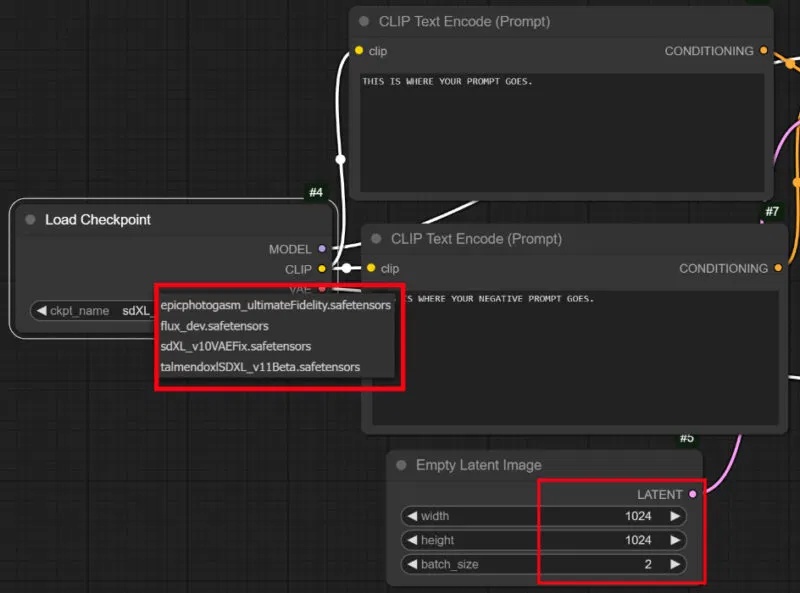
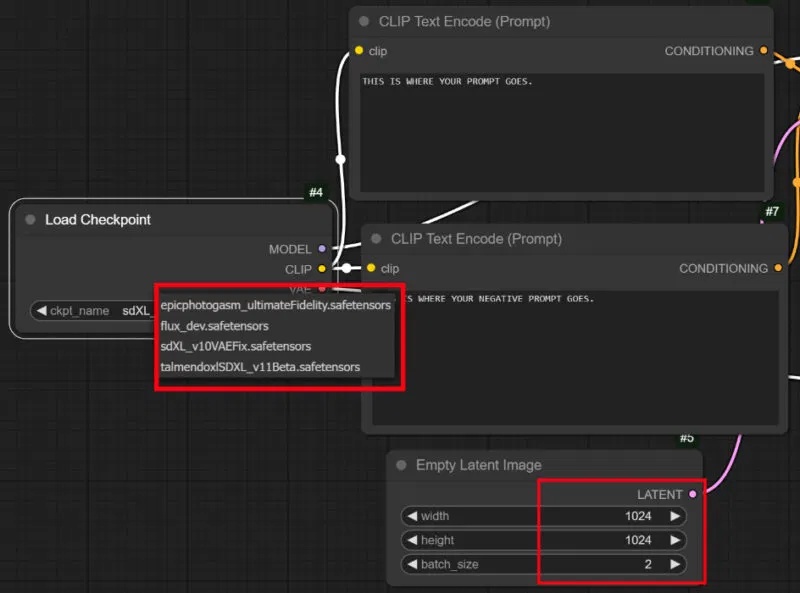
Choose a checkpoint, enter the prompts, verify the dimensions, and select Queue Prompt. Begin with the values supplied by a known-compatible workflow. There is no universal step count or CFG setting that is best for every model.
Add a LoRA without breaking the graph
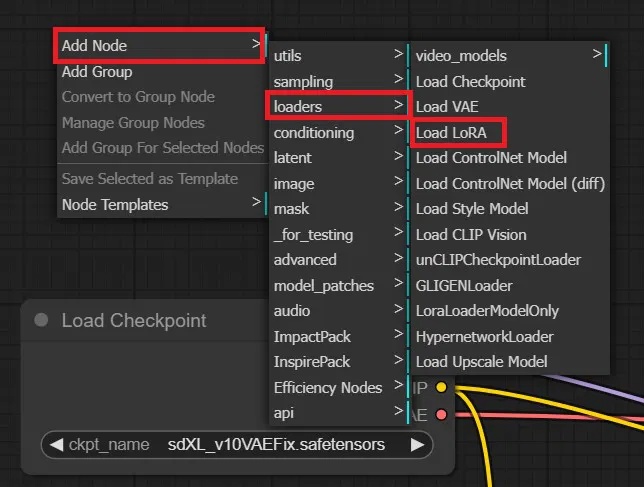
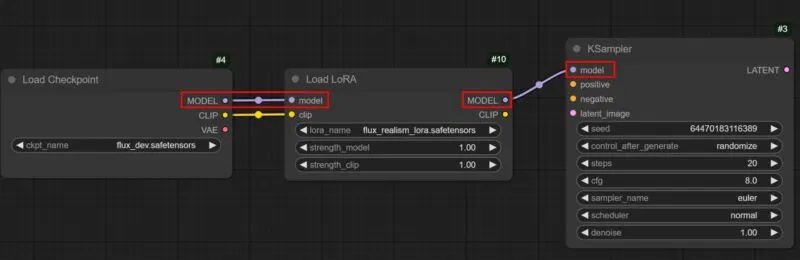
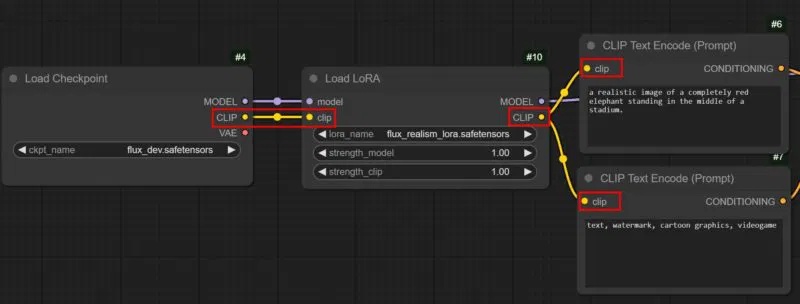
Add a Load LoRA node and select a LoRA compatible with the checkpoint. Route both the model and text-encoder paths through that node before they reach the sampler and prompt-encoding nodes. Adjust strength conservatively, then compare the output with the same seed.
A practical first-generation checklist
- Install one interface from its official source.
- Add one known-compatible checkpoint and avoid extensions at first.
- Generate one modest-size image with default settings.
- Save the prompt, seed, model name, and workflow or generation metadata.
- Change one setting at a time so you can identify what improved or broke the result.
If the final image is simply too small, compare the options in this guide to AI image upscalers. Upscaling can improve presentation, but it cannot reliably recover text or factual details that were never present in the original image.
Related Articles
 Stable Diffusion Web UI: What You Need to Know9 minutes read
 Stable Diffusion - the Most Professional AI Drawing4 minutes read
 Krita AI Diffusion Plugin: Krita's Free AI Integration Makes Adobe Firefly8 minutes read
 PixAI - the Ultimate AI Anime Creator5 minutes read
 How to Create GIF Images on Viber2 minutes read
 10 Free Calling Apps on Your Phone: Free Calling App5 minutes read
Reader Comments 0
Sign in with email or Google to join the discussion.