Table of Contents
To copy text from a PDF into Word, first check whether the PDF contains selectable text and whether its security settings allow copying. If the page is only a scanned image, you need optical character recognition (OCR) rather than ordinary copy and paste.
Check whether the PDF allows copying
PDF authors can restrict copying and editing. Respect those controls and the document's copyright or confidentiality requirements.
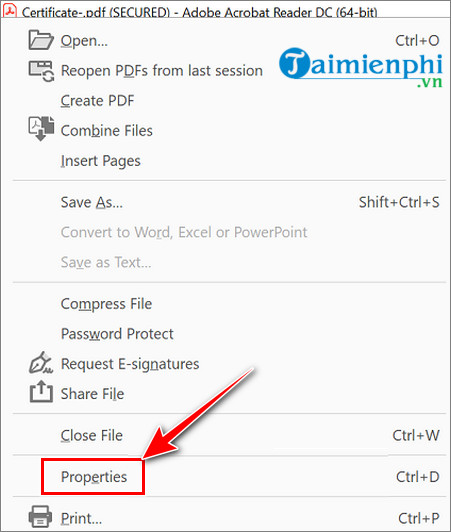
- Open the PDF in Adobe Acrobat Reader.
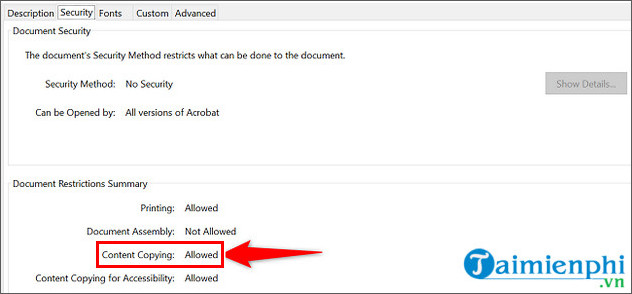
- Select File > Properties, or press Ctrl+D.
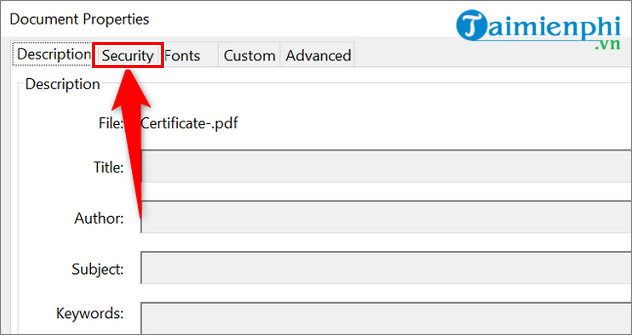
- Open the Security tab.
- Read the Content Copying value in Document Restrictions Summary.
If it says Not Allowed, do not try to defeat the restriction. Ask the owner for permission or an accessible, editable copy.
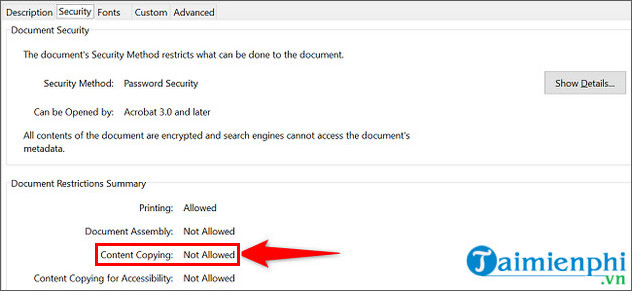
If it says Allowed, you can select and copy text normally.
Copy selectable text from the PDF
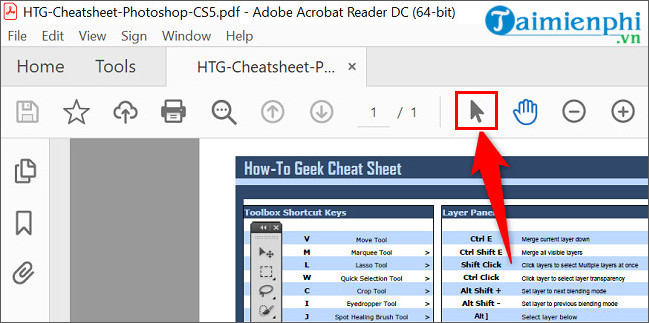
- Choose the text-selection tool in Acrobat Reader.
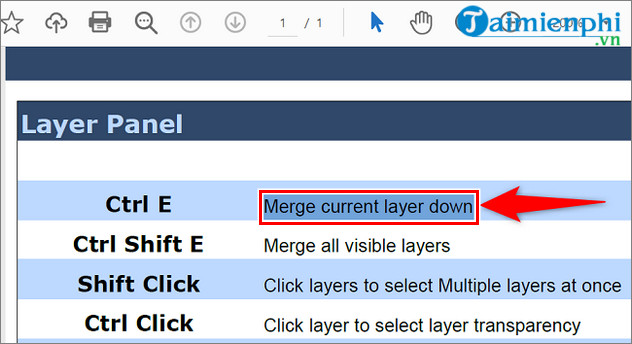
- Drag across the exact text you need. For a long passage, select and paste one logical section at a time so reading order is easier to verify.
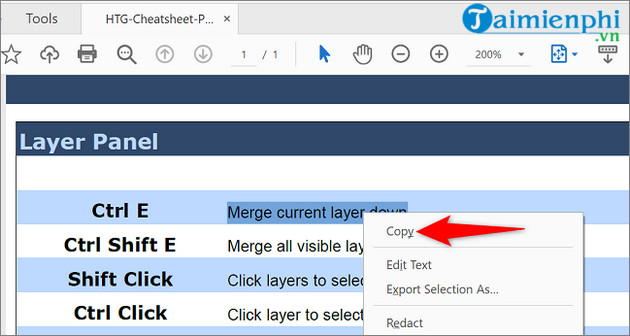
- Right-click the selection and choose Copy, or press Ctrl+C.
- In Word, use Home > Paste and choose the paste option that matches your goal:
- Keep Source Formatting tries to preserve the PDF's appearance.
- Merge Formatting adapts the text to the destination paragraph.
- Keep Text Only removes most PDF formatting and is often the cleanest choice.
Why copied text may appear in the wrong order
A PDF stores positioned objects, not necessarily a simple stream of paragraphs. Multi-column pages, text boxes, tables, headers, and footnotes can be copied in an unexpected sequence. Copy smaller sections, then compare the result with the original page.
Use a table in Word for tabular data instead of aligning columns with repeated spaces. Recreate headings with Word styles so the document remains navigable.
Copy text from a scanned PDF
If you cannot highlight individual words and the whole page behaves like one picture, the PDF is probably a scan. For a document you own or are authorized to process:
- Open it in an OCR-capable PDF application.
- Select the document's language or languages.
- Run OCR to create a searchable text layer.
- Copy the recognized text or export it to DOCX.
- Proofread names, numbers, punctuation, and accented characters against the scan.
OCR can misread blurred pages, handwriting, columns, and decorative typefaces. TipsMake's PDFgear overview describes one desktop tool with OCR support.
Convert an entire PDF to Word
If copying section by section is inefficient and conversion is permitted, open the PDF in a recent desktop version of Word or use an authorized PDF-to-DOCX converter. Conversion can preserve more structure, but it may also create many text boxes and page breaks.
TipsMake's PDF-to-DOCX conversion guide shows one workflow. Do not upload private documents to an online converter unless its handling practices meet your requirements.
Fix fonts and formatting after pasting
- Use Keep Text Only when the PDF formatting is more trouble than it is worth.
- Replace hard line breaks that split every visual line into a separate paragraph.
- Apply Word styles to headings instead of manually enlarging each one.
- Check special characters and accented text. If recurring characters are wrong, see how to fix font errors after copying from PDF to Word.
- Compare quotations and numerical data with the PDF before using them.
When copying is not the right approach
Request the original Word file when layout, tracked changes, form fields, accessibility, or exact citations matter. Copy and paste is best for a short authorized passage; full-document conversion or the source file is usually better for extensive editing.
Related Articles
 How to Copy and Paste the Contents of a PDF File into a New File: Clear9 minutes read
 How to Copy PowerPoint File Content to Word File4 minutes read
 How to Copy a Whole Page in Word3 minutes read
 How to Transfer Word Content to PowerPoint: Copy Word to PowerPoint5 minutes read
 How to Use PDF Anti-Copy to Protect PDF Files: PDF Anti Copy5 minutes read
 How to Copy from ChatGPT to Word Without Formatting Errors5 minutes read
Reader Comments 0
Sign in with email or Google to join the discussion.