Table of Contents
You can convert a PDF to an editable Word document with Microsoft Word, Adobe Acrobat, or a dedicated PDF converter. No method reproduces every PDF perfectly: tables, columns, embedded fonts, forms, and scanned pages usually need extra review.
Before choosing a converter
- Text-based PDF: you can select words in the PDF. Word or a standard converter can usually extract the content.
- Scanned PDF: each page is an image. Use software with optical character recognition (OCR).
- Confidential PDF: prefer an approved desktop tool. An online or account-based service may upload the file for processing.
- Complex layout: expect to repair columns, tables, headers, footnotes, and page breaks after conversion.
Save an untouched copy of the PDF and compare the finished DOCX against it before relying on the converted text.
Method 1: Open the PDF in Microsoft Word
Recent desktop versions of Word can convert many text-based PDFs without separate software:
- Open Word and select File > Open.
- Select the PDF.
- Confirm that Word may convert the PDF to an editable document.
- Review the result, then select File > Save As and save it as Word Document (.docx).
This method is convenient for mostly textual documents. It is less suitable for forms, heavily designed pages, or scans that require OCR.
Method 2: Use Adobe Acrobat's Export PDF tool
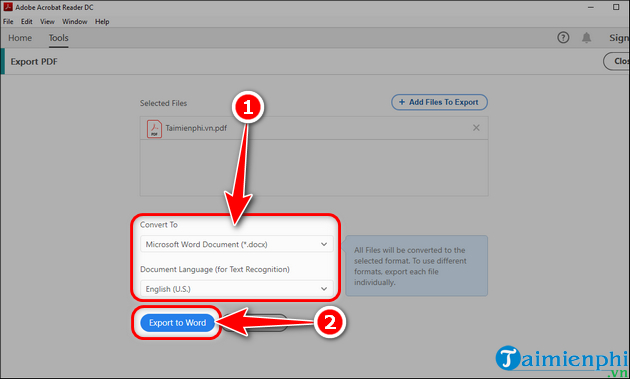
In Acrobat or Acrobat Reader, open All tools or Tools and select Export a PDF. The available export features, account requirements, and subscription terms depend on the Adobe product and plan installed on your computer.
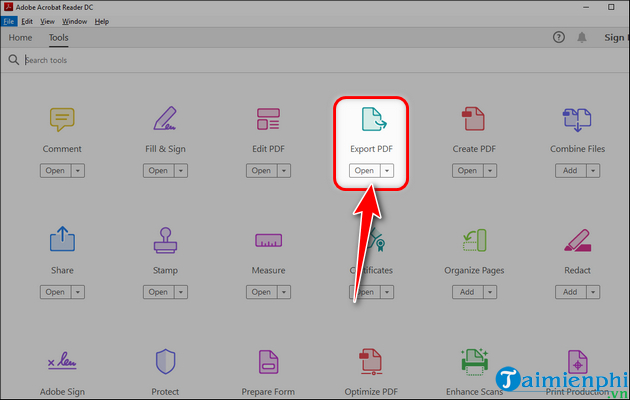
- Select the PDF to export.
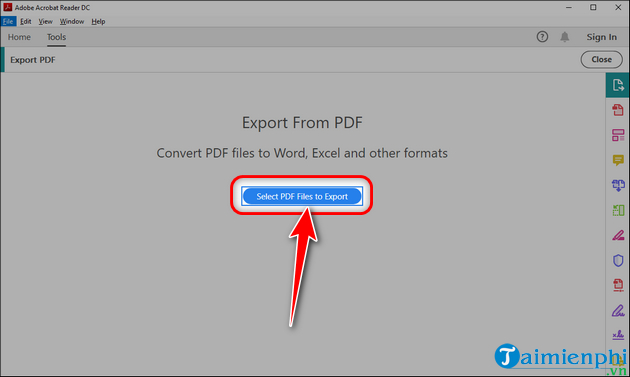
- Confirm the source file.
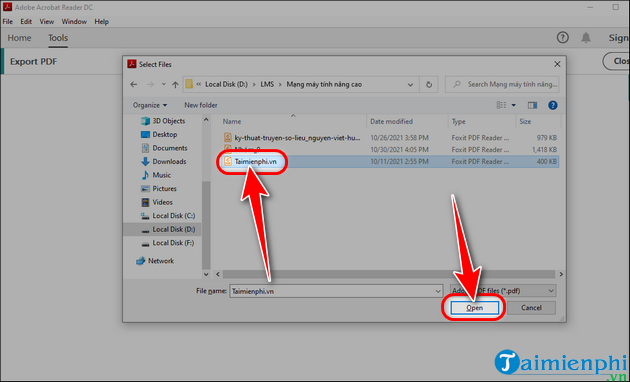
- Choose Microsoft Word and the DOCX format.
- Select the correct document language, especially when OCR is needed.
- Start the export, save the Word file, and proofread it.
If the PDF contains private data, check whether your Acrobat workflow processes the file locally or sends it to an online service.
Method 3: Use Solid Converter PDF
The following screenshots show a legacy Solid Converter PDF workflow. The current interface and licensing may differ, so obtain the installer only from the developer's verified site and scan it before installation.
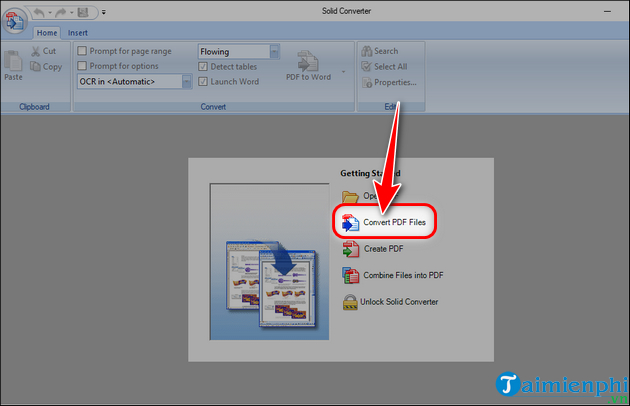
- Open Solid Converter PDF and select Convert PDF Files.
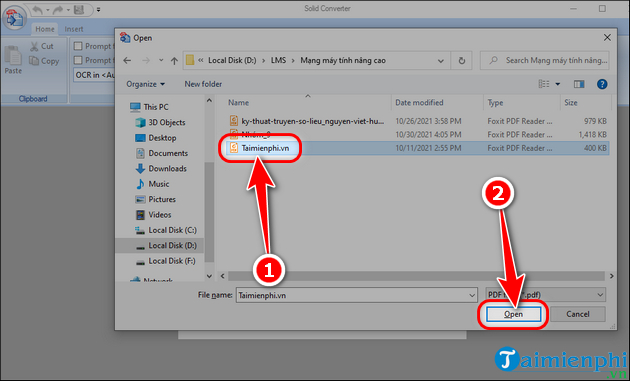
- Select the source PDF and choose Open.
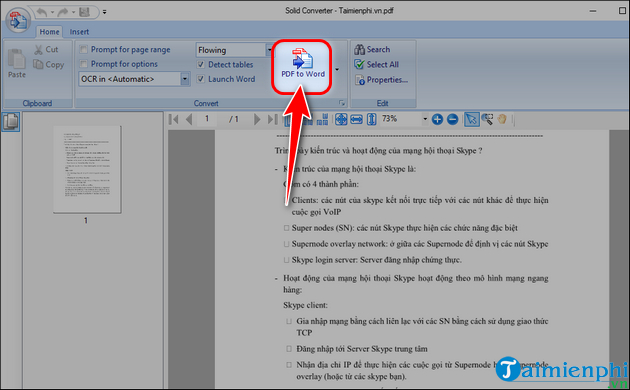
- Select PDF to Word.
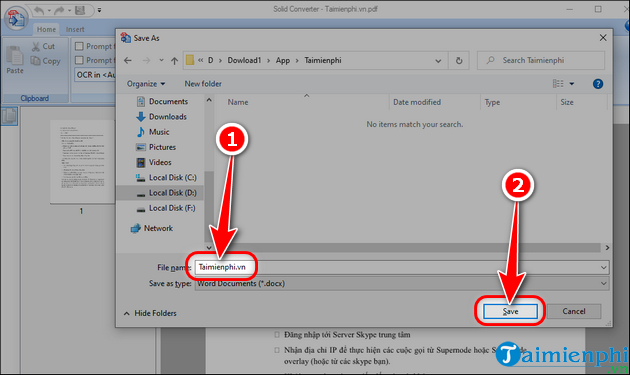
- Choose a destination folder and filename.
- Start the conversion, then open and inspect the DOCX file.
Method 4: Use another desktop PDF-to-Word converter
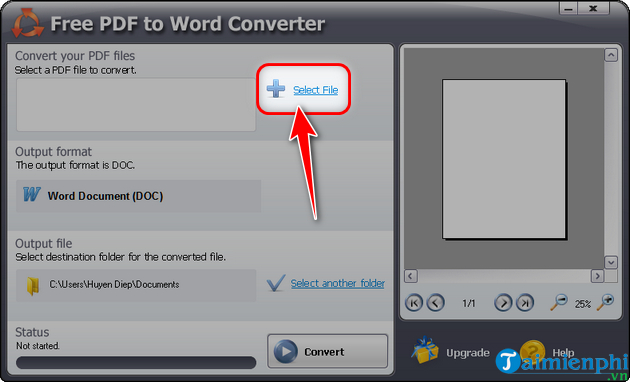
Many third-party utilities follow the same sequence: select a file, choose DOCX, choose an output folder, and convert. The screenshots below illustrate one older “Free PDF to Word Converter” interface; they are not a recommendation to download an unidentified installer.
- Launch the trusted converter and choose Select File.
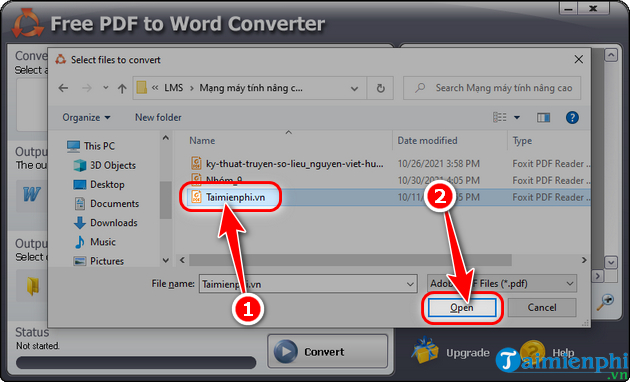
- Select the PDF.
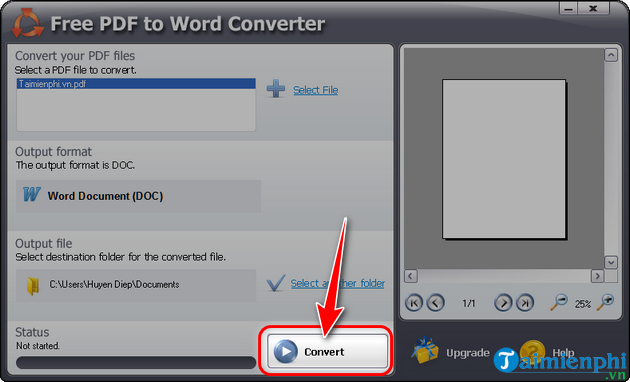
- Choose the Word format and output folder, then start conversion.
Before installing any converter, verify its publisher, license, privacy policy, update history, and whether it bundles other software. TipsMake's PDFgear overview describes a current desktop option with conversion and OCR features.
Convert a scanned PDF with OCR
- Open the scan in software that supports OCR.
- Select the correct recognition language or languages.
- Run OCR, then export the recognized text to DOCX.
- Compare names, numbers, punctuation, and accented characters with the scan.
OCR accuracy depends on scan quality, orientation, resolution, handwriting, columns, and fonts. A successful export is not proof that every character is correct.
Fix common conversion problems
- Garbled characters: install the licensed source font if available, or correct the document's character encoding. See how to fix font errors after copying PDF text to Word.
- Text cannot be edited: the PDF is probably a scan; run OCR.
- Tables or columns move: try a layout-preserving export option, then rebuild only the damaged sections in Word.
- File will not convert: check for a password, permissions, corruption, or an incomplete download.
- Large image-heavy PDF: split a copy into smaller sections if the tool has trouble processing it.
For additional checks, see TipsMake's guide to avoiding font errors in PDF-to-Word conversion.
Quality check after conversion
- Verify the page order and all headings.
- Compare names, dates, amounts, formulas, and citations with the PDF.
- Inspect tables, lists, images, footnotes, headers, and page breaks.
- Run Word's spelling check, but do not accept changes without comparing the source.
- Confirm that any required accessibility structure or form behavior survived the conversion.
Paid software is not automatically more accurate than free software. Test the same representative pages with two suitable tools and choose the result that requires the least correction while meeting your privacy and licensing requirements.
Related Articles
 5 Best Video Conversion Software Available Today7 minutes read
 Professional PDF File Conversion Software for Word7 minutes read
 Useful Word Tips You Should Not Miss8 minutes read
 How to Use Large File Fileshifter. Io Convert4 minutes read
 Tips to Convert Units in Word Extremely Quickly Without Installing the Application5 minutes read
 How to Convert Word Files to PDF Beautifully: Practical Guide8 minutes read
Reader Comments 0
Sign in with email or Google to join the discussion.