Table of Contents
You can make a Windows Chrome shortcut open an Incognito window, or set Firefox to use private browsing whenever it starts. These changes reduce the browsing traces saved in that browser; they do not make you anonymous online.
If you only need a private window occasionally, use the browser menu instead. See our guide to opening private windows in common browsers.
What private browsing does
A private window starts a separate session from your normal browsing. Chrome removes that session's cookies and site data when you close every Incognito window, and it does not retain the session in browsing history. Downloaded files and saved bookmarks remain.
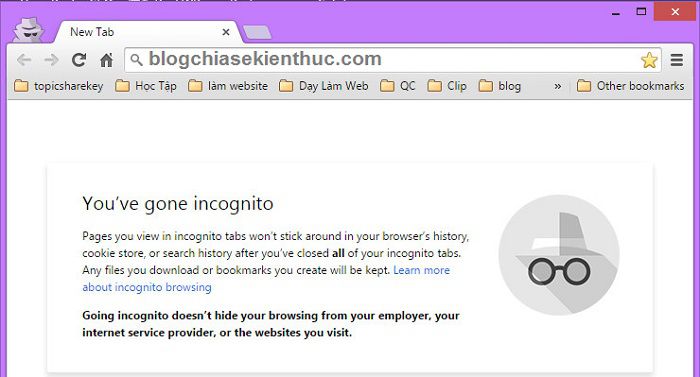
Make a Chrome shortcut open Incognito on Windows
- Close Chrome. Right-click a desktop shortcut for Chrome and select Properties. Use a shortcut, rather than the application file itself.
- On the Shortcut tab, find Target. Keep the existing path exactly as it is.
- After the closing quotation mark, add a space followed by
--incognito. For example:"C:Program FilesGoogleChromeApplicationchrome.exe" --incognito. Your installation path may differ. - Select Apply, then OK. Launch Chrome through that shortcut and check that the window is labeled Incognito.
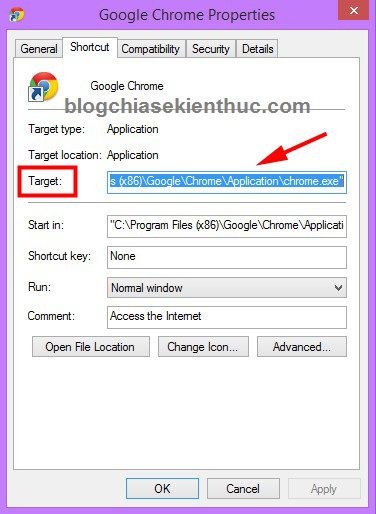
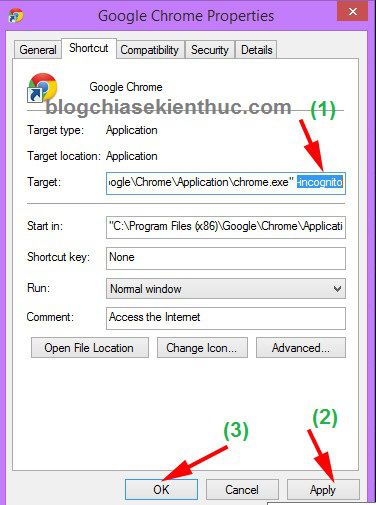
This changes that shortcut's launch behavior. Other shortcuts and links opened from other applications may still use a normal window. To undo it, remove only the added space and --incognito argument.
Always use private browsing in Firefox
- Open Firefox's menu and choose Settings.
- Go to Privacy & Security and find History.
- Choose Use custom settings for history and enable Always use private browsing mode. Some versions place this under customized or advanced history settings. Never remember history is an equivalent option.
- Restart Firefox when prompted.
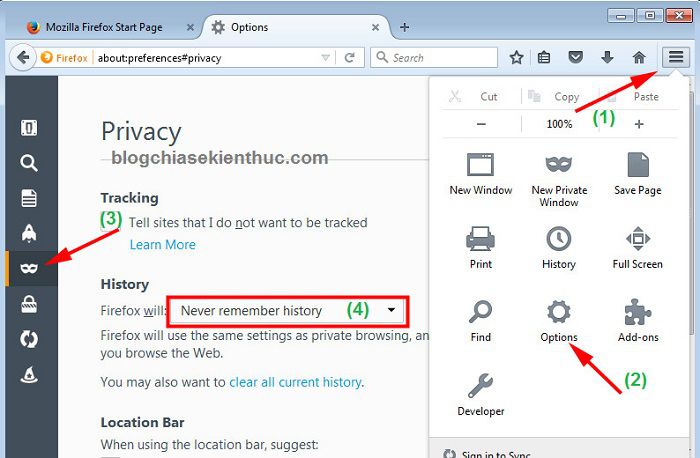
The screenshot shows an older Firefox interface, so labels may differ. In permanent private mode, Firefox may not show the usual purple mask. To restore normal browsing, clear the always-private option or select Remember history, then restart.
Understand the privacy limits
Websites, your employer or school, and your internet provider may still observe activity. Signing into a website identifies you to that service. Private browsing neither hides your IP address nor protects against malware installed on the device.
Close all private windows when finished. For someone borrowing your computer, Chrome Guest browsing can also separate their session from your browser profile. Neither option replaces a separate operating-system account when stronger separation is needed.
Older instructions for Internet Explorer and obsolete Opera launch arguments are not suitable as a general setup method. Use the private-window command in your supported browser's menu if its startup behavior cannot be configured reliably.
Related Articles
 Distinguish guest mode and incognito mode on Chrome
 6 Threats That Incognito Mode Can't Protect You From
 Secrets behind Google Incognito mode (Incognito)
 How to make the browser always start in incognito mode
 How to use a second YouTube channel for different interests
 5 ways to open Microsoft Edge browser in incognito mode
Reader Comments 0
Sign in with email or Google to join the discussion.