Table of Contents
If a page blocks the right-click menu, you may still be able to copy visible text using keyboard shortcuts, Reader View, or a printable version. A blocked context menu does not always mean that text selection itself is disabled.
Use these methods for content you are allowed to access and reuse. They do not provide access to material behind a login or paywall, and technical ability to copy does not grant permission to republish it.
1. Try keyboard shortcuts and the site’s own controls
Select the needed text and press Ctrl+C on Windows or Command+C on macOS. Paste into a plain-text editor to check the result. If right-click is the only blocked action, this may be enough.
Look for a Copy, Download, Print, or citation button provided by the site. For an image, prefer its download control or the owner’s original asset. A screenshot records the displayed image but may not retain its full resolution.
2. Open Reader View
On supported article pages, Reader View creates a simpler reading layout. In Firefox, use the Reader View icon in the address bar when it appears, or the shortcut documented for your platform. Try selecting the required text in that view.
Mozilla’s Reader View guide explains the controls. Reader View is not available on every page and can omit interactive content or some images.
3. Use print preview or save a PDF
Open the browser’s Print command, commonly Ctrl+P or Command+P. If the preview contains the text you need, save it as a PDF and try copying from the saved document. Review the page range and preview before saving.
Print preview does not universally remove restrictions, and some PDFs contain image-only pages rather than selectable text. For mobile use, see saving web pages as PDFs on iPhone and iPad.
4. Save a local copy of the page
Use the browser’s Save page command, often Ctrl+S. A complete-webpage save may create an HTML file and an accompanying folder of assets. Keep them together if you want the local page to display correctly.
Open the saved page and check whether the needed content is present. Dynamic content may be missing, and saved scripts may still run, so a local copy does not automatically solve every selection problem. If you only need notes, store a short permitted excerpt as plain text with the source URL.
5. Inspect page source for text already delivered
For a mostly static page, the browser’s View page source command can expose text that is already in the HTML. On many Windows browsers, Ctrl+U opens it. Search for a distinctive phrase and copy the relevant passage, removing markup carefully.
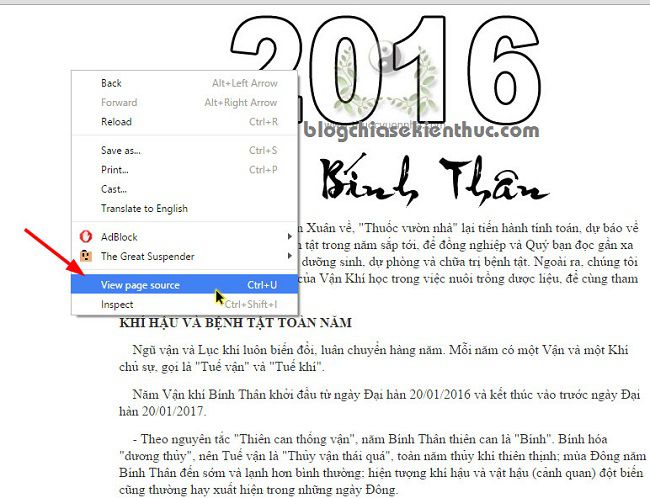
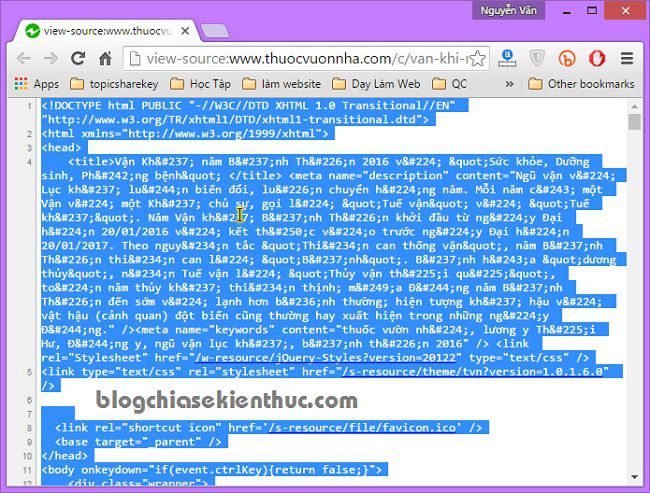
The source may contain only an application shell rather than the displayed article. It may also contain encoded characters or unrelated scripts. Do not assume that copying all source code produces a clean document.
Understand the older Notepad workflow
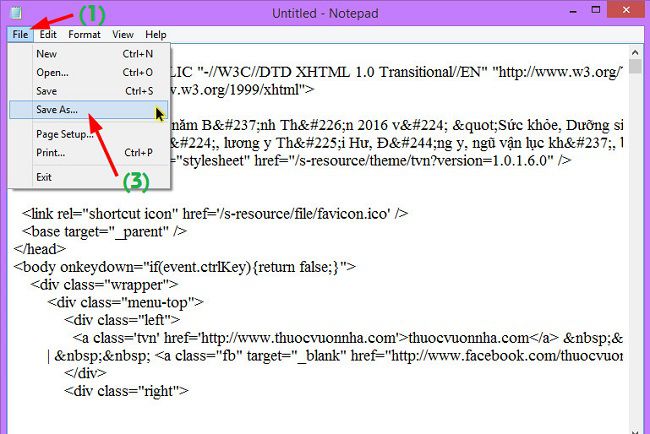
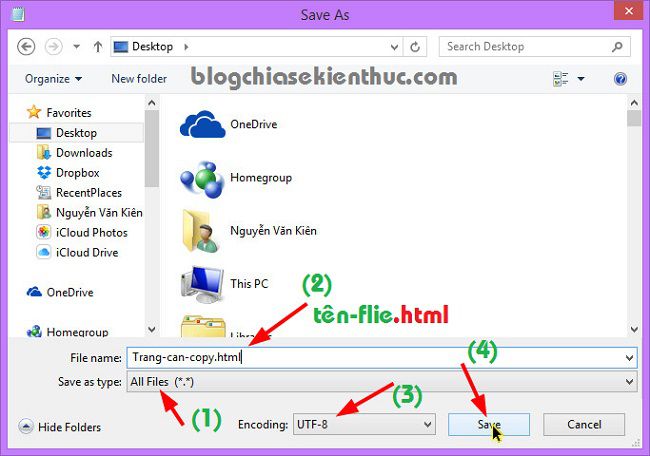
The screenshots below show copying source into Notepad, choosing Save As, selecting UTF-8, and saving an HTML file. For text-only notes, use a .txt file instead; this avoids reopening executable page scripts just to read an excerpt.
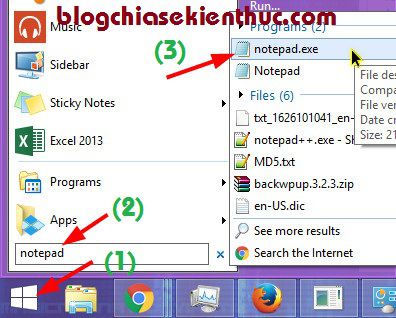
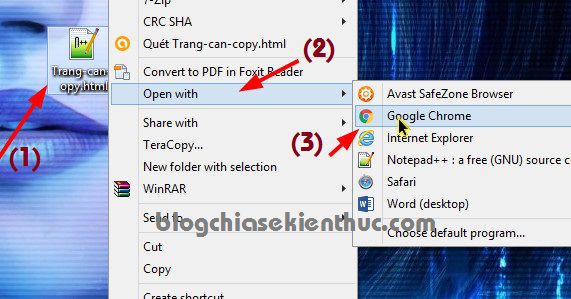
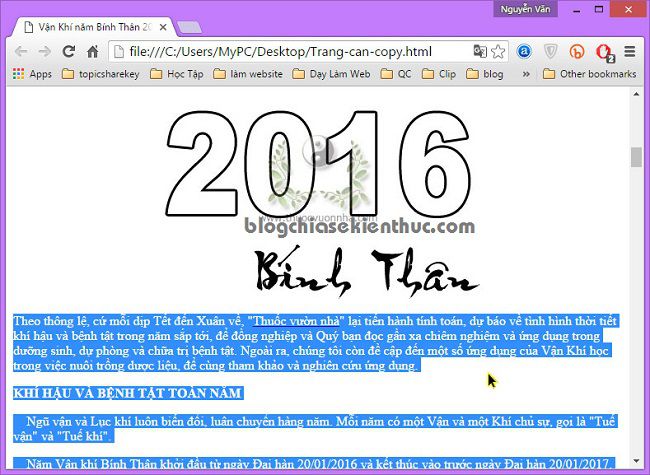
Opening a saved HTML file in a browser, as shown below, renders the saved markup. It does not guarantee that missing remote assets will load or that copy-blocking scripts disappear.
6. Test a site-specific JavaScript setting
Some pages use JavaScript to intercept the context menu or selection events. In Chrome, open the page’s site settings and review its JavaScript permission. Temporarily blocking JavaScript for that site and reloading may remove that behavior, but it can also stop the article, images, or login controls from loading.
Use a site-specific change rather than disabling scripts everywhere. Restore the previous permission after testing. Google’s site-permissions guide explains how individual permissions work.
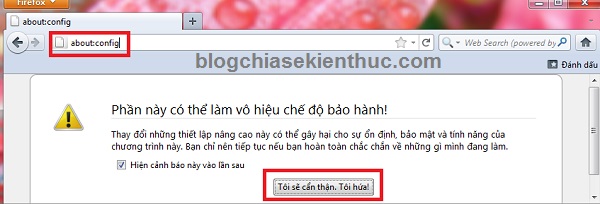
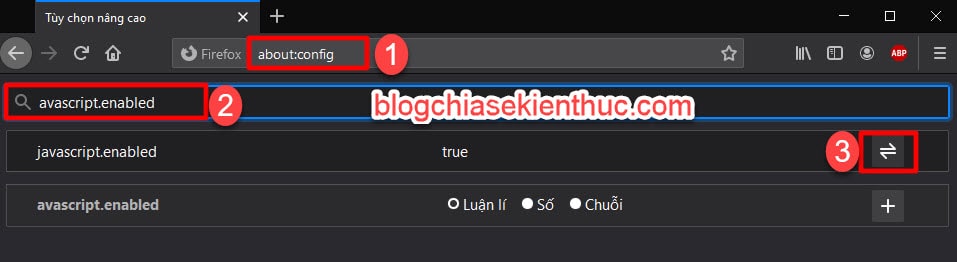
The historical Firefox screenshots below show a global advanced preference. They are not a current recommendation: changing global JavaScript behavior can break many unrelated sites. Prefer Reader View or a printable copy first.
When these methods do not work
CSS selection rules, canvas rendering, image-based text, or unavailable source content can prevent ordinary copying. A screenshot and OCR may help with a small visible passage, but proofread the result, especially numbers and punctuation. Ask the publisher for an accessible or downloadable copy when the content needs to be exact.
Avoid pasting unfamiliar code into the developer console or installing a broad-access extension for a one-time task. Clearing one JavaScript event handler is not a general fix, and extensions can read more page content than you expect.
If a page renders incorrectly in one browser, the Chrome page-loading troubleshooting guide can help distinguish a loading problem from a selection restriction. Keep the source attribution with any excerpt you retain.
Related Articles
 8 ways to copy content from websites that do not allow copying on Chrome, Firefox
 How to copy text from images in Microsoft OneNote
 How to Copy Uncopyable Text Content
 7 apps make it easier to select text when copying on Android
 2 ways to copy web content without copying
 Instructions for fast copying URLs of open tabs in Firefox browser
Reader Comments 0
Sign in with email or Google to join the discussion.