Table of Contents
X (formerly Twitter) usually plays a posted GIF as video rather than exposing the original GIF file through a normal Save command. The most dependable method is to copy the post link, record or download the media only when you have permission, and convert the short clip to GIF if necessary. For media from your own account, an X data archive is the safest official option.
Copy the link to the X post
- Open the post containing the animation.
- Select the Share icon.
- Choose Copy link or Copy link to post.
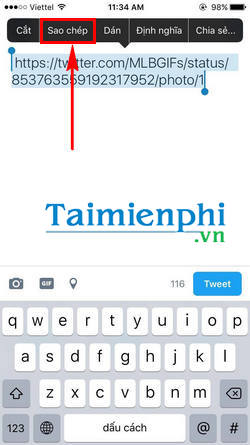
Menu labels differ between X for iOS, X for Android, and X.com. The older screenshots below use Twitter's previous design, but the goal is the same: copy the link for the specific post, not the account profile.
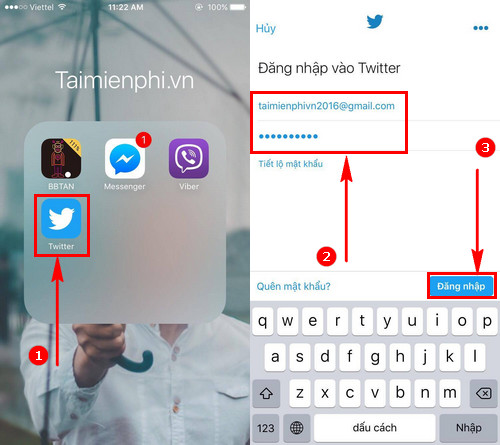
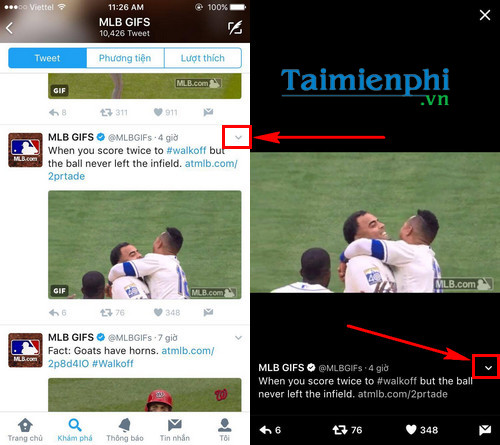
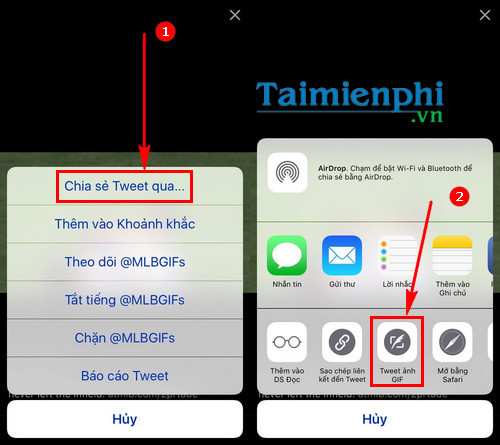
Save the animation on iPhone or iPad
If the animation is yours or you have permission to keep it, one option is to make a short screen recording while the GIF plays:
- Open Control Center and start Screen Recording.
- Return to the post and let the animation play once or twice.
- Stop recording, open the clip in Photos, and trim away the surrounding screen activity.
- Convert the trimmed video to GIF with a trusted converter if you specifically need a .gif file.
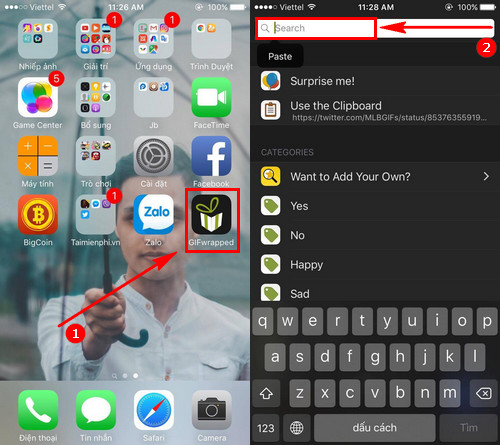
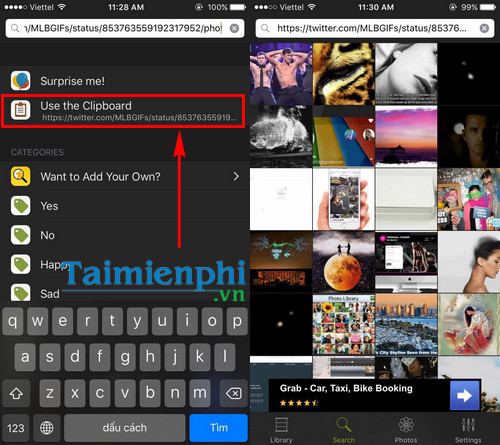
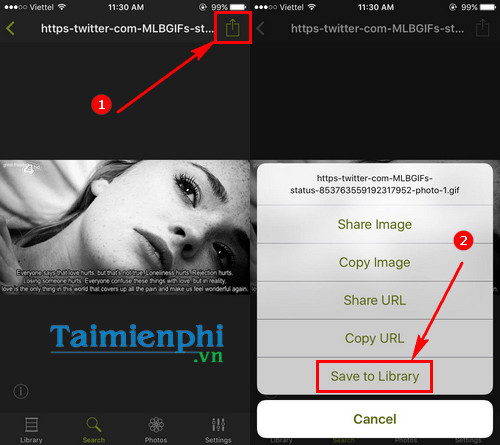
GIFwrapped is an iOS and macOS app for collecting and sharing GIFs. Earlier versions could search from a copied post link using the workflow pictured below. Because integrations can change, check whether the current app recognizes the X link before relying on it.
Save the animation on Android
Android devices also provide a built-in screen recorder on many recent versions:
- Open Quick Settings and select Screen record. If it is hidden, edit the Quick Settings tiles first.
- Record only the short section in which the animation plays.
- Stop the recording and trim it in Google Photos or the device's gallery editor.
- Use a reputable video-to-GIF converter if the destination requires GIF rather than MP4.
Avoid downloader apps that request your X password, ask you to install a configuration profile, or demand unrelated device permissions.
Save it on Windows or macOS
On a computer, open the post in a browser and use the operating system's screen recorder to capture the animation. Trim the clip before conversion so the finished GIF is short and does not include menus or notifications. TipsMake's guide to creating a GIF online covers browser-based conversion options.
Third-party X download websites change frequently and may contain aggressive advertising. If you use one, paste only the public post URL, never sign in with your X credentials, and inspect the downloaded file before opening it.
Download media from your own X account
For your own posts, request an official archive instead of extracting files one at a time. X documents the process under Download your X archive:
- Open Settings and privacy > Your account.
- Select Download an archive of your data.
- Confirm your password and complete identity verification.
- Request the archive and use the notification or email from X when it is ready.
Respect ownership and context
Saving a file for personal reference does not automatically grant permission to repost, edit, or use it commercially. Keep the creator's attribution where appropriate, follow the platform's rules, and obtain permission when the animation is not your own. If you only need to show someone the original post, sharing its link is usually clearer than downloading and re-uploading the media.
After saving an authorized copy, you can use TipsMake's guide to adding text to an animated GIF for captions or annotations.
Related Articles
 How to Use Sticker Sticker on Twitter?2 minutes read
 How to Download GIF Images from Twitter to Phones and Computers5 minutes read
 Tricks or Certain Twitter Users Should Not Be Ignored6 minutes read
 Instructions to Post Animated Gif Images to Twitter3 minutes read
 Instructions for Creating Bookmarks in Twitter3 minutes read
 How to Download HD Twitter Videos, Download the Current4 minutes read
Reader Comments 0
Sign in with email or Google to join the discussion.