Table of Contents
Animal 4D+ is an augmented-reality app from Octagon Studio. Point a compatible phone or tablet at a supported Animal 4D+ flashcard and the app places an animated 3D animal over the card on the device's screen. The effect is AR, not a physical hologram, and it works best with an official card or sample marker printed clearly.
Install Animal 4D+ from an official store
Confirm that the developer is Octagon Studio before installing. Some app features are tied to serial-number registration from an official flashcard product, so downloading the app alone may not unlock the complete experience.
How to scan an Animal 4D+ card
- Open the app and allow camera access when prompted.
- Place the printed card on a flat, well-lit surface. Avoid glare, folds, shadows, and cropped edges.
- Hold the device above the card so the entire marker remains visible.
- Wait for recognition, then move the device gently to view the animal from different angles.
- If the app supports multiple cards in the current mode, place the cards apart so each marker remains fully visible.
Children should use the app with adult supervision, particularly when moving around while looking through the screen.
Official samples and card ownership
Octagon Studio provides a small set of official Animal 4D+ sample cards. Use that page for legitimate test markers. The complete commercial flashcard set and its artwork remain the manufacturer's intellectual property; do not assume that every scan or image found online is licensed for redistribution or commercial use.
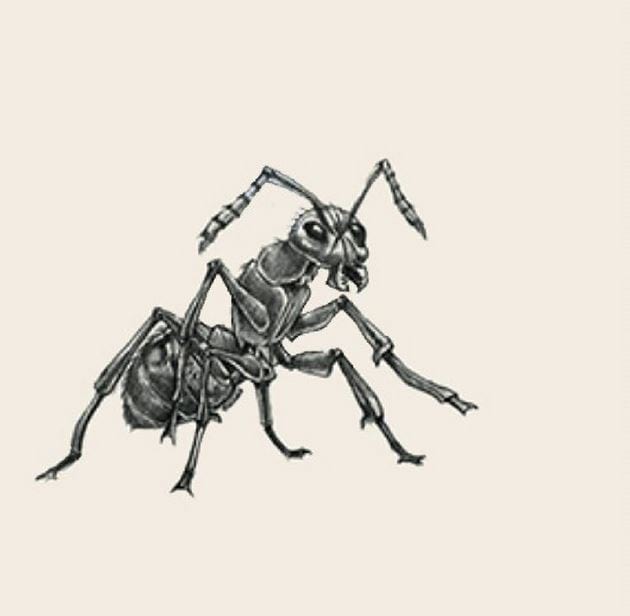
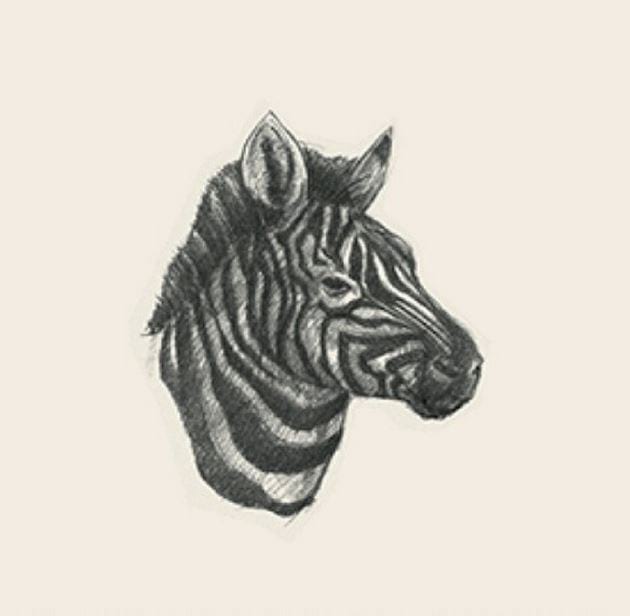
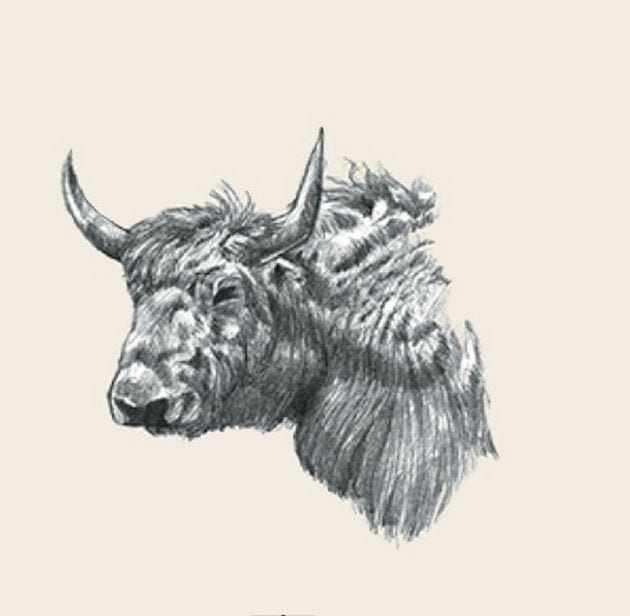
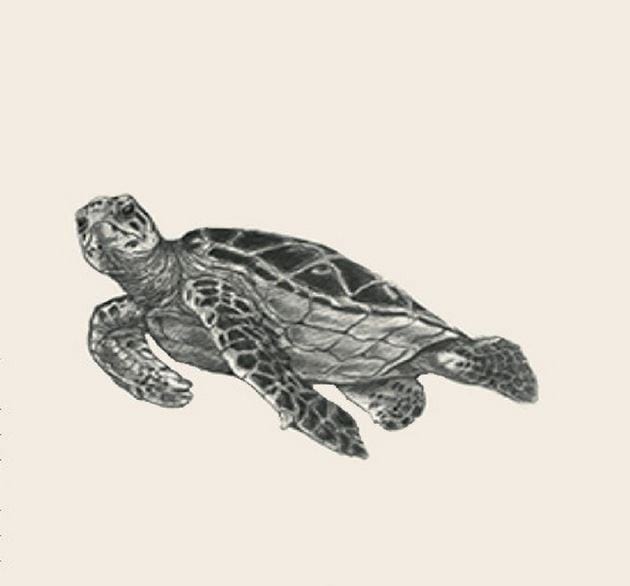
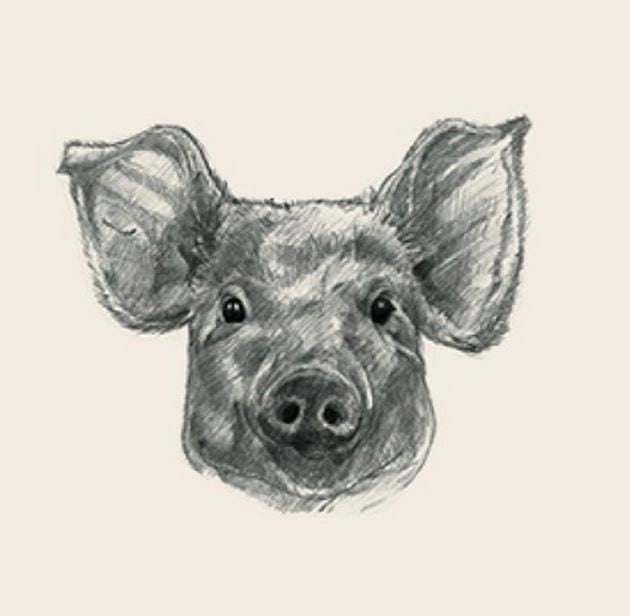
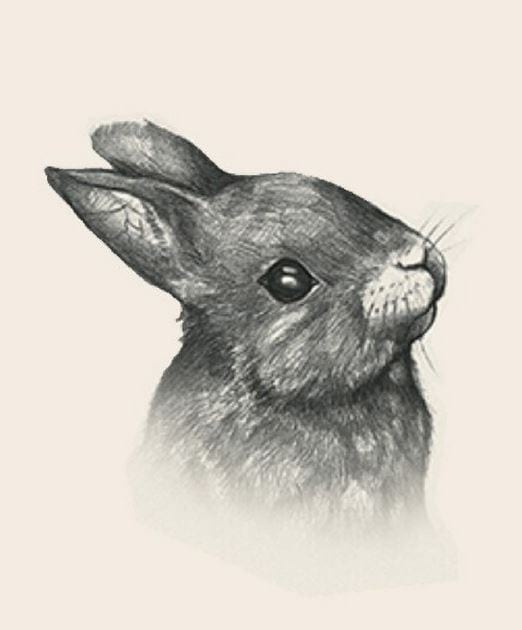
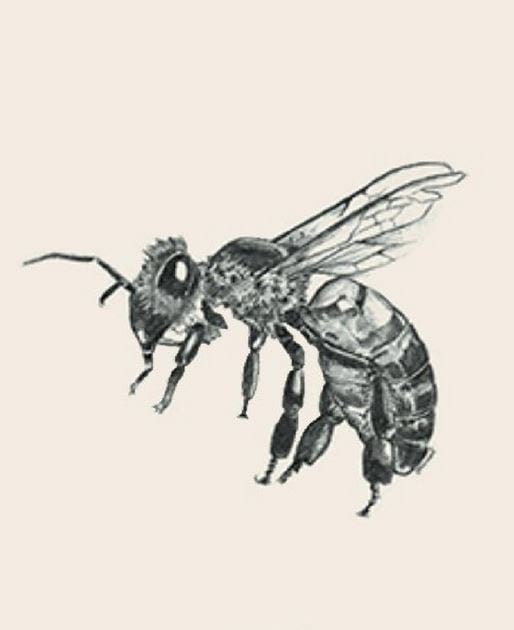
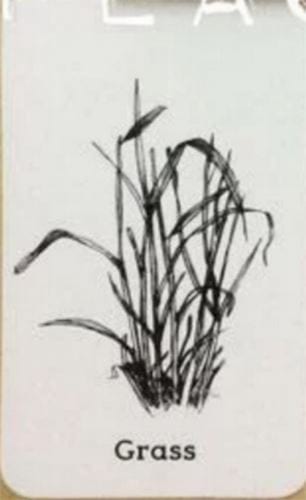
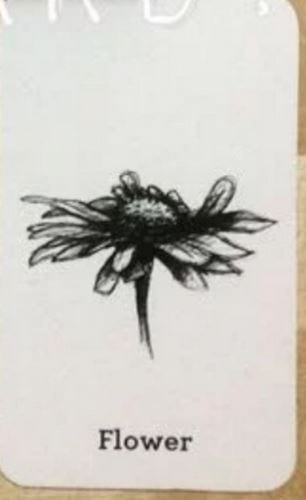
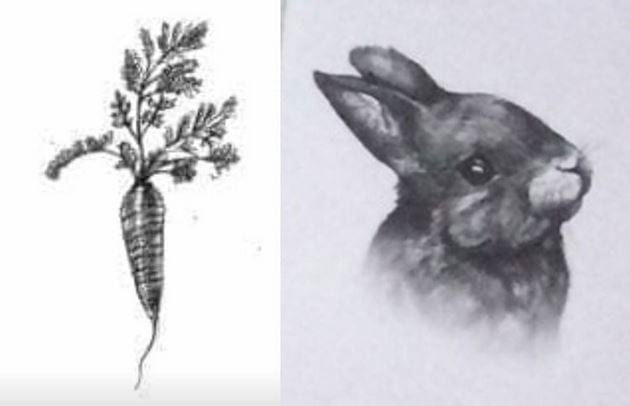
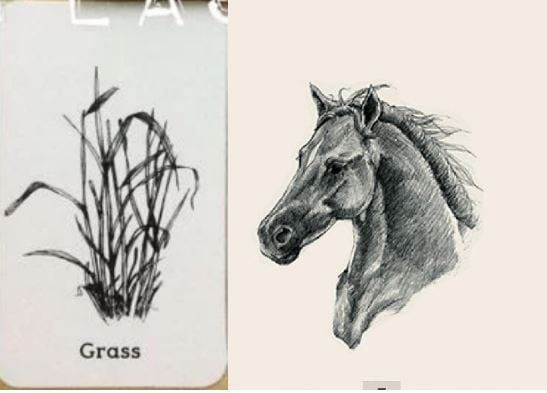
The gallery below preserves examples from this article's original version. Compatibility is not guaranteed: the app may require an official marker, a clearer print, or a registered card set. For a reliable classroom or home setup, obtain the cards through Octagon Studio or an authorized seller.
Animal 4D+ marker gallery
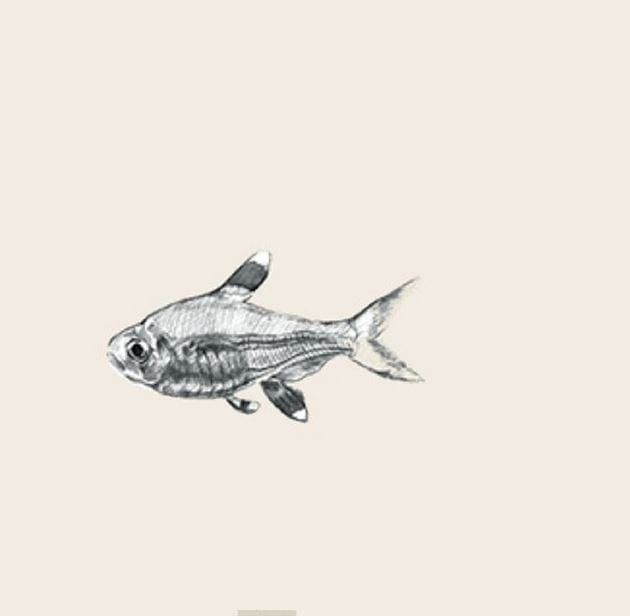
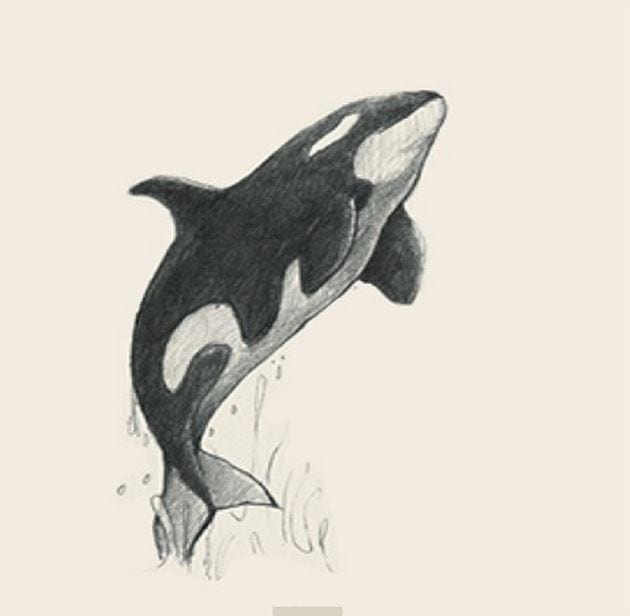
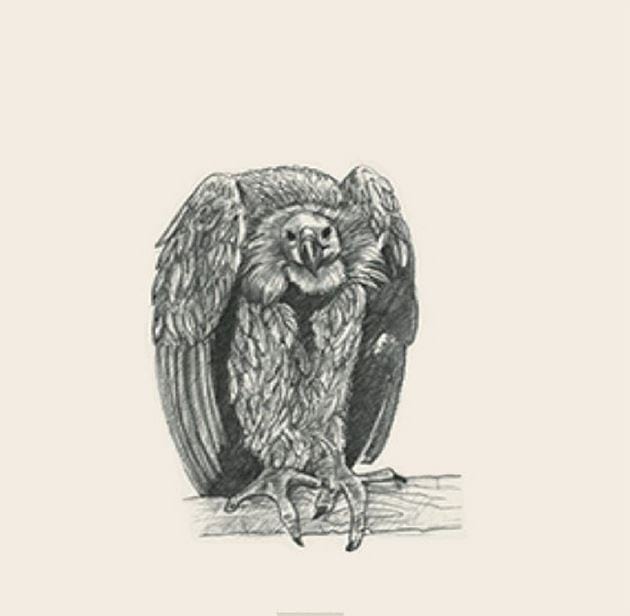
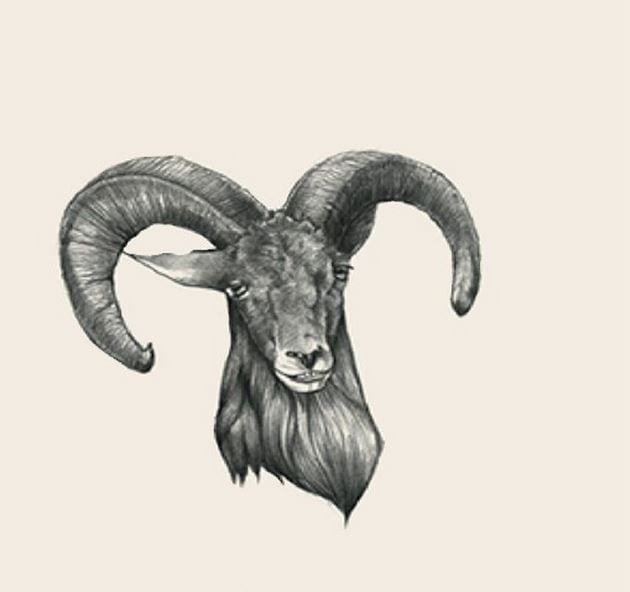
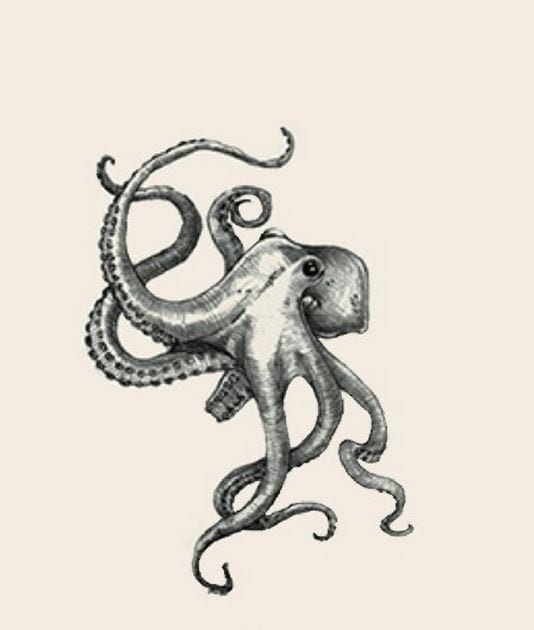
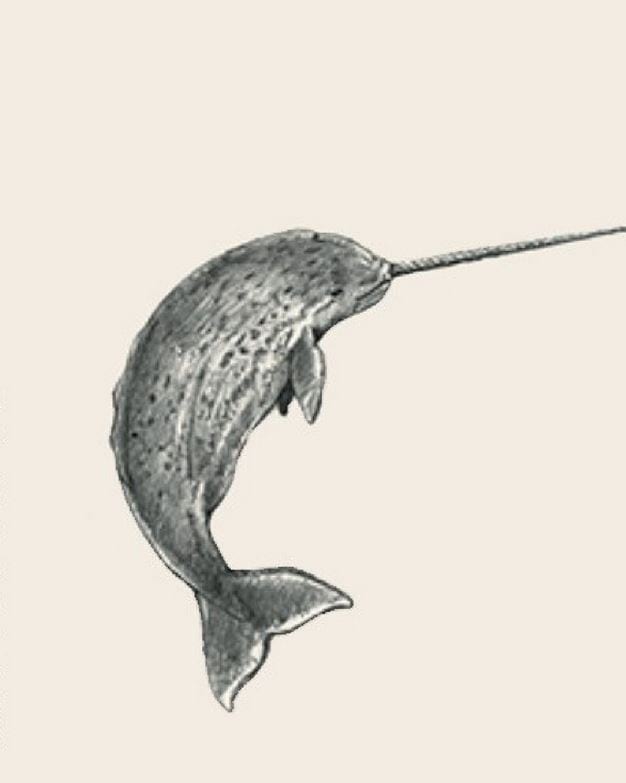
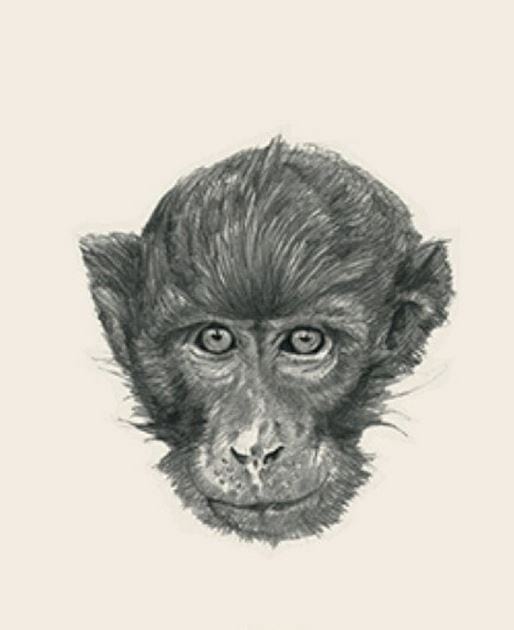
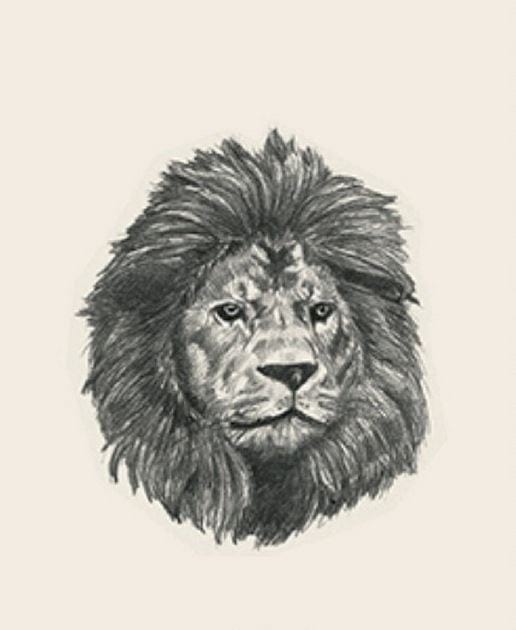
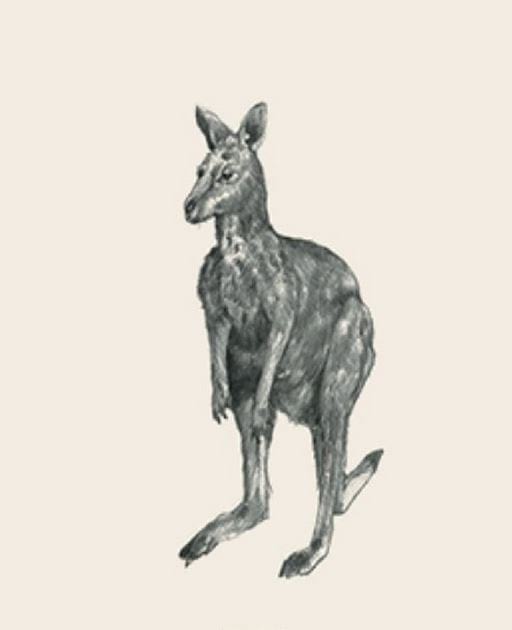
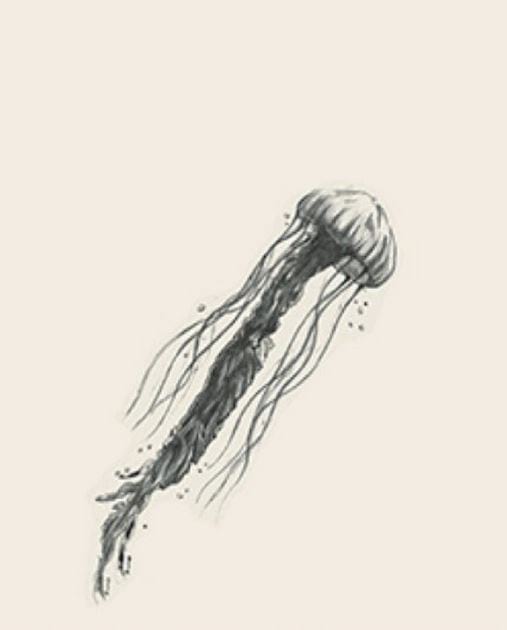
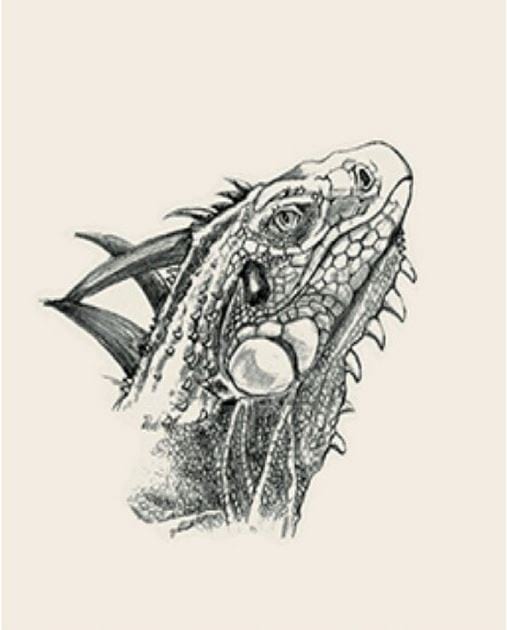
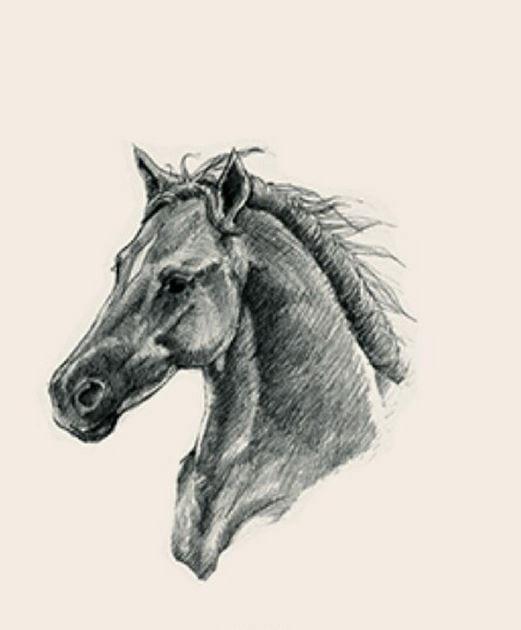
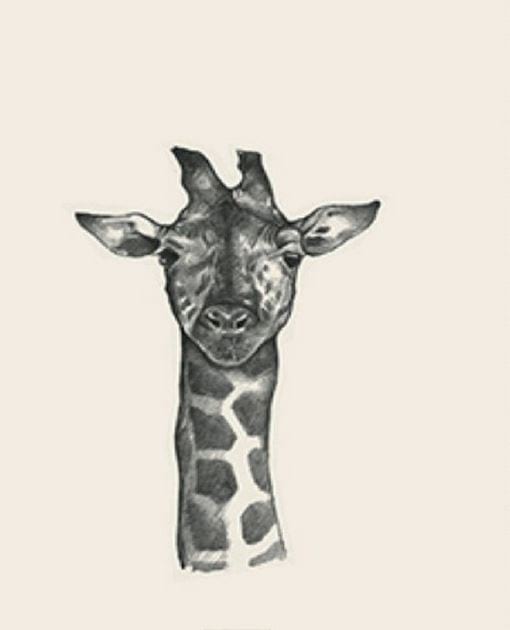
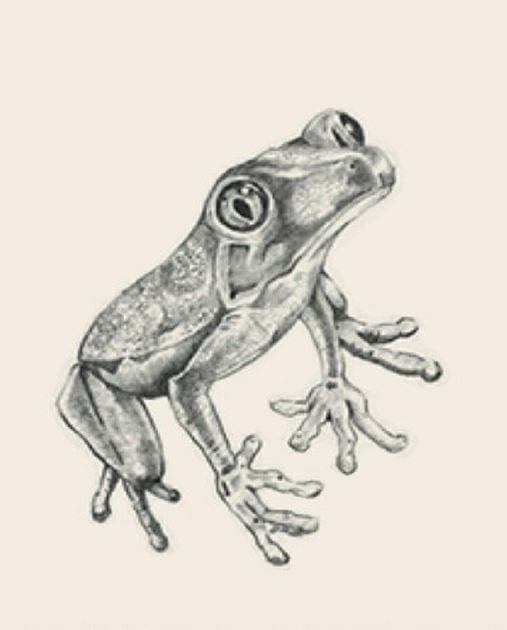
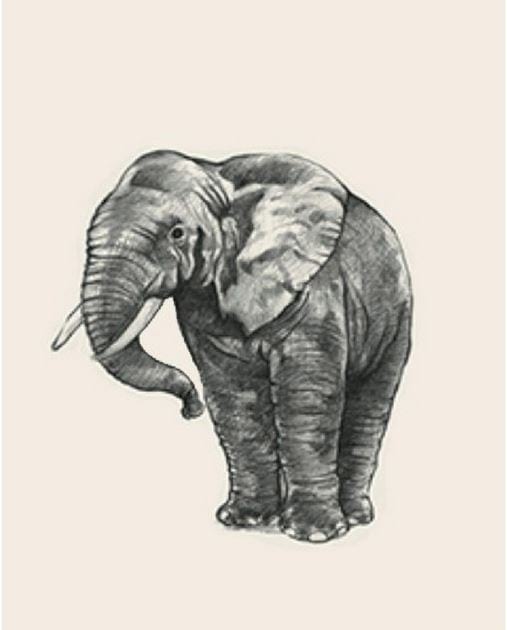
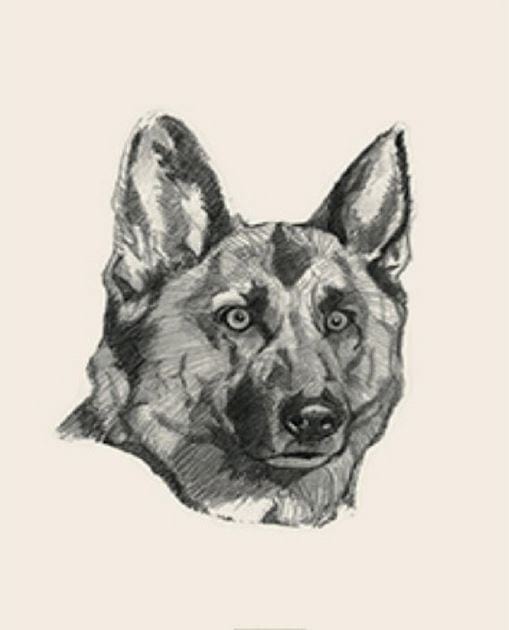
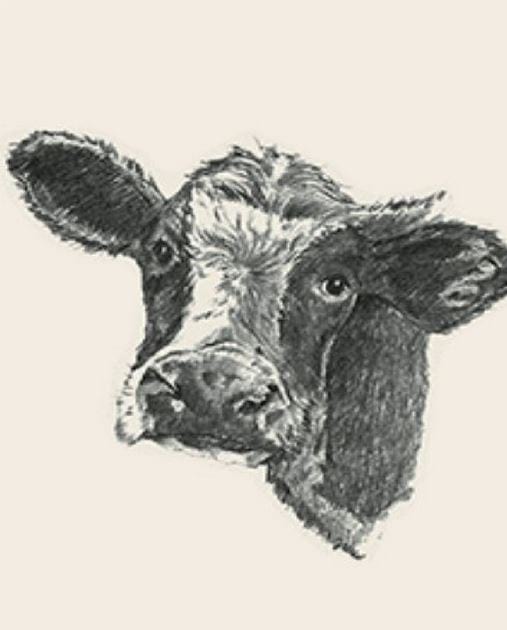
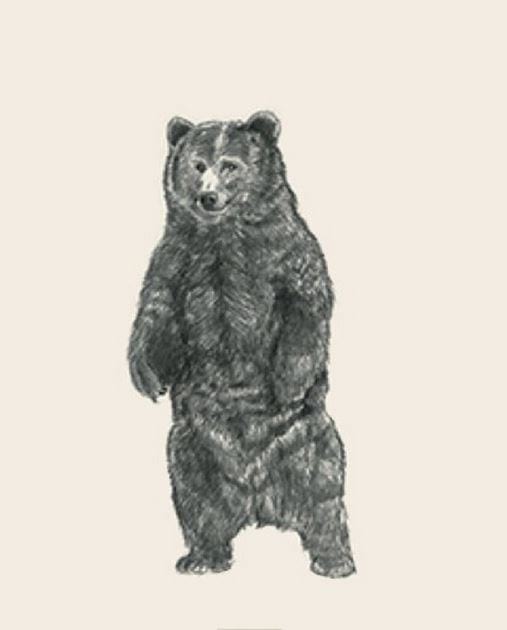
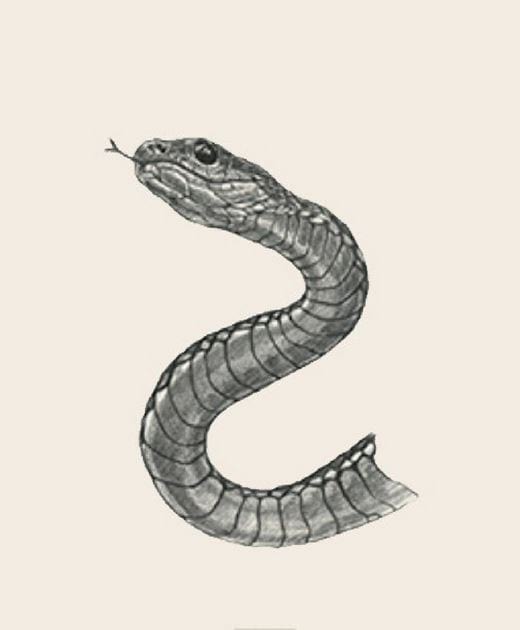
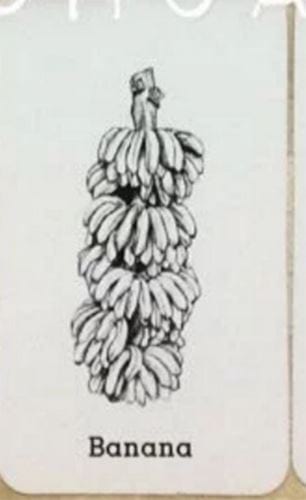
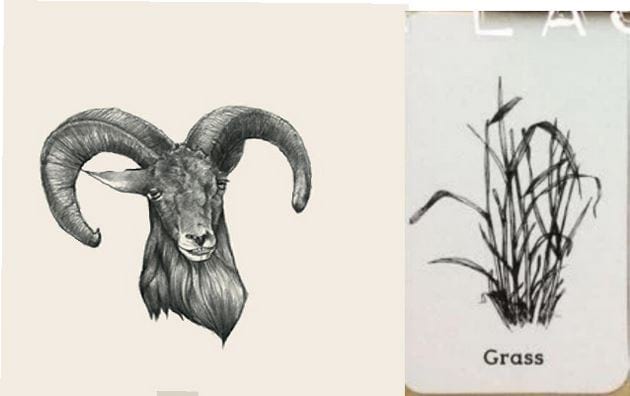
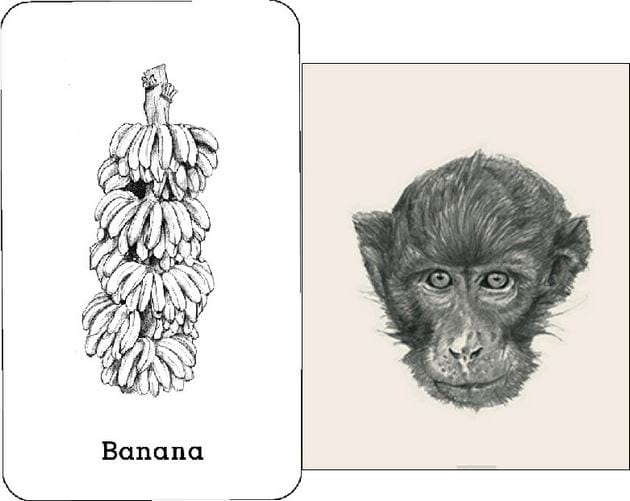
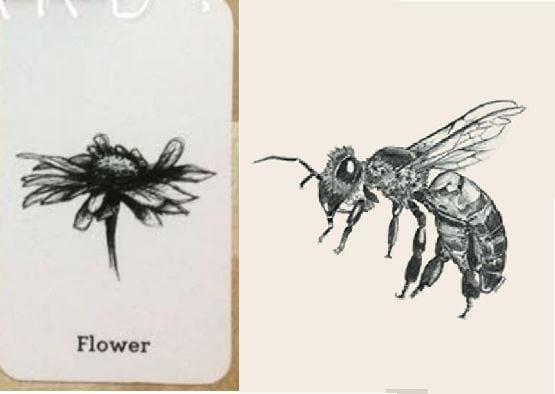
If a card is not recognized
- Improve lighting: use diffuse light and remove reflections from glossy paper or a second screen.
- Show the whole marker: do not cover the border with a finger or crop it during printing.
- Increase print quality: use the original aspect ratio and avoid a blurred screenshot.
- Check camera permission: enable it in the device's app settings if the preview is blank.
- Update the app: install the latest store version supported by the device.
- Test an official sample: if the sample works but another image does not, the issue is probably the marker rather than the camera.
If Google Play is unfamiliar, see TipsMake's guide to using the Google Play Store. For other family-friendly uses of the technology, compare these AR games for children.
Related Articles
 4D Animal Photo Collection for Animal 4D +4 minutes read
 Download App Animal 4D + for Free - Create Animal Animal 4D9 minutes read
 The Best Animal Riddles20 minutes read
 How to play Animal Hospital for beginners7 minutes read
 The Most Cute, Funny and Funny Animal Wallpapers3 minutes read
 Using Dinosaur 4D + and 4D Dinosaur Collection6 minutes read
Reader Comments 0
Sign in with email or Google to join the discussion.