Table of Contents
Choose a PDF app according to the work: adding notes, changing existing text, filling a form and removing confidential information are different tasks. These five options offer useful workflows, but features, platforms and free limits vary. Test a copy of a representative document before relying on one.
1. PDFgear: editing and annotation on supported platforms
PDFgear for Windows includes existing-text editing, text boxes and annotation tools. It can be a starting point when you need more than highlights.
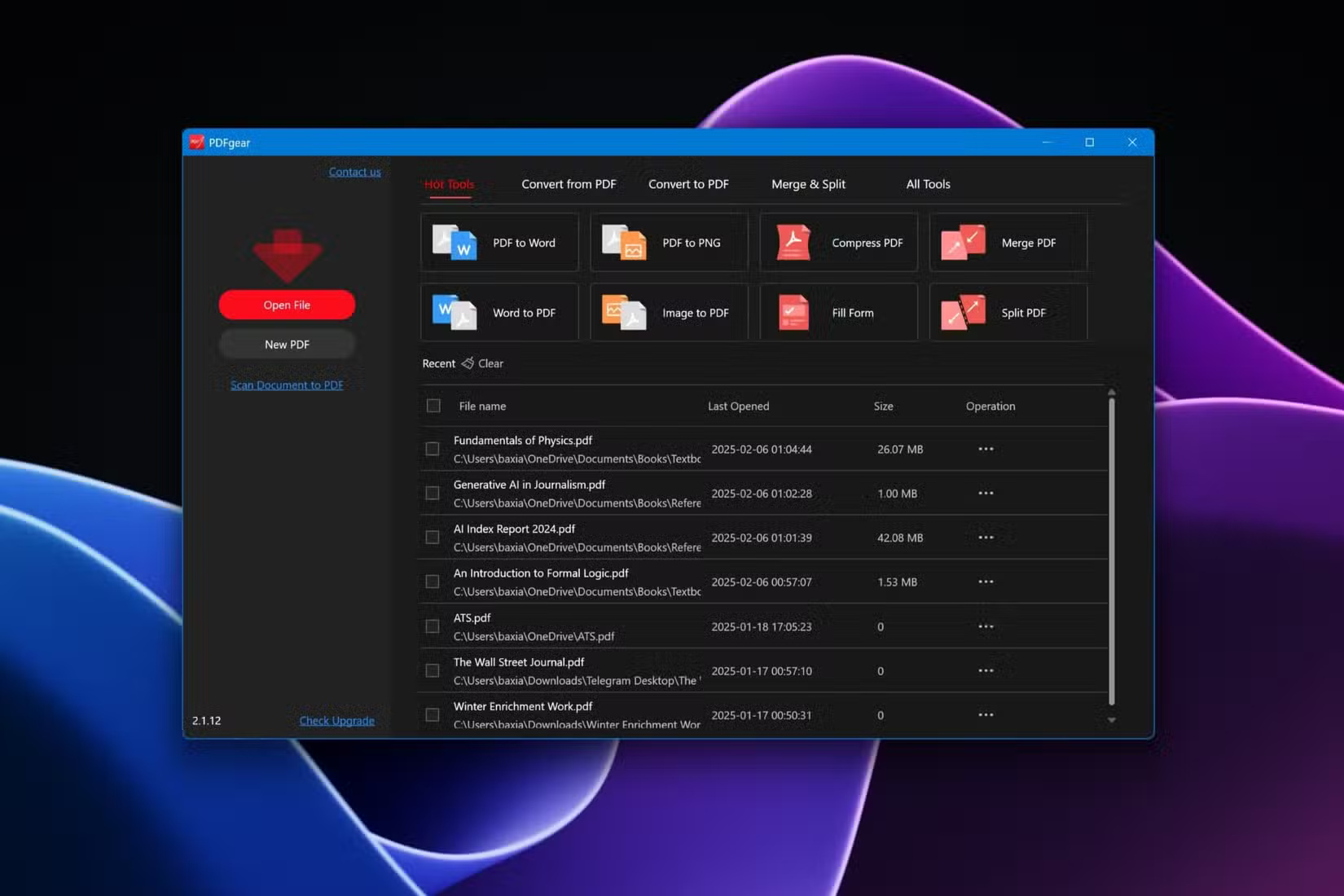
Check your platform's feature list: the desktop and online editors are not identical. Font matching is not guaranteed for every PDF, particularly scans, unusual fonts or complex layouts. Save a copy and compare the edited paragraph with the original.
2. Adobe Acrobat Reader: comments and form workflows
The free Acrobat Reader supports viewing, highlighting, notes, drawing and supported signing or form tasks. That makes it useful for reading course material or returning review comments.
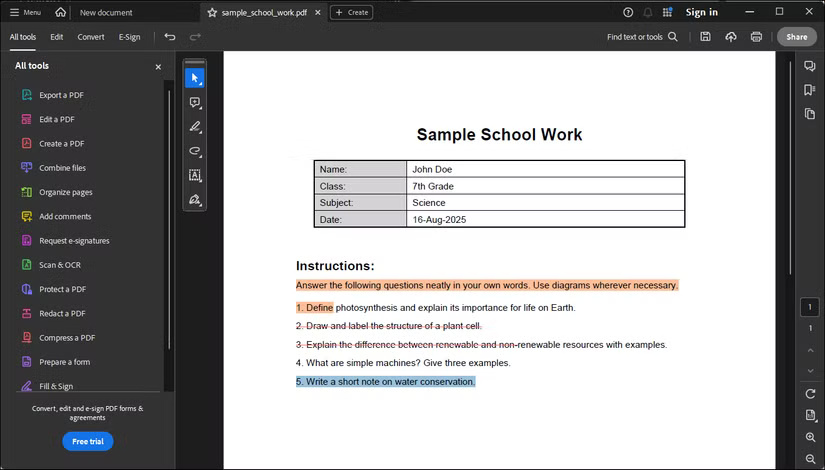
Reader should not be confused with paid Acrobat editing tools. Adding a text box does not replace the underlying PDF text. Drawing over a passage or using strikethrough does not securely redact it.
3. Sejda: occasional edits with clear limits
Sejda Desktop offers local PDF processing on supported desktop platforms. The online editor is a separate upload-based workflow. Free use has limits, so check the relevant tool's current page, file-size and usage restrictions before starting.
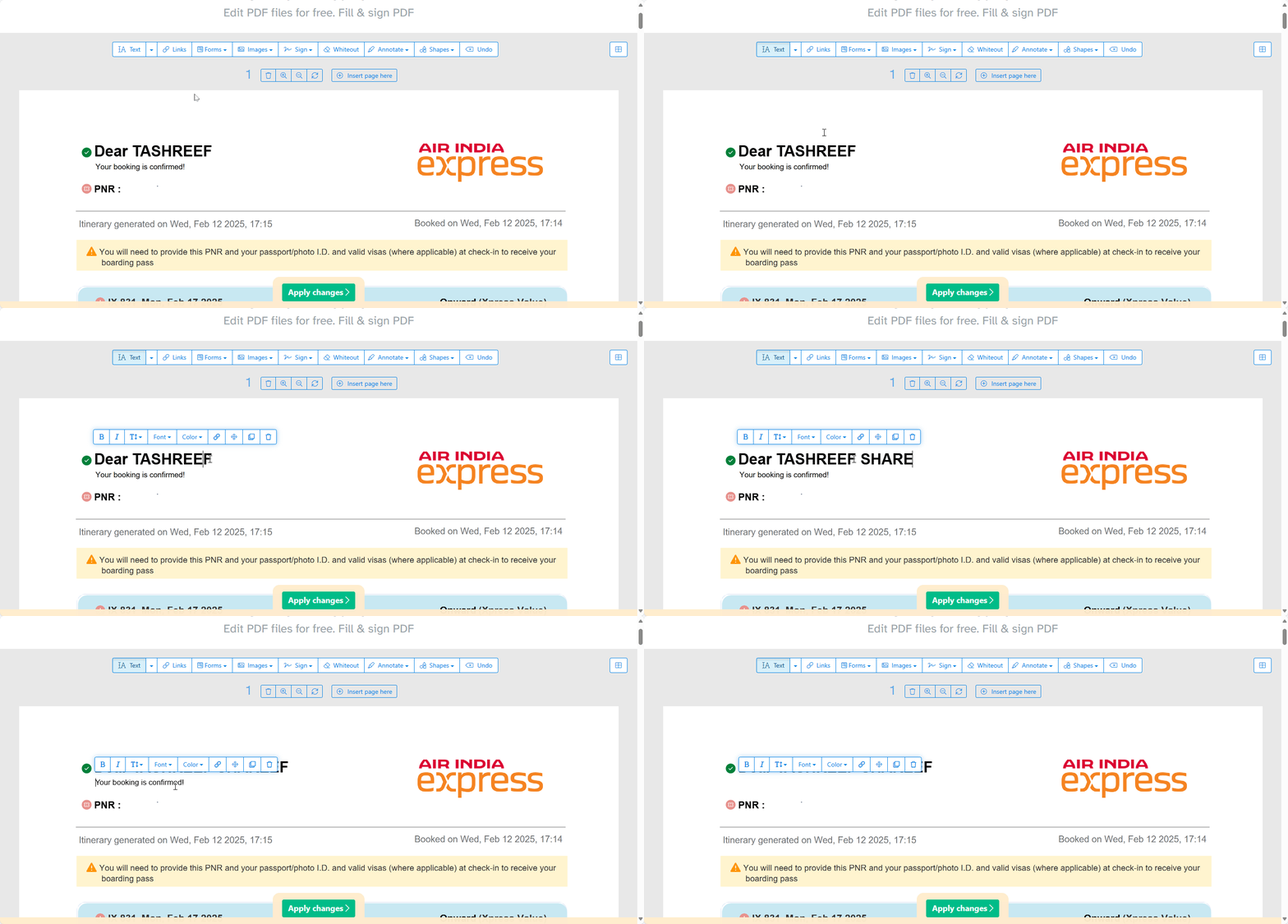
It is useful for occasional text or page changes when the document is compatible. Do not assume that every font will match perfectly or that a scanned page contains editable text. Prefer local processing for sensitive material when your policies require it.
4. PDF Expert: an Apple-device workflow
PDF Expert is made by Readdle, not Apple. It is available for Mac, iPhone and iPad, so calling it “Mac only” is inaccurate. Its annotation workflow includes highlights, notes and drawing, with additional editing and OCR features depending on the plan.
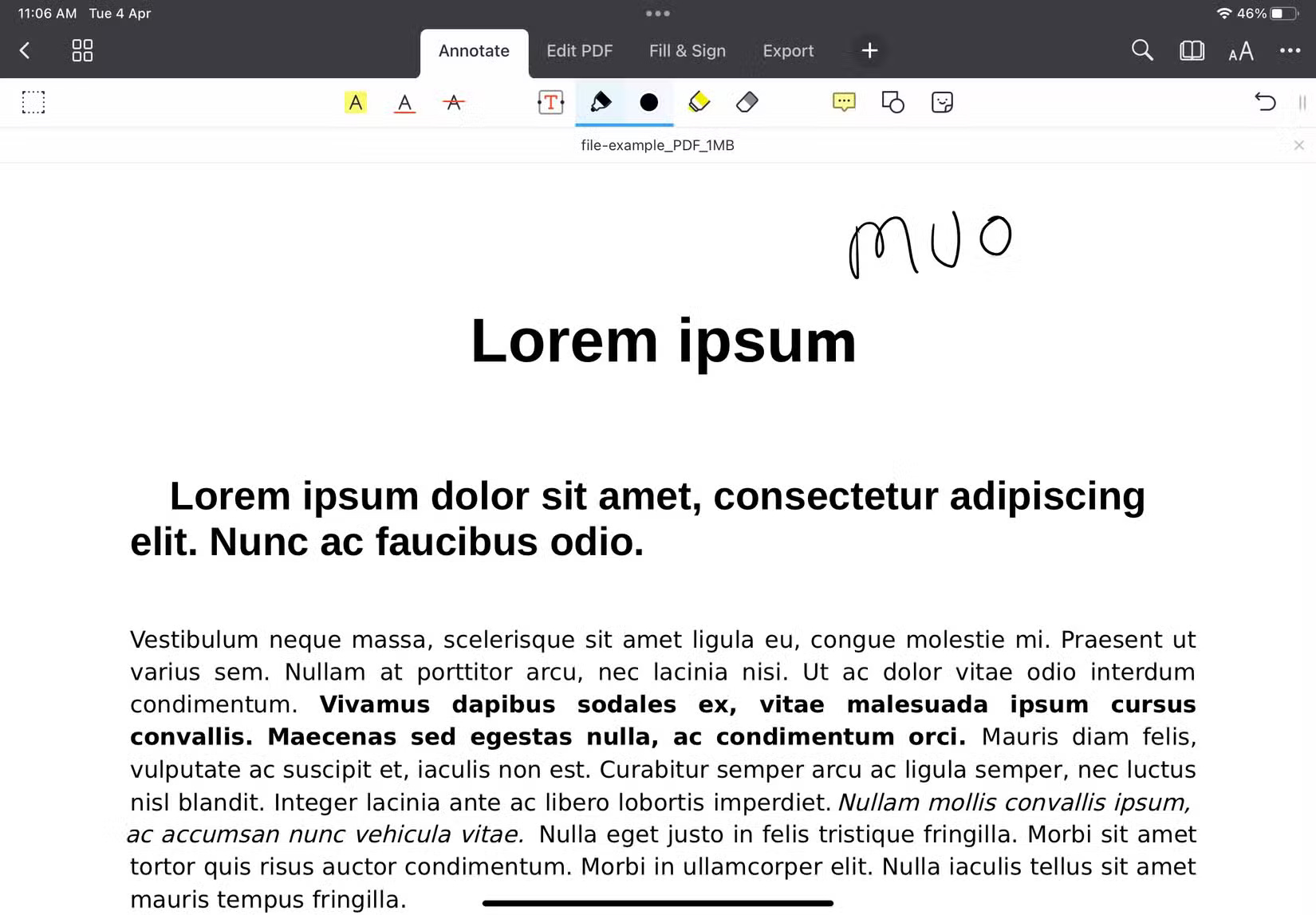
Check the current plan comparison for cross-device access and any difference between subscription and Mac-only purchase options. An AI summary can help navigate a document, but verify important statements against the source pages.
5. EmbedPDF: browser-based editing and annotation
EmbedPDF's editor is an open-source browser option with annotation and editing tools. Try it when you want to add highlights, shapes or notes without a desktop installation.
Check the current demo's supported features and data handling before using confidential files. “Runs in a browser” is not, by itself, proof that every deployment processes everything locally. Download the result and reopen it in another PDF viewer to confirm your changes were saved.
Check these details before choosing
| Need | What to verify |
|---|---|
| Study notes | Highlights, comments, pen tools and annotation export |
| Change original wording | Real text editing, font handling and layout preservation |
| Scanned document | OCR and recognition accuracy |
| Signature | Whether the recipient needs an electronic mark or certificate-based digital signature |
| Remove sensitive content | True redaction, including hidden text and metadata checks |
Keep the original, save an edited copy and inspect every changed page. For the difference between annotation and content editing, see editing PDFs for free. If you only need viewing and forms, our free PDF reader comparison may be enough.





Reader Comments 0
Sign in with email or Google to join the discussion.