Table of Contents
9 Quick Note Handling Tips for Apple Notes on Mac brings together practical options worth considering. Below, you'll find clear explanations, useful context, and tips for deciding which choices best match your needs.
Key Takeaways
- Review using tags in Apple notes.
- Explore organize notes with smart folders.
- Understand link notes together.
Using Tags in Apple Notes
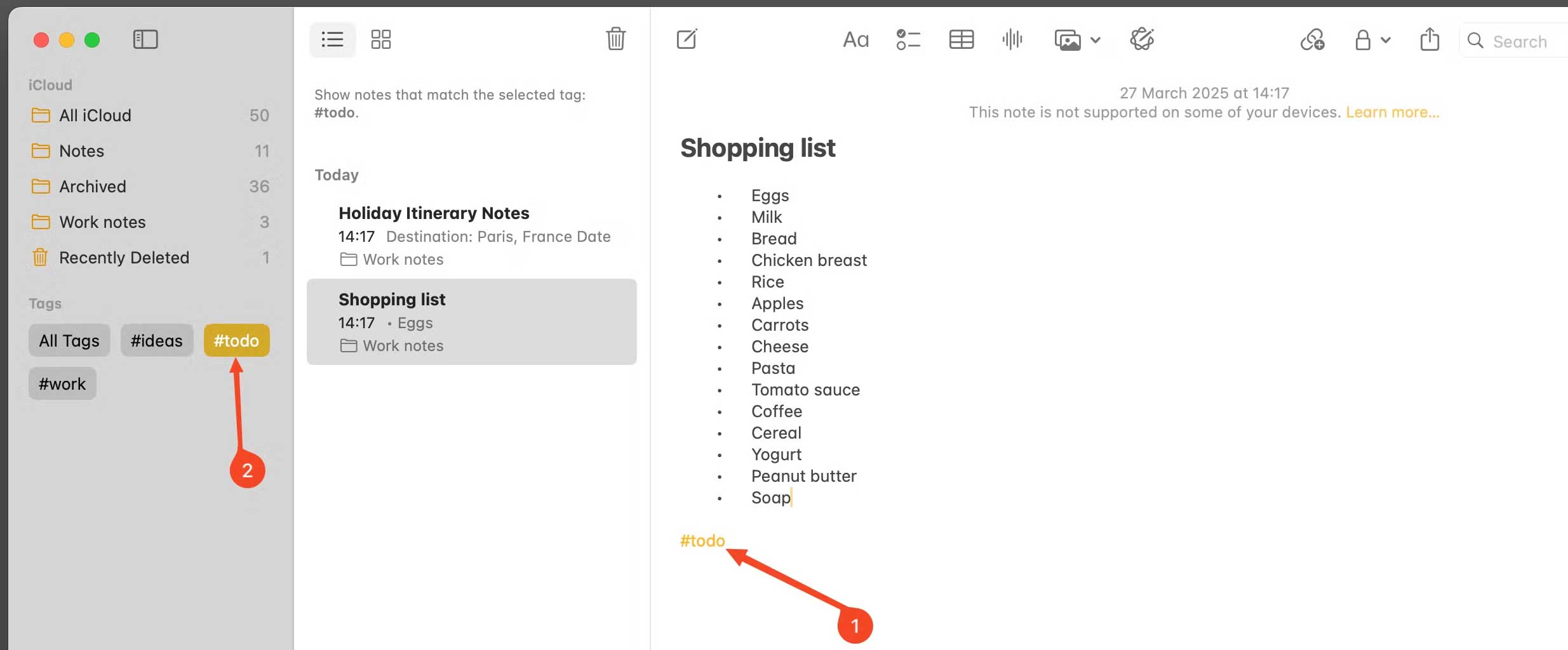
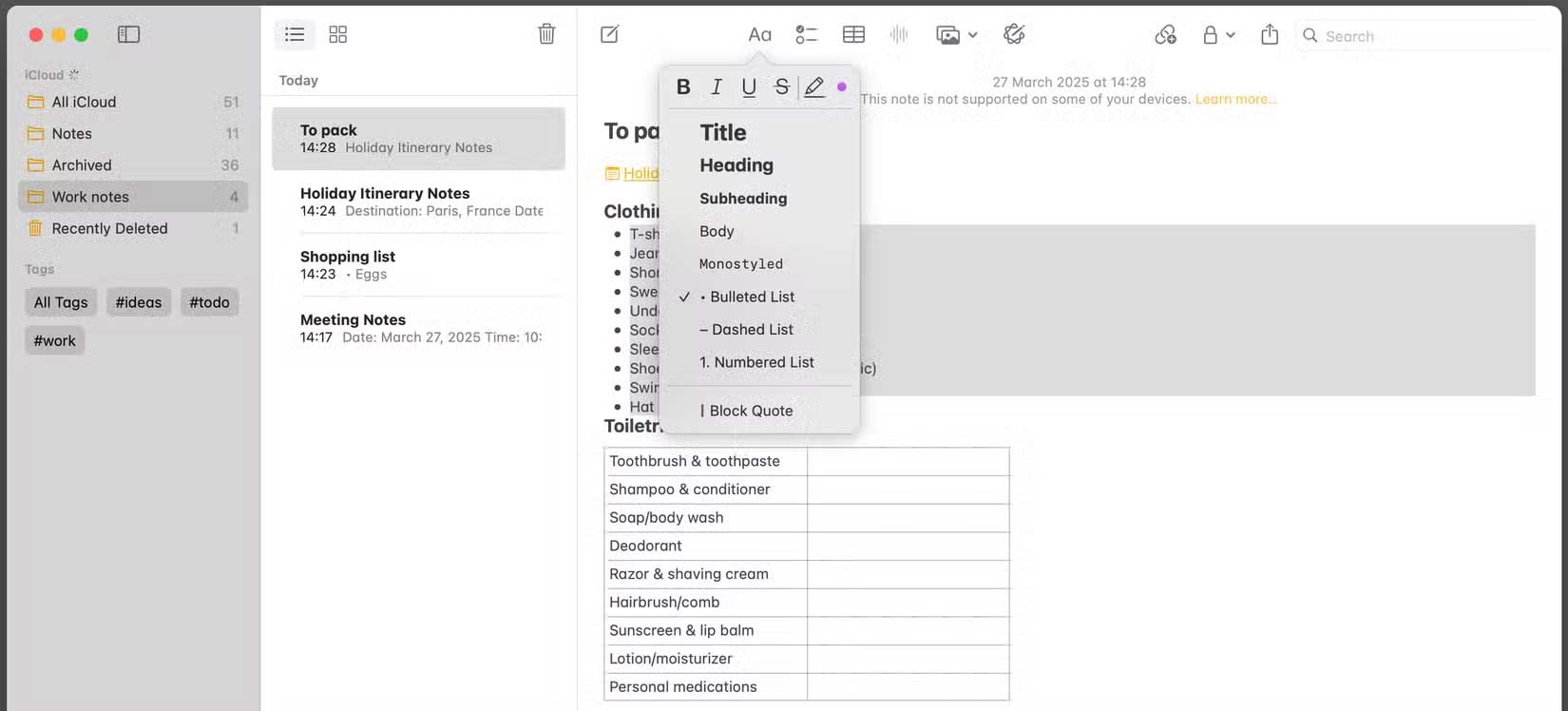
Just enter a tag into the note and the tag will be displayed in a separate Tags section. This makes it easier for us to search for notes through tags.
Organize Notes with Smart Folders
Smart Folders in Apple Notes on Mac are virtual folders that update dynamically based on specific criteria. For instance, you might want to find notes that were recently edited or shared with a specific person.
In the sidebar, click New Folder and then check Make into Smart Folder. Users now create Smart Folders based on many factors, including the type of note, the date the note was taken, or whether you have shared the note.
Link Notes Together
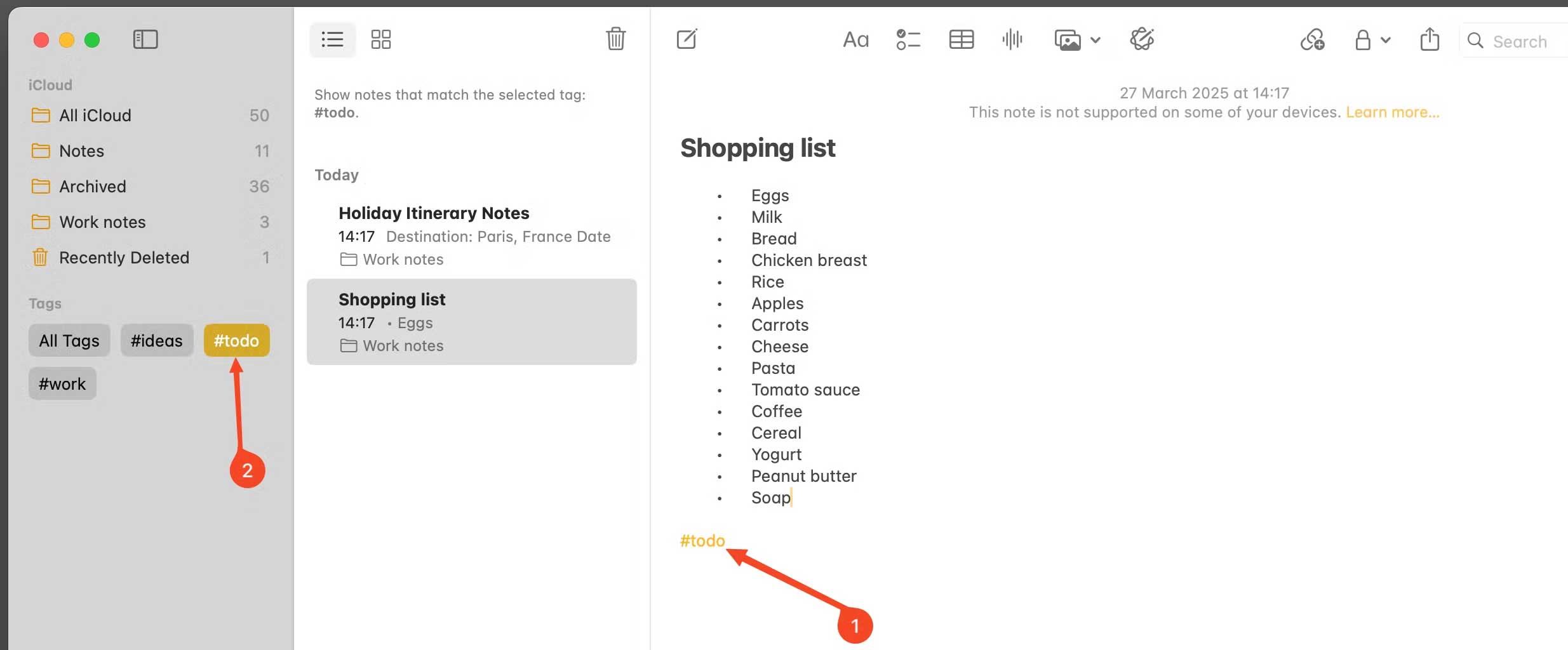
Another way to link notes together is to use the link option. Right-select the note and select Add Link from the menu. This helps you do this. Then, enter the name of the note you want to link into the interface.
Apple Notes Format
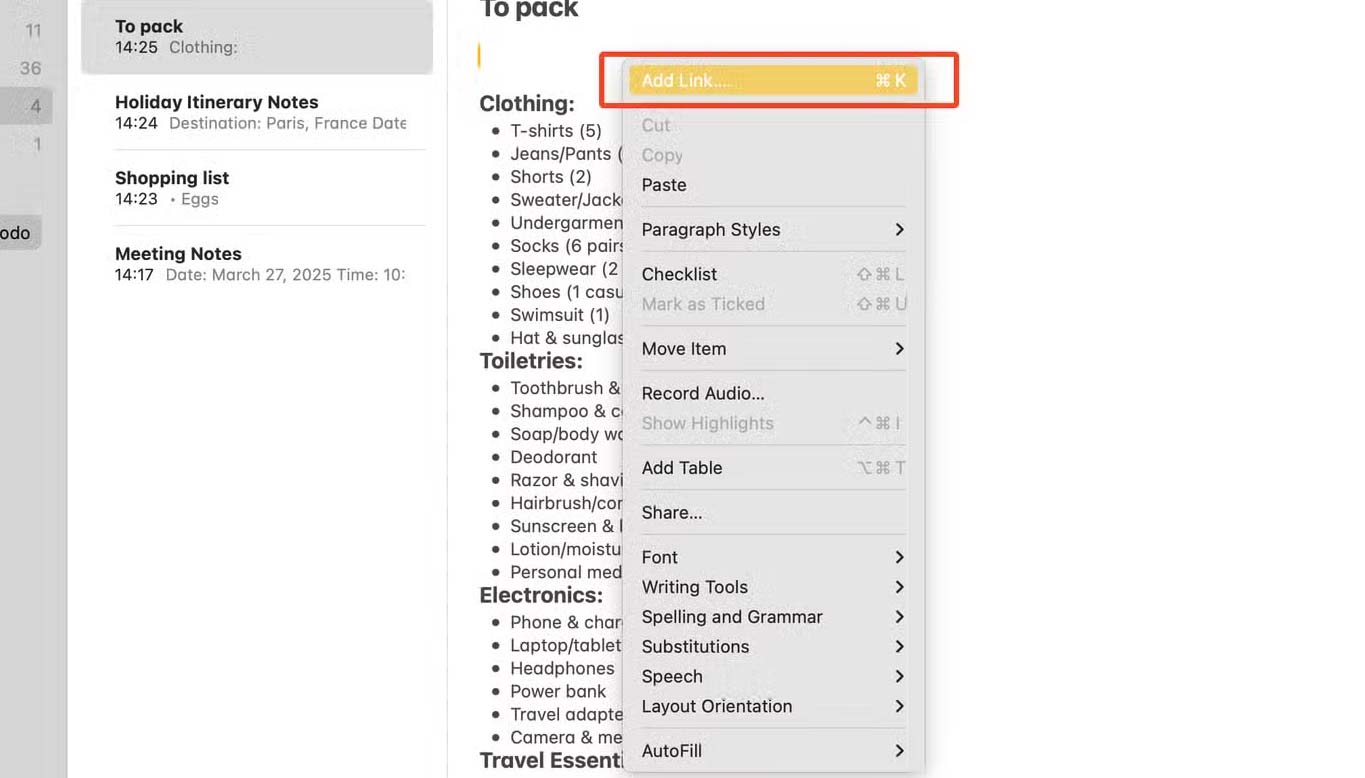
The note formatting options on Apple Notes Mac have been changed a lot. Click the Aa icon on the toolbar and then choose the format for the content in the note.
Add Web Links to Notes
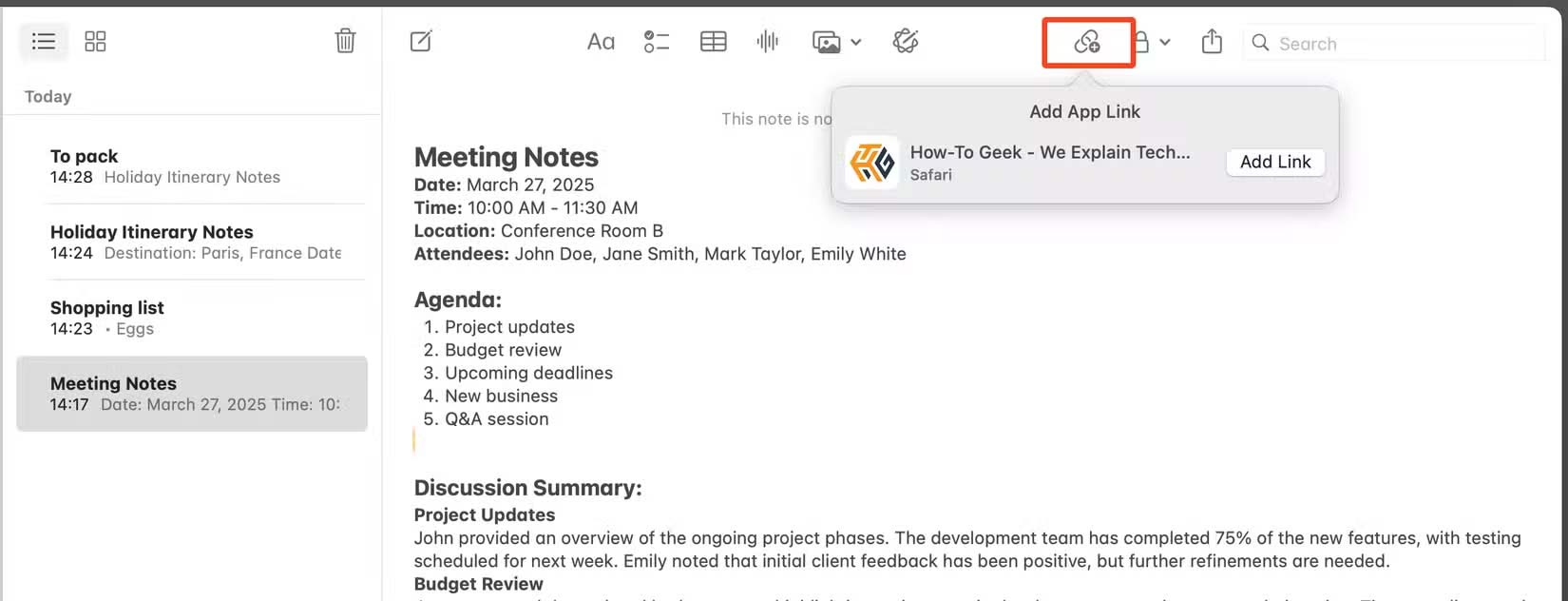
The app has you covered if you need to add a link to a website to your note. Load the website in your browser, then open the note and tap the Add a Link icon to add the link.
Lock Notes
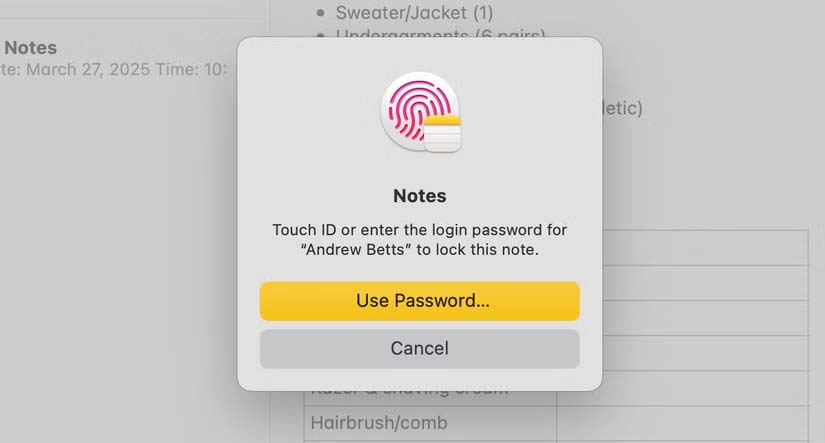
Notes has built-in security that allows you to lock the notes you want with a fingerprint or passcode. Click the lock icon on the toolbar to set this up.
Create Quick Notes with Hot Corners
You can use the Quick Note feature to quickly jot down notes in Apple Notes. Drag your mouse pointer to the lower-right corner of the screen to open the Quick Note window. You can enable this feature via Settings > Desktop & Dock > Hot Corners.
You can disable Hot Corner and use the Fn+Q shortcut to launch Quick Note if you trigger Quick Note too often or you have other uses for Hot Corner.
Summarize Notes with Apple Intelligence
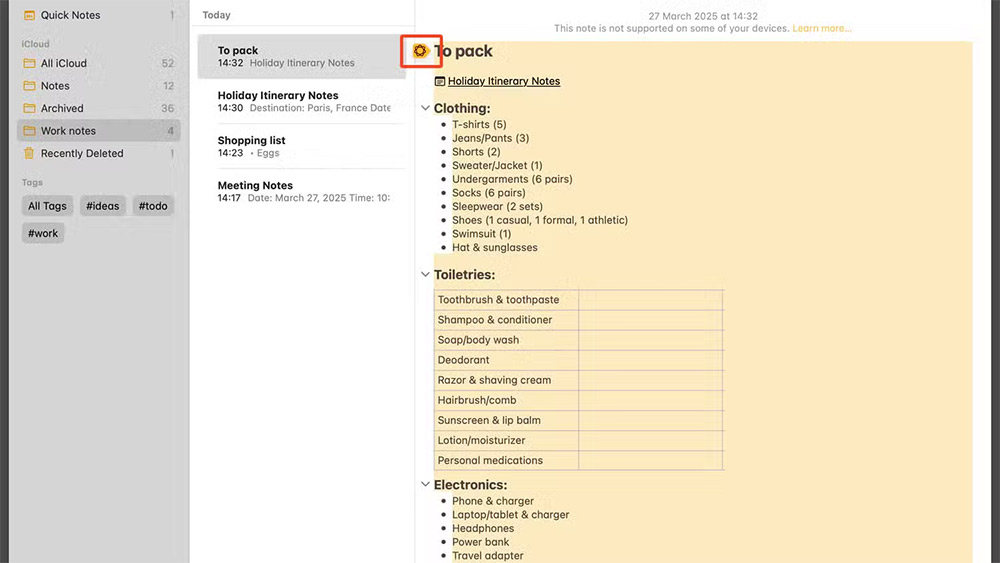
Apple Intelligence is great for summarizing long notes, organizing them into bullet points, or organizing many information into a table. Highlight the text and tap the Apple Intelligence icon that appears at the top of the first paragraph. This helps you use it.
Find Attachments in Notes
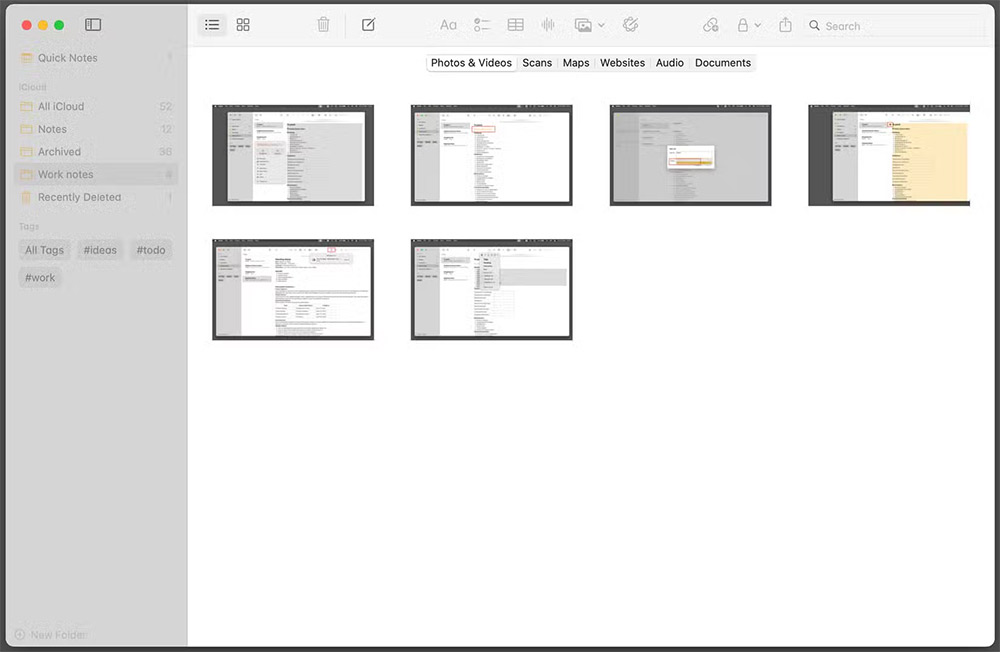
Over time, you may add many attachments to your notes. Open View > Show Attachments Browser to see the attachments. This helps you quickly find attachments.
Final Thoughts
The most reliable way to handle quick note handling tips for Apple notes on mac is to follow the process in order, verify each important setting, and test the result before moving on. Use the guidance above as a practical reference, then adjust the details for your device, software version, or specific goal.
FAQ
What should I know first about Quick Note Handling Tips for Apple Notes on Mac?
Apple Notes has been getting many new features, both on iOS and macOS.
How do I get the best results with Quick Note Handling Tips for Apple Notes on Mac?
Use current software or equipment, follow the steps in order, review the recommended settings, and test one change at a time so you can identify what improves the result.
What should I do if Quick Note Handling Tips for Apple Notes on Mac doesn't work as expected?
Check compatibility, permissions, connectivity, and version-specific settings. Restart the relevant device or app, then repeat the process carefully before trying a more advanced fix.
Related Articles
 5 Quick and Useful Note Application11 minutes read
 Tips for Using Sticky Notes in Windows13 minutes read
 How to Use Quick Note on iPad5 minutes read
 How to Pin a Note on iOS 11 Notes Application4 minutes read
 Tips for Making Google Keep Notes More Effective4 minutes read
 How to Pin Notes on Apple Notes - Mark Important Notes4 minutes read
Reader Comments 0
Sign in with email or Google to join the discussion.