Table of Contents
For opening and printing a PDF, try your web browser first. If you regularly annotate documents, fill forms or review signatures, a dedicated free reader such as Adobe Acrobat Reader or Foxit PDF Reader is a better starting point. Editing the original text, performing OCR and converting files are separate capabilities that may require a paid product.
Choose by the task
| Need | Options to try | Important limit |
|---|---|---|
| Read, search and print | Your browser; a dedicated reader | Viewer controls vary by browser and document |
| Comment or complete forms | Acrobat Reader; Foxit PDF Reader | Form behavior and advanced services vary |
| Use a compact desktop viewer | Slim PDF | Check the current download for your operating system |
| Use additional Windows PDF tools | PDF-XChange Editor | Licensed features can add watermarks when used without a license |
| Store and share online | Google Drive; DocHub | Uploading sends the document to a cloud service; account limits apply |
| Rework a visual design | Canva | Imported layouts may change; inspect the exported PDF |
Foxit PDF Reader
Foxit PDF Reader supports viewing, printing, annotations and form filling. It is useful when a browser viewer is too basic for regular document review.
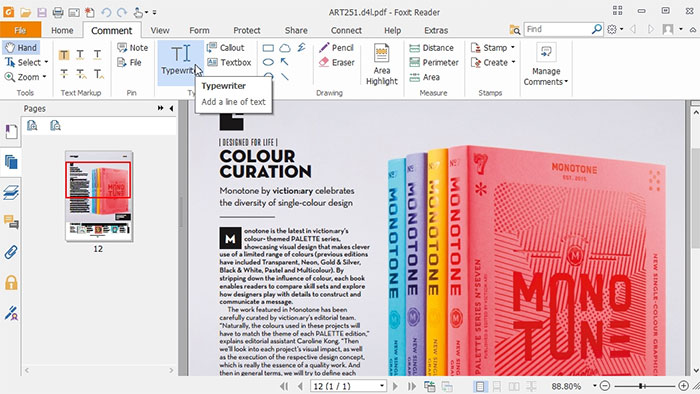
Do not confuse Reader with Foxit PDF Editor. Tools for rewriting existing text, converting files and OCR belong to a different feature set and can require payment. Check the download name and avoid activating a trial when you only want the reader.
Adobe Acrobat Reader
Acrobat Reader provides free viewing, comments, form completion and signing tools. It is a practical option for shared review and common PDF forms.
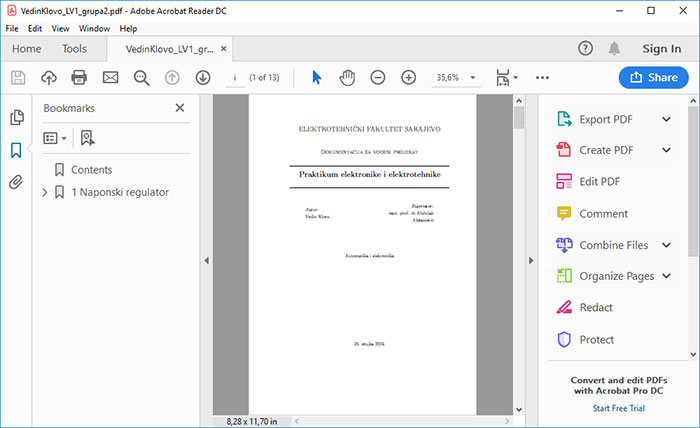
Changing the document's original text or images requires an editing product rather than Reader's annotation tools. For a specific task, see adding a signature in Adobe Reader. Save a separate completed copy and reopen it to check that entries remain visible.
Your web browser
Chrome, Firefox, Edge and Safari can open PDFs without a separate reader installation. Open a downloaded file with the browser or drag it into a tab. Basic controls usually include zoom, page navigation, search and printing; annotations and form support differ.
This is often enough for a manual or reference document. A local file opened in a browser does not need to be uploaded to a separate online PDF editor. If a form behaves unexpectedly, download it and try a dedicated reader.
Google Drive
Drive is useful for storing, previewing and sharing PDFs across devices. It is a cloud service rather than a full desktop PDF editor.
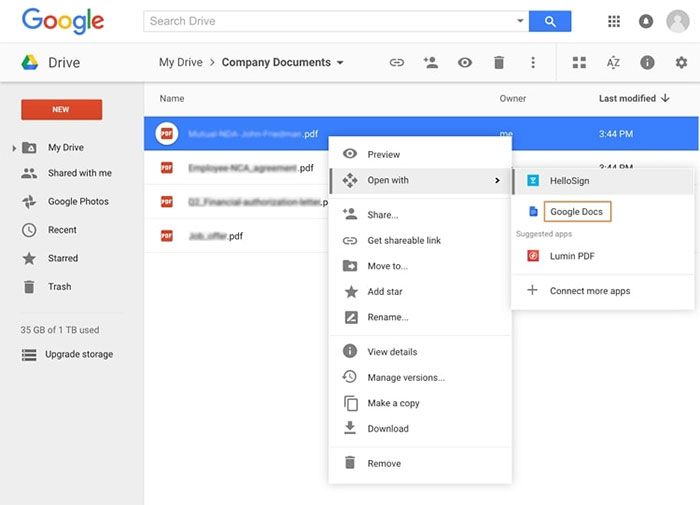
Set sharing permissions carefully. Converting a PDF into an editable document can alter its layout, especially when it contains scans, columns or complex tables. See working with PDFs in Google Drive for related workflows.
Canva
Canva is more appropriate for revising a visual document than for faithfully reading a contract or technical form. You can import a PDF into its editor, but converting the page into editable elements can change fonts, spacing and object placement.
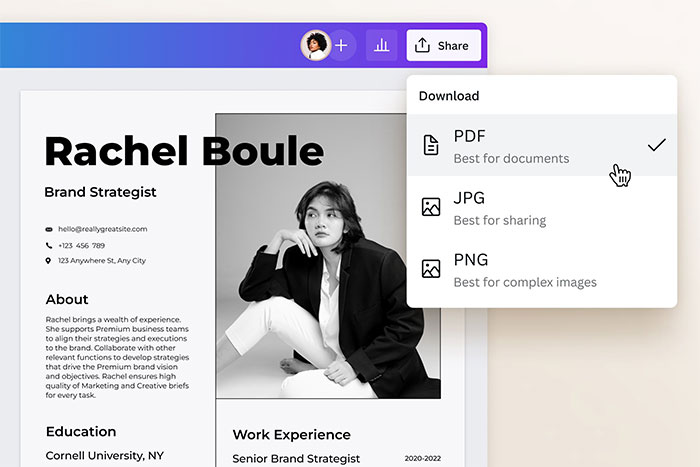
Keep the source file and compare every exported page against it. Check whether your design uses paid elements before export. Canva's PDF import instructions explain the available upload methods.
Slim PDF
Slim PDF Reader offers a compact viewing interface. The current product also lists annotations and form filling, so the older claim that it can only search and rotate pages is too restrictive.
Use it if you prefer a relatively simple reader. Check platform availability on the download page rather than assuming every listed operating system has a release available.
PDF-XChange Editor
PDF-XChange Editor combines a viewer with many additional PDF tools. Some features are free, while others require a license.
The free version does not watermark every file you save. Watermarks are associated with using licensed features without a license. Watch the feature labels, experiment on a copy and review the output before distributing it. Check the current feature list before relying on a particular OCR or editing capability.
DocHub and other paid-service alternatives
DocHub, misspelled “DatHub” in some older lists, offers browser-based PDF work with a limited free account. Its account guidance describes usage limits for uploads, signing and sending. Confirm the current limits for your task.
Nitro: Older articles may refer to a standalone free Nitro Reader. The vendor's current pricing page emphasizes paid PDF products and a time-limited trial. Do not assume a trial provides permanent free editing.
Kindle: An ebook library may be convenient for reading long documents, but it is not the first choice for form completion, accurate page review or PDF editing. Check current import support on the particular Kindle device or app before choosing it for a PDF workflow.
pdfFiller: Treat it as an online document-editing service to evaluate if you need those functions, rather than installing it just to read a PDF. Verify whether saving or downloading the finished file requires a subscription before uploading and spending time editing.
Check the saved result
Try a representative document before switching your default app. Verify search, printing, comments and form saving on your own files. Keep software updated and obtain installers from the publisher. For confidential material, prefer an approved local workflow or a service whose storage and sharing terms meet your needs.


Reader Comments 0
Sign in with email or Google to join the discussion.