Table of Contents
This guide organizes the entries in "6 Open Source PDF Editors You'll Definitely Need" and explains what each option, idea, or example offers. It also highlights practical details that matter when comparing the choices.
6. LibreOffice Draw
While LibreOffice is a great alternative to Office 365, it can also function as a handy PDF editor with Draw. It's part of the LibreOffice suite, so if you already have Writer or Calc installed, Draw will be ready to go.
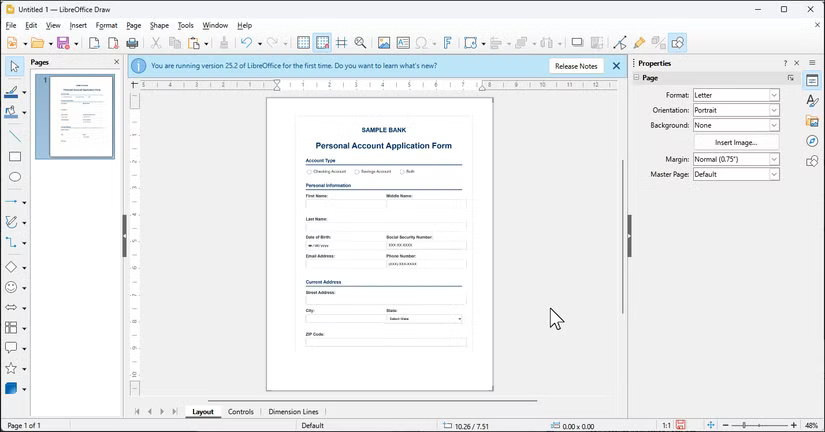
Draw is primarily a vector graphics editor, and it handles PDFs quite well. When you open a PDF, Draw treats each page as a canvas and lets you move text blocks around, add shapes, or insert images. Tight integration with other LibreOffice apps lets you copy charts and diagrams directly into a PDF.
- Download LibreOffice Draw for Windows | macOS | Linux (Free)
5. PDFsam Basic
PDFsam Basic has one particularly good feature: It manipulates the PDF structure without modifying the content. If you need to split a 200-page report into chapters or merge multiple invoices into a single file, PDFsam is your top choice for batch processing.
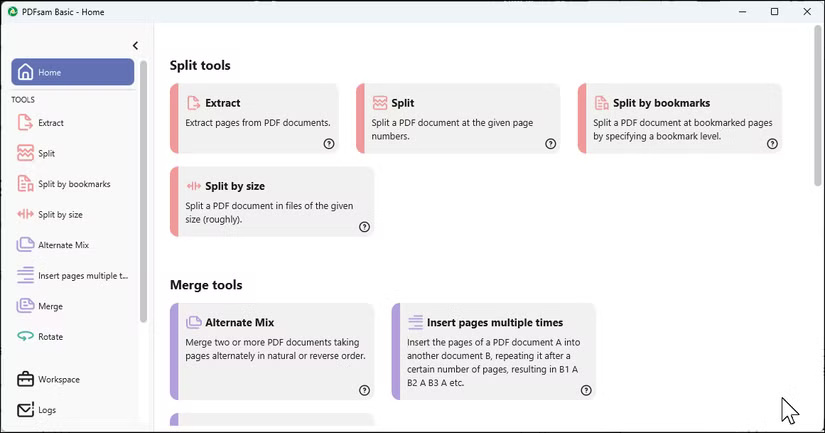
The user interface is simple, allowing you to drag a PDF file into the window, select the operation you want to perform — split, merge, rotate, or extract — and hit Run. You can split files by page count, bookmarks, or even file size. This is especially useful if you regularly break long documents into manageable chunks for your team to review.
- Download PDFsam Basic for Windows | macOS | Linux (Free, Advanced $59)
4. PDF Arranger
If you need a simple tool to rearrange PDF pages, PDF Arranger is the best option out there. It displays all the pages as thumbnails so you can drag them around like pictures on your desktop. It's lightweight, fast, and does exactly what you need when you want to rearrange pages without opening a bulky PDF editor.
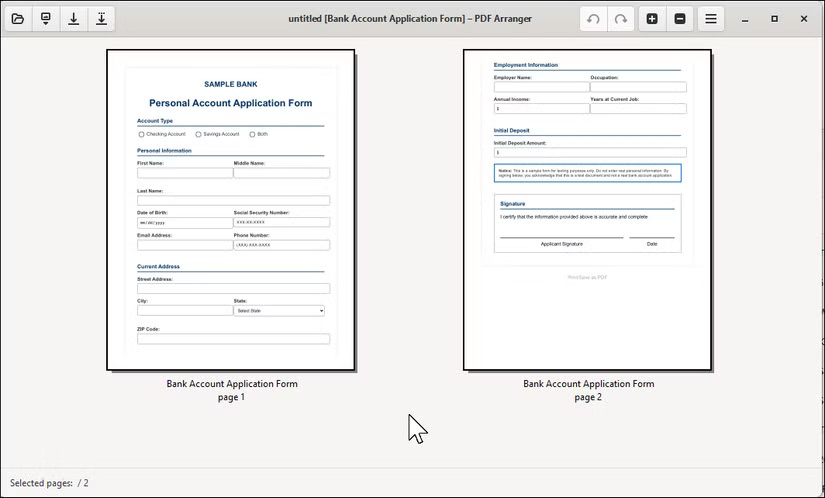
This tool isn't just for rearranging. You can use it to rotate pages, crop blank margins, and split PDFs if you only need certain parts. The crop tool is useful for getting a chart or diagram without bringing along unnecessary headers and footers.
- Download PDF Arranger for Windows | macOS (via Nix) | Linux (Free)
3. Stirling PDF
If you're looking for a free, open-source alternative to Adobe Acrobat, Stirling PDF is a solid choice. While it doesn't edit existing text or correct spelling errors like Adobe, it offers over 50 different features that should cover most any other PDF need.
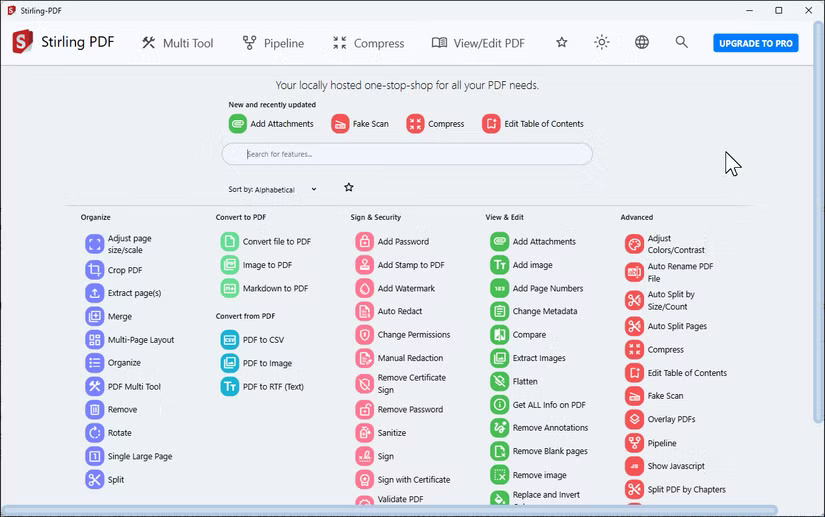
The feature list goes far beyond the usual PDF tools. Stirling can easily merge, split, compress, and convert PDFs. The interface revolves around 4 main tabs:
- Multi Tool : Combines everyday tasks like merging, rotating, rearranging, splitting, and deleting in one place.
- Pipeline : Chain operations together for repetitive tasks.
- Compress : Reduce file size with various quality settings.
- View/Edit PDF : Annotate, add signatures, and make visual changes to documents.
Clicking the Tools menu reveals the entire PDF management arsenal.
- Download Stirling PDF for Windows | macOS | Linux (Free version, Pro version available for businesses)
2. Inkscape
While Inkscape is primarily a vector graphics editor, it has some impressive PDF editing features, making it ideal if you want to edit graphic-heavy or design-based PDFs. Adobe Illustrator users will find Inkscape to be an effective free alternative for both vector work and PDF editing.
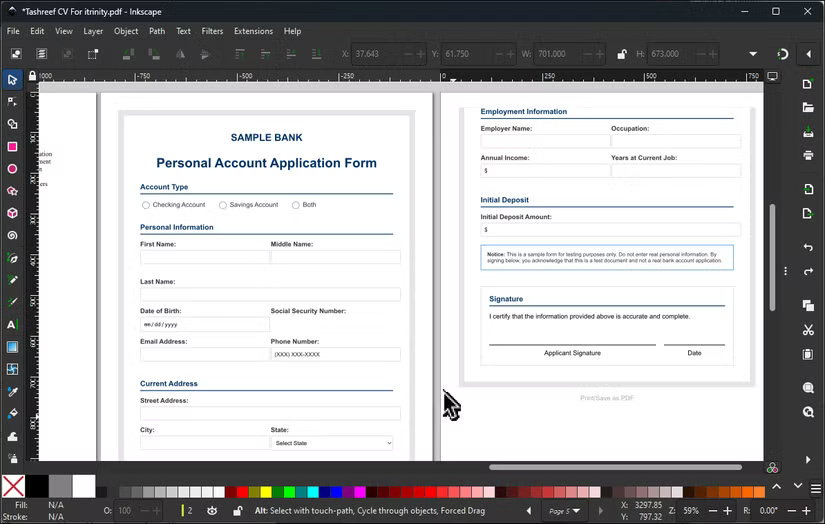
To edit a PDF in Inkscape, simply import it into the canvas, and Inkscape will treat each page as a vector canvas. Once imported, you can manipulate any object: Move it, resize it, delete elements, change colors and gradients, or rearrange layers.
- Download Inkscape for Windows | macOS | Linux (Free)
1. Sejda
Not open source but still free
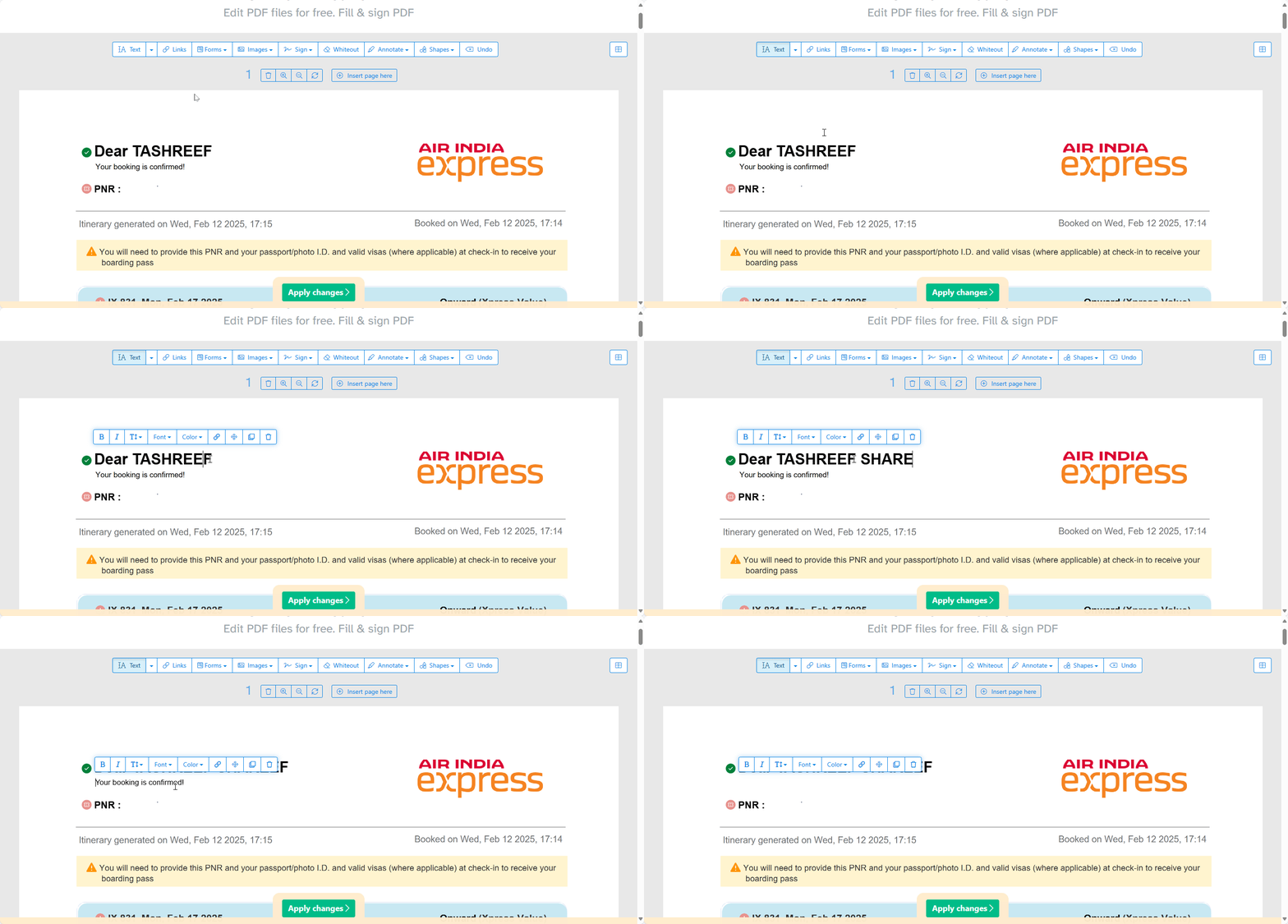
Sejda deserves a spot here despite being a proprietary tool because it solves a problem that most other PDF editors fail to do: Preserving fonts. When you edit text in most PDF tools, the original font often disappears, replaced by generic replacement fonts, ruining the look of the document.
Sejda is a free PDF editor that can detect and preserve fonts, so you can edit your document while preserving the original look and feel. You can use it online in your browser or download the desktop version.
- Download Sejda for Windows | macOS | Linux | Web (Free, Premium $7.50/week)
FAQ
What should you know about 6. LibreOffice Draw?
While LibreOffice is a great alternative to Office 365, it can also function as a handy PDF editor with Draw. It's part of the LibreOffice suite, so if you already have Writer or Calc installed, Draw will be ready to go.
What should you know about 5. PDFsam Basic?
PDFsam Basic has one particularly good feature: It manipulates the PDF structure without modifying the content. If you need to split a 200-page report into chapters or merge multiple invoices into a single file, PDFsam is your top choice for batch processing.
What should you know about 4. PDF Arranger?
If you need a simple tool to rearrange PDF pages, PDF Arranger is the best option out there. It displays all the pages as thumbnails so you can drag them around like pictures on your desktop. It's lightweight, fast, and does exactly what you need when you want to rearrange pages without opening a bulky PDF editor.
What should you know about 3. Stirling PDF?
If you're looking for a free, open-source alternative to Adobe Acrobat, Stirling PDF is a solid choice. While it doesn't edit existing text or correct spelling errors like Adobe, it offers over 50 different features that should cover most any other PDF need.
Related Articles
 4 Open Source Text Editors That Can Replace Microsoft Word7 minutes read
 Can Open Source Technology Make Money?5 minutes read
 Try Switching Everything to Open Source for a Week, You'll Be Amazed!6 minutes read
 What Is Open Source Software?7 minutes read
 4 Great Benefits of Using Open Source Software6 minutes read
 10 Best Open Source Web Browsers9 minutes read
Reader Comments 0
Sign in with email or Google to join the discussion.