Table of Contents
Canva Code can turn a detailed description into an interactive classroom review game. The strongest results come from planning the rules, questions, feedback, and accessibility before asking AI to build the interface.
Use television game shows only as broad inspiration. Create an original name, visual identity, sounds, and rules rather than copying protected branding or distinctive assets from a specific program.
1. Write the game specification
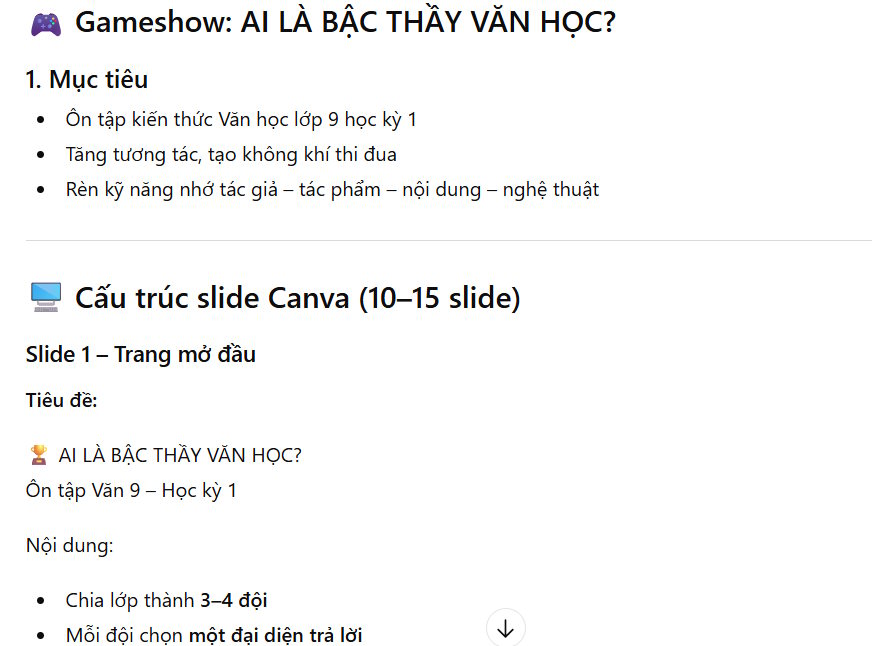
You can draft the brief yourself or ask ChatGPT to organize it. Include the subject, grade, learning objectives, number of teams, number of rounds, timing, scoring, feedback, and what should happen after a wrong answer.
An example request is:
You are helping a teacher design an original interactive review game for Canva Code. The learners are Grade 9 students reviewing first-semester literature. Create a three-round team game with 12 teacher-verified questions, clear rules, a visible score, a timer that can be turned off, immediate answer feedback, and a final results screen. Do not copy the name, graphics, music, or exact format of an existing television show. Return one complete implementation brief for Canva Code.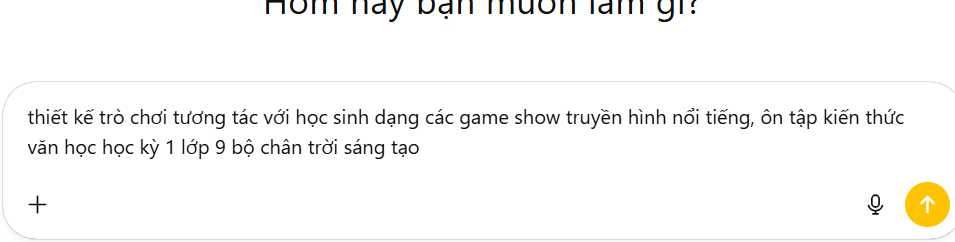
2. Review the questions and rules
Read the generated brief before using it. Correct factual errors, replace unsuitable questions, and confirm that the scoring system cannot produce contradictory results. The game should explain:
- how a player or team selects a question;
- how an answer is submitted;
- when points are added or deducted;
- whether another team can answer after a miss;
- how the round ends; and
- how the game can be reset.
3. Generate the activity with Canva Code
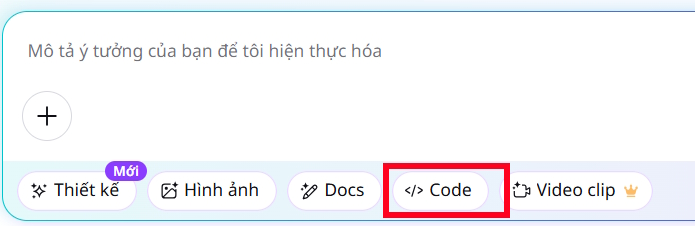
Open Canva AI and select Code.
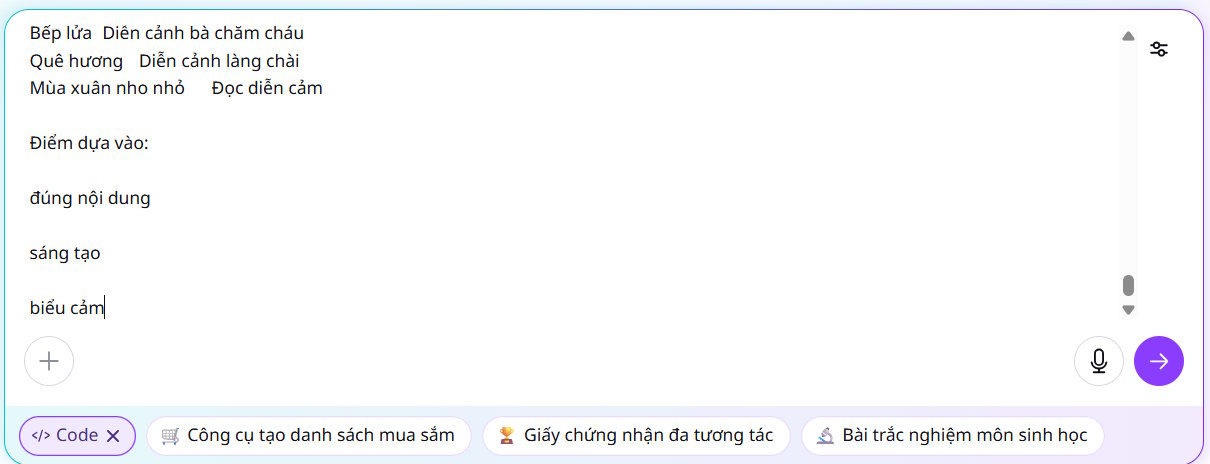
Paste the reviewed specification and ask Canva to build the interactive activity.
When the result appears, test every button, question, answer state, score change, timer, and reset action.
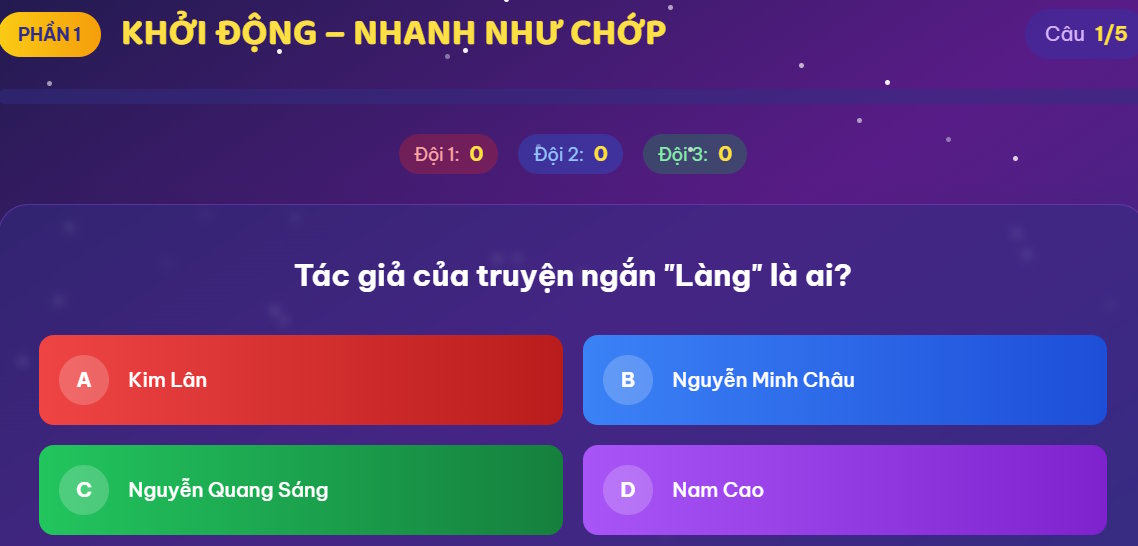
4. Improve the generated game
Ask for one change at a time, such as larger answer buttons, clearer feedback, a manual score adjustment, or keyboard navigation. Specific corrections are easier to verify than a broad request to “make it better.”
For classroom use, include:
- high-contrast text and controls;
- large tap targets for a projected or touch display;
- an option to pause or disable the timer;
- feedback that does not rely on color alone;
- a teacher-controlled next button; and
- a reset function that clears all previous answers and scores.
5. Run a complete rehearsal
Play through the game as each team before the lesson. Verify the answer key against approved materials, check that the game fits the available time, and keep a noninteractive copy of the questions in case the network or generated activity fails.
AI can accelerate the interface design, but the educational quality still depends on accurate questions, fair rules, and a teacher who has tested the complete experience.
Related Articles
 How to Create a Signature Using AI Signature on Canva5 minutes read
 Instructions for Creating QR Codes on Canva3 minutes read
 Instructions for Creating Stickers on Canva3 minutes read
 How to Create Crossword Puzzles on Canva AI Extremely Quickly5 minutes read
 Quick Clone in Canva: How to Clone Quickly in Canva3 minutes read
 How to Create a Spreadsheet Chart in Canva Sheets4 minutes read
Reader Comments 0
Sign in with email or Google to join the discussion.