Table of Contents
The Crossword AI app in Canva can turn a topic, language and target audience into a draft word list, clues and crossword layout. It saves setup time, but teachers should still verify every answer and rewrite unclear clues before giving the puzzle to students.
Prepare the puzzle brief
Before opening the app, decide the learning objective, difficulty level, language and approximate number of answers. Use terms students have already encountered, and keep spelling consistent with the course material. A focused brief produces a more coherent puzzle than a broad prompt such as “science words.”
Create a crossword in Canva
1. Find the Crossword AI app
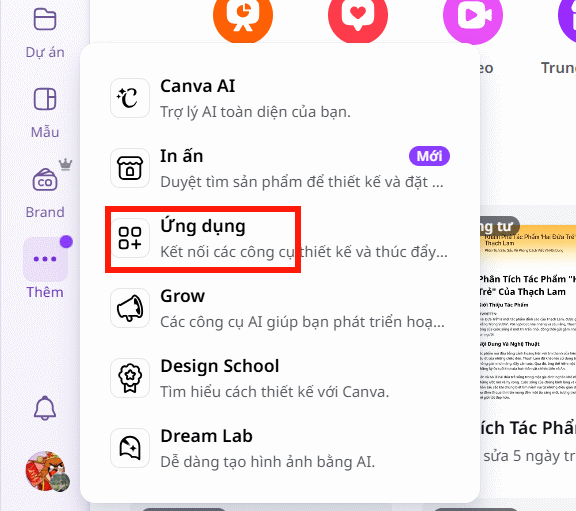
Open your design in Canva. Select the three-dot menu or Apps, depending on the current editor layout.
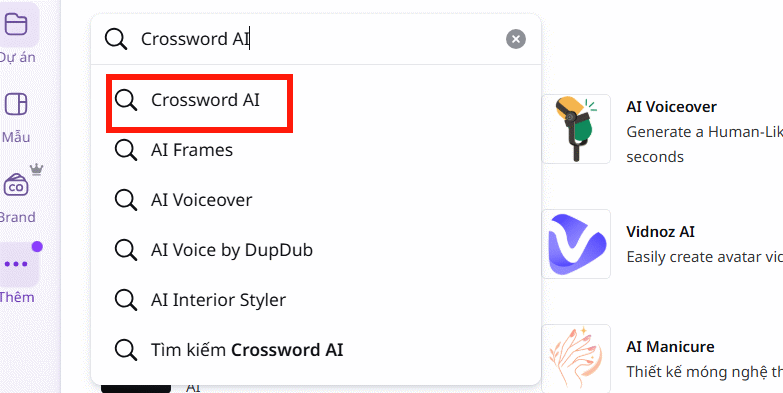
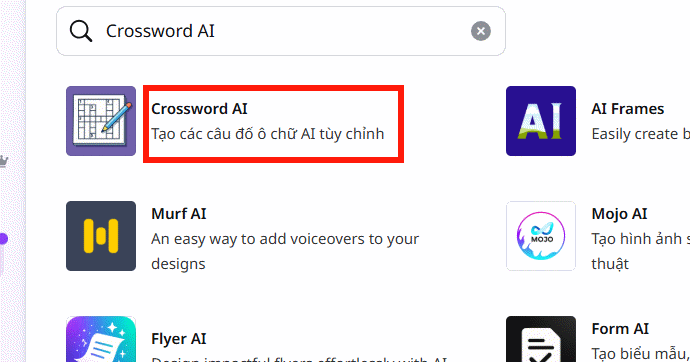
Search for Crossword AI, review the app result, and open it. Canva apps are supplied through Canva's platform, so availability and plan requirements may change.
2. Choose where to add the puzzle
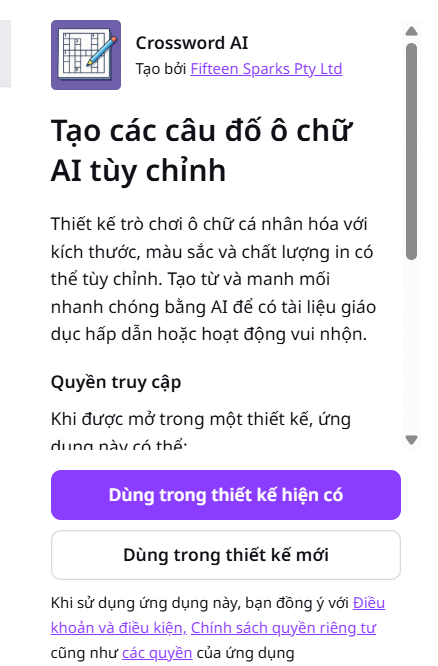
Select whether to place the crossword in the current design or start a new design. Use the current design when you have already set the page size, branding or lesson layout. A new design is useful when you want to test the app without changing existing work.
3. Generate the words and clues
Remove the sample entries so they are not mixed with your subject. Then enter a brief that includes four elements:
number of words + topic + language + target learnersExample: 10 words about the solar system, in English, for learners aged 10–12. You can also mention a unit or reading passage when the puzzle is intended to review specific material.
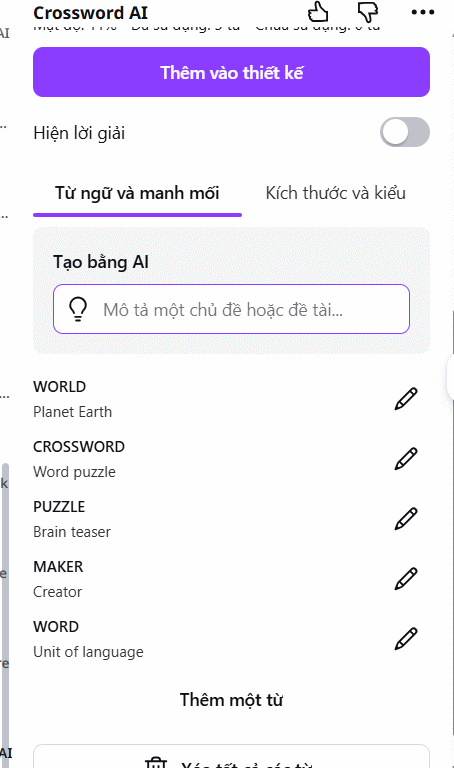
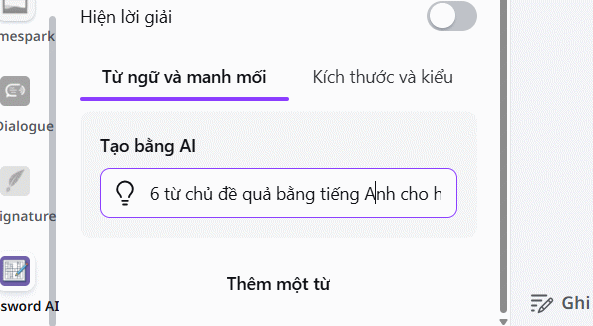
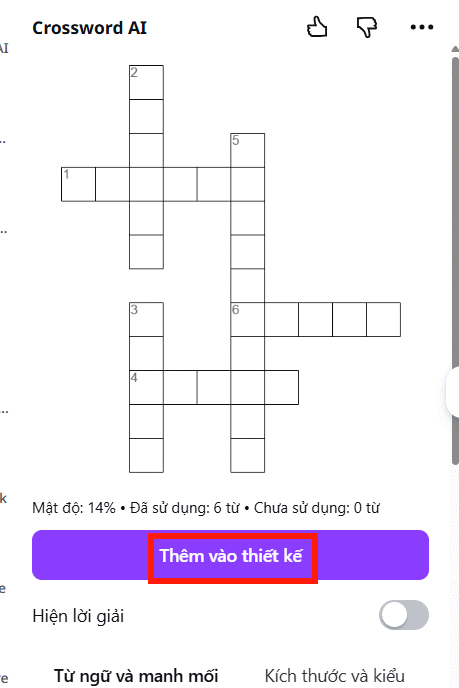
Crossword AI will generate answers, clues and a proposed horizontal-and-vertical layout. Treat this as a draft. Check that every answer is spelled correctly, matches the clue exactly and is appropriate for the learners.
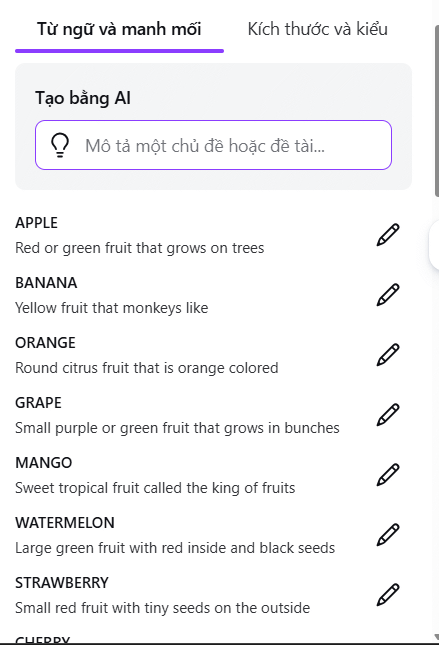
4. Edit weak or ambiguous clues
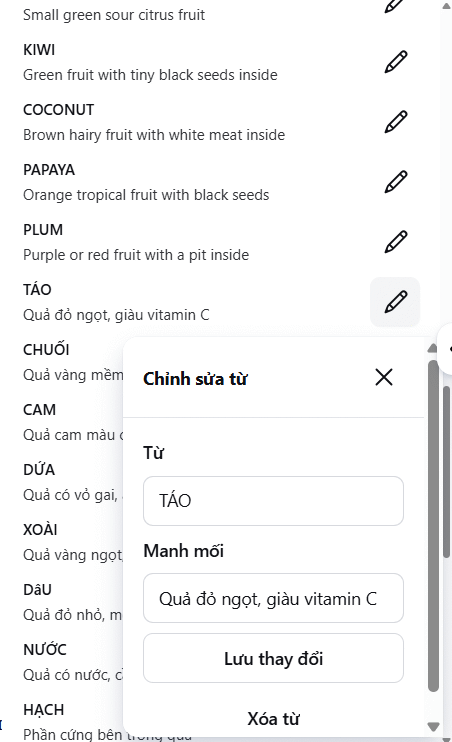
Select the pen icon beside an entry to edit its answer or clue, then save the change. Replace clues that could have several valid answers, reveal the answer accidentally, depend on obscure trivia or use language beyond the class level.
Some color or background controls may depend on the Canva plan or app version. If they are available, keep strong contrast between the grid, numbers and page background.
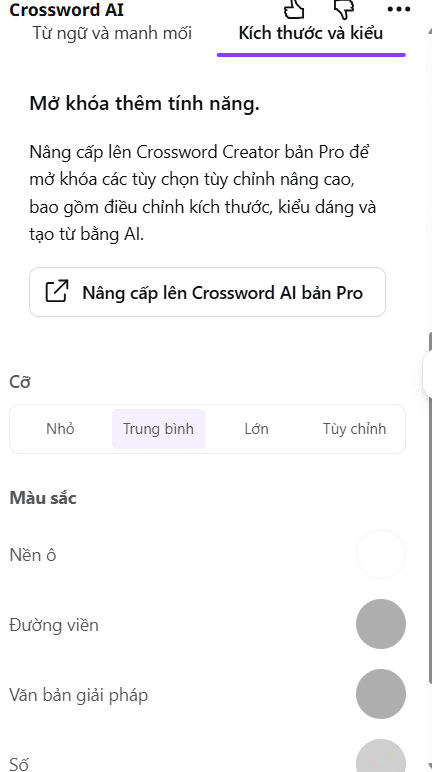
5. Add the crossword to the design
Select Add to design. The puzzle, clue list and answer material will be inserted into Canva, where you can adjust the surrounding page layout.
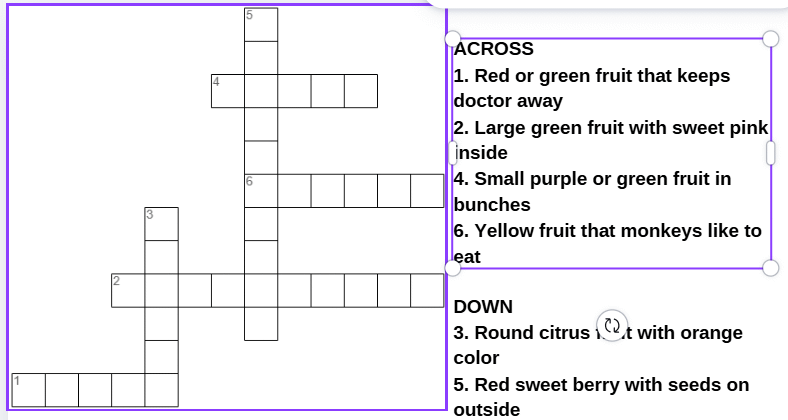
Check the puzzle before sharing it
Keep the answer key on a separate page that students will not receive with the blank puzzle. Review the grid at its final size: letters and clue numbers must remain readable when printed or projected. Also check that no answer is cut off and that the clue order matches the numbering in the grid.
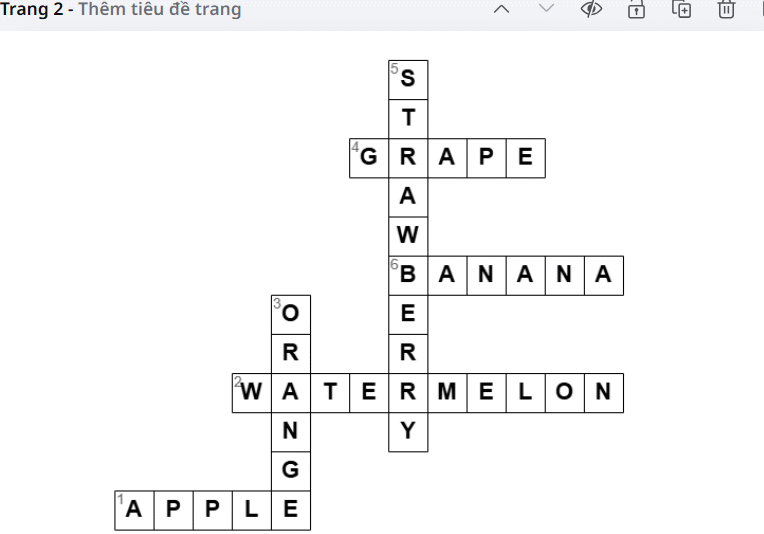
- Solve the puzzle yourself or ask another adult to test it.
- Use plain fonts and sufficient contrast for accessibility.
- Give students clear instructions about spaces, accents and capitalization.
- Duplicate the design before making a student version and an answer-key version.
- Export a sample page and check the print margins before distributing copies.
If the activity will be presented as slides, this guide explains how to convert Canva slides to PowerPoint. If a project is accidentally removed during editing, see how to recover a deleted Canva project.
Related Articles
 The 5 Most Interesting Crossword Apps on Android for Those Who Love the Crossword4 minutes read
 How to Create a Crossword Puzzle in PowerPoint with Effects5 minutes read
 How to Create a Crossword Game on PowerPoint: PowerPoint Crossword9 minutes read
 How to Create a Signature Using AI Signature on Canva5 minutes read
 Instructions for Creating QR Codes on Canva3 minutes read
 Instructions for Creating Stickers on Canva3 minutes read
Reader Comments 0
Sign in with email or Google to join the discussion.