Table of Contents
Open the AI Signature app in Canva, generate a signature from your name, place it in a design, and export the result as an image.
Important: AI Signature is listed in the Canva Apps marketplace. A generated signature image is not automatically the same as a verified digital signature or a legally binding e-signature. Use the official Canva app listing and follow your organization’s signing requirements.
Canva is a popular online graphic design software that allows users to create various types of visual content, while also supporting AI-powered content creation and real-time teamwork, optimizing the design process and improving work efficiency. Today, Tipsmake.com will introduce an article on creating AI signatures on Canva. Please read on.
Create a signature image in Canva
Quick steps
- Open the Canva software on your phone or computer.
- Access any design
- Click on the Applications button.
- Search for AI Signature tool
- Enter the signature content you want to create.
- Click the Generate button.
- Choose a design style
- Customize the size and color of your signature.
- Click the Share button to save the signature.
Detailed steps
Step 1: First, open the Canva software on your phone or computer. Then, access any design you want to add your signature to.
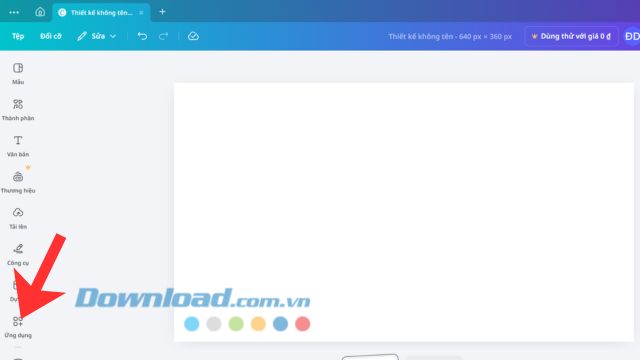
Step 2: In the editing toolbar, click on the " Applications" option on the left side of the screen.
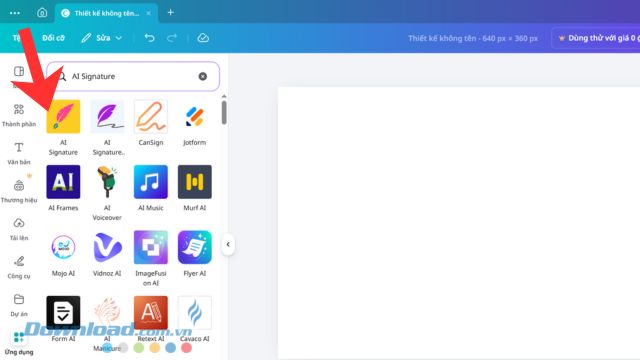
Step 3: In the search window, type the keyword " AI Signature " and search for this tool.
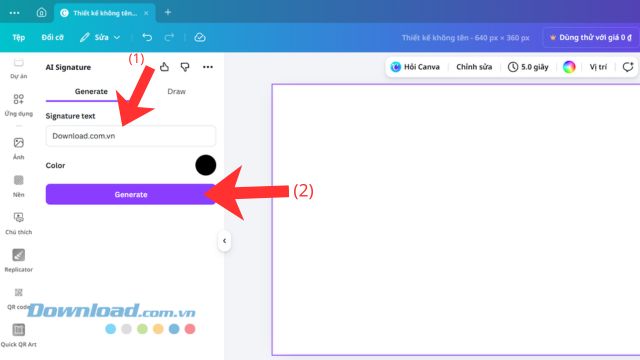
Step 4: Now, in the Signature Text box, enter the signature you want to insert into the design, then click the Generate button.
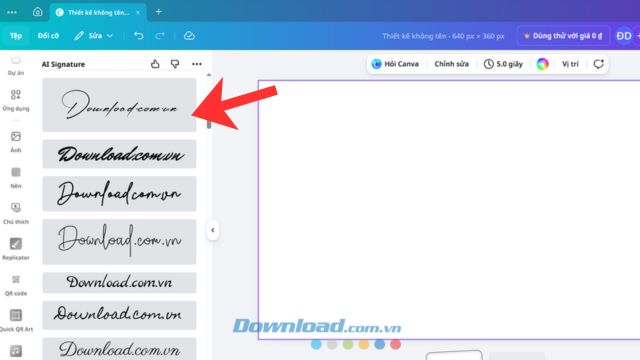
Step 5: Wait a moment for the system to design the signature, then the user should choose the appropriate signature style they want to insert into the design.
Step 6: Next, you can customize the color and size of your signature.
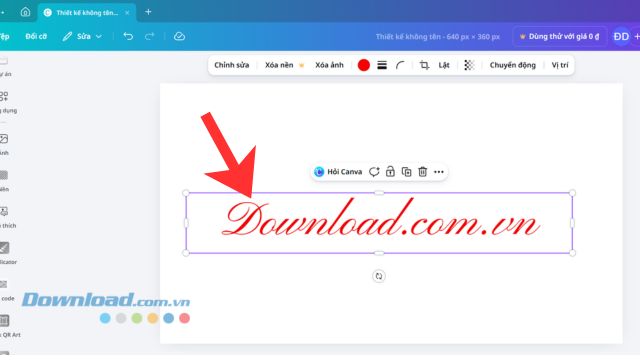
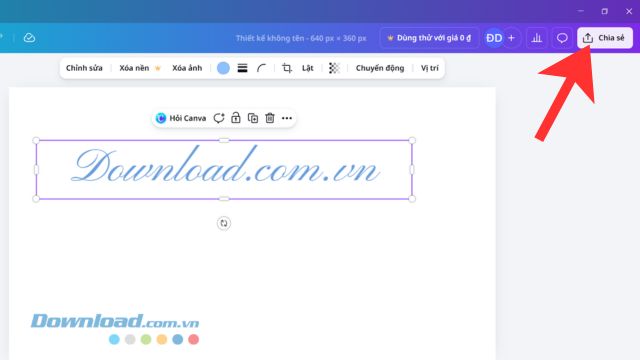
Step 7: Finally, click the Share button to save the design with the signature you created in Cava to your device.
Video Tutorial: Creating a Signature Using AI Signature on Canva
Common questions about Canva AI Signature
What is AI Signature on Canva?
- This feature uses artificial intelligence to automatically generate personalized signatures. You simply enter your name or choose a style, and the system will suggest several handwritten-like signature templates.
Is creating a signature on Canva free?
- Yes. Canva offers many free signature templates. However, some fonts or advanced designs may require a Pro account.
Is it possible to create a signature that looks exactly like real handwriting?
- It's possible. AI will simulate natural handwriting, making the signature look softer and closer to real handwriting.
Can I customize my signature?
- Yes. You can change the font, color, stroke thickness, size, or add effects to suit your needs.
How do I download the signature to my computer?
- Once you've finished designing, you can export the file as a PNG (transparent background), JPG, or PDF for use.
Can a Canva signature be used as a legally valid electronic signature?
- Not entirely. Signatures created on Canva are primarily for visual purposes (emails, documents). For legal validity, you need to use certified digital signature services.
Can I use a Canva signature in emails?
- Yes. You can insert a PNG signature file into your email signature (Gmail, Outlook, etc.) to enhance its professionalism.
Does Canva support creating business signatures?
- Yes. You can create a consistent signature for multiple employees, ensuring consistent brand identity.
Do you need design skills to create a signature?
- No. Canva is designed to be simple, suitable even for beginners.
Good luck with your project!
Related Articles
 The Simplest Way to Create and Add a Watermark in Canva3 minutes read
 How to Create an Email Signature Generator Using ChatGPT8 minutes read
 Instructions for Creating QR Codes on Canva3 minutes read
 Instructions for Creating Stickers on Canva3 minutes read
 4 New Canva Features You'll Love11 minutes read
 How to Create Document Signature on iPhone3 minutes read
Reader Comments 0
Sign in with email or Google to join the discussion.