Table of Contents
A bowling quiz can make a short knowledge review more engaging without requiring programming. In Genially, the main work is not the animation: it is writing clear questions and linking each answer to the correct destination. Build a small version first, test every path, and only then duplicate it for a longer activity.
Plan the quiz before opening Genially
- Choose one learning objective and a manageable number of questions.
- Write one clearly correct answer and plausible distractors for each item.
- Decide what happens after correct and incorrect responses.
- Prepare brief feedback, not just “right” or “wrong.”
- Keep an answer key outside the game in case a link is configured incorrectly.
1. Start a Genially game project
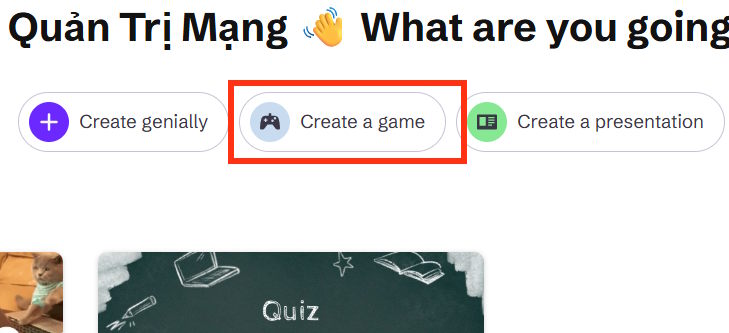
Open the official Genially editor and sign in. Choose the option to create a new project, then select the game or gamification templates. Interface labels and free-plan availability can change, so use the template search if the category is named differently.
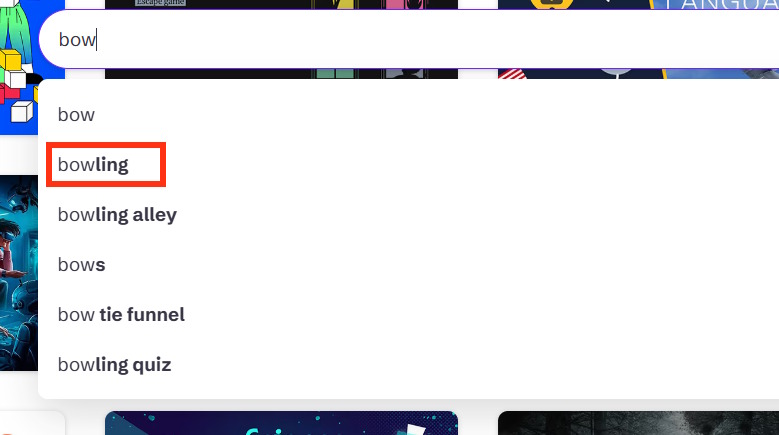
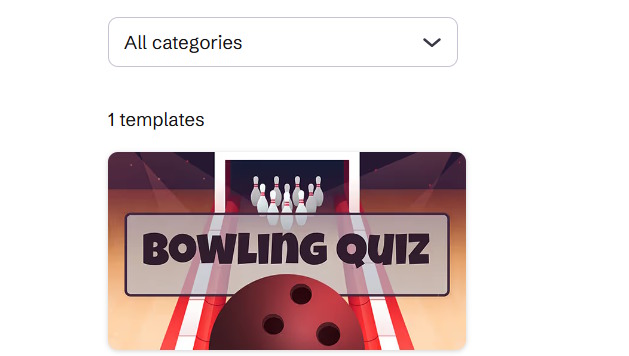
Search for bowling. Preview the template before selecting it so you understand its page order, scoring animation, and existing interactions.
2. Make a copy of the template
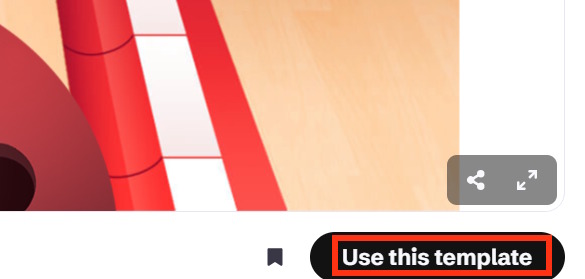
Select Use this template. Rename the project immediately with the subject, class, and topic so it is easy to find later. Preserve an untouched copy when you expect to reuse the layout.
Move through the template pages once before editing. Identify the introduction, question, correct-answer, incorrect-answer, transition, and ending pages.
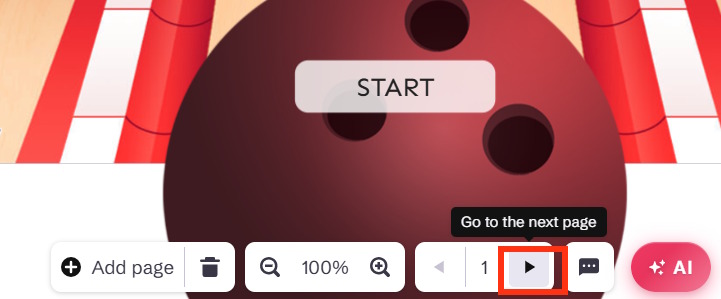
3. Replace the sample question and answers
Select the question text box and enter your own wording. Keep it short enough to read from the back of the room. Replace all answer options and verify that only one is unambiguously correct.
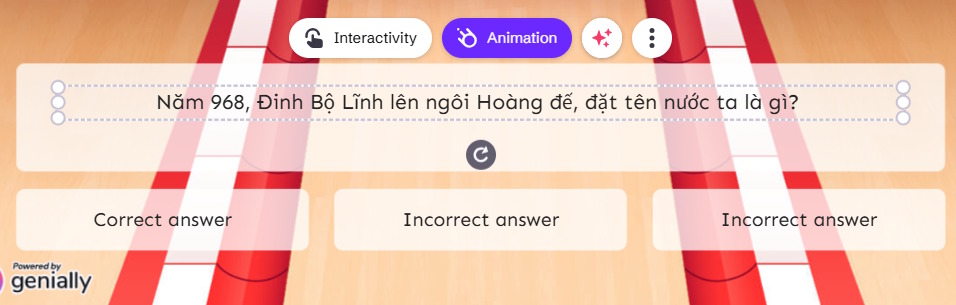
Do not reveal the answer through grammar, length, formatting, or repeated wording. For younger learners, read the options aloud without changing their meaning.
4. Configure the interactions
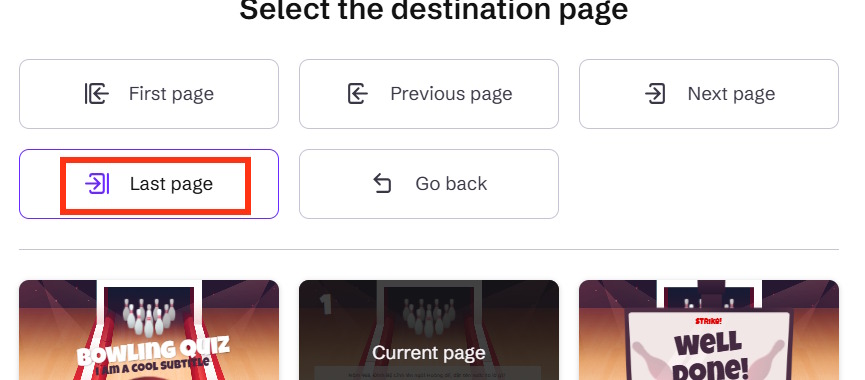
Select the correct answer, open its interaction settings, and link it to the intended next page or success page. Save the change.
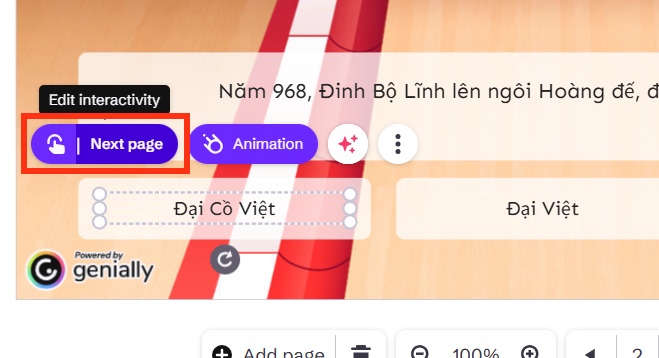
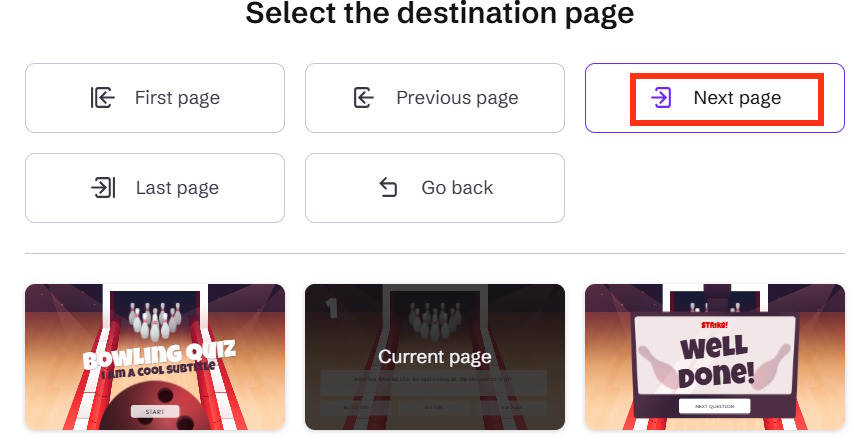
Configure each incorrect answer separately. Depending on the template design, an incorrect choice can open a feedback layer, return to the same question, or move to a retry page. Avoid linking every wrong response to the final page unless ending the game is an intentional rule.
5. Add more questions safely
Duplicate a complete, working question sequence rather than copying individual objects. Then replace the text and update every page link in the duplicate. Use the page panel to keep a consistent order and descriptive internal page names.
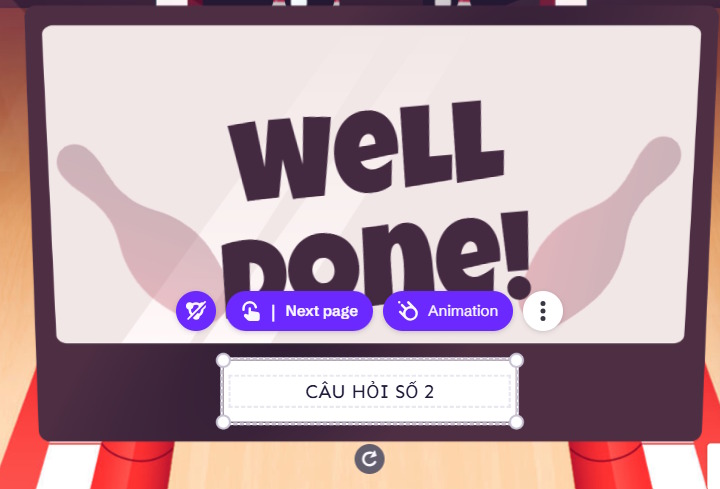
After each new question, preview from the page before it. This catches links that still point to an earlier question.
6. Preview, publish, and share
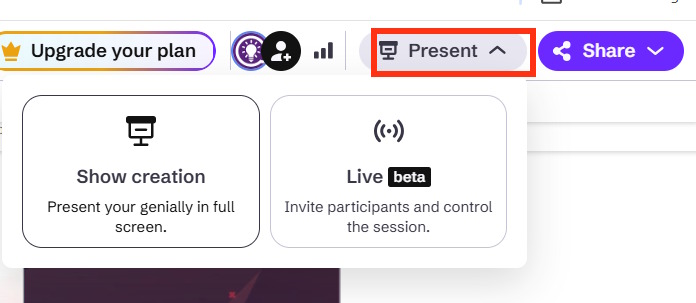
Use the preview or present control and play through the quiz as a student. Test every correct and incorrect option—not only the expected path. Check readability on the classroom display and on the device students will use.
When the game is ready, publish or share it using the options available to your plan. Review visibility settings before sending the link, especially if the project includes student names or class information.
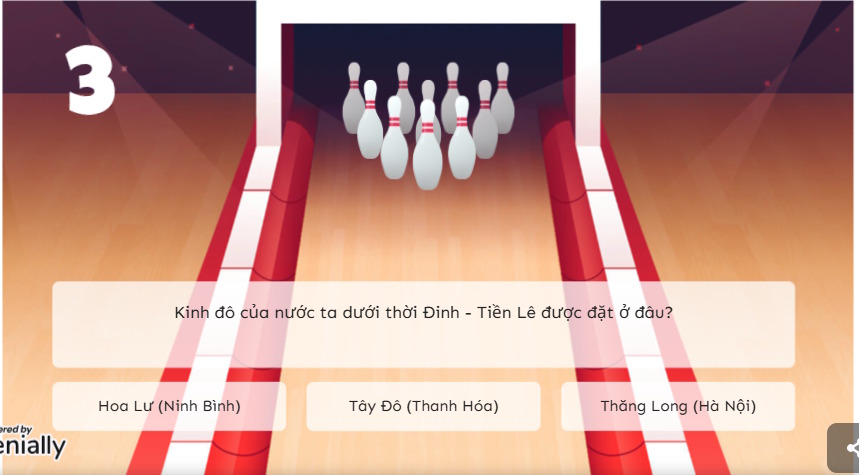
In the original template behavior, a correct answer triggered the bowling animation and knocked down the pins; an incorrect choice displayed feedback without the successful animation.
Quality checklist for teachers
- Every question supports the stated learning objective.
- Only one answer is correct unless multiple answers are clearly allowed.
- All buttons and answer choices work with touch, mouse, and keyboard where possible.
- Text contrast and font size remain readable on the actual display.
- Animations do not obscure feedback or create unnecessary delay.
- The game includes an alternative way to participate for students who cannot use the interactive controls.
- No personal student data appears in a public project.
- The full game can be completed within the lesson time.
If the bowling template is unavailable
Template catalogs can change. Search Genially for quiz, game, or sports, then apply the same structure: question page, answer interactions, feedback, and next-question navigation. The learning design matters more than the bowling theme.
The original embedded Genially iframe was removed from this revision because non-YouTube iframes are not retained. Use the project's normal share link if students need to open the finished activity.
Related Articles
 Create Your Own Bowling Playground in Your Yard6 minutes read
 How to Make a Bowling Pin in Inkscape8 minutes read
 The Amazingly Accurate Bowling Bowling Video Is Actually Cgi3 minutes read
 Quickly Create Gameshows on Canva4 minutes read
 How to Make a Froggy Jumps Game in Educaplay12 minutes read
 How to Create Crossword Puzzles on Canva AI Extremely Quickly5 minutes read
Reader Comments 0
Sign in with email or Google to join the discussion.