Table of Contents
Froggy Jumps is an Educaplay quiz in which players help a frog cross a pond by selecting the correct lily pad. A correct answer advances the frog; a wrong answer can remove a life when lives are enabled.
You can write questions manually or ask Educaplay's AI assistant to generate a draft from a topic or source text. In either case, review every question and answer before sharing the game with students.
Plan the activity first
Define one learning objective, the learner level, and what a correct response should demonstrate. A focused game is easier to assess than a mixture of unrelated facts. Educaplay recommends more than four and fewer than 50 questions for a good play experience, though the editor does not impose that as a universal question limit.
Prepare short multiple-choice questions with one unambiguously correct answer. Avoid trick wording, answer choices that overlap, and questions whose answer depends on information students have not seen.
Start a Froggy Jumps activity
- Sign in to Educaplay and open the activity editor.
- Select Froggy Jumps.
- Add a clear title, subject, language, level, and short description when the editor asks for them.
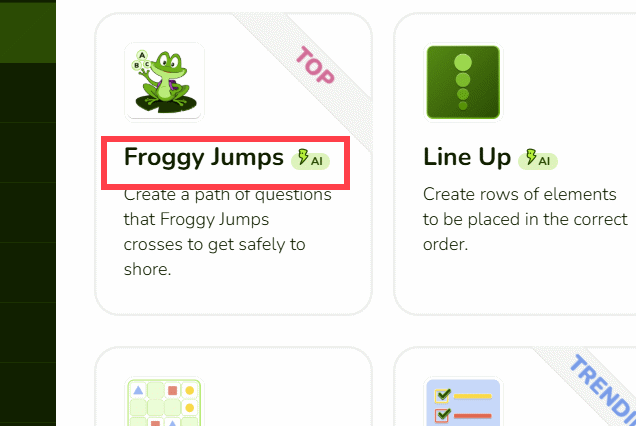
Choose manual or AI-assisted creation
The editor offers two starting points: enter each question yourself, or use Educaplay's AI assistant to generate a draft.
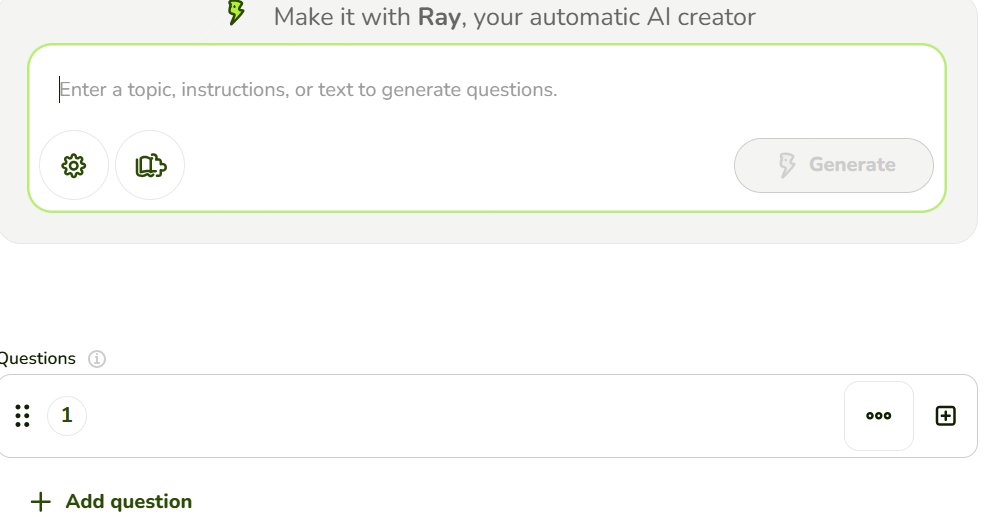
Create questions manually
- Select the add or plus control.
- Enter the question.
- Add the answer choices and mark the correct one.
- Add an image, audio clip, or animated GIF only when it supports the learning objective.
- Repeat for the remaining questions.
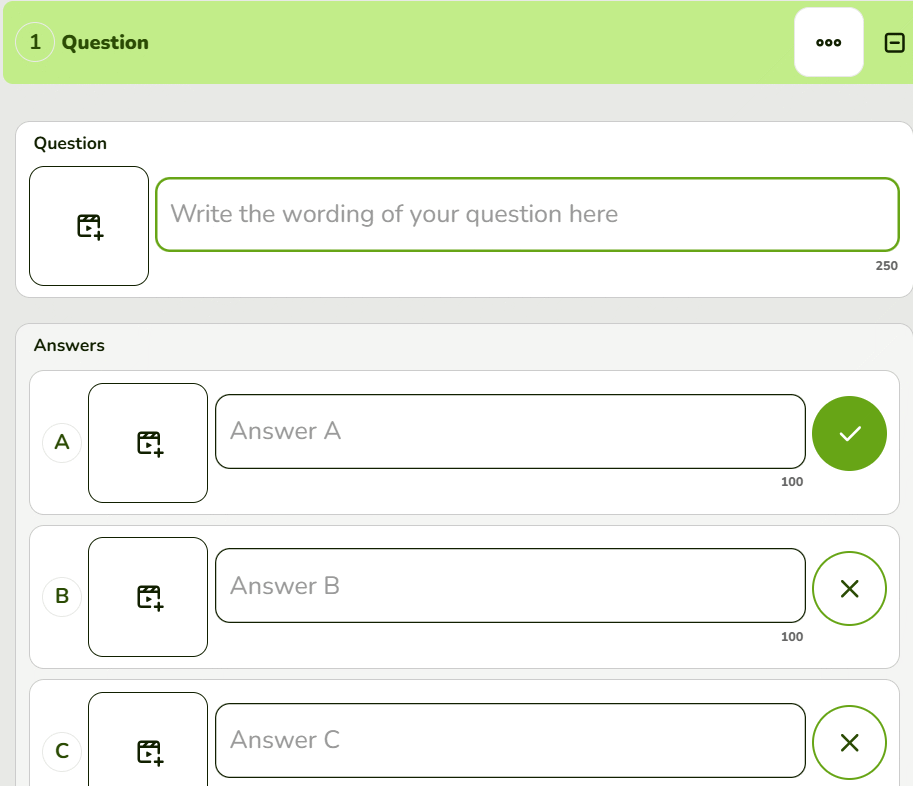
Answer order is randomized. Questions are randomized by default as well, but that setting can be changed in the Options tab. If one question depends on the previous one, turn off question randomization or rewrite the pair so each stands alone.
Generate a draft with AI
- Select the AI or gear control shown in the editor.
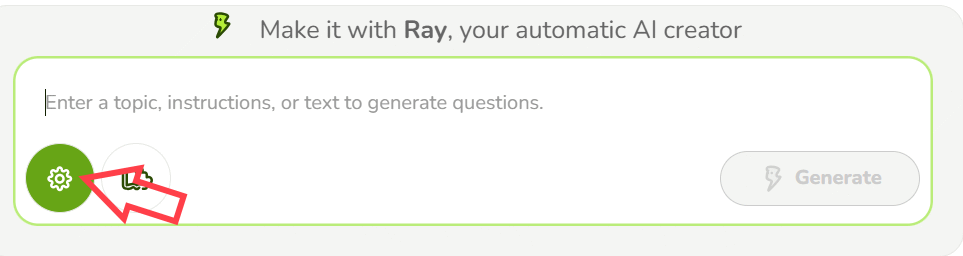
- Choose the activity settings requested by the generator, such as language, number of questions, level, or answer format.
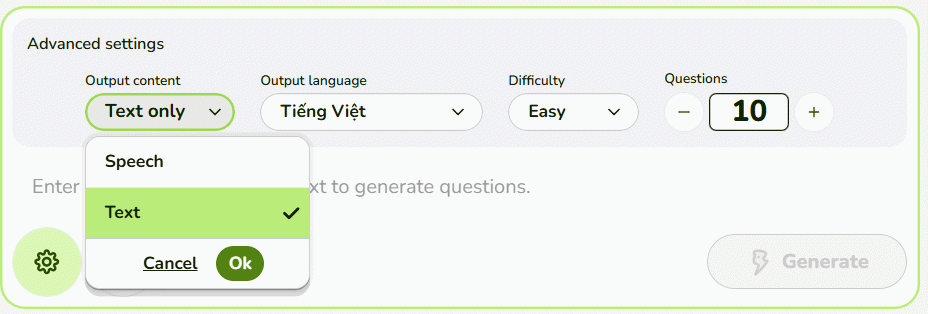
- Describe the topic, audience, and expected difficulty. If the book icon is available, add a reference text or file that you are allowed to upload.
- Select Generate, then wait for the draft.
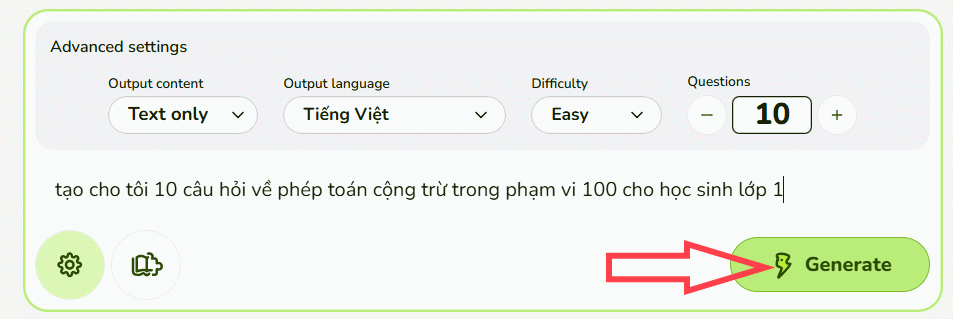
A useful instruction is specific: “Create 10 questions for Grade 6 students about the water cycle. Use only the attached text, one correct answer and three plausible distractors, and avoid ‘all of the above.’”
Review every AI-generated question
AI output is a draft. Before publishing:
- verify facts, spelling, calculations, names, and dates against the source;
- confirm that exactly one option is correct;
- remove clues such as a much longer correct choice;
- replace implausible distractors;
- check that vocabulary matches the learner level;
- delete duplicate questions; and
- avoid including personal student information in the prompt or uploaded file.
If a generated item is difficult to verify, remove it rather than asking the AI to make it sound more confident.
Configure lives, timing, and question selection
Open the activity's Options tab and adjust the settings for your learners. Educaplay's published defaults are five lives and 20 seconds per question, but both can be changed or disabled.
- Lives: disable or increase them for practice; keep a modest limit for a challenge.
- Time: allow more time for reading, language learners, accessibility needs, or image-based questions.
- Question order: randomize independent questions; use a fixed order for a sequence.
- Question pool: create a larger bank and have each play session draw a smaller subset when you want variety.
Do not use speed as a proxy for mastery if the objective is reasoning, close reading, or calculation.
Preview and test the game
Select Start or the preview command after the activity is generated.
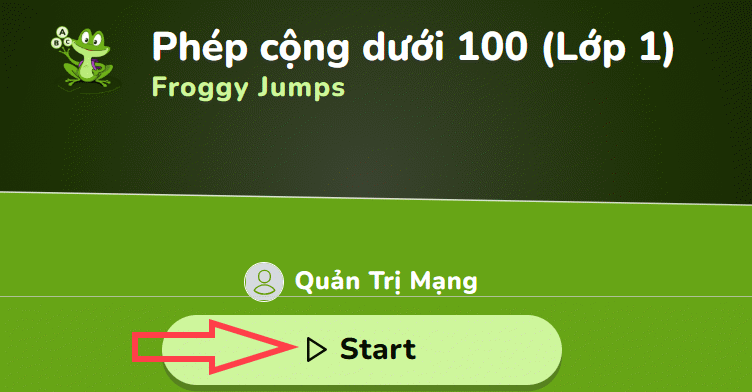
Play every question. Select the correct and at least one incorrect answer to confirm that scoring, lives, feedback, media, and timing behave as intended.
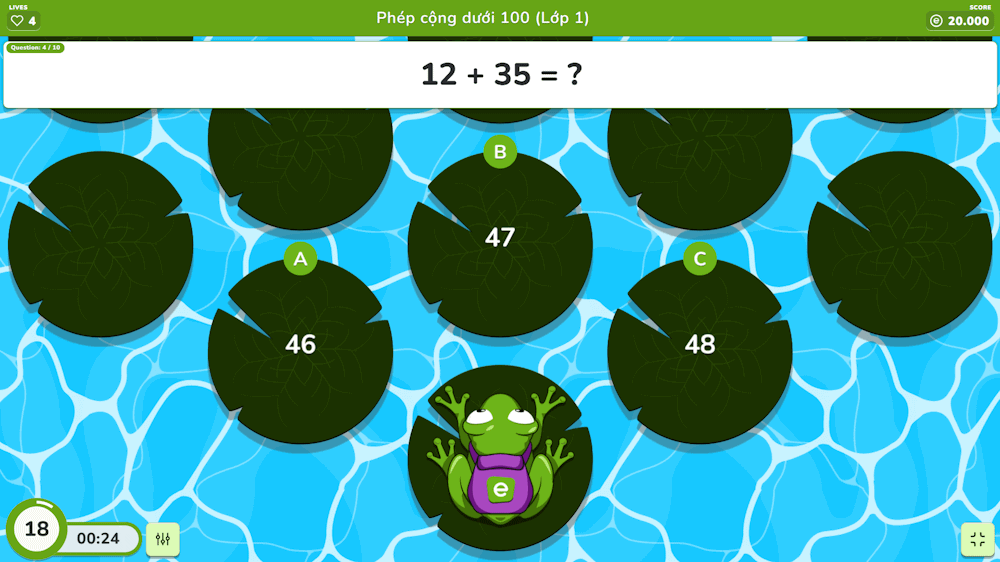
Also test on a phone or tablet if students will use touch screens. Check image contrast, readable font size, audio controls, keyboard access where relevant, and whether the timer gives learners enough time.
Publish and share Froggy Jumps
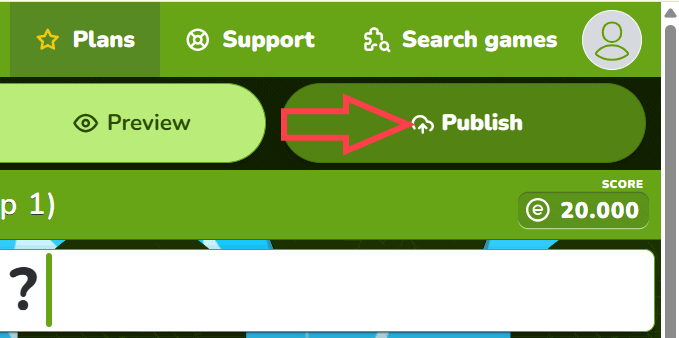
- Select Publish in the editor.
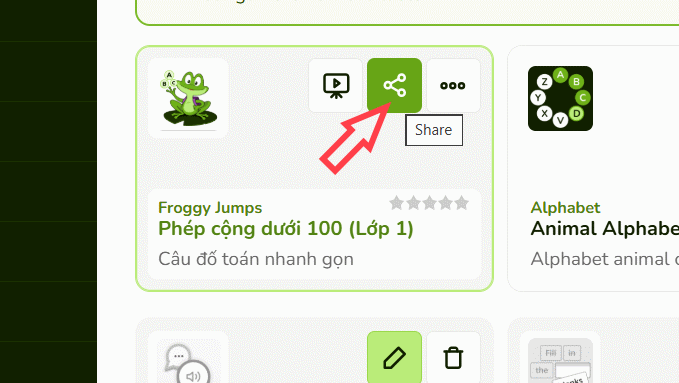
- Open the Share control from the published activity or My Activities.
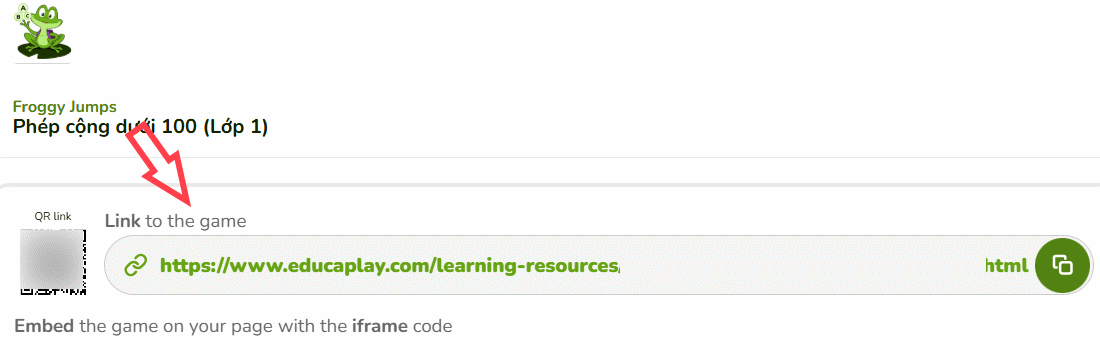
- Copy the activity link, show the QR code, copy the iframe, or use a supported classroom/LMS integration.
By default, an activity can be accessible to anyone with the link and may be discoverable through Educaplay or search engines. Private access and some LMS, customization, download, or SCORM features depend on the current plan. Review visibility before using student names or course-only material.
Collect and interpret results
Scores can be saved when players identify themselves before playing. Educaplay reports are more useful when names or invitation codes are handled consistently. If the game is integrated with a supported LMS, gradebook transfer depends on the integration and plan.
Use the results diagnostically. A low score may reflect weak understanding, ambiguous wording, insufficient time, or a touch-screen mistake. Review item-level patterns and revise the game rather than treating one play session as a complete assessment.
Example Froggy Jumps game
The embedded activity below shows the player experience. If it does not load, open it in a browser that permits the Educaplay iframe.
Quick quality checklist
- Every question supports the stated learning objective.
- Each item has one correct answer and plausible alternatives.
- Facts and generated text have been independently checked.
- Lives and time fit the age group and accessibility needs.
- The game has been tested on the devices students will use.
- Sharing visibility and student-identification settings are appropriate.
- A backup link or non-timed activity is available if the game fails to load.
Related Articles
 How to Create a Word Guessing Game on Educaplay3 minutes read
 How to Create an Educaplay Unscramble Letters Game10 minutes read
 How to Designing Games on Educaplay Using Commands3 minutes read
 How to Create an English Review Conversation on Educaplay3 minutes read
 Instructions for Creating a Tic-Tac-Toe Game Using React-Native Explained7 minutes read
 Designing the 'Golden Bell Ringing' Game on Canva AI4 minutes read
Reader Comments 0
Sign in with email or Google to join the discussion.