Table of Contents
The product formerly called VMware OS Optimization Tool is now maintained as the Windows OS Optimization Tool for Omnissa Horizon. It is designed mainly for administrators preparing Windows images for virtual desktop infrastructure (VDI), not as a one-click speed booster for an everyday home PC.
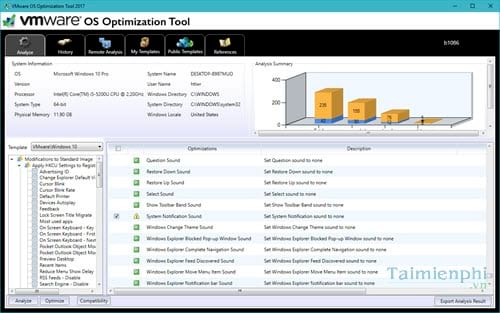
Do not use OSOT as a generic PC cleaner
OSOT applies templates that can disable services, scheduled tasks, Store features, background apps, update behavior, and other components that may be unnecessary in a controlled Horizon image. Those same changes can break normal desktop features or conflict with security and management policies on a personal computer.
The tool does not repair “corrupted registry files,” and a green optimization count does not prove that a PC is faster or healthier. For a normal slow computer, diagnose CPU, memory, storage, startup, heat, and malware with TipsMake's slow-PC checklist.
Prepare a safe test image
- Confirm that the Windows release, Horizon version, and OSOT release are supported together.
- Download the current executable and documentation only from the official Omnissa documentation.
- Work on a disposable clone or test VM, not the only copy of a production image.
- Create a hypervisor snapshot or image backup before optimization. Test that the recovery path works.
- Install required Windows updates, applications, Horizon components, and organization policies in the documented order.
- Define required features first: printing, search, Store apps, OneDrive, Teams, audio/video, USB redirection, security tools, and update management.
Analyze the image
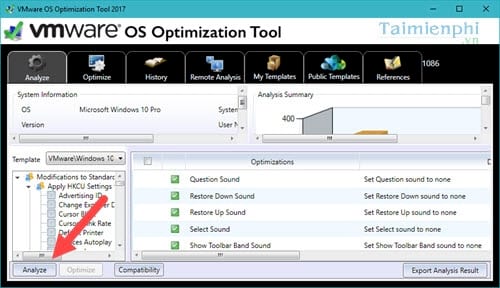
Run the tool with administrative rights on the VM being prepared. Older releases were portable executables and opened directly into an Analyze/Optimize interface.
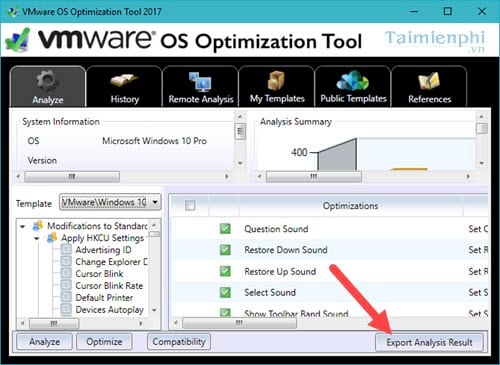
Select a template that explicitly matches the intended operating system and deployment model, then choose Analyze. Export or record the result for change review. Treat every proposed setting as a policy decision, not an error that must be fixed.
Review every selected optimization
Expand categories and clear any item that would disable a required capability. Pay particular attention to:
- Windows Update and the organization's patching method;
- Microsoft Store and packaged applications;
- search and indexing;
- printing, Bluetooth, location, cameras, microphones, and media services;
- Defender, firewall, telemetry, and other security controls;
- scheduled maintenance and cleanup;
- profile, OneDrive, Office, Teams, and Horizon dependencies.
A generic or public template may have been created for a different Windows build and business requirement. Do not apply all recommendations solely because the interface marks them “suboptimal.”
Apply the approved changes
After the review, select Optimize and apply only the approved items.
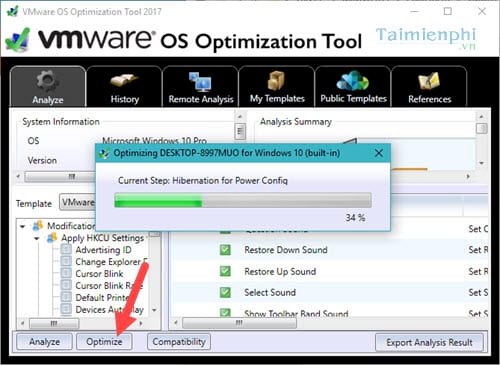
Read the result for skipped, failed, and successful actions. Preserve the log with the image's change record.
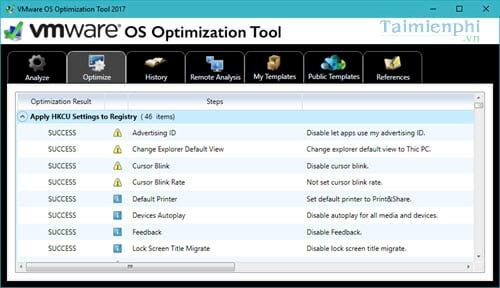
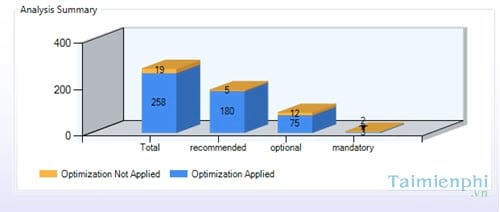
Run Analyze again to compare the intended state with the result.
The color summary is a configuration count, not a benchmark.
Validate before rollback or production use
Reboot and test with a standard user account. Check sign-in, profile creation, application launch, Office and Teams, printing, browser access, updates, security status, audio/video, redirection, and logoff. Measure boot, sign-in, CPU, memory, storage, and user-session responsiveness against the unoptimized snapshot.
Older OSOT versions included History and Rollback controls.
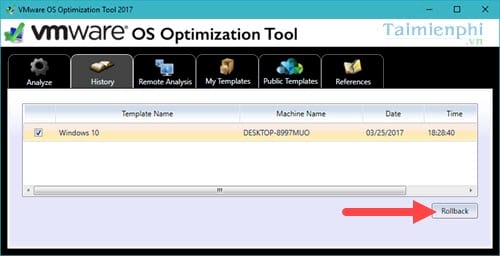
Rollback may reverse supported tool actions, but it is not a substitute for a VM snapshot or known-good image. If validation fails broadly, restore the snapshot. If one setting fails, reverse that setting, document it, and retest.
Remote and template features in older releases
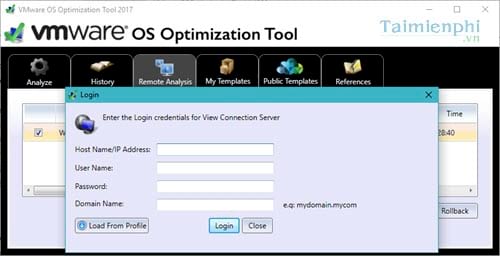
The screenshot below shows a remote-analysis feature from an older version. It was not a TeamViewer-style support tool, and administrators should not assume it exists or behaves the same in the current release.
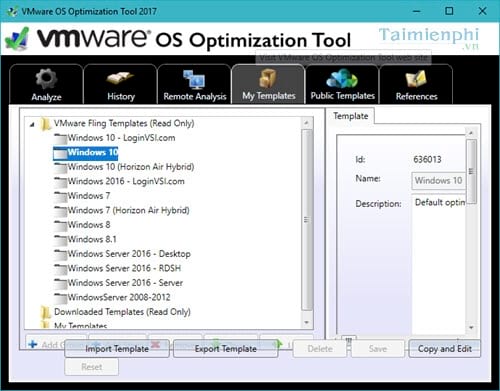
Older versions also allowed custom template import and export.
Public templates were visible in some releases.
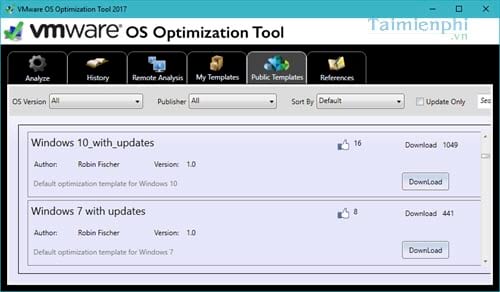
Import only a template from a trusted source. Review its changes in a test VM, keep it under version control, and record the OS build and use case. A template suitable for a nonpersistent pooled desktop may be wrong for a persistent, developer, kiosk, or physical PC.
Use the current Horizon workflow
Modern Omnissa guidance treats optimization as part of a larger image lifecycle that includes preparation, optimization, generalization where appropriate, and finalization. Follow the current Omnissa Horizon image guide rather than an old screenshot sequence.
If the objective is only to identify a troublesome third-party service on a normal Windows PC, use a clean boot. It is narrower, reversible, and does not apply a VDI template to unrelated services.
Related Articles
 How to Optimize Windows 83 minutes read
 How to Optimize Delivery Optimization Cache in Windows 107 minutes read
 Easy Service Optimizer 1.2 - A Tool to Optimize the Performance of4 minutes read
 Vmware Workstation Player - Download Vmware Workstation3 minutes read
 Thisiswin11 Tool Customizes Windows 11 to Run Better4 minutes read
 Top 5 RAM Optimization Software, Enhance Computer Performance6 minutes read
Reader Comments 0
Sign in with email or Google to join the discussion.