Table of Contents
Windows 10 does not normally impose a hidden cap that must be removed. Slow internet can come from the service, router, Wi-Fi signal, network adapter, background downloads, VPN, DNS delays, or one website. Establish which layer is slow before changing Group Policy or TCP settings.
Measure the connection consistently
- Pause downloads, cloud sync, streaming, and game updates. Disconnect a VPN temporarily.
- Test the same server at the same time on this PC and another device.
- If possible, test the PC over Ethernet. Fast Ethernet but slow Wi-Fi points to signal, interference, band choice, or the wireless adapter.
- Test several websites. A slow first lookup with normal downloads suggests DNS; low sustained throughput suggests something else.
Open Task Manager and sort the Processes page by Network. Resource Monitor's Network tab can reveal smaller transfers and remote connections. Do not end an unfamiliar Windows process blindly.
Control Delivery Optimization correctly
Delivery Optimization can download Windows and Store content from Microsoft and, depending on its configuration, exchange update data with other PCs. Turning off peer downloads does not stop Windows Update from downloading updates from Microsoft.
Open Settings.

Select Update & Security.
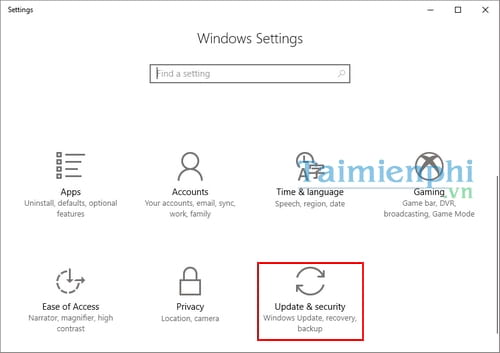
On newer Windows 10 builds, open Delivery Optimization directly. Older interfaces placed it under Windows Update > Advanced options.
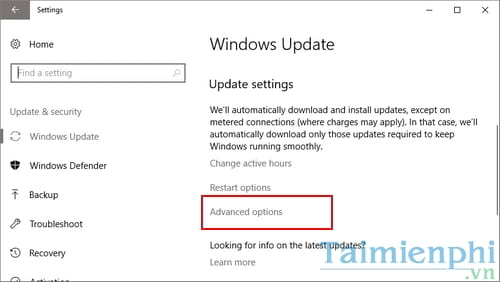
Older builds used Choose how updates are delivered.
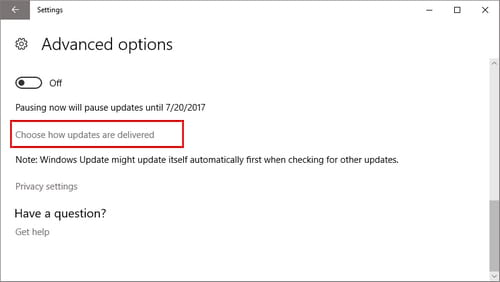
Turn off Allow downloads from other PCs if you do not want peer transfers, or restrict them to devices on the local network. Under Advanced options, use download and upload bandwidth controls if updates saturate a limited connection.
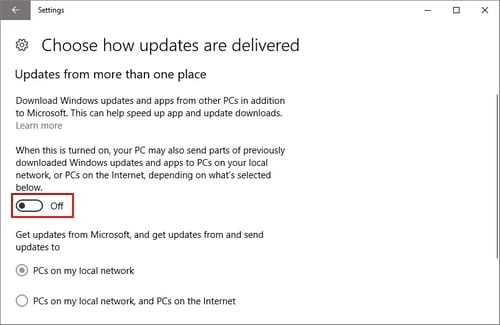
On a mobile or capped network, mark the connection as metered instead of disabling Windows Update entirely. Security updates remain important.
Do not apply the “reserve 0% bandwidth” myth
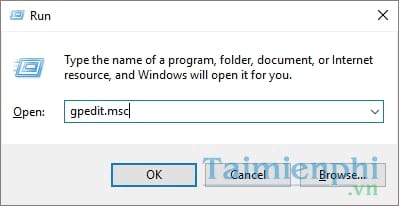
Some guides tell users to run gpedit.msc and change Limit reservable bandwidth.
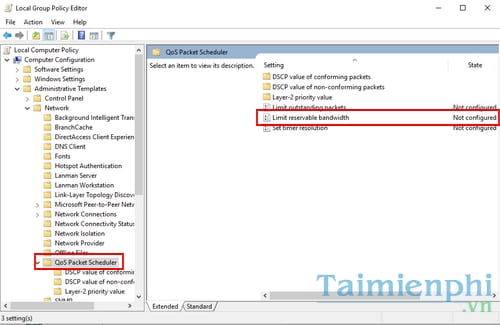
The setting is under the QoS Packet Scheduler policies.
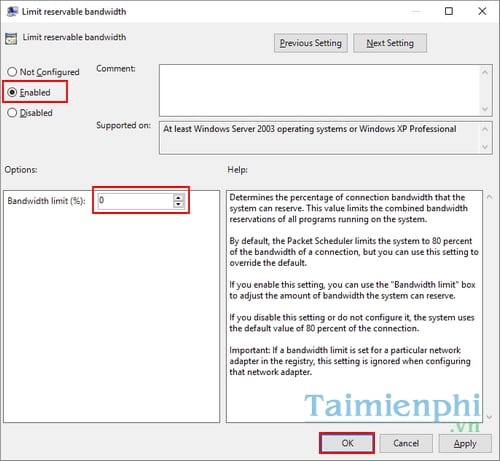
Enabling it and entering zero does not unlock a permanently withheld portion of every connection. Windows does not simply reserve that percentage at all times, and normal applications can use available capacity. Leave the policy Not Configured unless an administrator has a documented QoS requirement.
Keep TCP Receive Window Auto-Tuning at Normal
Auto-Tuning adjusts the TCP receive window to network conditions and generally improves throughput on modern connections. Normal does not mean the connection is artificially limited.
Open Command Prompt as administrator.
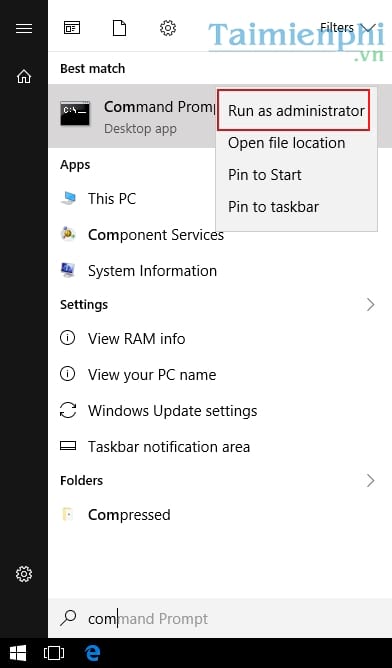
Inspect the current TCP settings:
netsh interface tcp show global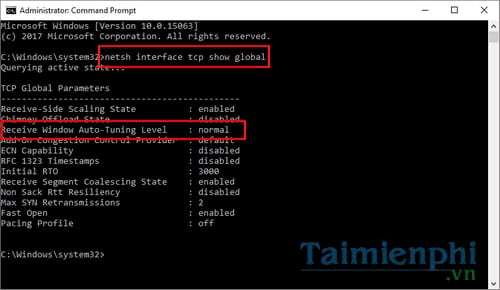
The original tweak disabled Auto-Tuning, as shown below, but that can reduce download speed and should not be a general optimization.
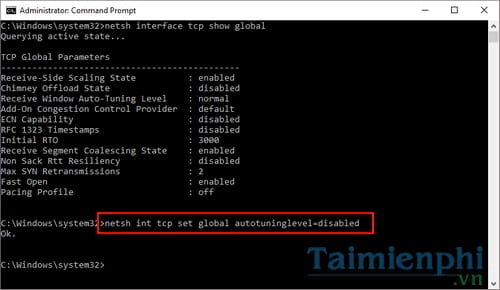
If a previous tweak disabled it, restore the standard level and restart:
netsh interface tcp set global autotuninglevel=normalOnly change TCP globals for a reproducible compatibility problem with a specific legacy device, and record the original setting first.
Improve a slow Wi-Fi link
- Move closer to the router and raise it away from dense walls, metal, and appliances.
- Use 5 GHz for speed at shorter range; use 2.4 GHz for reach and compatibility.
- Reconnect to the correct access point or mesh node and test a less congested channel in router settings.
- Update the Wi-Fi driver from the PC or adapter manufacturer. If the problem began after an update, use Roll Back Driver when available.
- Disable adapter power saving only when drops or slow recovery occur after sleep.
The Windows Wi-Fi troubleshooting guide provides a complete isolation sequence that also applies to most Windows 10 systems.
Repair configuration only when tests point to Windows
Forget and reconnect to the network, then open an elevated Command Prompt and run:
ipconfig /flushdns
netsh winsock reset
netsh int ip reset
Restart afterward. Changing DNS can improve name-resolution delay or reliability but does not increase the ISP line rate. Use a trusted resolver and record any organization-supplied DNS settings before changing them.
Use Settings > Network & Internet > Status > Network reset only after recording VPN, virtual-switch, static IP, and custom adapter settings. The TipsMake network utilities can help test DNS, IP, and reachability without installing an optimizer.
When the router or ISP is the limit
If every device is slow, restart the modem and router, inspect their link status, and test directly by Ethernet. Confirm that the router's WAN link and the PC's Ethernet link negotiated at the expected rate. Compare multiple tests with the subscribed plan, allowing for protocol overhead and Wi-Fi conditions. Contact the provider with times, wired results, modem status, and any packet-loss evidence when the service is consistently below expectations.
Related Articles
 Speed up Internet Connection on Windows 10 Computers5 minutes read
 Measure Your Internet Speed Online, No Software Required19 minutes read
 Internet Acceleration 20% Faster in Windows3 minutes read
 How to Speed up Internet Win 10 Thoroughly4 minutes read
 How to Change DNS to Surf Faster, Speed up Internet17 minutes read
 How to Increase Internet Speed on Windows 107 minutes read
Reader Comments 0
Sign in with email or Google to join the discussion.