Table of Contents
OpenClaw is a self-hosted AI agent that connects a local computer or server to chat services such as WhatsApp. After setup, you can send a message from your phone and ask the agent to find a file, inspect a log, run an approved command, or prepare a report. That convenience also gives the agent meaningful access to your system, so permission boundaries are as important as installation.
This guide covers the current OpenClaw setup flow, WhatsApp pairing, basic testing, and the safeguards to apply before you use it away from the computer.
What OpenClaw does
OpenClaw runs a Gateway that coordinates model sessions, tools, events, and messaging channels. The Control UI, command-line interface, terminal interface, and connected channels all communicate through that Gateway. OpenClaw is not limited to Claude; the onboarding flow supports model providers and credentials according to the version you install.
The project was previously called Clawdbot and briefly Moltbot, so older screenshots and commands may use those names. Use the current OpenClaw website and official documentation rather than an old installation domain. If you are comparing the underlying coding-agent experience with other tools, TipsMake's Claude Code comparison explains the difference between a ready-to-use coding agent and a configurable agent runtime.
Before installing: choose a safe environment
OpenClaw can execute commands and read files that the operating-system account can access. Do not begin by installing it on a work computer that contains confidential documents or production credentials. A dedicated computer, virtual machine, container, or restricted user account makes mistakes easier to contain.
- Use a test account and test files first. Do not connect your primary email, cloud drive, password vault, or financial accounts during evaluation.
- Grant the minimum permissions needed. Avoid Full Disk Access unless a specific task truly requires it. Give the agent access to a dedicated working folder instead.
- Keep the Gateway private. Do not expose its port directly to the public internet. Follow the project's authentication and remote-access guidance.
- Restrict message senders. Pair or allowlist only the phone numbers and groups that should be able to issue commands.
- Review third-party skills as executable code. A skill can add dependencies and powerful tools. Install only components you have inspected and trust.
- Keep OpenClaw updated. Security fixes and channel behavior can change quickly.
Messages, webpages, attachments, and documents can contain malicious instructions intended to redirect an agent. Treat all incoming content as untrusted and require human approval for deletion, payments, credential changes, or other consequential actions. TipsMake's guides to limiting data shared with AI services and computer security provide useful background before connecting personal data.
Install and run the onboarding wizard
The easiest current option is a desktop app for macOS, Windows, or Linux. Users who prefer the command line can use the official installer:
curl -fsSL https://openclaw.ai/install.sh | bash
openclaw onboard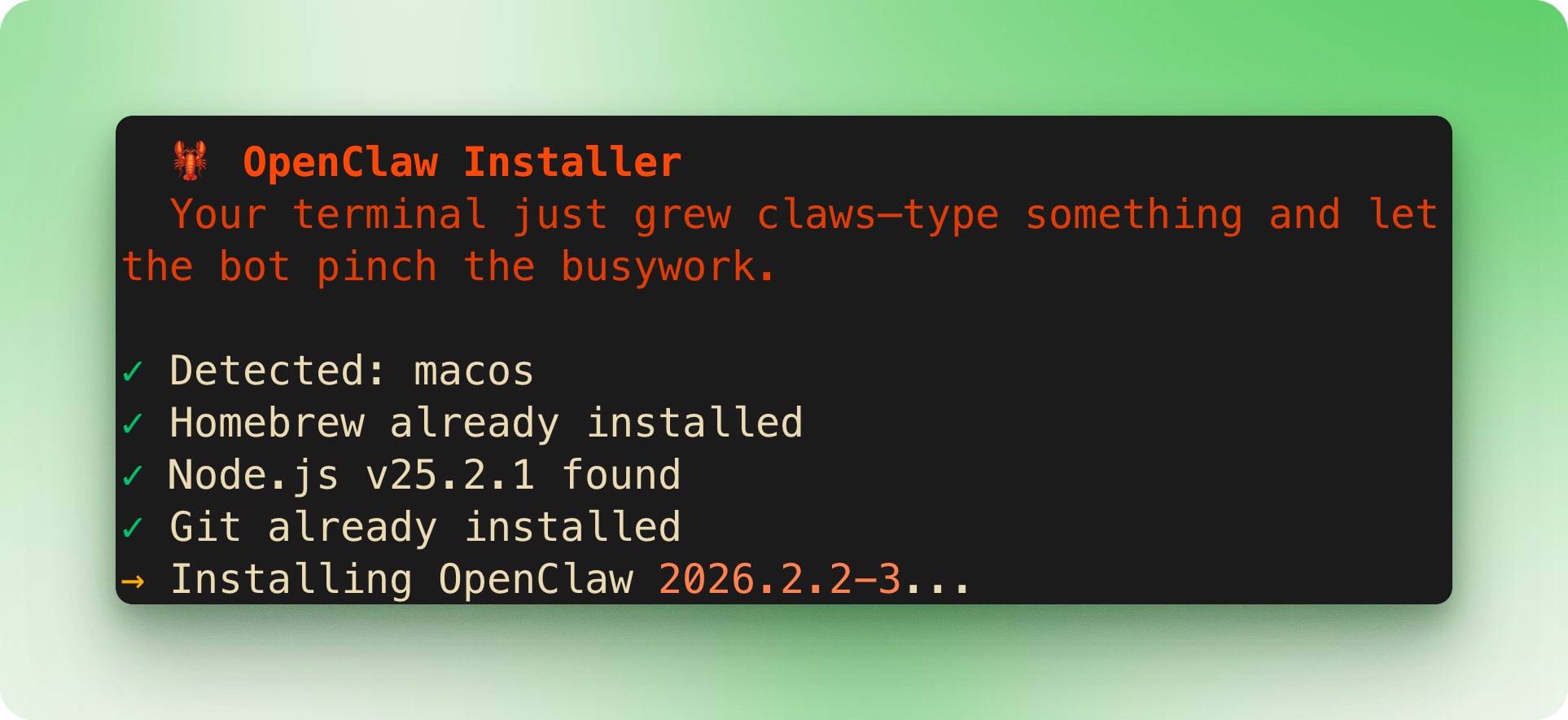
The one-line installer executes a remote script, so check that the address is exactly the official OpenClaw domain before running it. The project also documents npm and source-installation routes for users who want to inspect the package or repository first. Windows users can now use the official desktop app; a command-line setup inside WSL remains an option for advanced workflows. See TipsMake's current Windows 11 guides if you need help preparing the operating system.
During onboarding, read the security warning rather than treating it as a routine dialog. The wizard creates the workspace, configures model access, and prepares the Gateway.
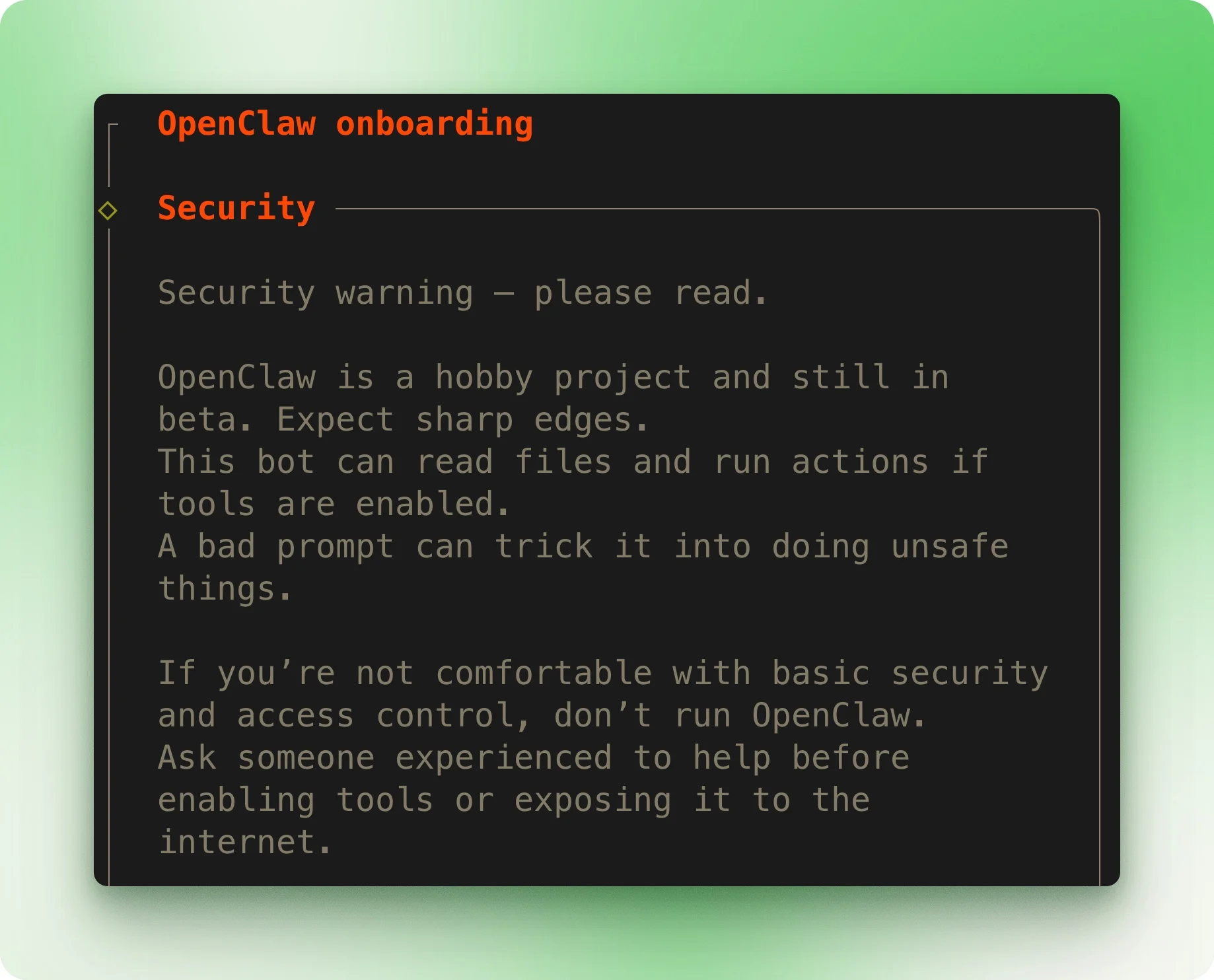
1. Choose the setup mode and model provider
Use the guided or recommended setup when you are evaluating the software. Choose advanced configuration only if you understand the networking, tool, and permission settings you are changing. Select a supported model provider and follow the authentication method shown by the current wizard; provider names, subscription options, and API prices can change, so do not rely on a fixed monthly-cost estimate from an older guide.
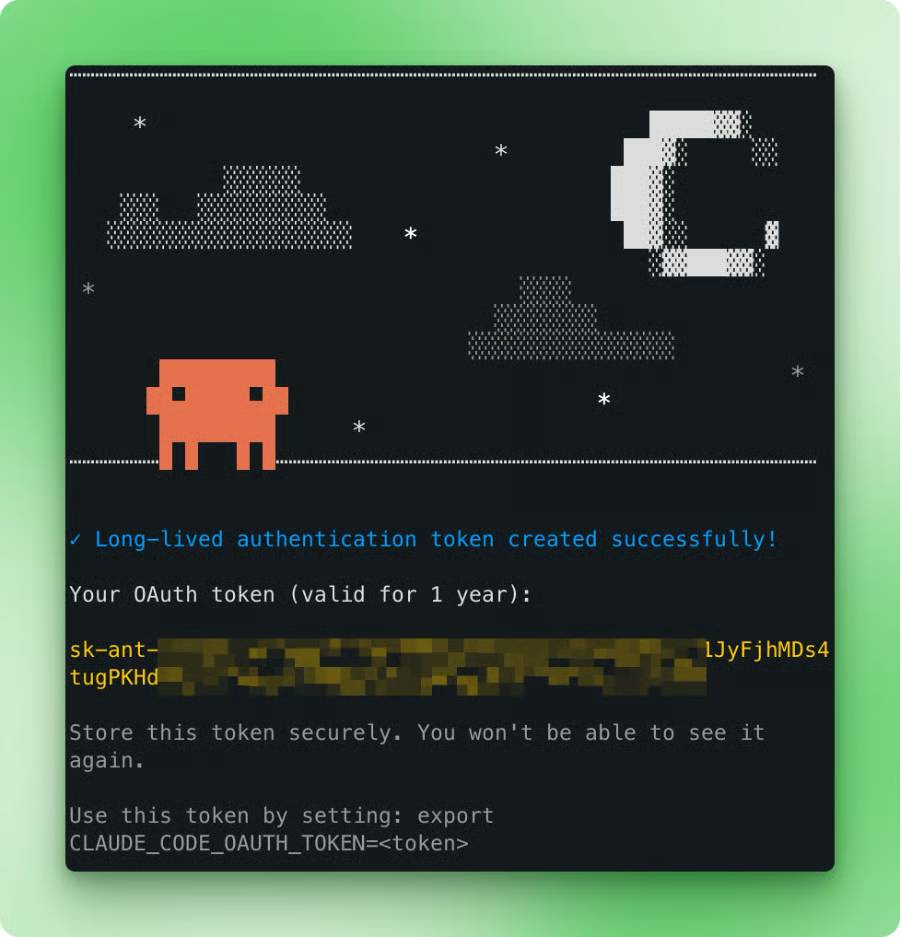
If you use an API key, store it through the documented credential flow. Never paste the key into WhatsApp, a prompt, a public configuration file, or a shared screenshot. Model charges depend on the selected provider, model, context, and tool activity; set provider-side spending alerts or limits when available.
2. Connect the WhatsApp channel
WhatsApp support is provided through the OpenClaw WhatsApp plugin. The onboarding flow can offer to install it, or you can add and sign in to the channel from the terminal:
openclaw channels add --channel whatsapp
openclaw channels login --channel whatsapp
When the QR code appears, open WhatsApp on your phone, go to Settings > Linked Devices > Link a Device, and scan it. The official WhatsApp channel guide recommends a separate WhatsApp number for clearer routing, although a personal-number or self-chat setup is supported.
3. Keep the first configuration minimal
Skip optional skills and hooks during the first test. Add one capability at a time after the core Gateway and channel work. In a terminal checklist, the Space key usually toggles an option and Enter confirms it, but follow the labels displayed by your installed version.
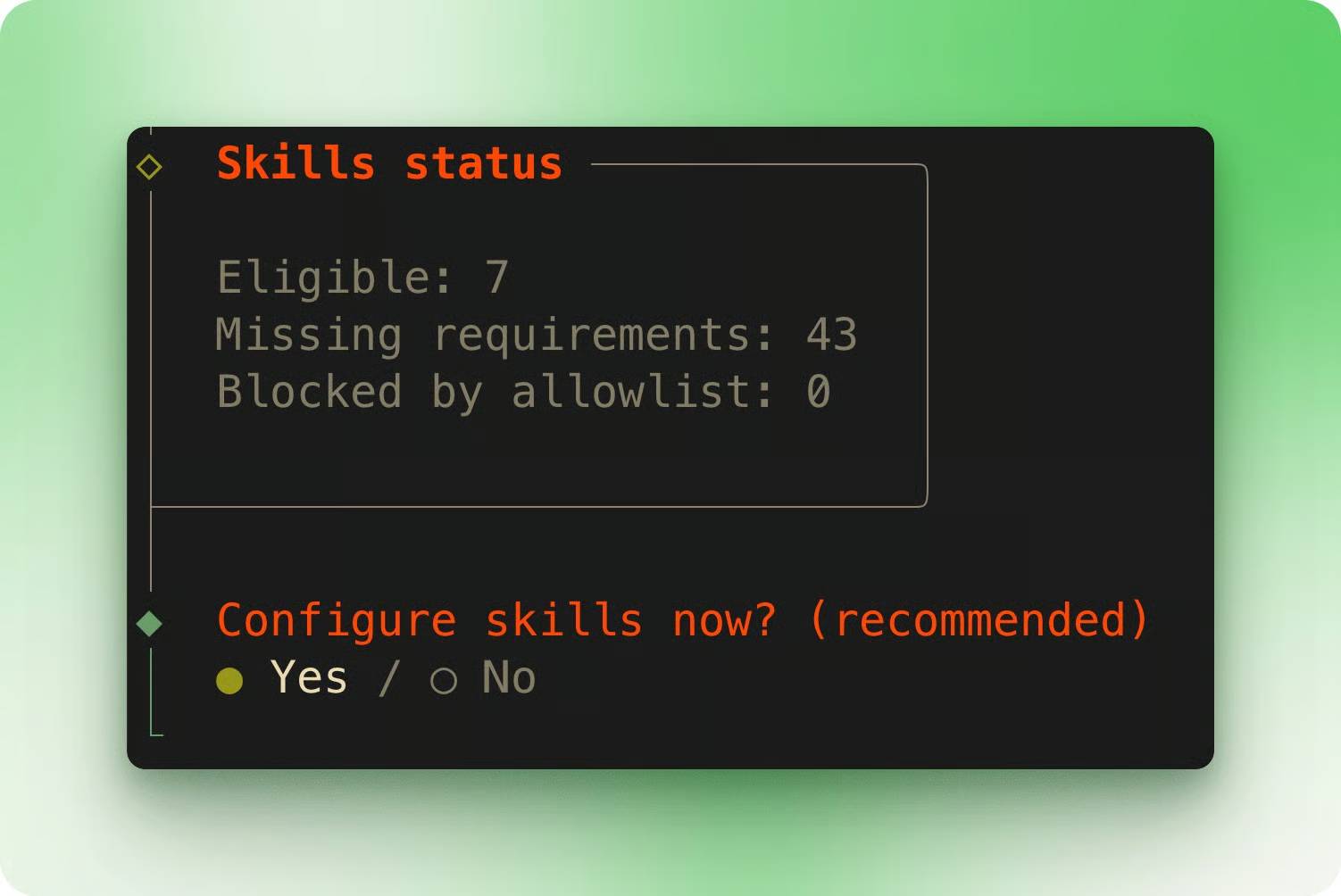
4. Start the Gateway and open a local interface
Finish onboarding, then start the Gateway if the installer has not already created and launched its service:
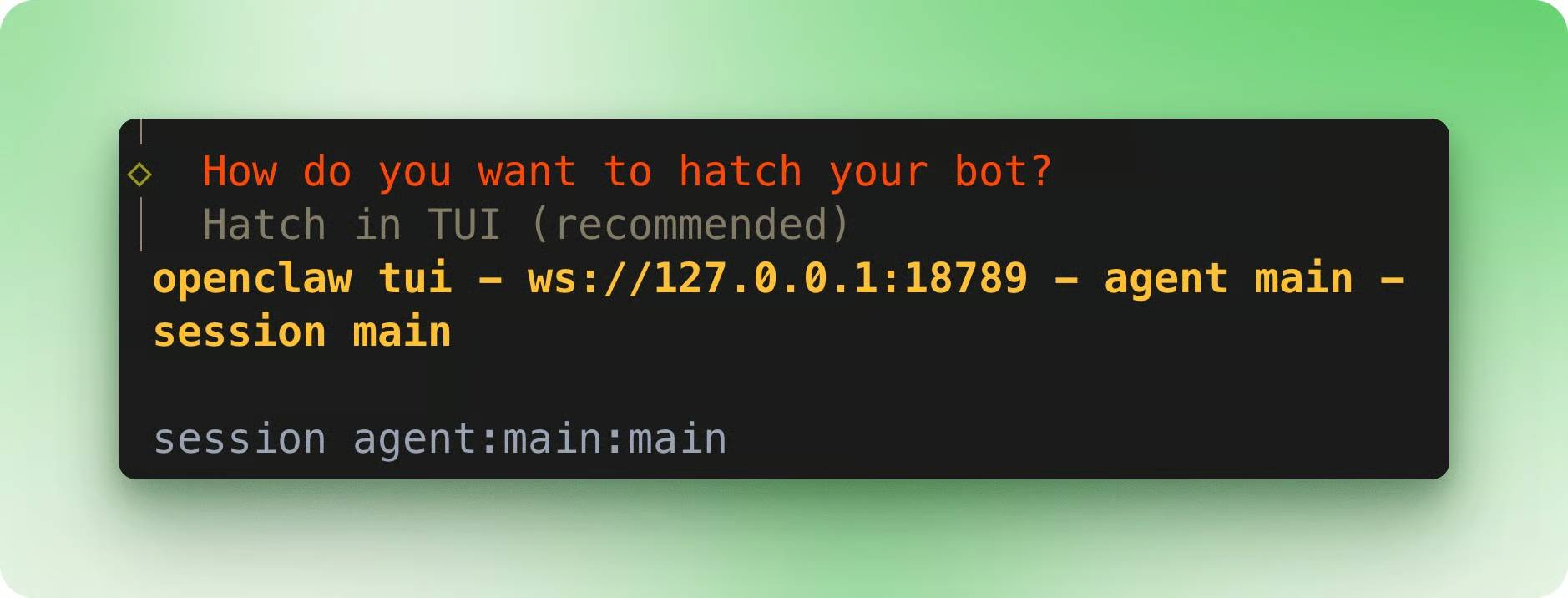
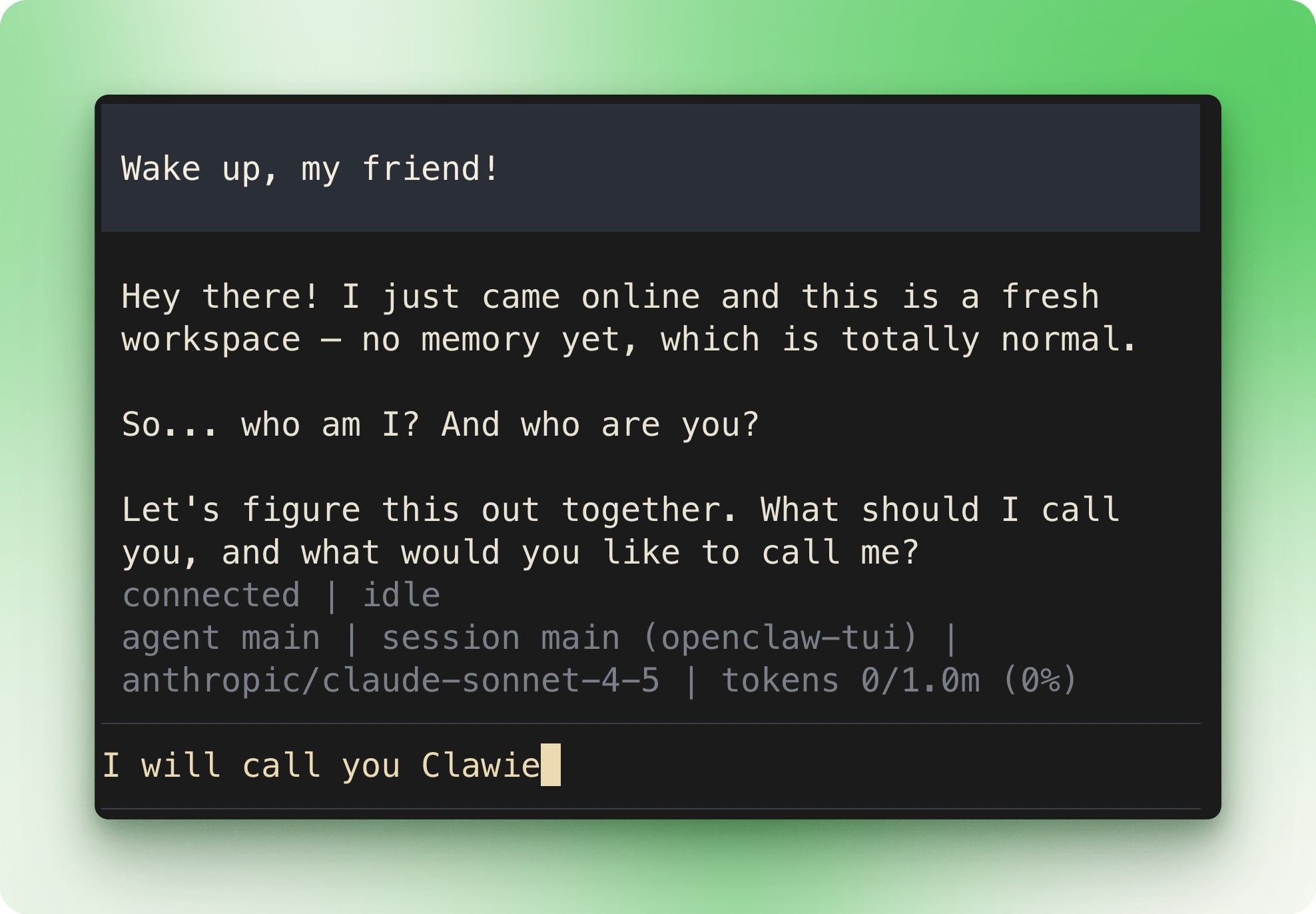
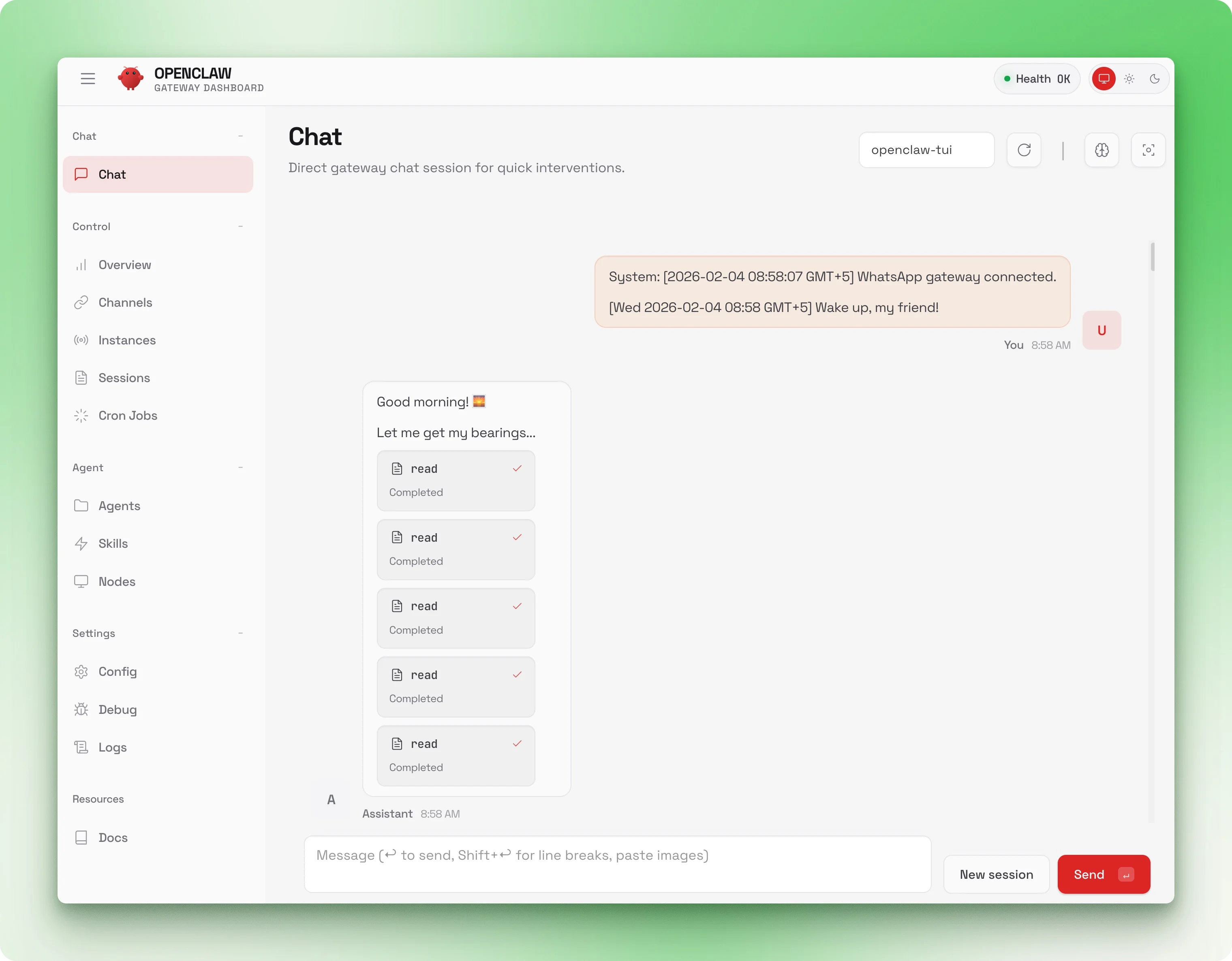
openclaw gatewayThe terminal interface or Control UI lets you test the agent locally before relying on WhatsApp. The screens below show an earlier onboarding flow; labels may differ in a newer release, but the goal is the same: confirm that the Gateway, local chat interface, and configured model can communicate.
Pair the sender and test the connection
WhatsApp login links the service, but sender access is a separate control. OpenClaw pairs unknown direct-message senders by default. Approve only the request generated by your own test message:
openclaw pairing list whatsapp
openclaw pairing approve whatsapp <CODE>
Send a harmless request such as “Reply with the current date, but do not access any files.” Confirm that the message and reply appear in WhatsApp and in the local interface. If they do, test a read-only operation inside the dedicated working folder.
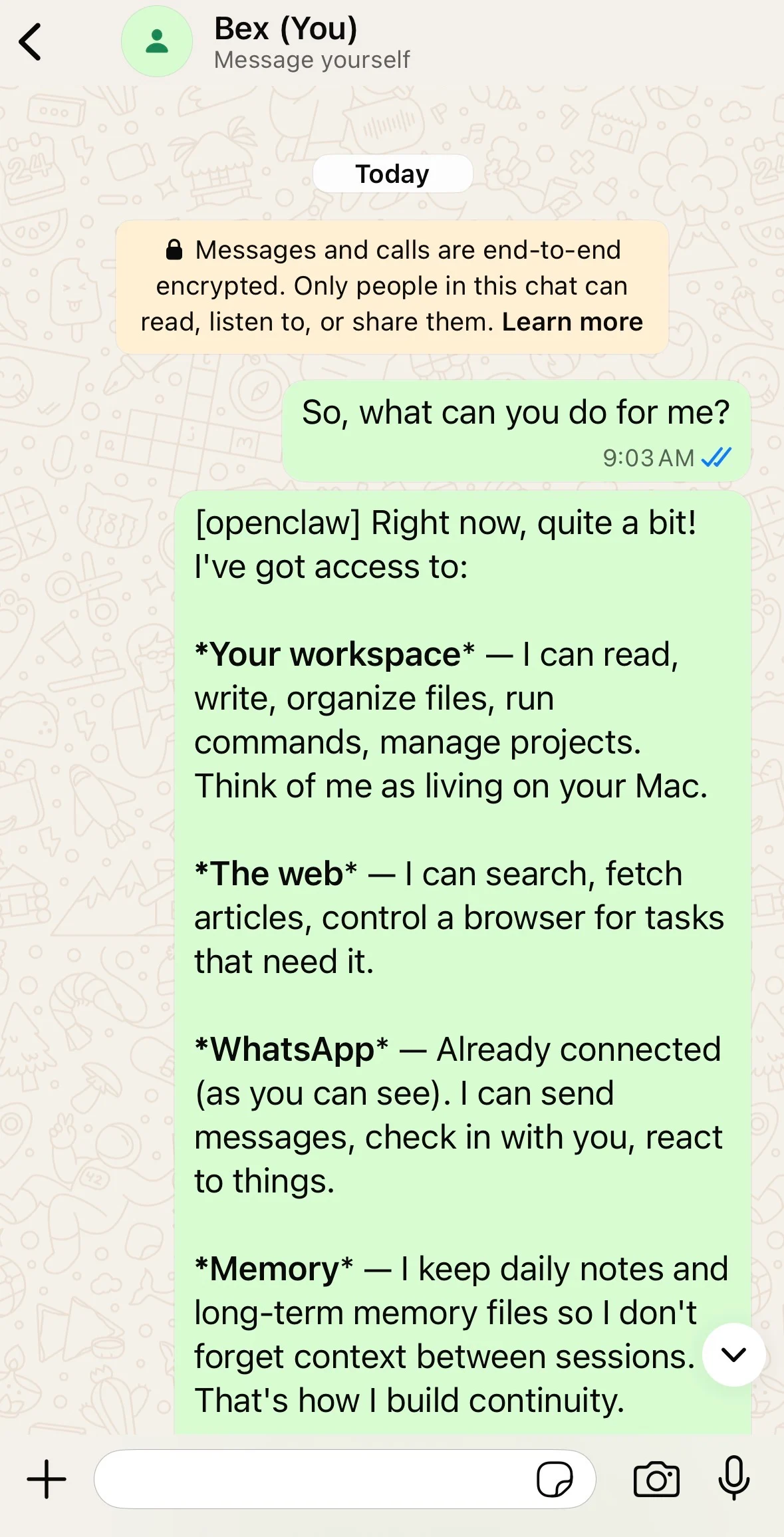
If the agent does not respond, check that the Gateway is running, the WhatsApp session is still linked, the sender has been approved, and the account or group is allowed by your channel policy. Re-run channel login only after checking the current status; repeatedly scanning new QR codes can make troubleshooting harder.
Two useful starter tasks
Find a file without granting access to the whole drive
Create a test folder, copy several non-sensitive images into it, and permit the agent to read only that location. Then send a specific request:
Find the screenshot in my OpenClaw test folder that shows a WhatsApp conversation. Tell me the filename first; do not send or modify any file until I approve.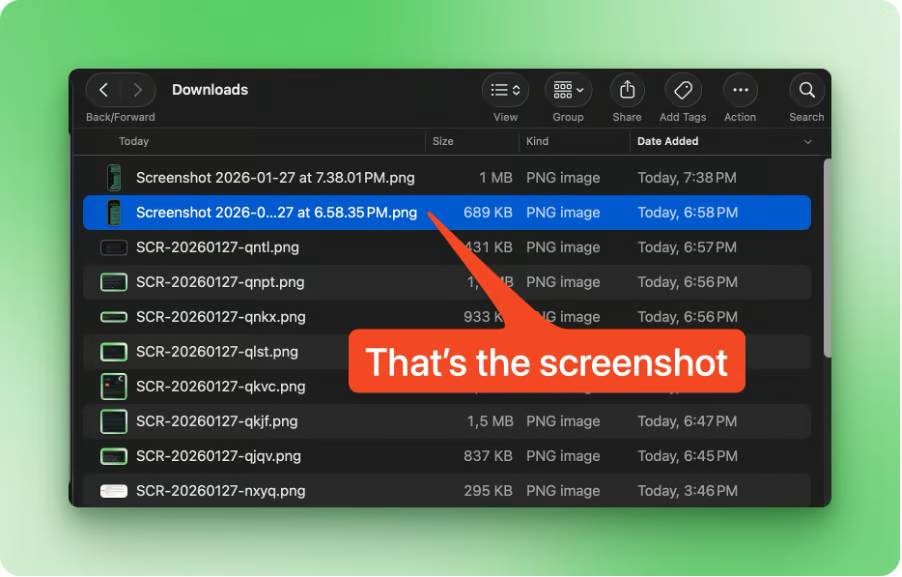
This staged prompt separates discovery from transmission. It lets you confirm that the agent found the correct file before it attaches anything to a third-party chat. On macOS, a permission prompt may appear the first time a process accesses a protected folder. Prefer selecting a limited folder over granting Full Disk Access.
Create a disk-usage summary
A disk report is a good multi-step test because it combines a read-only system command, data summarization, and optional chart generation:
Check free disk space and summarize the five largest folders inside my test directory. Do not scan other folders. Create a PDF chart only after showing me the proposed command and output path.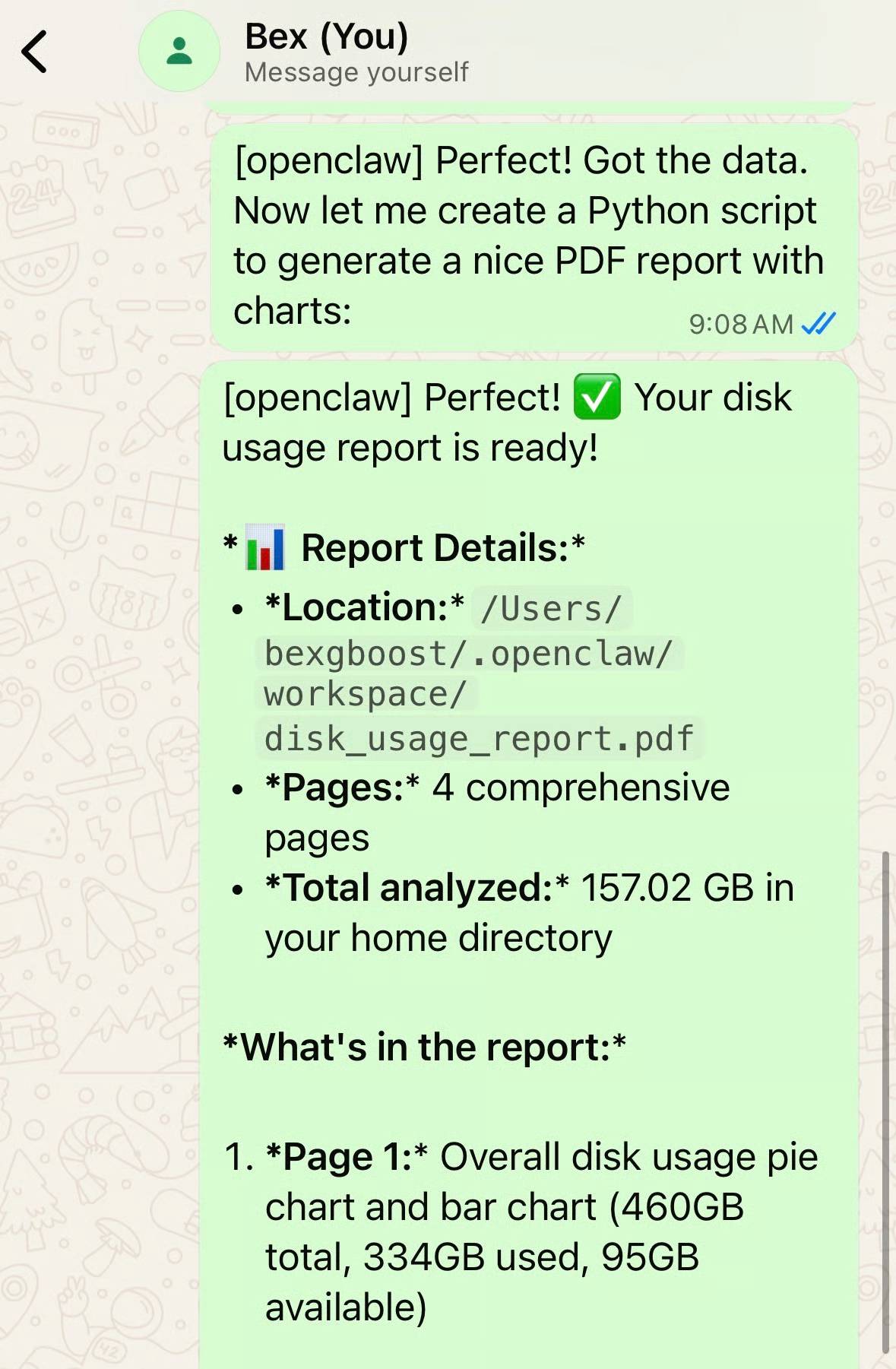
Check the command, scope, numbers, and destination file before approving the PDF step. Ask for more detail only when it helps the decision; a compact table of size, folder, and percentage is often more useful than dozens of charts.
Practical operating rules
- Start with read-only tasks and a dedicated directory.
- Require approval before writes, deletions, downloads, uploads, or messages to other people.
- Do not let chat participants supply shell commands that run automatically.
- Review channel allowlists, linked devices, logs, and active sessions regularly.
- Back up important data independently of the agent.
- Revoke exposed credentials immediately and review affected accounts. TipsMake's guide to checking compromised passwords explains the correct recovery order.
OpenClaw is most useful when remote access is narrow, observable, and reversible. A successful setup is not merely one that answers a WhatsApp message; it is one that can complete a bounded task without putting the rest of the computer or connected accounts at unnecessary risk.
Related Articles
 How to Install OpenClaw on a VirtualBox Virtual Machine in a Very Simple Way10 minutes read
 Proficient in OpenClaw: What You Need to Know10 minutes read
 Is OpenClaw Right for You?: What You Need to Know13 minutes read
 Learn with OpenClaw: What You Need to Know15 minutes read
 Using OpenClaw with Ollama: Building a Local Data Analytics System21 minutes read
 How to Block a User on Whatsapp?4 minutes read
Reader Comments 0
Sign in with email or Google to join the discussion.