Table of Contents
Windows 7 is no longer a supported desktop operating system. Regular support ended on January 14, 2020, and the third and final year of Microsoft's Windows 7 Extended Security Updates (ESU) ended in January 2023. A Windows 7 PC can still start and run, but it does not receive current operating-system security fixes from Microsoft.
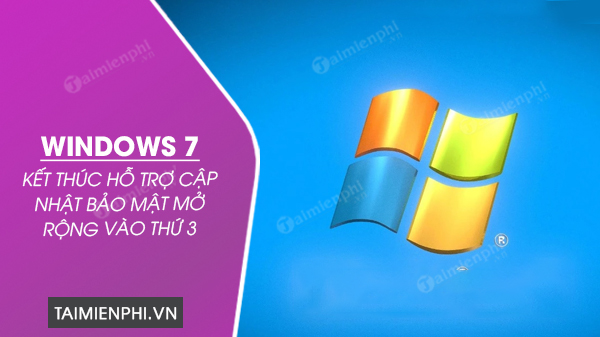
Windows 7 support timeline
- January 14, 2020: Support for Windows 7 Service Pack 1 ended for ordinary users.
- 2020–2023: Eligible Professional and Enterprise customers could purchase the Windows 7 ESU program for critical and important security updates.
- January 2023: Windows 7 ESU Year 3 ended. Microsoft no longer offers another general ESU year for Windows 7.
The exact ESU coverage dates and editions are listed on the official Windows 7 ESU FAQ.
What end of support means
End of support does not remotely disable the computer. It means Microsoft no longer supplies normal technical support, reliability updates, or security fixes for newly discovered Windows 7 vulnerabilities. Over time, browsers, security tools, hardware drivers, and business applications also stop testing or updating their Windows 7 versions.
An antivirus product cannot patch a vulnerability in the operating system or make an obsolete browser current. Likewise, using a third-party “security update” package from an unknown site can introduce malware rather than solve the underlying lifecycle problem.
Do not migrate from Windows 7 to ordinary Windows 10 now
Older advice recommended Windows 10 because it was supported at the time. Standard Windows 10 support ended on October 14, 2025, so it is no longer an appropriate long-term destination for a Windows 7 migration. Specialized Windows 10 editions and paid ESU arrangements have separate terms, but they are not a substitute for checking the lifecycle of the exact edition you plan to use.
For most personal computers, the supported Microsoft path is Windows 11 on compatible hardware or a replacement PC that ships with a supported Windows version. Microsoft explains the effect of an unsupported system in What does it mean if Windows isn't supported?.
1. Inventory the computer before changing it
Write down or export the following:
- Computer manufacturer, model, processor, memory, and storage
- Applications you still need and their license or account details
- Printers, scanners, specialist cards, and other peripherals
- Browser bookmarks, email archives, and locally stored passwords
- Encrypted files and the recovery keys needed to open them
For a business or specialist system, identify the owner of each application and confirm a supported replacement before retiring the old PC.
2. Check whether the hardware supports Windows 11
Windows 11 requires a compatible 64-bit processor, UEFI firmware with Secure Boot capability, TPM 2.0, at least 4 GB of memory, and at least 64 GB of storage, along with display and graphics requirements. Meeting only the memory and storage numbers is not enough; the processor and firmware must also be supported.
Review the current Windows 11 specifications and the PC manufacturer's support page for the exact model. If the machine can run a supported Windows 10 installation temporarily, Microsoft's PC Health Check app can provide an eligibility assessment. On some systems TPM 2.0 is present but disabled; TipsMake explains how to check and enable TPM 2.0.
Do not force Windows 11 onto unsupported hardware for a security-sensitive computer. Microsoft says such installations are unsupported and are not guaranteed to receive updates.
3. Back up and verify important data
Copy documents, photos, project files, email archives, and other irreplaceable data to an external drive or trusted cloud service. Keep at least one copy disconnected from the Windows 7 PC after the backup. Then open a sample of files from the backup on another device to verify that they are usable.
A migration is also a good time to remove unneeded sensitive data rather than copying everything indefinitely. For a broader checklist, see TipsMake's guide to installing a new operating system safely.
4. Choose a supported migration path
Install Windows 11 on compatible hardware
Buy a legitimate license if one is required, obtain installation media from Microsoft, and confirm that the PC manufacturer provides Windows 11 drivers. Because a direct in-place jump from Windows 7 is not the normal supported upgrade route, plan for a clean installation and application reinstallation unless Microsoft or the manufacturer documents another path for your device.
Replace the computer
This is usually the practical option for hardware old enough to have shipped with Windows 7. Confirm that important applications and peripherals work with the new system before decommissioning the old one. TipsMake's new-computer setup guide covers the basic handover.
Use another supported operating system
A currently supported Linux distribution may extend the useful life of compatible hardware for web browsing or basic office work, but check application, driver, accessibility, and support requirements first. It is not a drop-in replacement for every Windows workflow.
5. Migrate, test, and only then erase the old PC
- Install the supported operating system and all available updates.
- Install applications from their official sources.
- Restore user files and verify that they open correctly.
- Test printers, scanners, backups, email, and other essential workflows.
- Keep the verified backup until the new system has been used successfully.
- When the old PC is no longer needed, securely erase its storage before recycling, selling, or donating it.
If a Windows 7 machine must remain temporarily
Some laboratories, factories, or legacy business systems cannot be replaced immediately. Treat continued use as a controlled exception, not a permanent solution:
- Disconnect it from the internet and untrusted networks whenever possible.
- Use network segmentation and strict firewall rules.
- Remove email, general web browsing, and personal accounts from the device.
- Use the least-privileged account needed for the application.
- Restrict removable media and scan transfers on a supported system.
- Maintain tested backups and a documented replacement deadline.
Organizations should involve IT and compliance staff because an unsupported OS can affect regulatory obligations, cyber-insurance requirements, and incident response.
Browser updates do not solve the OS problem
Major browser vendors stopped current Windows 7 support years ago. Keeping an old browser version running does not keep it secure, and switching to another abandoned browser does not repair Windows. The reliable answer is to move the workload to a supported operating system.
Related Articles
 Microsoft Just Released a Free Windows 7 Update Just Days After3 minutes read
 Microsoft Releases New Patch Tuesday Update for Windows 103 minutes read
 Windows 10 Users Will Need to Sign in to Their Microsoft Account Continuously4 minutes read
 Windows 7, Windows Server 2008 R2 Will Continue to Be Unofficially Supported for6 minutes read
 Microsoft Updated Patch Tuesday in October 2020, Patching the 'Ping of3 minutes read
 Why Does Microsoft Only Release Monthly Windows Patches on Tuesdays4 minutes read
Reader Comments 0
Sign in with email or Google to join the discussion.