Table of Contents
The simplest way to add Google Maps to a website is to use the Share or embed map tool on the desktop Google Maps site. Google generates the HTML for the selected place, so you do not need to write JavaScript or manually enter latitude and longitude.
Embed a place from Google Maps
Step 1: On a computer, open Google Maps and search for the business, address, or landmark you want to show.
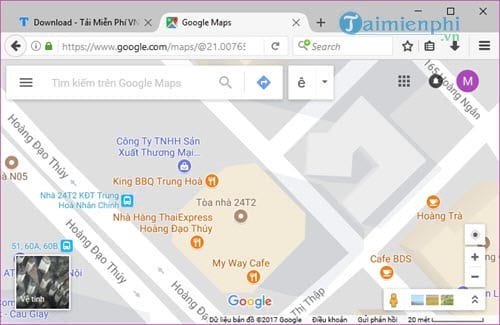
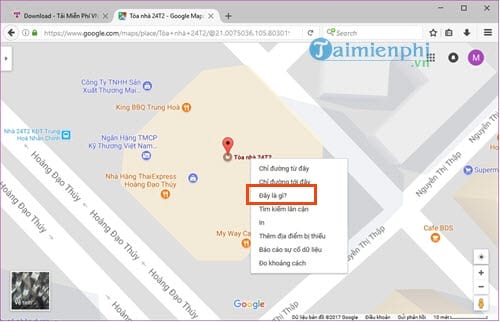
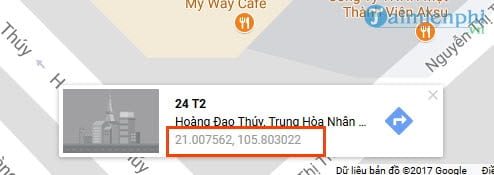
Step 2: Confirm that the marker is on the correct entrance or building. If the address is ambiguous, right-click the exact point and select What's here? to inspect its coordinates.
Step 3: Open the location's Share control, choose Embed a map, select a size, and choose Copy HTML.
Step 4: In the website editor, add a Custom HTML, Embed, or equivalent code block and paste the code. Do not paste it into a visual rich-text field that removes embedded content.
Step 5: Preview the page on desktop and mobile, then publish it. Test the marker, zoom controls, and the link that opens the full Google Maps site.
Google's current workflow is documented in its map sharing and embedding guide.
Make the map responsive
The copied code includes fixed dimensions. Many content-management systems make embeds responsive automatically; if yours does not, place the copied embed inside a wrapper and apply responsive CSS. A common pattern is:
.map-embed { position: relative; width: 100%; aspect-ratio: 16 / 9; }
.map-embed iframe { position: absolute; inset: 0; width: 100%; height: 100%; border: 0; }
Keep a reasonable height on small screens so the map remains usable without dominating the page. Avoid forcing a very tall interactive map near the top of a mobile page.
When to use a Google Maps API
The basic copied embed is appropriate for a single place or simple map. Use a Google Maps Platform API when the site needs custom markers, dynamic data, styled maps, location search, routes, or application-controlled interactions.
- Maps Embed API: Displays a place, view, route, search, or Street View panorama through a configured embed URL.
- Maps JavaScript API: Provides deeper interactive control through JavaScript and optional libraries.
Follow Google's Maps Embed API documentation or Maps JavaScript API overview. The JavaScript API requires a Google Cloud project, an API key or supported credential, and billing configuration. Check current pricing and quotas before deployment.
Restrict a browser API key to the intended website referrers and only the required APIs. Do not reuse an unrestricted key across unrelated projects.
Privacy, performance, and accessibility
- A live map loads resources from Google and can affect consent and privacy disclosures. Apply the site's current privacy and cookie policy.
- Use lazy loading when supported so a map lower on the page does not delay the main content.
- Show the street address as normal text near the map; visitors should not need the interactive map to find it.
- Add a clear link for opening directions in Google Maps.
- Keep sufficient contrast and keyboard access in the surrounding page, and avoid trapping page scrolling inside an oversized map.
Fix common embed problems
- The code appears as text: Use a Custom HTML or Embed block, not a paragraph block.
- The map is blank: Check the browser console, content-security policy, blocked third-party content, and any API-key error.
- The map is cut off on mobile: Remove fixed-width styling or use a responsive wrapper.
- The wrong place appears: Reopen Google Maps, select the exact business listing or coordinates, and copy a new embed.
- A customized map is dark or watermarked: Verify the Maps Platform API, key restrictions, billing status, and quota in Google Cloud.
For related location features, see TipsMake's guides to checking coordinates in Google Maps and underused Google Maps tools.
Related Articles
 How to Add Your Business Address to Google Maps3 minutes read
 Site Security: How to Evaluate and Improve Security for a Website8 minutes read
 Google Maps Has Been Added with a Convenient New Messaging Tool3 minutes read
 Enhance the Effectiveness and Security of Website with Cloudflare10 minutes read
 How to Make a Map Using Google Maps Js API6 minutes read
 Google Assistant Has Been Integrated into Google Maps3 minutes read
Reader Comments 0
Sign in with email or Google to join the discussion.