Table of Contents
Maxthon lets you choose which search engine handles queries typed in the address bar. In current Windows releases, open the browser menu, go to Settings, and look for Search engine. Choose a listed provider as the default, or open the search-engine management page to add and edit entries.
The exact labels and layout vary between Maxthon versions. The screenshots below show an older interface, but the same basic tasks—choosing, adding, editing, and removing search providers—remain useful. Maxthon's official site confirms that the browser supports changing the default search engine; update the browser first if your settings do not match these screens.
Change the default search engine
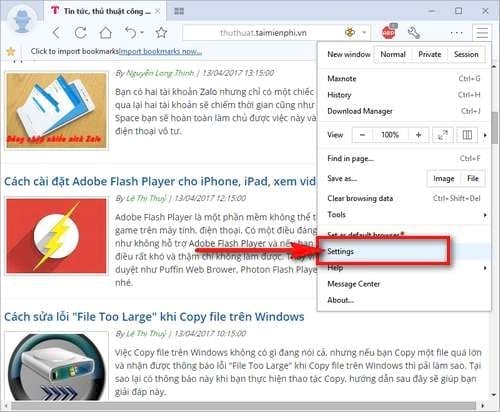
- Open Maxthon on Windows and select the main menu button in the upper-right corner.
- Select Settings.
- Open the Search engine section. If you do not see it immediately, use the search box at the top of Settings and search for search engine.
- Use the default search engine menu to select the provider you want for address-bar searches.
- Test the change by opening a new tab, typing a distinctive query in the address bar, and checking which provider displays the results.
You can download or update the browser from the official Maxthon website. Avoid third-party download pages, especially for older installers.
Manage search engines in an older Maxthon interface
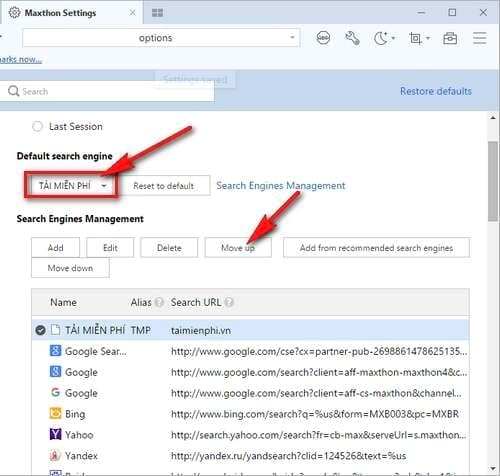
Older Maxthon releases use the menu and management screens shown below. Select the three-line menu, choose Settings, and then open Search Engines Management.
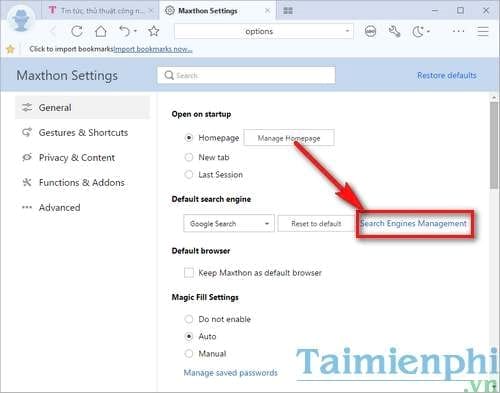
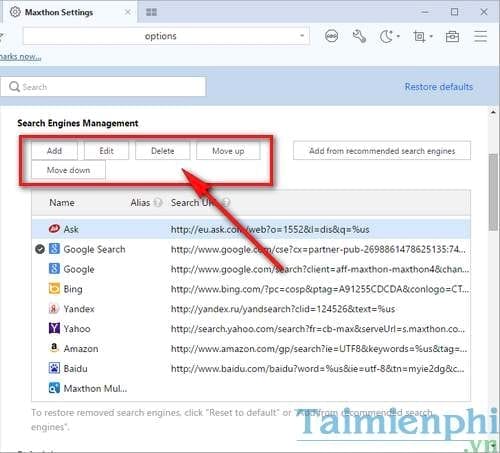
The management page provides controls to add, edit, delete, and reorder search engines. Moving an entry changes its position in the list; it does not always make that entry the default. After reordering, confirm the provider in the separate Default search engine setting.
Add a custom search engine
Select Add on the search-engine management page. Maxthon may ask for some or all of these values:
- Name: the label displayed in the browser.
- Keyword or alias: a short command used to invoke that engine, if the version supports address-bar shortcuts.
- Search URL: the provider's search-results address, including the placeholder Maxthon uses for the query.
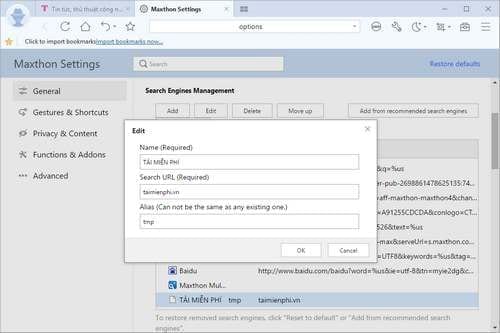
Do not paste only the provider's home page into the Search URL field. Run a test search on the provider, copy the results URL, and replace the actual query with the query placeholder accepted by your Maxthon version—commonly %s in Chromium-based browsers. Save the entry, set it as the default if required, and run a test search.
Reorder, remove, or restore search providers
In older versions, select an engine and use Move up or Move down to change its position. Select the provider separately in the default-engine menu if you want address-bar searches to use it.
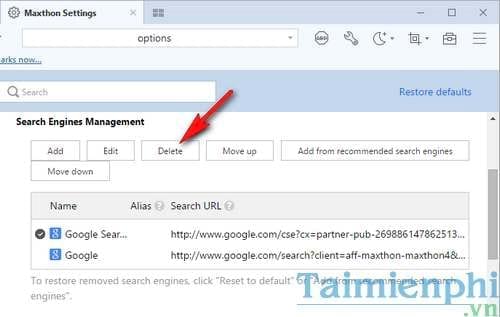
Use Delete only for entries you recognize. Built-in providers can often be restored with Add from recommended search engines or a reset option. The wording differs between releases.
If Maxthon does not keep the change
- Update and restart Maxthon: old builds may have search-setting bugs or a different settings layout.
- Check extensions: disable unfamiliar search, new-tab, coupon, or security extensions and test again. An extension can redirect searches without changing the visible default.
- Reset the provider list: use Maxthon's restore or reset option if a built-in engine is missing.
- Check the search URL: a custom entry will fail if the query placeholder is absent or the provider has changed its results URL.
- Review sync behavior: synced browser settings may reapply a value from another device. Make the change again after confirming which Maxthon account is active.
Changing Maxthon's search provider affects where address-bar queries go; it does not by itself make browsing private. The selected search engine has its own logging and personalization policies. If you are comparing providers, see these Google search alternatives. You can also configure shortcuts for multiple search engines when one default provider is not enough.
Related Articles
 Is Maxthon Web Browser Safe to Use?5 minutes read
 Use the Adhunter Feature to Block Ads on Maxthon3 minutes read
 Using Multiple Search Engines in the Browser at the Same Time4 minutes read
 Search Engines May Not Know You Yet11 minutes read
 The Best Search Engine 2018: Search Engines Replace Google6 minutes read
 Protect Yourself Against Search Engines!10 minutes read
Reader Comments 0
Sign in with email or Google to join the discussion.