Table of Contents
In addition to the improvements to the animation set, ChatGPT 5 also adds a number of new settings, including customizing the chat box interface with different colors. If you are tired of the black and gray color scheme, ChatGPT now allows you to change the color scheme to five new colors, including blue, green, yellow, pink, and orange. Here is a guide to changing the chat box color on ChatGPT.
How to change chat box color on ChatGPT computer
Step 1:
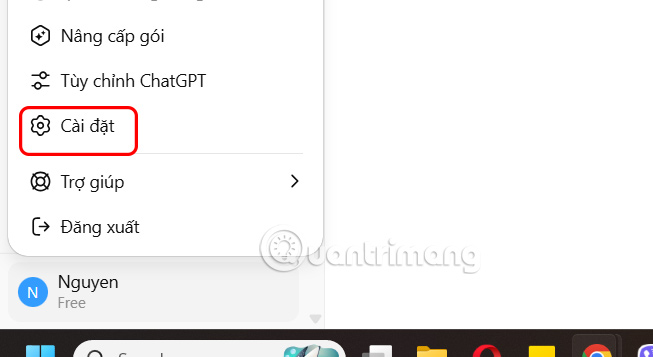
First, you log in to your ChatGPT account, then select your account name and select Settings in the list.
Step 2:
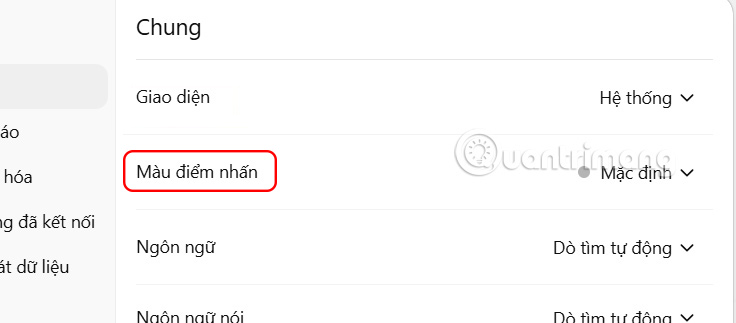
Go to the settings interface for ChatGPT, select General and then look next to Accent Color , click to open new customization.
Step 3:
Here, users will choose a new color for the ChatGPT chat box according to their preferences. select the color you want to change the color of the chat box on ChatGPT.
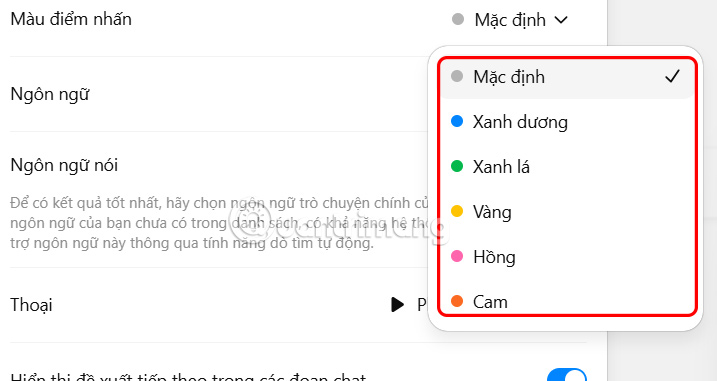
Now you chat with ChatGPT as usual and will see the chat box change color as shown below.

If you want to return to the default gray color for ChatGPT chat, we can change it to Default.
Final Thoughts
Following the steps in order and checking version-specific settings should make it easier to Change Chat Box Color on ChatGPT. If an option looks different, verify the device, app, or operating-system version before changing additional settings.
FAQ
What is the best way to Change Chat Box Color on ChatGPT?
Start with the requirements described in the article and follow the steps in order. In addition to the improvements to the animation set, ChatGPT 5 also adds a number of new settings, including customizing the chat box interface with different colors.
What should you know about How to change chat box color on ChatGPT computer?
First, you log in to your ChatGPT account, then select your account name and select Settings in the list.
What should you do if the instructions do not match your screen?
Check the device, software version, account permissions, and regional settings. Interfaces can change after updates, so use the closest matching option and consult the official support documentation when necessary.
Related Articles
 How to Change Messenger Color on Phone, Computer4 minutes read
 Instructions to Delete All ChatGPT Chat History on Phone, Computer2 minutes read
 What Is ChatGPT Plus? How to Register ChatGPT Plus in Vietnam11 minutes read
 Instructions for Changing Emoji Color on Messenger: Complete Overview5 minutes read
 It Is Possible to Change the Gradient Color Frame of Chat in the Facebook Messenger Application3 minutes read
 Instructions for Exporting Chats on ChatGPT3 minutes read
Reader Comments 0
Sign in with email or Google to join the discussion.