Table of Contents
This updated guide explores winhance: free open-source Windows optimization tool with practical details, clear explanations, and useful takeaways. People have always wanted a simple way to tweak and tune their Windows PC without having to dig into endless settings. Winhance does exactly that. It is a single control panel that lets you customize, clean up, and personalize Windows, making it more intuitive to use.
All - in - one Tool for Windows
Winhance is a free, open source tool for monitoring, removing junkware, and optimizing your Windows PC. Like a multi-tool, it lets you remove pre-installed apps, optimize your system settings for security, performance, and privacy, and even customize some aspects of your Windows personalization experience without having to dig through multiple menus.
Remove Junk Software for Computer
Removing junk software is one way to speed up a slow Windows PC. Winhance makes it easy to locate and remove junk software. It scans your system for pre-installed apps and lists them on the Software & apps tab. You can then select all apps or select the ones you want to uninstall.
To uninstall a program, select the item you want to remove and choose Remove Selected Items . Confirm the action and Winhance will execute the removal script to uninstall the selected program.
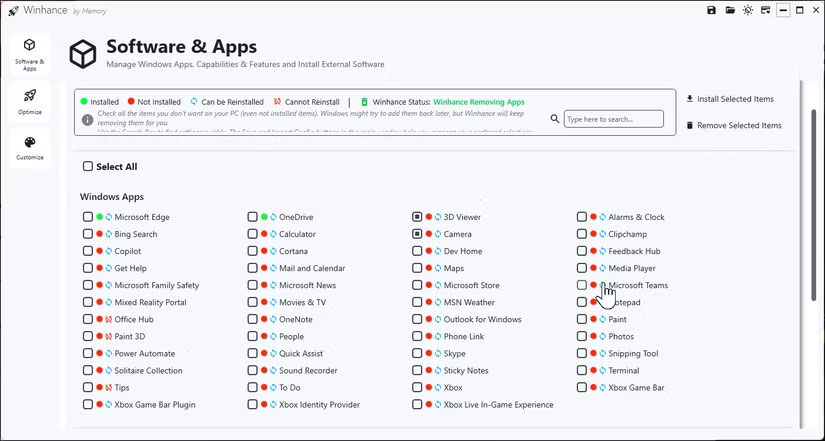
Digging deeper into the Windows Optional Features menu, you'll find that some optional features aren't enabled by default. for instance, you can install and enable Hyper-V, which isn't typically available to Home users. Likewise, you can enable Windows Sandbox on Windows Pro and higher, and even disable the controversial Recall feature that comes pre-installed on Copilot+ PCs.
The tool even creates scripts and scheduled tasks to prevent Microsoft from reinstalling deleted apps onto your system via Windows Updates. Also, you can reinstall any pre-installed apps that you may have accidentally deleted.
The external software section is interesting. This section includes a list of popular and essential third-party tools that come pre-installed with Windows. You can choose from popular web browsers, customization utilities, development apps, compression apps, productivity and remote access apps, and more.
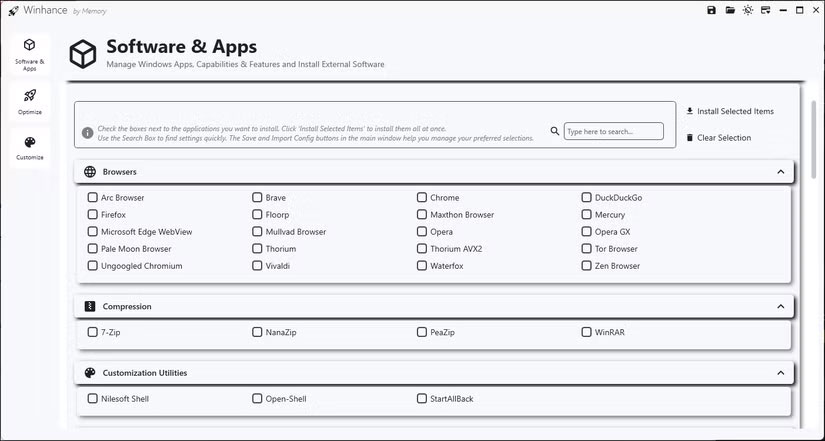
You can save all your preferences in a configuration file, allowing you to quickly apply the same settings across multiple systems. This makes managing new settings much easier - just import the file and all your preferred settings will automatically load, saving you from having to manually configure each computer.
Optimize Security, Privacy, Power, and Windows Update Settings
The Optimization tab provides a centralized dashboard for tweaking your system's security, privacy, and performance settings. Instead of navigating through multiple menus, you can quickly access essential Windows options. for instance, the Windows Security Settings page lets you adjust User Account Control notifications with a simple slider—something that would normally require digging through the classic Windows Control Panel options.
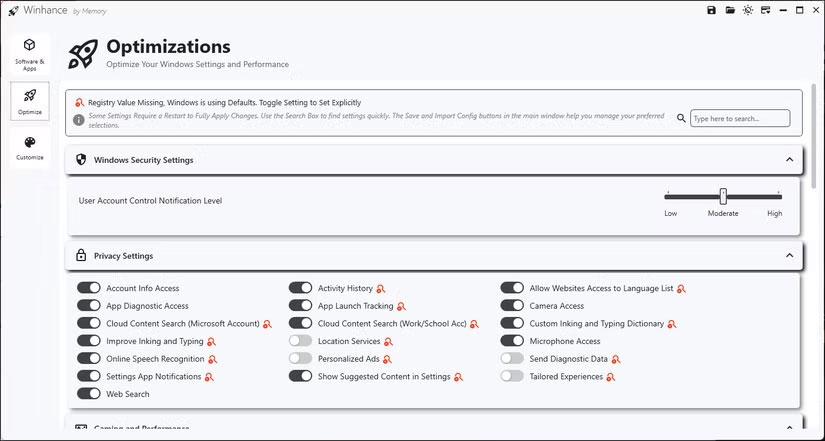
Privacy settings get special attention, and for good reason. Digging through privacy settings can be a pain, and many users tend to leave the default settings alone. Still, with growing concerns about data collection, Winhance makes it easy to change your privacy settings on Windows. You can turn off activity history, disable camera access, stop personalized ads, and prevent customized experiences from collecting data about you.
Each setting displays a small warning icon to indicate if a registry value is missing for any option or if a reboot is required to apply the changes.
The Update section addresses one of the biggest annoyances of Windows: automatic updates and reboots. With Winhance, you can turn off automatic updates completely or defer security updates for up to 7 days. It also lets you fine-tune your update preferences. You can choose whether Microsoft Store apps update automatically, turn off update notifications completely, exclude certain drivers from updates, and prevent automatic reboots. If you're on a limited connection, Winhance will let you stop downloading updates in the background, giving you complete control over when and how updates happen.
Optimizing power settings also goes beyond the basic balanced/high performance options. You can enable hibernation, configure power throttling, and even adjust CPU priority for games.
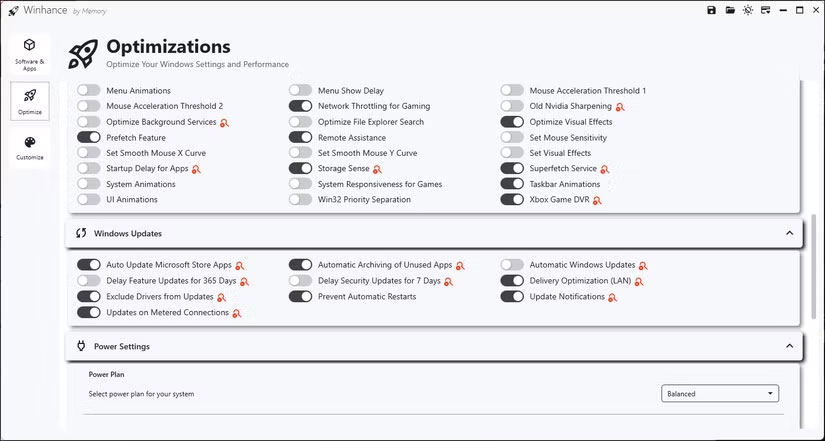
Speaking of games, there's a dedicated Gaming and Performance section. This lets you set CPU and GPU priority, prioritize network traffic for games, optimize visual effects, disable Taskbar animations, optimize File Explorer search, enable DirectX optimization, and disable fast startup to fix conflicts with games.
In the Notifications section, you can control what happens when you receive notifications. for instance, you can disable notifications from showing on the lock screen, turn off system settings notifications, and more.
It is best to take the time to look through it once so you do not get bothered by notifications when you're not actively using do not disturb mode.
Customize Windows Appearance and Behavior
Whether you frequently switch from light mode to dark mode or need to tweak your Taskbar settings, the Customization tab has it all. The Windows theme picker provides a simple light/dark mode toggle, but the process of automatically switching between modes based on the time of day is a missed opportunity.
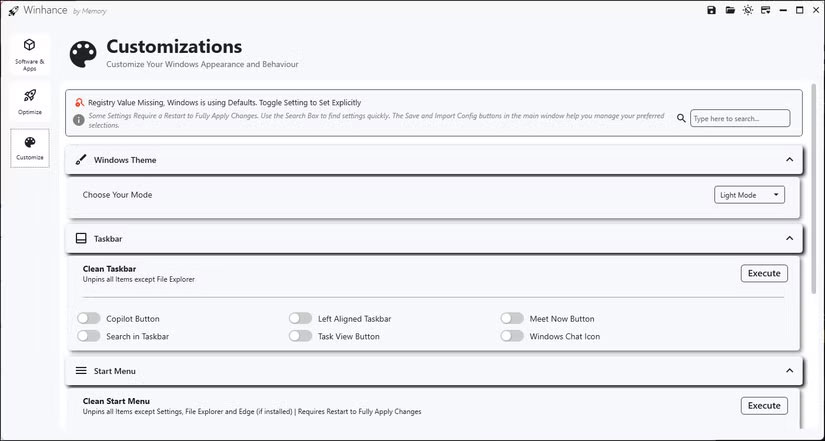
But the real magic lies in the Taskbar and Start Menu sections. You can clean up the Taskbar to unpin unnecessary items, including Copilot, Meet Now, Task View, Windows Chat Icon, and the search function, leaving only the essential File Explorer icon.
While you can align the Taskbar to the left, more options, such as the ability to hide the Taskbar and change its behavior, are not yet available in Winhance.
Start Menu customization is equally comprehensive. You can delete suggested files, disable Show Recently Added Apps, lock certain options, and even set up a More Pins layout.
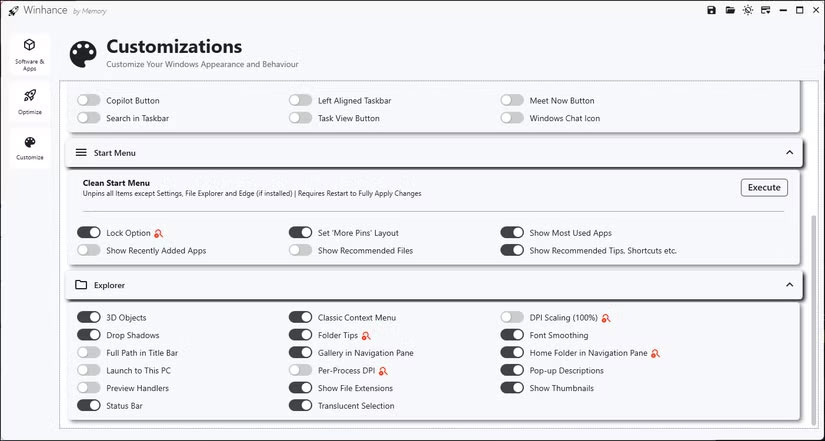
Moving on to Explorer customization, you can force File Explorer to show the full path in the title bar, show thumbnails, set DPI scaling to 100%, show file extensions, or disable the status bar entirely. For those who do not like the old Windows experience, Winhance lets you enable the classic context menu in Windows 11 without having to manually modify the Windows Registry, and even brings back folder tips.
Minor Annoyances and Room for Improvement
There are a few minor issues with Winhance. First, Windows cannot locate the.exe file needed to launch the application immediately after installation. It keeps returning the original installer in Windows Search. To fix this, create a shortcut to the.exe file from the application data folder and add it to the Start menu.
Another annoying thing is that Winhance automatically redirects you to the developer's donation page every time you close the app. Unfortunately, there is no way to change this behavior in the app's settings. While the developer may find this necessary for sustainable development, any app that opens a new browser tab without consent, even once, is annoying and very frustrating for the user. Hopefully we'll have an option to opt out of this behavior in a future release.
Winhance is not only a feature-rich optimization tool; it also performs its functions exceptionally. Whether you want to install or remove apps, tweak settings, or optimize your system, every change happens seamlessly. You will not notice any of the suddenness that is usually associated with third-party optimization tools.
The latest version, Winhance 5, also addresses many of the issues that plagued the previous version. The application window now scales properly across all resolutions, and there's better reporting of application installation progress. it is certainly not perfect. But if you want a little more room for customization and performance tweaking, Winhance is a great place to start.
FAQ
What is the main takeaway about Winhance: Free Open-Source Windows Optimization Tool?
The key is to understand the core idea, compare the available options, and apply the practical guidance that matches your situation.
What should beginners know about Winhance: Free Open-Source Windows Optimization Tool?
Start with the essential steps and terminology. Avoid changing advanced settings until you understand how they affect performance, privacy, cost, or compatibility.
How can I use this information in practice?
Follow the relevant section in order, test one change at a time, and confirm the result before moving to the next step or recommendation.
Related Articles
 Can Open Source Technology Make Money?5 minutes read
 (Giveaway) Free License for Advanced SystemCare 11 PRO, System5 minutes read
 10 Best Free Open Source Tools for Students7 minutes read
 Open Design: Free Open-Source Claude Design Alternative11 minutes read
 How to Rebuild Windows Settings Using Free Open-source Applications8 minutes read
 Computer Protection: How to Use Iobit Advanced Systemcare7 minutes read
Reader Comments 0
Sign in with email or Google to join the discussion.