Table of Contents
This guide covers older TP-Link ADSL modem routers with an Interface Setup menu. It does not describe a fiber ONT or every current TP-Link router. Match the model and hardware version on your device to its manual before changing settings.
Prepare the connection details
Ask your internet provider for the connection type, VPI/VCI values, encapsulation, and any PPP username and password. These are service-specific; the example values in screenshots are not universal. If the provider manages the equipment, ask whether you should configure it yourself.
Record or back up an existing working configuration. Avoid a factory reset unless you have the details needed to restore service.
Connect the modem and computer
- Connect the supplied power adapter.
- Connect the telephone/DSL line to the port labeled ADSL or LINE, using the splitter arrangement required by your provider.
- Connect the computer by Ethernet to a LAN port. A wired connection avoids losing access while Wi-Fi settings change.
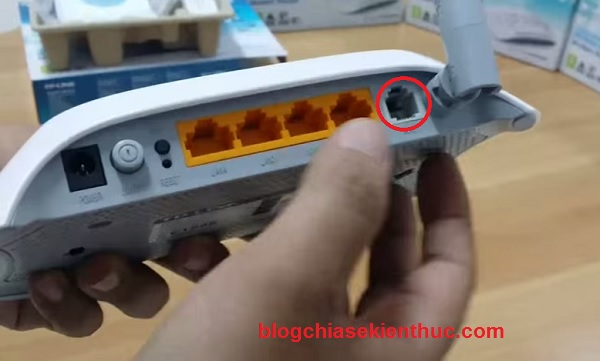
Example ADSL modem-router ports; check the labels on your own model.
Sign in to the management page
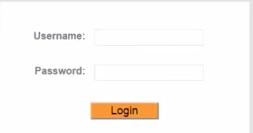
Open the local management address listed on the device label or manual. Older models may use 192.168.1.1 or 192.168.0.1; use the configured address if it has changed. See TP-Link modem login addresses for related guidance.

Use your existing administrator credentials or the model's documented initial setup method. Some old devices used admin/admin, but that is not a universal login. Change a default administrator password after setup and keep it different from the Wi-Fi password.
Enter the ADSL internet settings
- Open Interface Setup > Internet. Use PVCs Summary to inspect the configured virtual circuits.
- Select the internet circuit indicated by your provider and enter its VPI and VCI. Do not overwrite a circuit used for another service.
- Choose the provider's specified connection type and encapsulation. Select PPPoE/PPPoA only when that is what your service requires.
- For a PPP connection, enter the provider-issued username and password. These differ from your modem administrator and wireless passwords.
- Save the settings and allow the connection to establish.
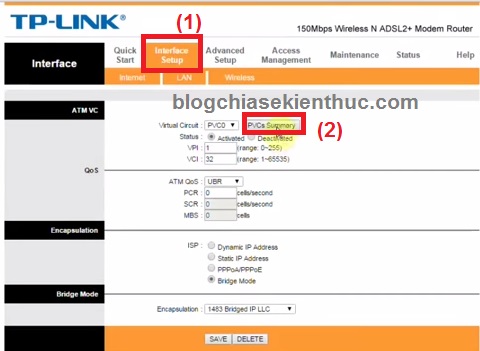
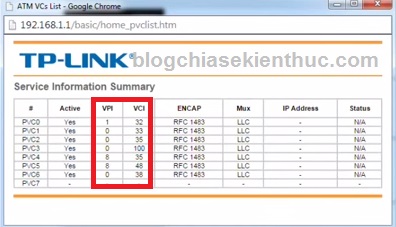
The illustrated PVC4 and VPI/VCI 8/35 are examples only.
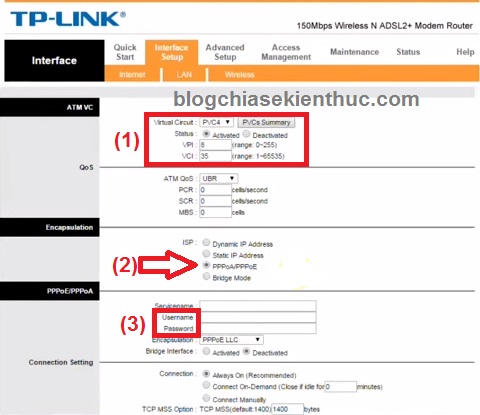
Leave LAN addressing, DHCP, and DNS settings unchanged unless your network design requires a change. Altering the LAN address can disconnect the management session.
Set up protected Wi-Fi
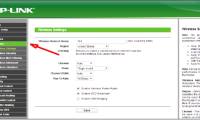
- Go to Interface Setup > Wireless and enable the access point if needed.
- Enter a recognizable SSID without exposing personal information.
- On these older models, choose WPA2-PSK with AES when available, rather than an open network, WEP, or old WPA/TKIP.
- Enter a long, unique passphrase in Pre-Shared Key. Do not reuse the screenshot's weak example password.
- Save, then reconnect wireless devices using the new network name and password.
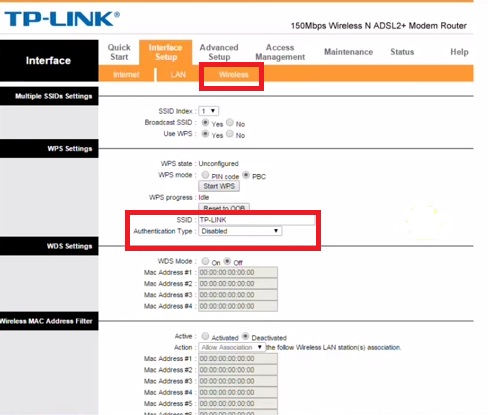
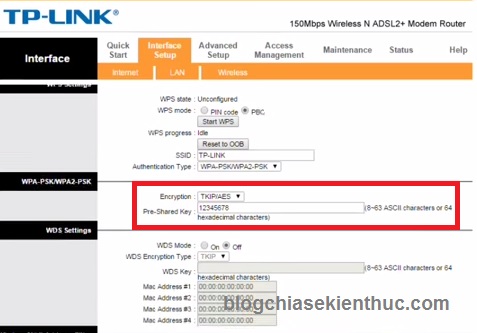
TP-Link provides WPA2-PSK instructions for this legacy interface. If your device cannot provide suitable security or supported firmware, consider replacing it. For later changes, see how to change a TP-Link Wi-Fi password.
Verify internet access
Check the DSL indicator and Status > WAN. A WAN address can indicate that a session has connected, but also open several websites to verify usable internet access.
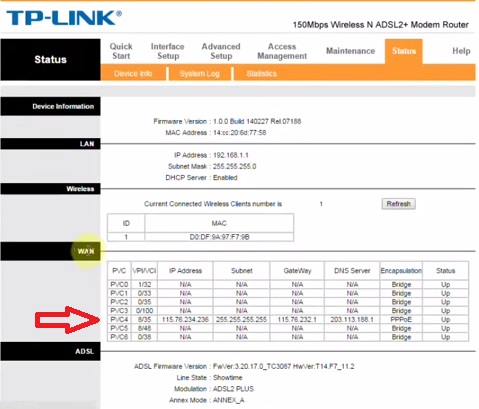
- No DSL synchronization: Check the line, splitter, port, and provider service.
- DSL synchronized but no internet session: Recheck the connection type, VPI/VCI, encapsulation, and provider credentials.
- Internet works by Ethernet but not Wi-Fi: Check the SSID, wireless security, and password rather than changing the ADSL settings.
Consult the manual for your exact model if the menus differ; instructions for another brand or connection technology are not interchangeable.


Reader Comments 0
Sign in with email or Google to join the discussion.