Table of Contents
To create a mind map in NotebookLM, add your study material to a notebook, select the sources you want to use, and choose Mind Map in the available chat or Studio controls. Google's current help documentation calls the product Gemini Notebook; older screenshots and guides may still use NotebookLM.
A mind map can make a document's main topics easier to navigate, but it can omit context or group ideas incorrectly. Use it as a study aid alongside the original material, not as proof that you have understood it.
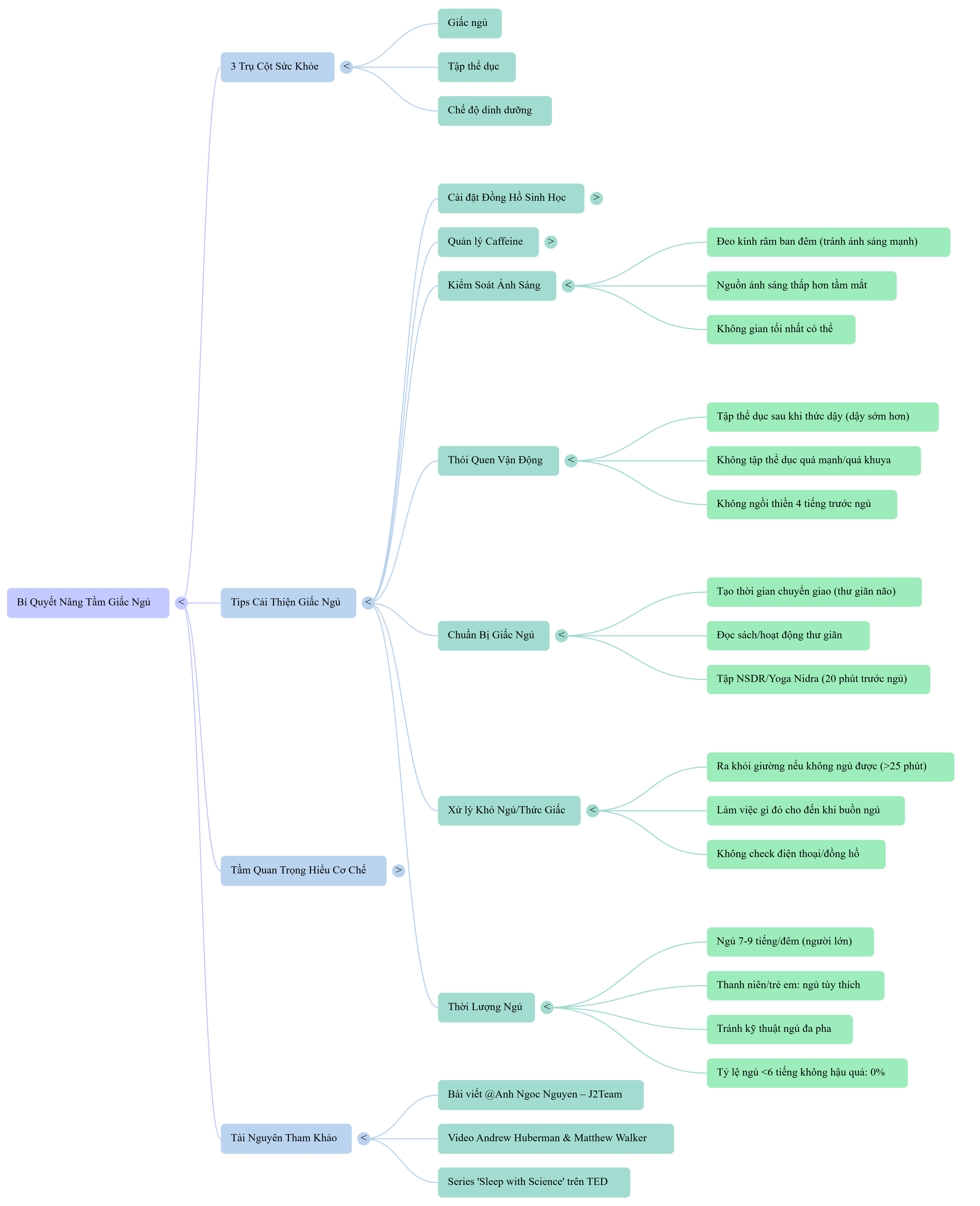
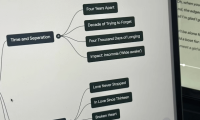
Example of a generated map with a central topic and expandable branches.
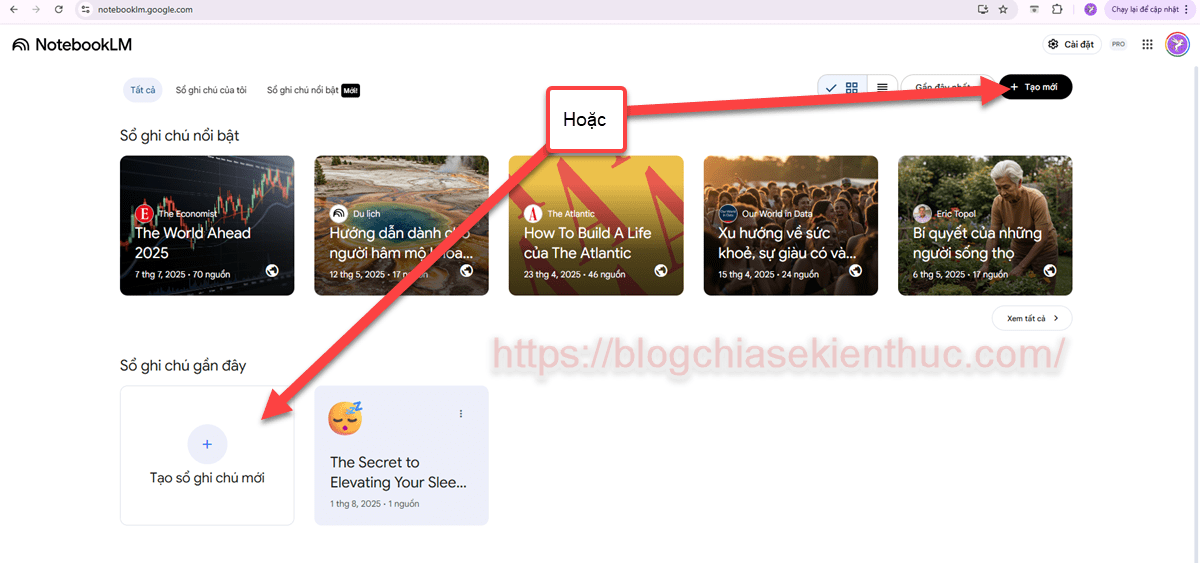
1. Create or open a notebook
Open the notebook service using your Google account and select the option to create a notebook, or open an existing one. If Mind Map controls are missing from the mobile app, try the web interface and check the feature availability for your account.
2. Add a readable source
Use a supported document, webpage, or pasted-text source. For a first test, choose one short, well-organized lesson or article whose content you can check easily.
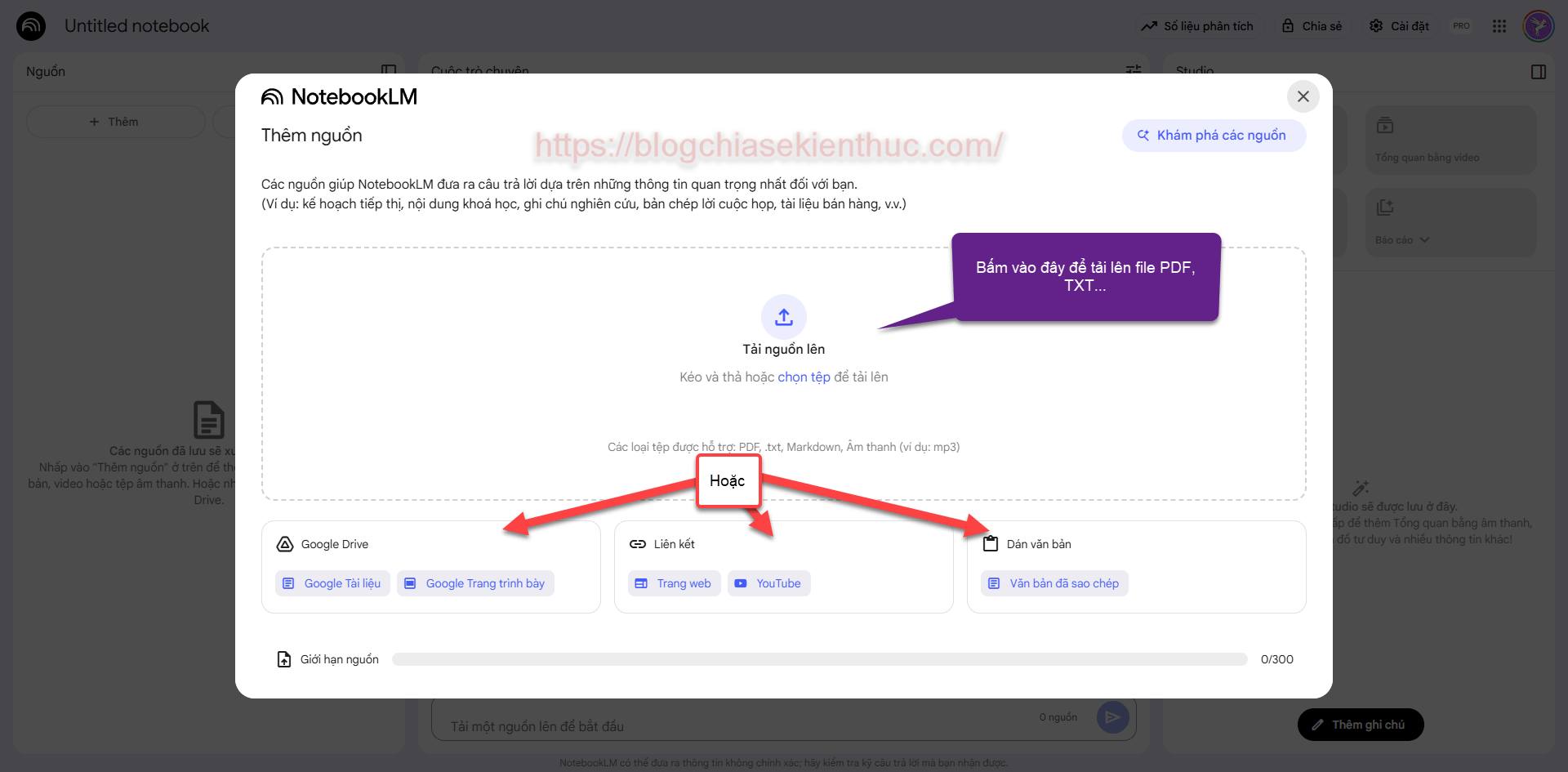
- Website: Check the imported text. Login requirements, access restrictions, and page structure can prevent the relevant content from being retrieved.
- PDF or scanned material: Confirm that headings and text were extracted correctly. A readable-looking scan is not necessarily readable to the tool.
- Pasted text: Keep meaningful headings, definitions, and source details. Remove navigation menus and unrelated material without stripping necessary context.
The presence of advertisements on a webpage does not automatically make mind-map generation impossible. The useful check is whether the actual article text has been imported accurately.
See adding photos and scanned notes as sources when your material is not already clean text.
3. Generate the mind map
Select the intended sources and choose Mind Map in the controls shown by your interface. Wait for processing, then open the resulting map in Studio. Labels and placement may vary by product version.
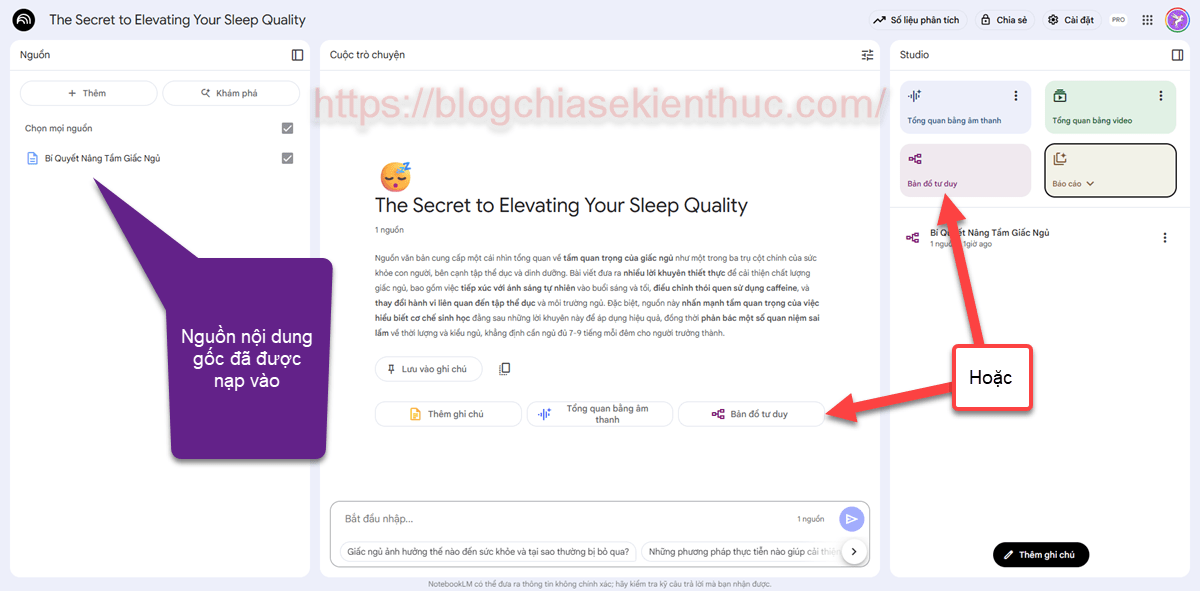
Check current account allowances before assuming that a paid Pro plan is required for every map. The plan can affect limits, but the feature should not be described solely as a paid-only capability without checking your account.
4. Explore and verify the branches
Expand a branch to see subtopics, collapse it for an overview, and zoom or move around the map. Selecting a node can open a related question in chat.
Compare the map with the source's headings and key explanations. Ask whether any important exception, sequence, or causal relationship has been lost. A map of “causes” should not quietly mix in symptoms or solutions.
For active study, explain a branch in your own words before reopening the source. Mark anything you cannot explain and return to the relevant passage. No tool can guarantee that this doubles learning speed or halves study time.
Save or share the result
Use the map's download option when available, or share the notebook with the intended audience. Review what recipients can access, including source material, before sharing a notebook link.
Google's Mind Map help page explains navigation, downloading, and sharing. For broader source and Studio workflows, see the NotebookLM user guide.
If the map is incomplete
First inspect the imported source and selected-source set. Split unrelated topics into separate notebooks or use a more focused source. Correct extraction problems before regenerating; repeating generation on incomplete input is unlikely to fix the missing material.
Related Articles
 How to Create a Mind Map in NotebookLM (Gemini Notebook)
 How to Use NotebookLM Mind Maps for Better Research and Study
 3 Major NotebookLM Updates: Cinematic Video, Mind Maps, and File Exports
 3 Chrome Extensions That Add Useful NotebookLM Workflows
 How to Turn a YouTube Video Into Lesson Materials With NotebookLM
 How to Turn a YouTube Video into Lesson Materials with NotebookLM
Reader Comments 0
Sign in with email or Google to join the discussion.