Table of Contents
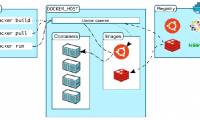
Docker packages an application and its user-space dependencies into an image. A container is a running instance of that image. This helps developers use a consistent environment across machines without manually installing each dependency on every host.
Containers, images, and virtual machines
A virtual machine normally includes a guest operating system and its own kernel. Containers isolate processes while using a kernel supplied by the environment in which they run. Docker Desktop runs Linux containers on Windows through a Linux-based backend, such as WSL 2, so virtualization still plays a role.
An image is not a full copy of your PC. It also does not include every external requirement: configuration, credentials, persistent data, network access, and compatible CPU architecture still matter. Keep secrets outside images and use volumes or other deliberate storage for data that must survive container removal.
Prepare Windows
Check Docker's current Windows installation requirements for your edition, architecture, and supported build. Hardware virtualization must be available and enabled for the selected backend. Docker Desktop is not the installation method for Windows Server.
For the WSL 2 backend, ensure WSL is installed and updated. In a terminal, wsl --version reports the installed components; follow Microsoft's and Docker's setup instructions if the command or required features are missing. A Windows restart may be necessary after enabling them.
Review Docker Desktop's license terms for your use case. Docker Engine's open-source components do not mean every Docker Desktop use is free.
Install Docker Desktop
- Download the Windows installer for your machine's architecture from Docker's official installation page.
- Run it and choose the available installation mode and backend suited to your system. WSL 2 is a common choice for Linux containers.
- Complete any required restart, then launch Docker Desktop from Start.
- Review the first-run agreement and setup prompts. Wait until the engine reports that it is running.
- Open a new PowerShell or Command Prompt window and run
docker version. A working connection should report both client and server information.
If the client appears but the server cannot be reached, check that Docker Desktop is running and the selected backend has started. Do not repeatedly reinstall before reading the error message.
Run a local web-container test
With Linux containers selected, run:
docker run --name docker-demo -d -p 127.0.0.1:8080:80 docker/welcome-to-dockerDocker downloads the image if it is not already present. Open http://localhost:8080 in your browser to check the welcome page.
--name docker-demoassigns a recognizable container name.-druns it in the background; logs remain available.-p 127.0.0.1:8080:80forwards local port 8080 to container port 80, binding the published service to the local loopback address.docker/welcome-to-dockeridentifies the image.
Use docker ps to check running containers and docker logs docker-demo to inspect output. If port 8080 is occupied, choose another unused host port and use that port in the browser. Do not disable the firewall as a general fix.
Stop and clean up the test
docker stop docker-demo
docker rm docker-demo
These commands stop and remove only the named test container. They do not remove the downloaded image. Do not substitute a container holding data you need.
Continue with the Docker learning roadmap or a Dockerfile and image-building lab once this basic test works.



Reader Comments 0
Sign in with email or Google to join the discussion.