Table of Contents
To connect a wireless keyboard, mouse, headset, or speaker, the computer needs a Bluetooth adapter, Bluetooth turned on, and the accessory in pairing mode. Many laptops include Bluetooth; desktop PCs may have built-in Bluetooth or may need a compatible USB adapter. The steps differ between Windows and macOS.
Check whether the computer has Bluetooth
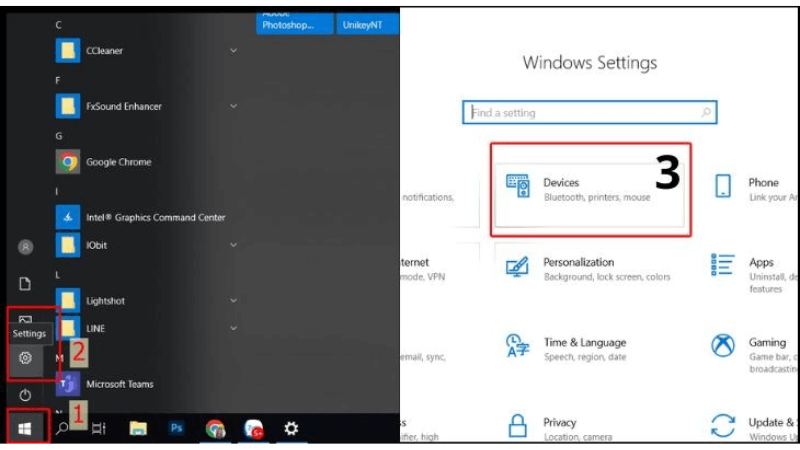
On Windows, open Settings > Bluetooth & devices (Windows 11) or Settings > Devices > Bluetooth & other devices (Windows 10). If the Bluetooth setting is missing, the PC may lack an adapter or its Bluetooth driver may not be installed. Check the computer’s specifications or Device Manager before buying anything. A compatible USB Bluetooth adapter can add Bluetooth to a desktop that lacks it.

Turn on Bluetooth and pair a device in Windows
- Turn on the accessory and put it into pairing or discovery mode. The button sequence varies, so check its manual.
- In Windows 11, open Settings > Bluetooth & devices and switch Bluetooth on. In Windows 10, open Settings > Devices > Bluetooth & other devices and switch Bluetooth on.
- Choose Add device or the Bluetooth pairing option, select the accessory when it appears, and follow any prompts.
In Windows 11, the Bluetooth tile in Quick Settings is another shortcut. If the toggle or adapter is missing, consult Microsoft’s guidance to turn Bluetooth on or off in Windows and pair a Bluetooth device.
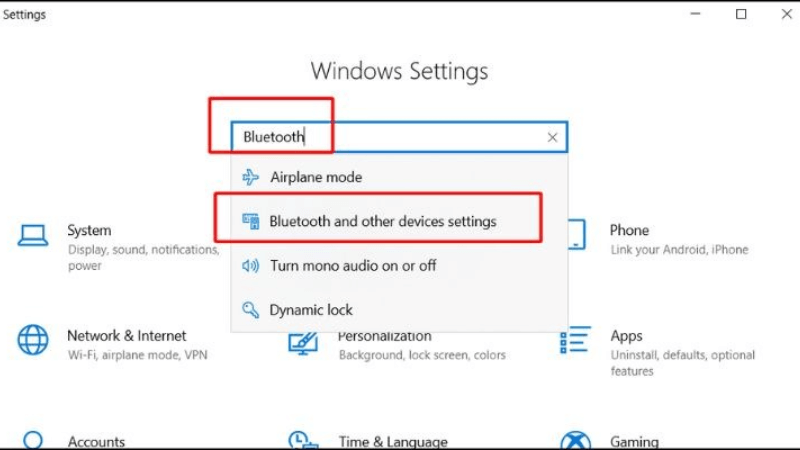
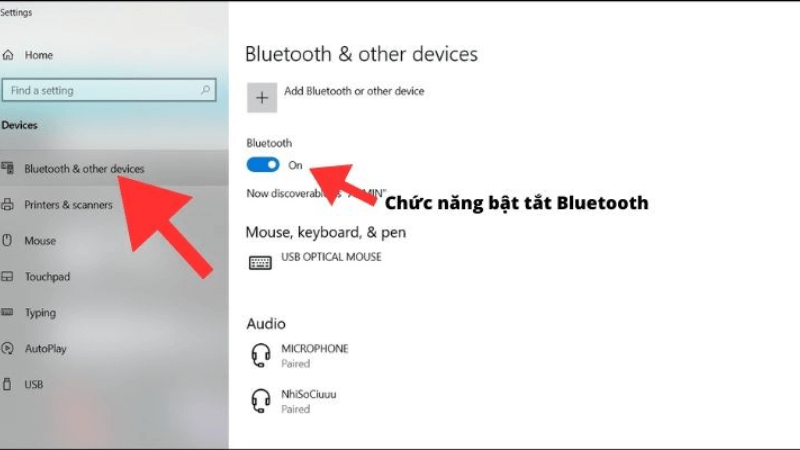
Windows 10 and Windows 11 use different Settings layouts, so the screenshots may not match your computer exactly.
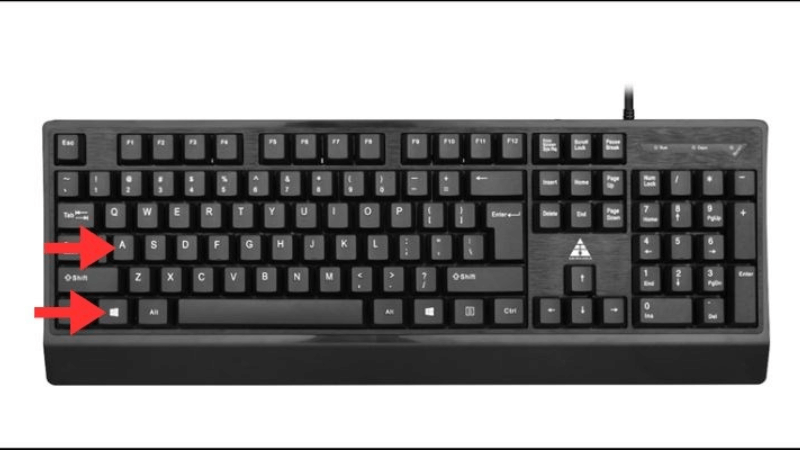
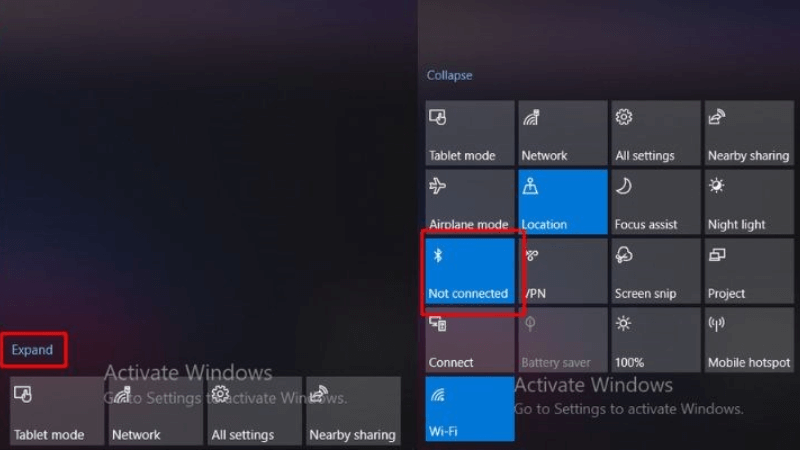
If Bluetooth is not listed in Settings or Device Manager, check the computer maker’s specifications and install drivers only from the PC or adapter manufacturer. A physical wireless switch or function key exists on some models, but not all.
Turn on Bluetooth and connect an accessory on Mac
- Turn on the accessory and put it in pairing mode.
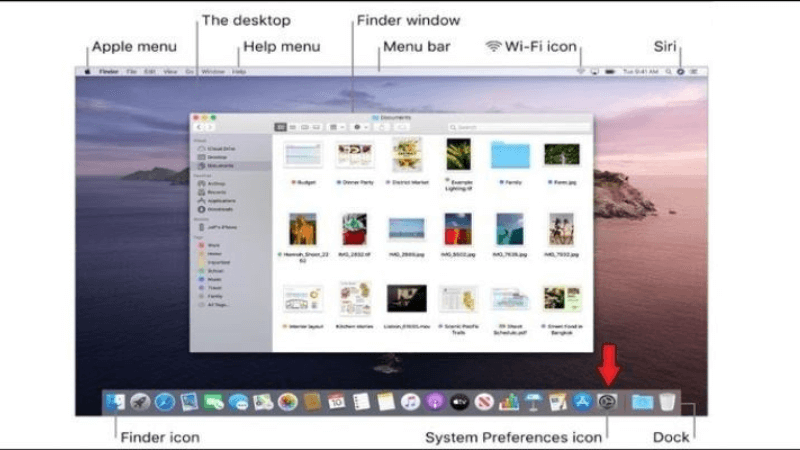
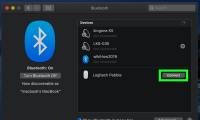
- On your Mac, open Apple menu > System Settings > Bluetooth.
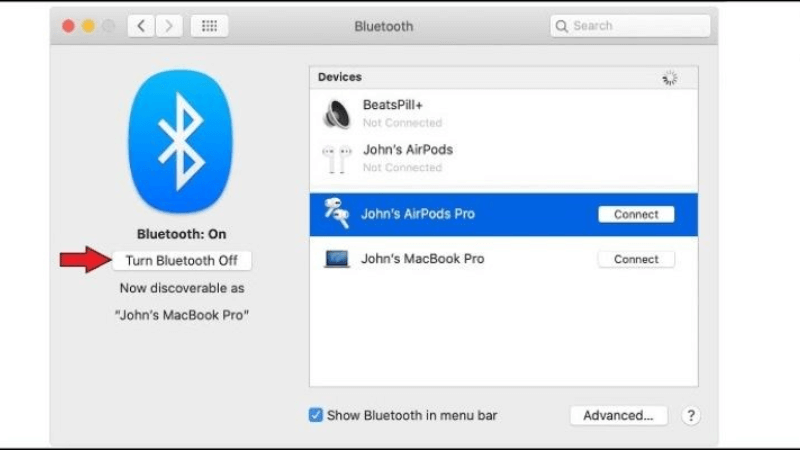
- Turn Bluetooth on if needed, find the accessory in the nearby devices list, and select Connect.
Follow the accessory’s instructions if it requires a code or another setup step. Apple’s Mac accessory connection guide has model-specific details.
If a device does not appear
Confirm the accessory is charged, close enough to the computer, and in pairing mode. If it is already connected to another device, disconnect it there and try again. On Windows, a missing Bluetooth toggle can point to an adapter or driver problem; use the computer maker’s support instructions rather than downloading drivers from an unknown site.
Related Articles
 Instructions for turning on and off Bluetooth on Windows 10
 How to open Bluetooth on Windows 10 - Instructions to turn on, turn off, use Bluetooth on Windows 10
 The simplest way to turn Bluetooth on and off on Windows 11
 How to turn on Bluetooth on Mac
 How to Use USB Bluetooth
 The simplest way to turn Bluetooth on and off on Windows 10
Reader Comments 0
Sign in with email or Google to join the discussion.