Table of Contents
You can prepare a Windows installation USB on a Mac, but the right method depends on the Mac and the computer that will boot the installer. Boot Camp is an Intel-Mac tool for Windows 10; it is not a general Windows 11 USB creator available on every Mac. A compatible third-party utility is another option for making installation media for a PC.
Back up the USB drive first. Creating installation media erases the selected drive. Verify its name and capacity before confirming any format operation.
Choose the method before formatting
- Older Intel Mac with a USB-creation option in Boot Camp: use the supported Windows 10 workflow and follow that Mac's prompts.
- Newer Intel Mac: Boot Camp may use the internal disk for installation files and may not offer the older standalone USB-creation task.
- Apple silicon Mac: do not follow the Boot Camp steps. A USB made for an x64 PC does not make an Apple silicon Mac able to boot that PC version of Windows.
- Windows 11 installer for a separate PC: use a utility that explicitly supports your macOS version, processor, and Windows ISO. Check the destination PC's Windows 11 requirements separately.
Have an official Windows ISO, a spare USB drive with adequate capacity, and enough free space on the Mac to process the image. A 16GB or larger drive is a practical starting point, but check the selected image and utility requirements.
Understand FAT32 and NTFS
macOS can normally read NTFS volumes but does not provide ordinary built-in NTFS write support. That does not mean NTFS formatting alone creates a bootable installer. Firmware boot support and the arrangement of the Windows installation files also matter.
FAT32 is widely usable for UEFI boot, but it cannot hold an individual file of 4GB or larger. The problem is often a large sources/install.wim inside the ISO, not the total size of the ISO. A suitable creation tool can handle this by splitting the Windows image into supported smaller files.
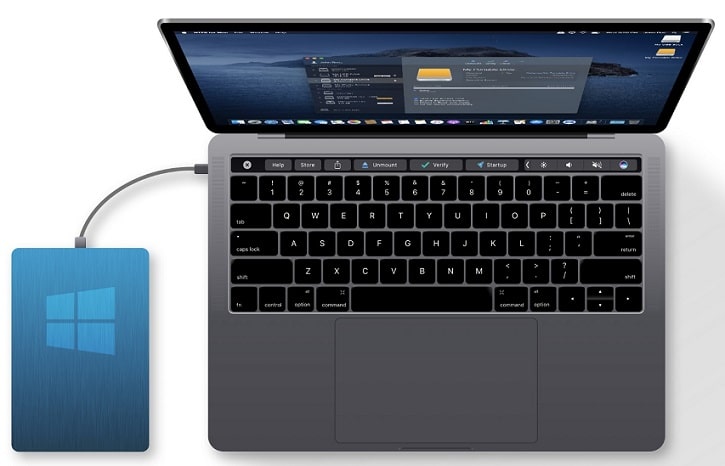
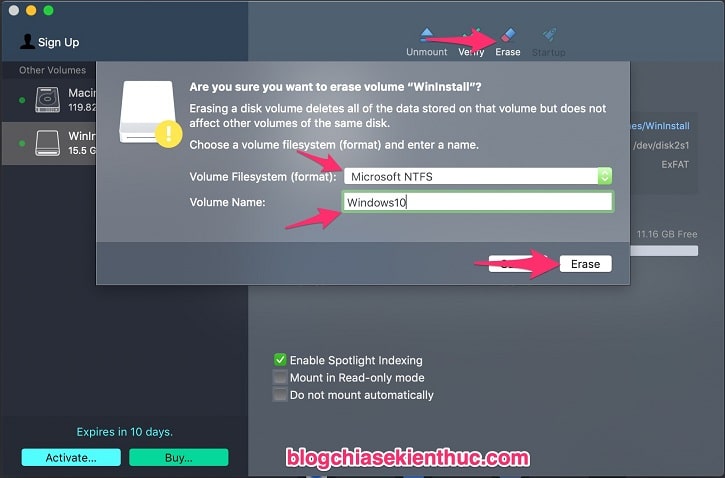
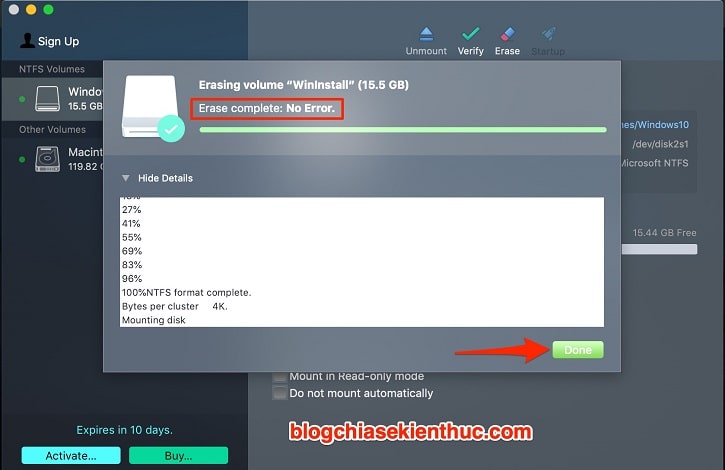
The original walkthrough used Paragon NTFS for Mac, illustrated below. Its formatting screens are retained for reference, but it is not a required preliminary step for Boot Camp. Apple documents a FAT-formatted USB for its older-Mac workflow.
Option 1: Boot Camp on a supported Intel Mac
Check Apple's Boot Camp compatibility guidance first. This workflow concerns Windows 10 on supported Intel Macs; it should not be presented as official Windows 11 support.
- Connect the backed-up USB drive.
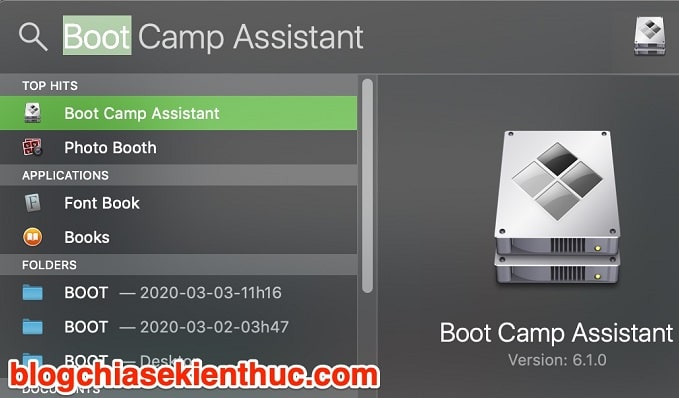
- Open Applications > Utilities > Boot Camp Assistant, or find it with Spotlight.
- Read the introduction and continue to the tasks screen, if your version offers one.
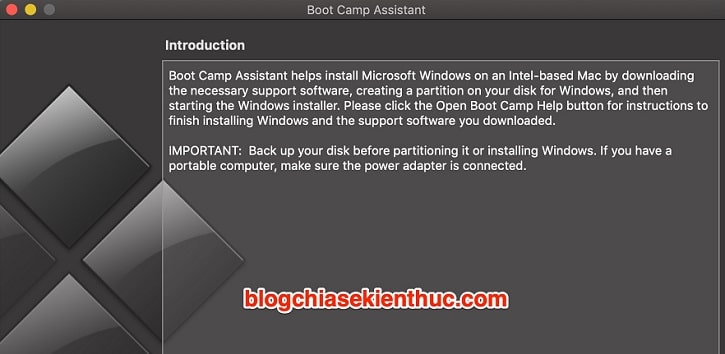
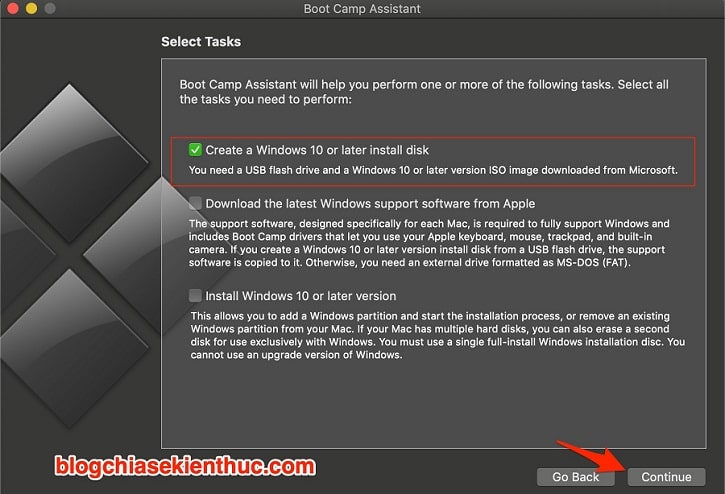
On older versions that show a Create a Windows installation disk task, select it. If you only need USB media, do not select a task that partitions the Mac or begins installing Windows. If the creation task is absent, stop following these older screenshots; do not modify Boot Camp to force an unsupported option.
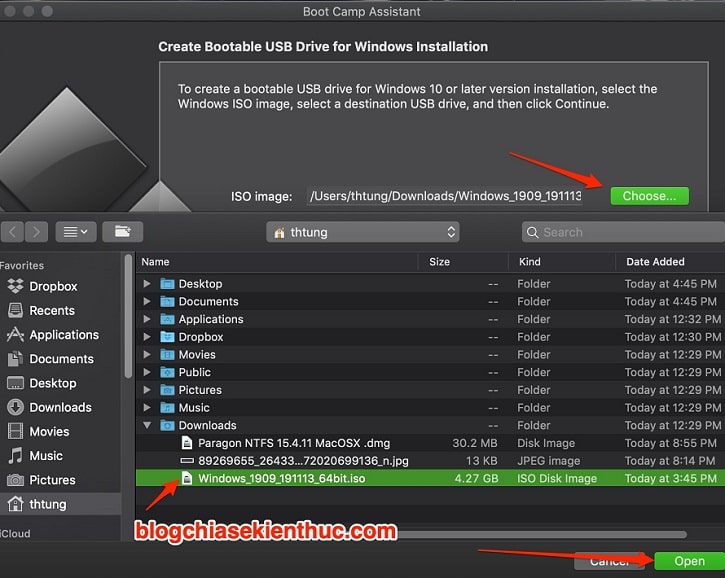
Choose the Windows 10 ISO and confirm the destination USB. Do not rely on automatic detection without checking both selections.
Read the warning that the selected USB will be erased. Continue only after confirming that it is the intended removable drive.
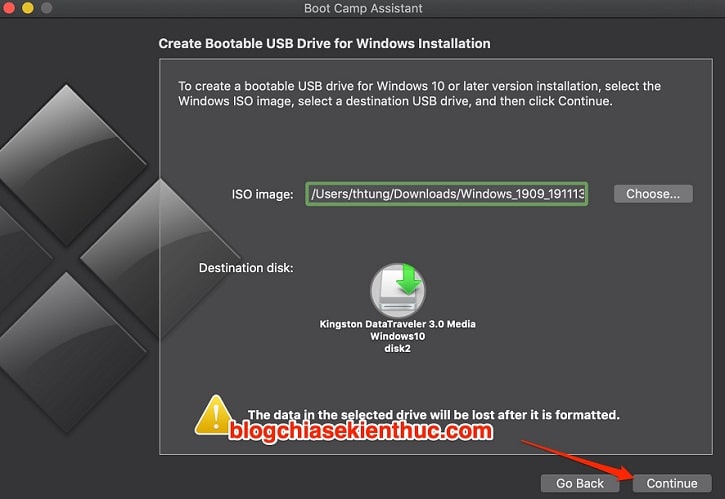
Let Boot Camp finish copying files. Keep the Mac powered and the drive connected. When completion is reported, quit the utility and eject the USB before removing it.
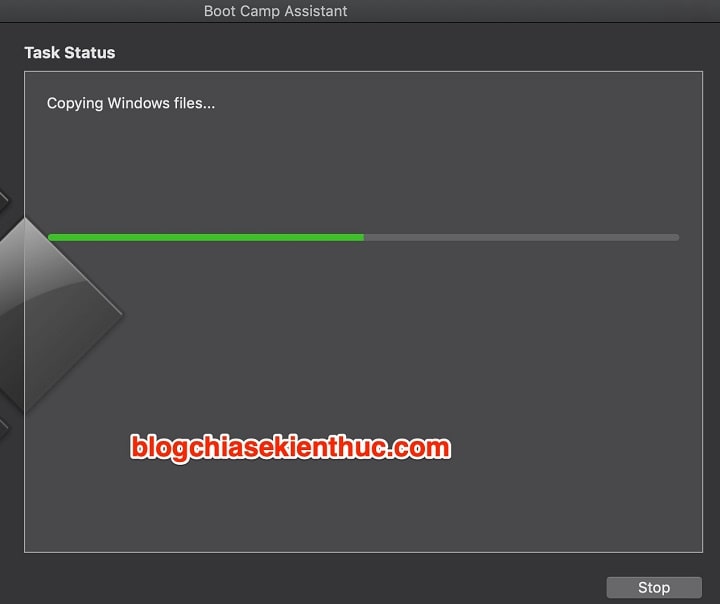
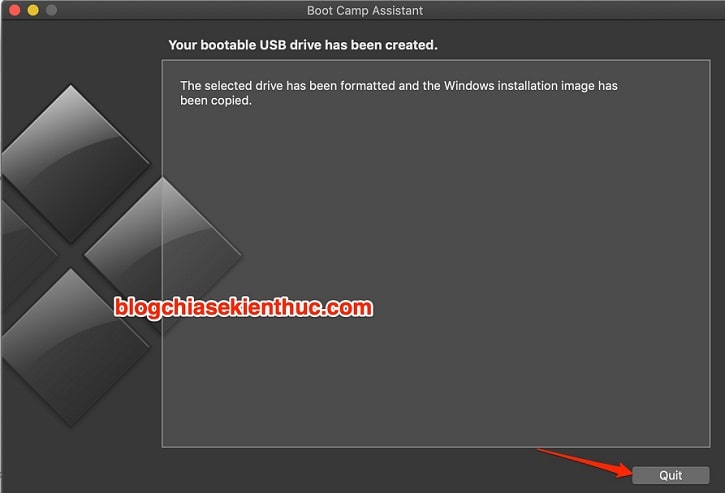
If your real goal is installing Windows on the Mac itself, follow the separate Boot Camp installation walkthrough; creating media and partitioning the Mac are different operations.
Option 2: a compatible Windows USB utility
The original article illustrates SYSGeeker WonderISO. Check the vendor's current macOS and processor compatibility and licensing before installing it. The following describes its illustrated workflow; screen labels can vary.
- Open the application and select its Burn function.
- Browse to the official Windows 10 or Windows 11 ISO.
- Choose Create a Bootable USB and select the correct removable drive.
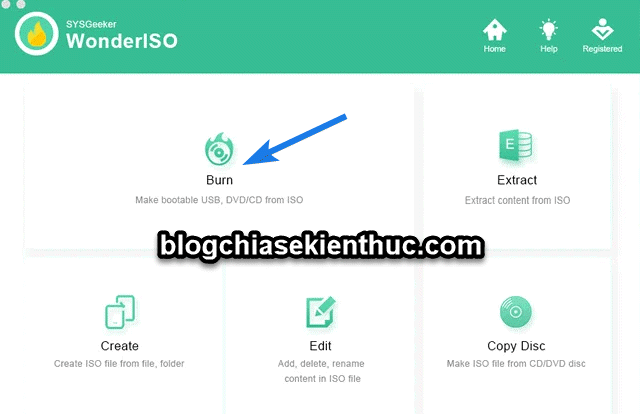
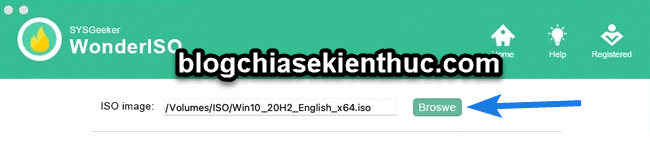
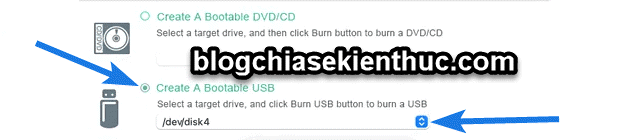
Select the layout for the target PC. Use a UEFI-compatible configuration for a standard Windows 11 installation; legacy BIOS choices in old screenshots do not establish Windows 11 compatibility.

Review the file-system and volume-label settings. If using FAT32 with an oversized installation image, confirm that the utility supports splitting that image; do not simply omit files that will not copy.

Check the ISO and destination again, start the write operation, and wait for a successful completion message.
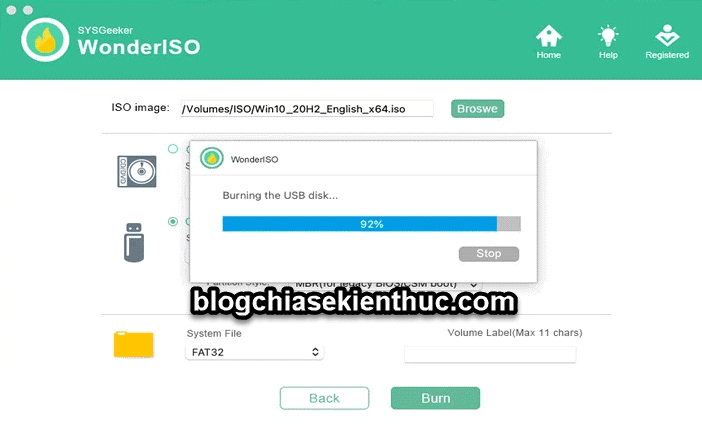
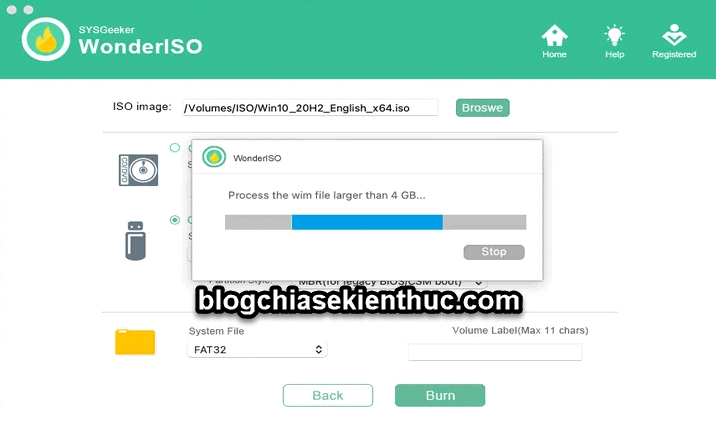
If the application processes a large Windows image, let it finish. Splitting install.wim into smaller image files is different from splitting the USB into two partitions.
Test the installer on the destination computer
Eject the USB safely, connect it to the target PC, and select its appropriate entry in the one-time boot menu. Reaching Windows Setup confirms that the media boots; it does not mean you should immediately format the internal disk. Back up that computer before choosing installation partitions.
If the USB does not appear, check the PC's firmware mode and the utility's boot configuration. If you have access to a Windows PC, the Windows 11 USB creation guide provides another route. For older hardware, see the explanation of UEFI and legacy Windows installation media.
Related Articles
 How to create a bootable macOS Big Sur installation drive
 How to create Windows 11 installation USB for computers that do not meet TPM 2.0 hardware
 Instructions on how to create a Windows 10 USB install on macOS
 6 reasons why Windows 11 is better than macOS
 Create a Windows All-in-One Installer with DISM
 Do you know 3 window management features on macOS Sierra?
Reader Comments 0
Sign in with email or Google to join the discussion.