Table of Contents
NHV BOOT is a Windows PE rescue environment that starts from a USB drive when the installed operating system is unavailable. Use Rufus with an ISO image, or R-Drive Image with an RDR image. Choose one workflow; an RDR file cannot be selected as an ISO in Rufus.
Back up the destination drive before creating the rescue media. Formatting, restoring images, repartitioning, and writing boot code can destroy data if the wrong disk or layout is selected.
Download the right package
Get the release from the NHV BOOT download page and check its requirements and included tools. Standard and paid editions differ, so do not assume that every utility is free or included.
The older package screenshots below illustrate archive naming. Use the actual file type and instructions for your release. Do not rename an unknown download merely to make it look like a ZIP archive.
- ISO: extract the downloaded archive if necessary, then write the ISO with Rufus.
- RDR: restore the image with R-Drive Image, following the release's disk-layout instructions.
- Capacity: allow enough space for the chosen image and any separate data partition. Old fixed partition sizes may not fit a newer release.
If the publisher supplies a checksum, compare it with the exact file you downloaded. A matching checksum helps detect a mismatch or corruption; it does not by itself establish that software is safe. Old checksums in a tutorial are not valid checksums for a newer package.
Method 1: create the USB with Rufus
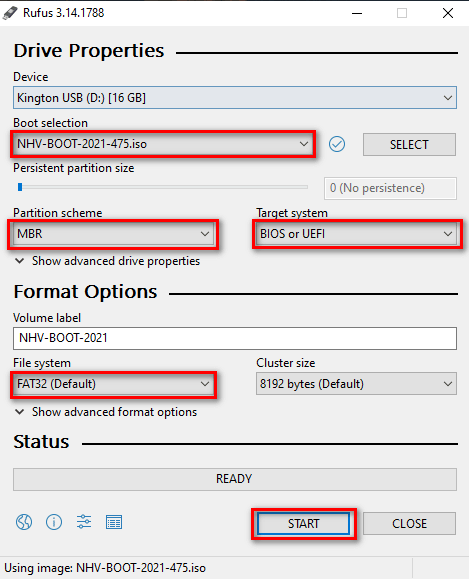
This is the straightforward route for an ISO package. Check the publisher's creation guide if its instructions differ from the older screenshot.
- Connect a spare USB drive and open Rufus.
- Under Device, select the USB by its capacity and identity.
- Under Boot selection, click SELECT and choose the extracted NHV BOOT ISO.
- For the publisher's illustrated UEFI/legacy layout, choose MBR, BIOS or UEFI, and FAT32 where those options are available for the selected image.
- Review the selected drive and format warning, then click START.
- Wait until Rufus reports that creation is complete before ejecting the USB.
FAT32 cannot store an individual file of 4GB or larger. If you need to carry large ISO or backup files, a separate NTFS data partition may be useful. Back up the drive before resizing partitions and keep enough space for all boot files. Do not change the boot partition's file system casually.
Method 2: restore an RDR image
Use this route only with the matching RDR package. Restoring an image is a disk-writing operation, not an ordinary file copy.
- Extract the package and open R-Drive Image.
- Select Restore Image or Restore from an Image, depending on the version.
- Browse to the package's
.rdrfile. - Choose the required disk or partition restore operation.
- Map the source image to the intended external disk or prepared unallocated space. Check the proposed layout, sizes, and existing partitions before proceeding.
- Review the final operation summary, start the restore, and wait for a successful completion message.
These screenshots show the older interface. Your disk numbers and partition positions will differ; never select a disk solely because it occupies the same position in a screenshot.
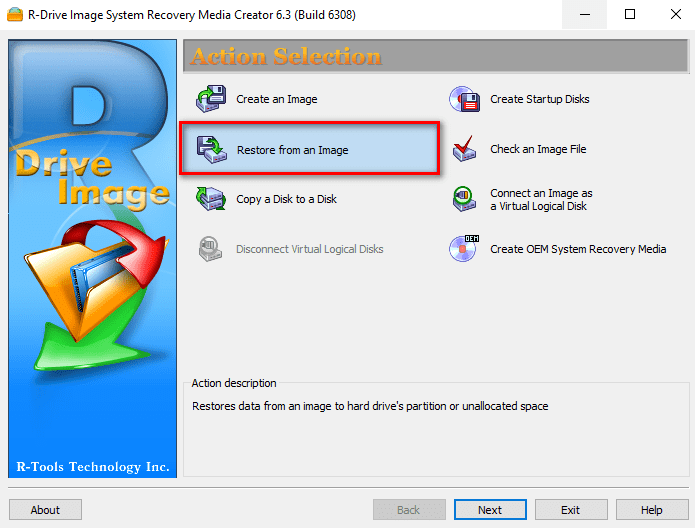
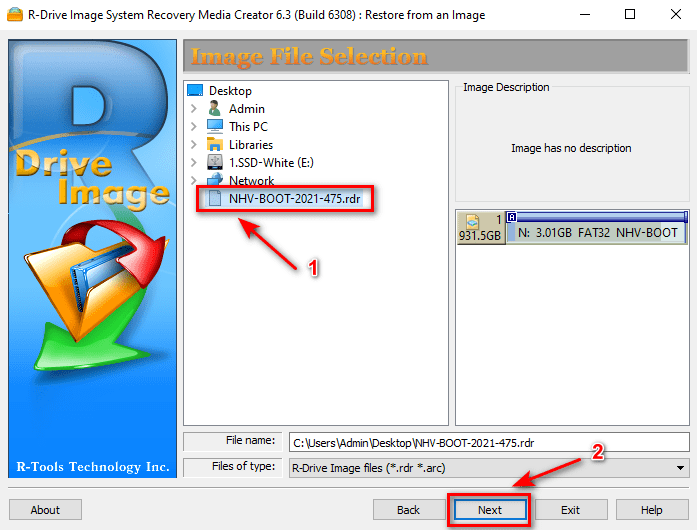
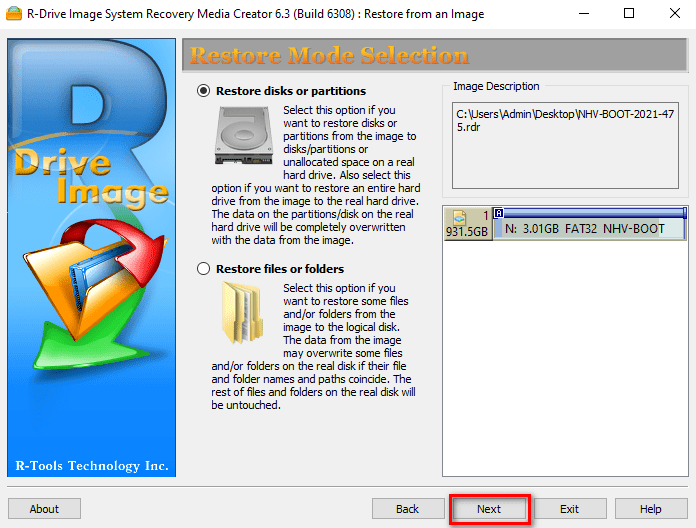
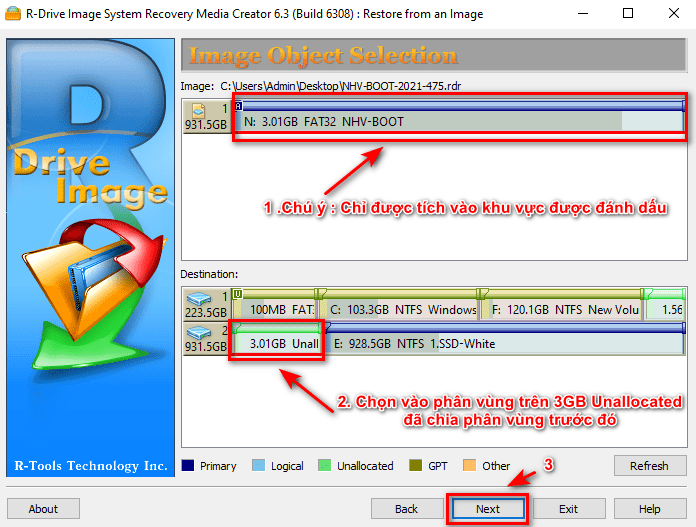
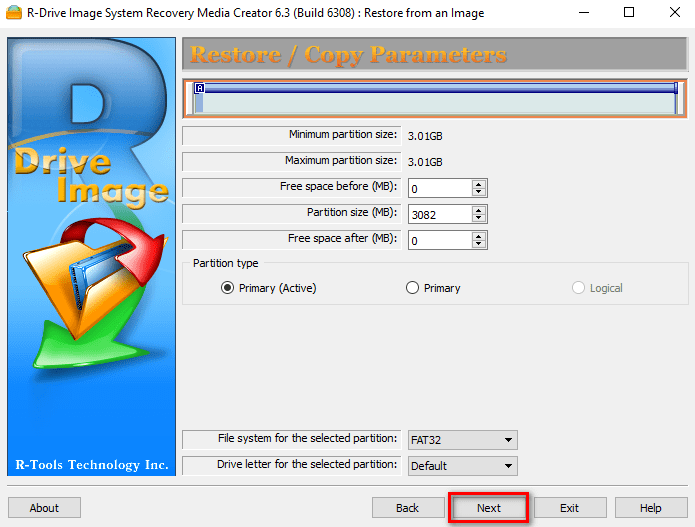
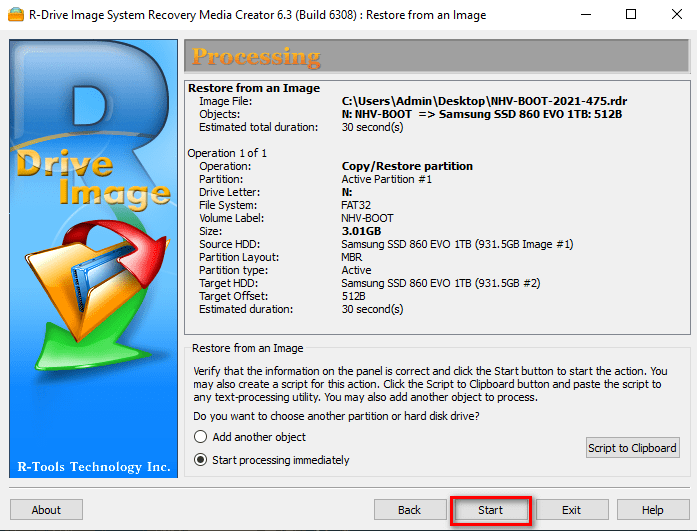
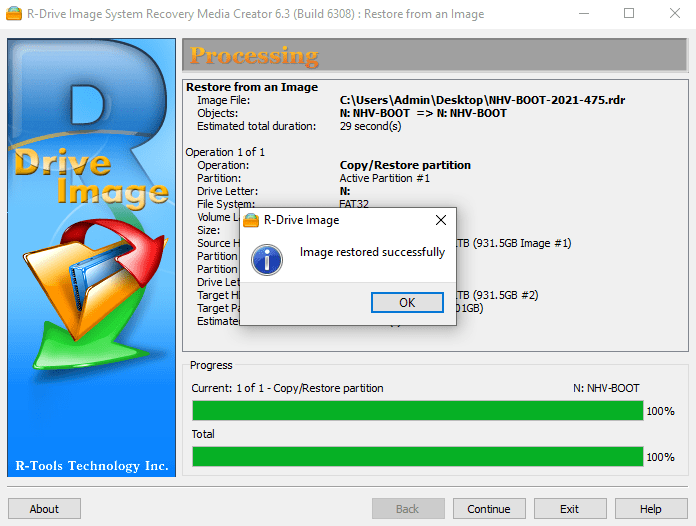
If the restore proposes overwriting data partitions you need, cancel and review the layout. A claim that a restore method preserves data is not a substitute for a backup.
Advanced alternative: manual boot preparation
The original guide also used Partition Wizard and BOOTICE. This involves creating an appropriate FAT32 boot partition, copying the ISO contents, and installing compatible boot code. It is easier to misconfigure than writing the ISO directly.
For the publisher's older MBR workflow, the FAT32 boot partition is marked active for legacy boot. In BOOTICE, the illustrated route selects the external destination disk, opens Process MBR, chooses the documented GRUB4DOS boot code, and saves it to that disk. Use only the boot-code version specified for the NHV BOOT release; writing the wrong disk's MBR can prevent it from booting.
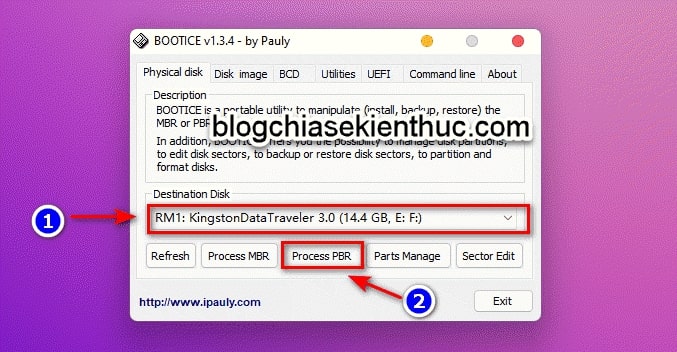
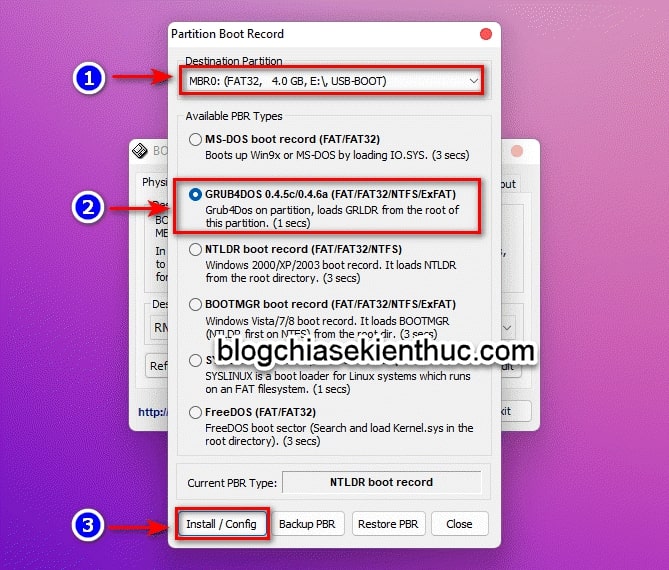
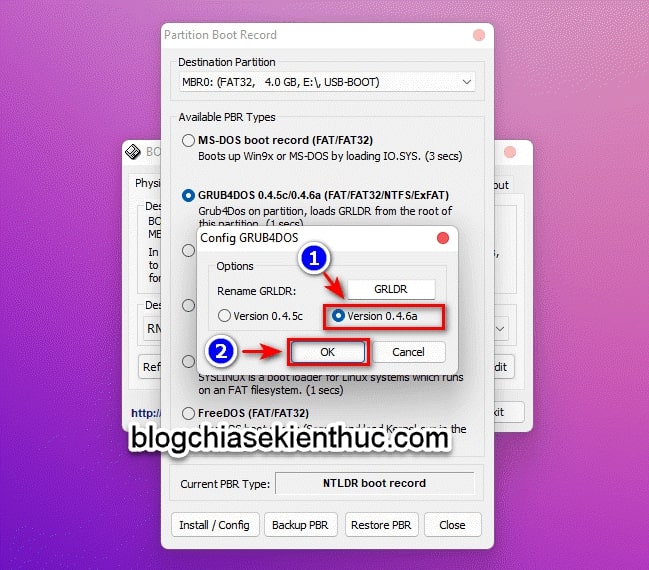
Follow the publisher's complete release-specific manual procedure if you need this method. If your objective is simply a rescue USB, use Rufus rather than modifying the computer's internal disk.
Boot and test the rescue environment
- Connect the USB to the computer you are authorized to service.
- Restart and open its one-time boot menu.
- Select the USB's entry appropriate for the firmware mode.
- Choose a compatible WinPE environment from the NHV BOOT menu.
- Check that the keyboard, storage devices, and any needed network adapter are detected before relying on it for recovery.
See the boot-menu key guide for common laptop brands. Hardware support depends on the image's drivers, not just the CPU generation. If an internal SSD is missing, use the appropriate manufacturer storage driver rather than immediately repartitioning it.
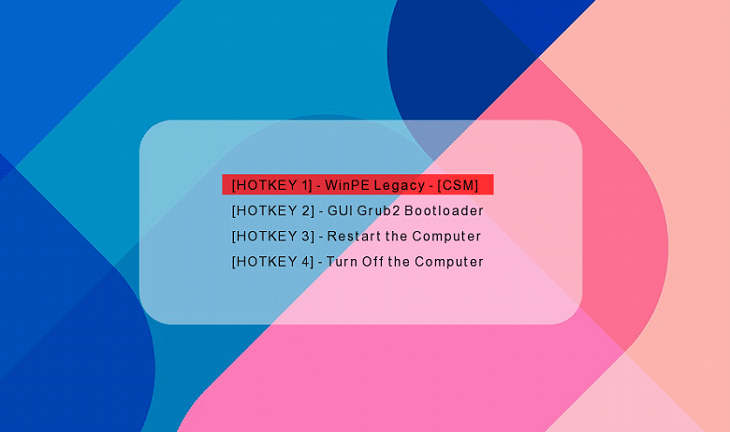
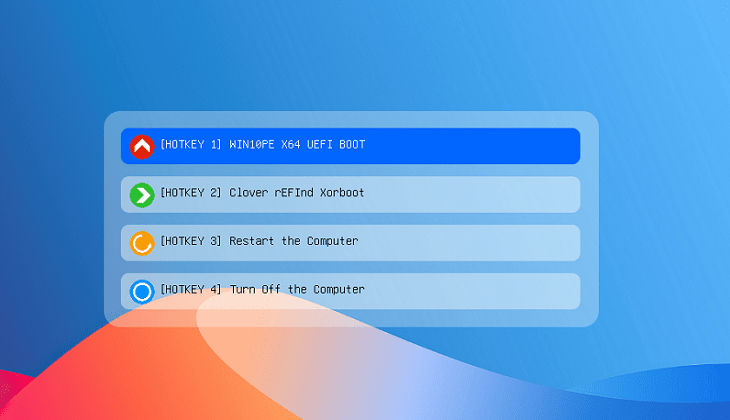
The video below shows an older interface, so it is a visual reference rather than a description of every current release.
Once booted, copy irreplaceable files to a separate physical drive before attempting repairs. Select a tool for the specific fault; a rescue desktop cannot guarantee recovery from every hardware or software failure. For a different rescue environment, see the Hiren's BootCD PE overview.
Related Articles
 Download Rufus 3.13: Utility to create bootable USB open source, free
 Rufus - The easiest USB boot creation application
 How to create USB Boot, USB install Windows by Rufus
 DLC Boot 2022: Recovery features and USB setup
 20 best USB boot software
 How to create Windows 10 installation USB using Rufus, Boot UEFI and LEGACY
Reader Comments 0
Sign in with email or Google to join the discussion.