Table of Contents
Messenger has added the option to use personal photos as Messenger chat background, in addition to using AI photos as Messenger chat background or the app's available photos.
Messenger has added the option to use a personal photo as a Messenger chat background, in addition to using AI photos as Messenger chat background or the application's available photos. Users just need to choose the photo they like to use as a chat background in Messenger. Below are instructions for using a personal photo as a Messenger chat background.
How to use personal photos as Messenger chat background
Step 1:
First, users need to update the Messenger application to the latest version. Then click on the account name above and Select Theme To change the chat interface for the Messenger application.
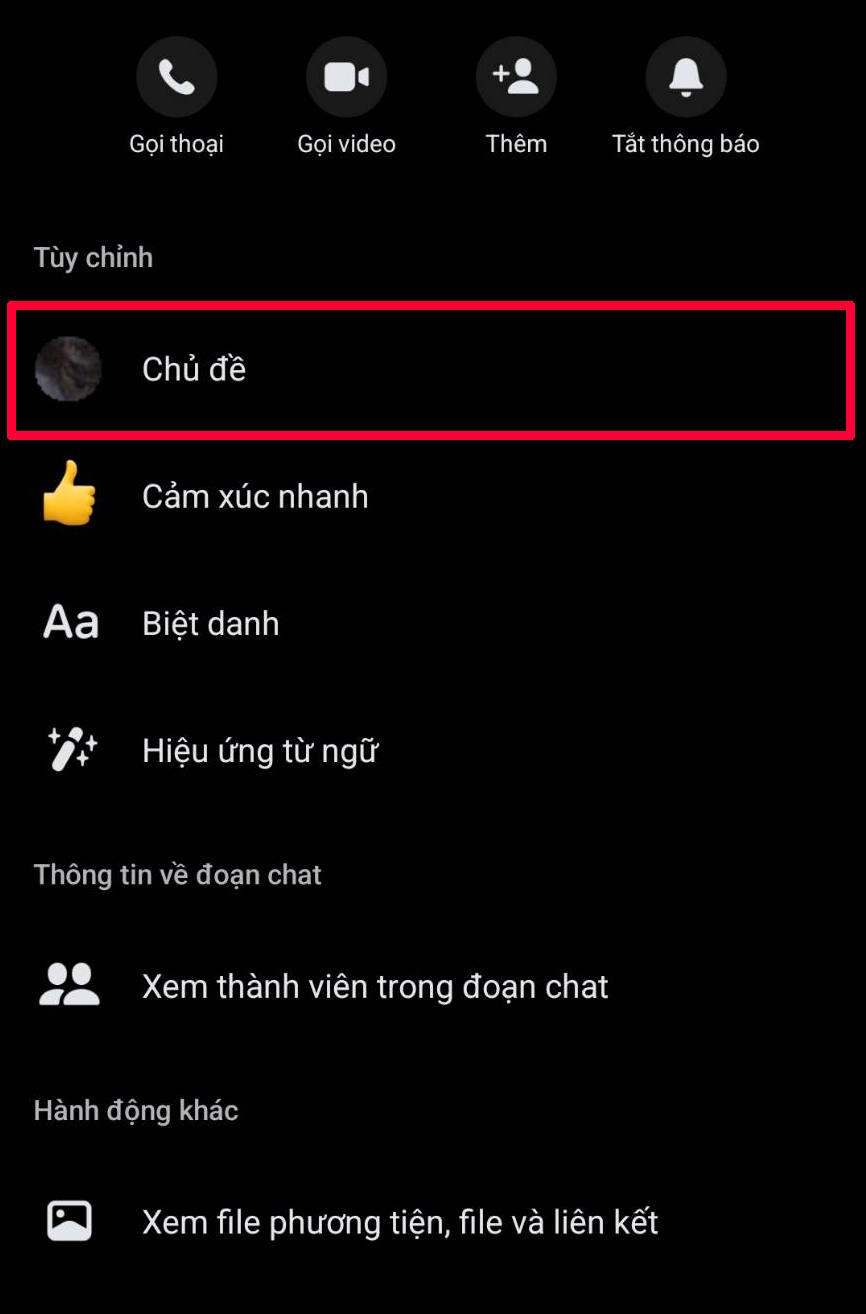
Step 2:
In the background image options interface for Messenger chat, users click on Upload image And Select the image you want to use as the chat interface On the application.
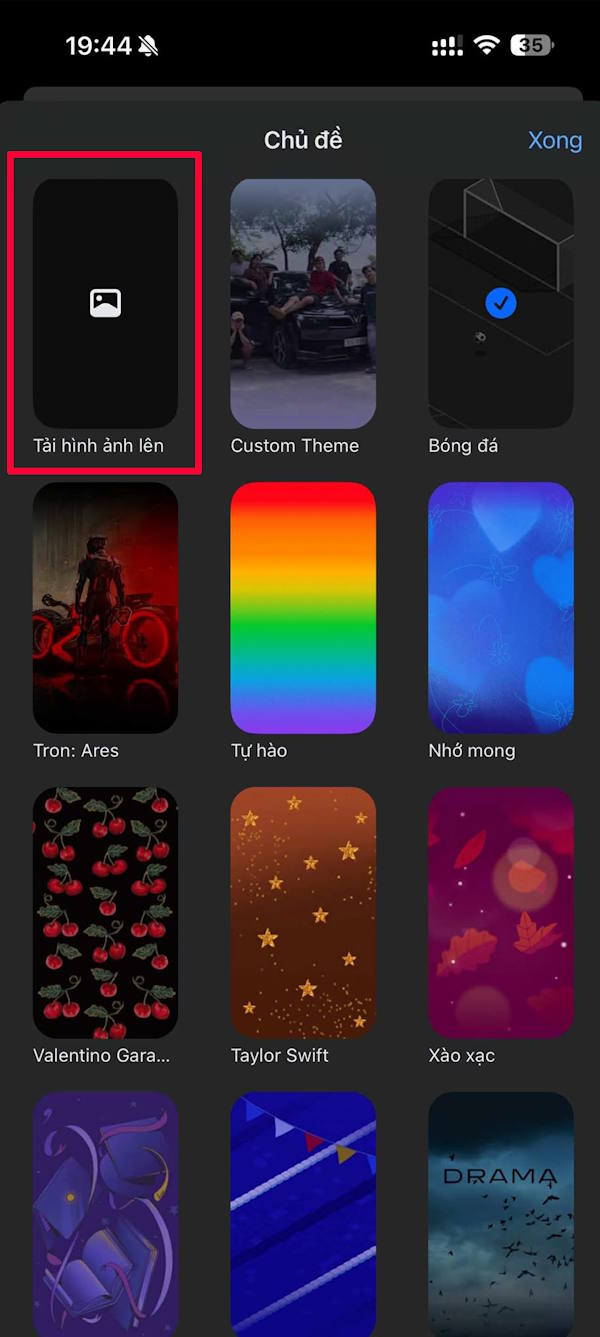
Step 3:
Then you crop the area of the photo you want to use and select Done. Then you will see the messaging interface on the Messenger application has changed to your photo as shown below.
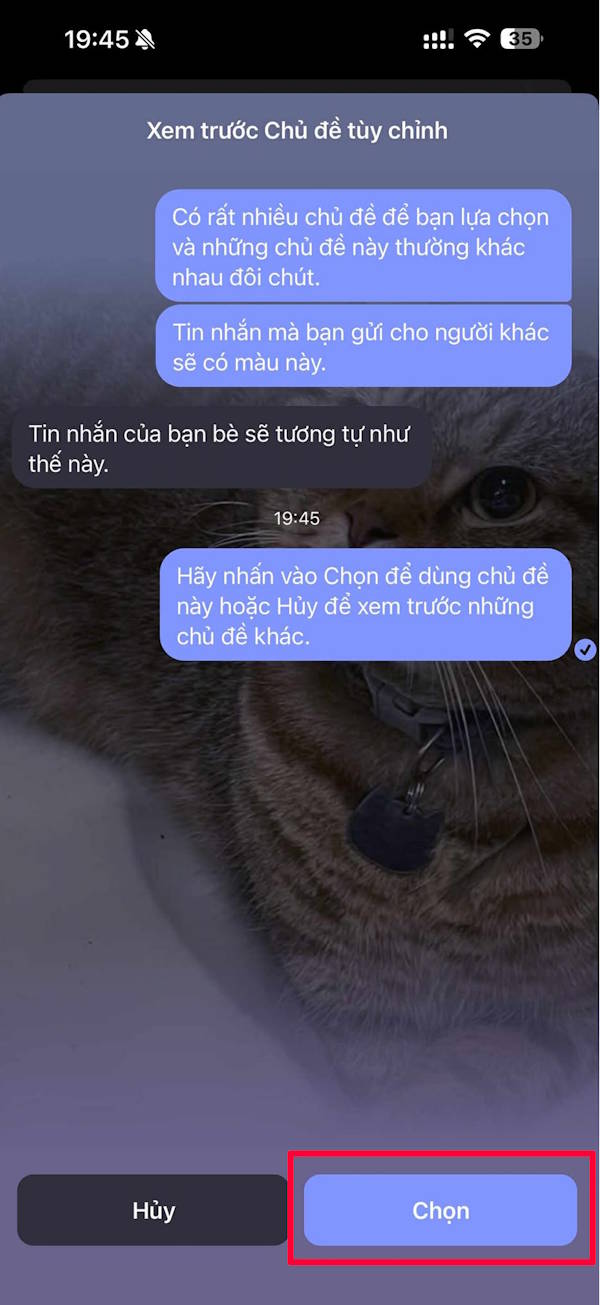
FAQ
How do you use personal photos as messenger chat background?
In practical terms, messenger has added the option to use personal photos as Messenger chat background, in addition to using AI photos as Messenger chat background or the app's available photos.
What should you check before getting started?
Review the requirements, compatible device or software version, and any warnings described in the guide before making changes.
What should you do if the steps do not work?
Repeat the steps in order, confirm that your app or system is up to date, and review the troubleshooting details provided above.
Related Articles
 How to Deleting Chat Data on Messenger4 minutes read
 How to Chat with Chatible Strangers on Facebook Messenger4 minutes read
 Messenger Returns to the Old Interface After Only a Few Hours of Testing the New Interface4 minutes read
 How to Chat Typeface in Facebook Messenger5 minutes read
 Instructions on How to Mute Chat on Facebook: Facebook Chat Mute4 minutes read
 Transform Color Chat Window Facebook Messenger: Mauf Messenger6 minutes read
Reader Comments 0
Sign in with email or Google to join the discussion.