Table of Contents
You can install Windows from a Windows PE (WinPE) rescue environment by running Windows Setup or applying an image with a tool such as WinNTSetup. WinPE is the temporary environment; Windows is installed onto the destination disk, not into the rescue desktop.
The screenshots below demonstrate an older legacy BIOS/MBR workflow. Do not copy its MBR-writing steps onto a UEFI/GPT system. A standard Windows 11 installation requires an appropriate UEFI configuration and compatible hardware.
Prepare before changing partitions
- Back up important files to a different physical drive and keep any encryption recovery key accessible.
- Prepare trusted WinPE rescue media with the tools and storage drivers you need.
- Obtain an official Windows ISO matching the hardware and your license.
- Identify the destination disk by model, size, and partition layout. Drive letters can change in WinPE.
- Check the firmware boot mode and disk partition style before choosing an installation method.
Use the UEFI and legacy BIOS check guide for background. Microsoft's partition-style guidance explains why the boot mode and disk layout must match.
Option 1: run Windows Setup from WinPE
- Boot the rescue USB in the firmware mode intended for the installation.
- Locate the Windows ISO and mount it using the rescue environment's supported mounting tool. Older toolkits may call this Mount as ImDisk Virtual Disk.
- Open the mounted installation media and run
setup.exeusing a compatible WinPE and Setup combination. - Follow the installer, checking the destination partitions carefully before formatting or deleting anything.
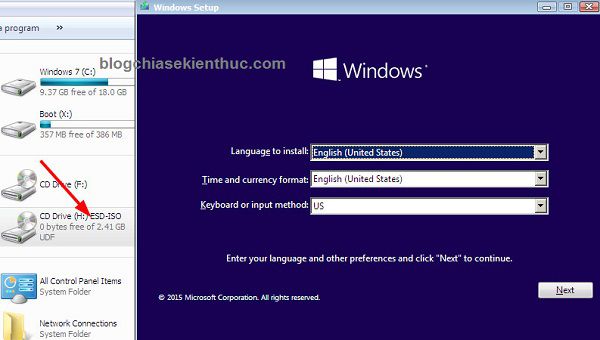
If the ISO cannot mount, Setup cannot start, or the internal disk is missing, resolve the media or driver problem first. Do not delete partitions as a diagnostic step. For most single-PC installations, ordinary Windows installation media provides a simpler route.
Option 2: deploy with WinNTSetup
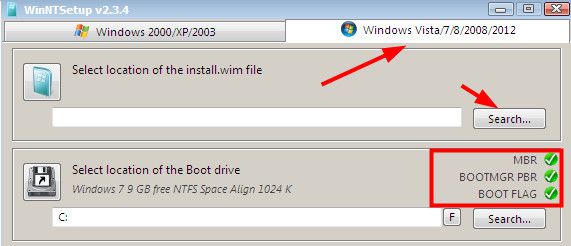
Use WinNTSetup when you understand the disk layout and need its deployment controls. The important fields identify the Windows source, the boot partition, and the installation partition; these are not interchangeable.
1. Prepare only the intended destination
For a clean installation, format only the confirmed Windows destination when needed. Formatting or deleting a partition destroys its files. A full format is not automatically better for routine installation and should not be required merely to follow an old guide.
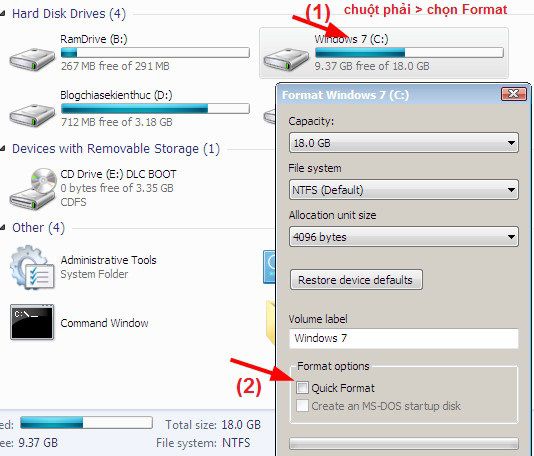
If preserving data or another operating system, plan the partition and boot configuration first. A separate data partition on the same disk is not a backup.
2. Understand the legacy boot-code screenshots
The older DLC BOOT toolkit opens BOOTICE through its Disk Tools menu. These images show legacy MBR and partition boot-code preparation, which is specific to that workflow.
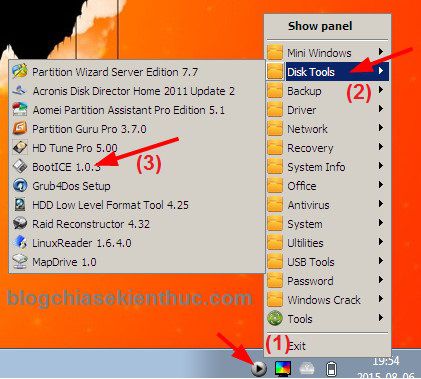
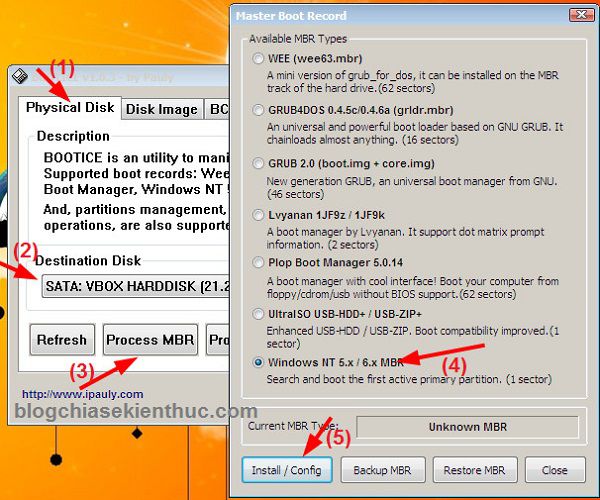

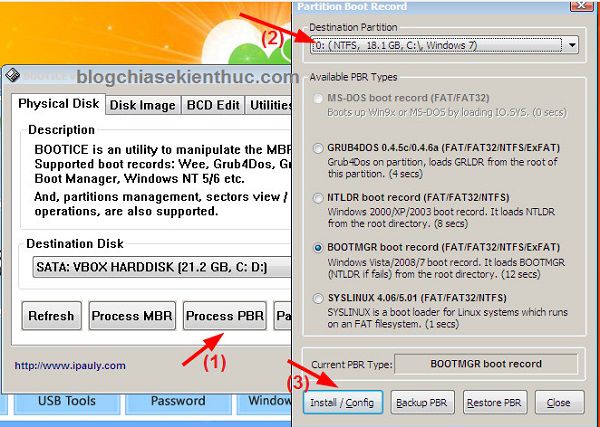
In BOOTICE, Process MBR concerns the physical disk's master boot record, while Process PBR concerns a partition boot record. They are different operations. Do not repeatedly write MBR code or choose a disk by screenshot position. UEFI/GPT boot uses an EFI System Partition and does not call for blindly applying these legacy steps.
3. Select the Windows image
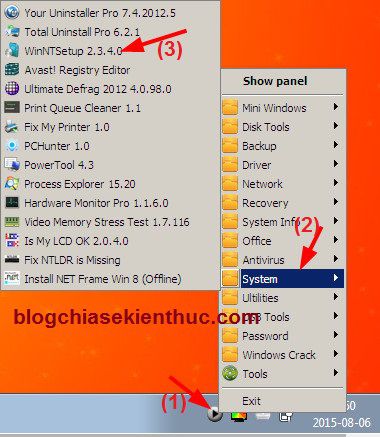
Open WinNTSetup from the rescue environment's System tools or its application launcher. Mount the ISO if the installed tool version requires it.
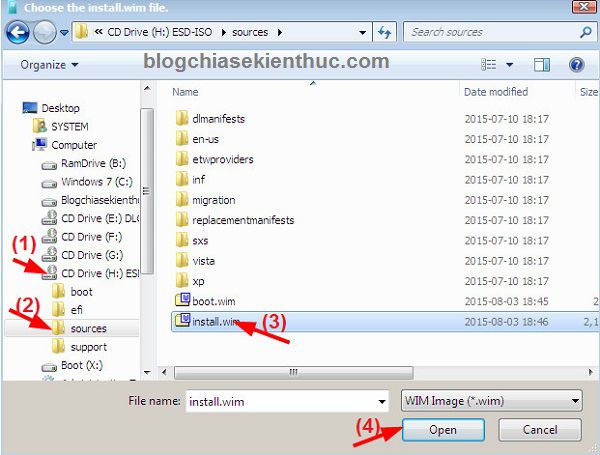
For the Windows installation source, choose the image in the mounted media's sources folder, typically install.wim or install.esd, as supported by that WinNTSetup version. Select the intended Windows edition.
4. Check boot and installation destinations
Set the Boot drive to the partition that will contain the boot files and the Installation drive to the partition that will contain Windows. In UEFI installations, the boot destination is normally the appropriate FAT32 EFI System Partition. Legacy configurations differ.
Resolve warning indicators before deployment. Green indicators can confirm particular prerequisites, but they do not guarantee that the chosen disk is correct or that installation will succeed. Leave optional theme patches and unrelated tweaks disabled unless you have a specific reason to use them.
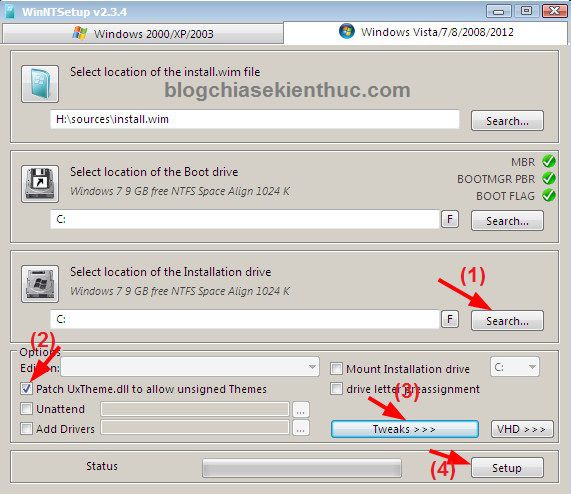
For additional illustrations, see the WinNTSetup installation walkthrough. Use current tool documentation for the boot-code settings rather than assuming one older BOOTICE option is always preferable.
5. Apply the image and complete setup
Review the source edition and both destination partitions, then start deployment. Keep the computer powered until completion. Restart into the target disk's Windows Boot Manager or the appropriate legacy boot entry, and complete Windows setup.
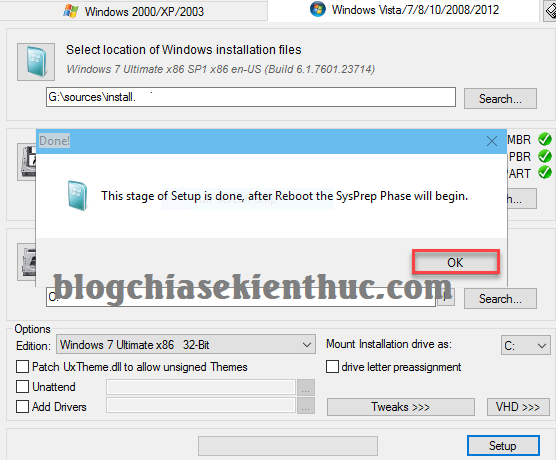
If it does not boot, recheck the firmware mode, boot partition, and selected disk before writing additional boot code. Reapplying an image will not repair a wrong firmware selection.
Legacy installation video
This video illustrates an older legacy-mode WinNTSetup process using NHV BOOT. Other rescue environments may have different tools, drivers, and menus.
Choose a Windows release that remains appropriate for the device and its support requirements. The presence of Windows 7 or Windows 10 in an old tool's interface does not mean that release still receives standard security support.
Related Articles
 Instructions to install Win 7/8/10 in WinPE (Mini Win) environment
 How to install Windows on WinPE
 Instructions to create WinPE file IOS, USB boot WinPE
 How to install Windows on WinPE - Fast installation speed, limited errors
 Instructions for installing Node.js
 How to Build a Custom WinPE Rescue USB with AOMEI PE Builder
Reader Comments 0
Sign in with email or Google to join the discussion.