Table of Contents
Rufus creates a bootable Windows installation USB from an ISO file. The key choice is the target computer's boot mode: use a UEFI configuration for a standard Windows 11 installation, or a legacy BIOS configuration for an older computer and an operating system that supports it.
Creating the USB erases the selected drive. Copy files off the USB to another location first. Do not copy your only backup onto the drive you are about to format.
What you need
- Rufus from its official website, in a version compatible with the Windows computer running it.
- An official Windows ISO matching the destination computer's architecture and your license.
- A spare USB drive large enough for that image. For modern Windows media, use at least 8GB and allow more if required.
- A backup of the computer you intend to install Windows on.

The screenshots in this article show older Rufus releases. Use them to identify the main controls, rather than downloading an obsolete release merely to match the pictures.
1. Select the USB and ISO
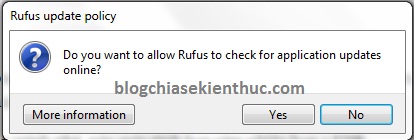
Connect the USB, open Rufus, and allow administrator access if Windows requests it. An update-check preference is separate from choosing the installation image.
Under Device, choose the correct USB drive by name and capacity. Under Boot selection, click SELECT and open the Windows ISO. Choose Standard Windows installation where an image-option selector appears; Windows To Go creates a different kind of portable installation.
2. Match the firmware mode
| Destination | Typical Rufus choices |
|---|---|
| Modern UEFI PC | GPT and UEFI (non-CSM), with a supported Windows image |
| Older legacy BIOS PC | MBR and BIOS (or UEFI-CSM), where supported by the chosen operating system |
Do not assume a Windows 11 ISO makes an older BIOS computer compatible with Windows 11. Windows 7 and 8-era releases are also outside standard support and are unsuitable as a default choice for an internet-connected computer. Windows 10's standard support ended on October 14, 2025; consider its applicable support arrangements separately.
The screenshot below demonstrates the older MBR / BIOS workflow. It is not a universal configuration for every Windows version.
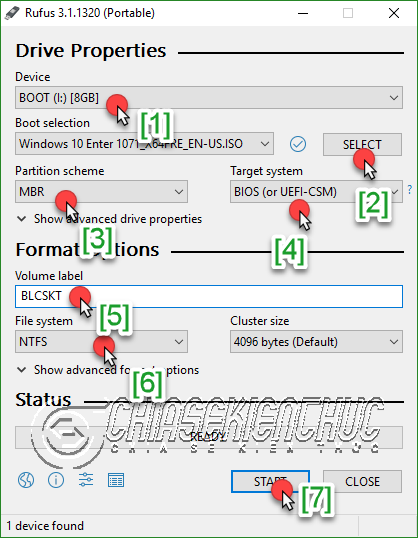
Check the file-system choice suggested for the selected image. FAT32 has broad UEFI compatibility but cannot hold an individual file of 4GB or larger. Rufus may use NTFS with its UEFI boot mechanism when needed. Do not force a setting simply because a different ISO used it.
3. Write the installer
- Review Device, the ISO filename, partition scheme, and target system.
- Click START.
- Read any image-specific options instead of accepting changes you do not need.
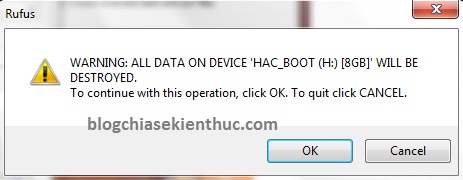
- Confirm the data-erasure warning only after checking the USB again.
- Keep it connected until Rufus reports READY or successful completion.
Recognizing the older Rufus interface
Older releases used a small disc icon to browse for the ISO, rather than the current SELECT control. The following screenshots show device selection and image selection. Avoid treating automatic detection as a replacement for checking the boot mode.
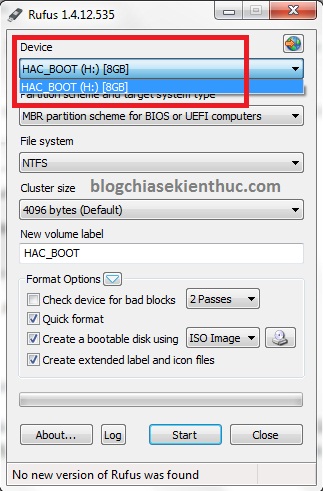
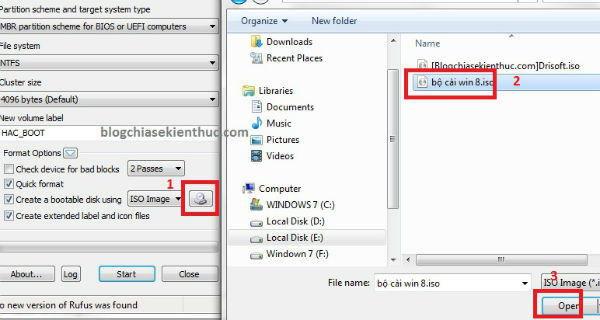
Create a bootable USB drive with Rufus: older image-selection interface.
4. Boot the destination computer
Eject the finished drive safely, connect it to the target computer, and open that computer's one-time boot menu. Select the USB entry that matches the intended firmware mode. See the boot-menu key guide if you need help finding it.
Reaching Windows Setup is a useful test of the media. Before continuing, confirm that important files are backed up and you understand which internal partitions will be changed.
If the USB does not boot
- Confirm USB boot support and the correct boot-menu entry.
- Recheck the match between UEFI/legacy mode and the media configuration.
- Check the ISO's architecture and integrity.
- Try another suitable USB port or drive if writing or detection fails.
For more detail on firmware choices, see Windows installation media for UEFI and legacy BIOS. Windows 11 users can also follow the Windows 11 USB walkthrough.
Related Articles
 Instructions for creating Windows installation USB on both GPT and MBR standards with Rufus
 Download Rufus 3.13: Utility to create bootable USB open source, free
 How to create Windows 10 installation USB using Rufus, Boot UEFI and LEGACY
 Common errors when using Rufus and the simplest and most effective ways to fix them
 How to Create a Windows 11 Installation USB with Rufus or Media Creation Tool
 It is possible to create a USB to install Windows 11 on an unsupported machine with Rufus
Reader Comments 0
Sign in with email or Google to join the discussion.