Table of Contents
CapCut can transcribe a video's spoken language and generate a translated subtitle track, allowing the original and translated captions to appear together. Automatic transcription and translation save typing time, but both tracks should be reviewed before export.
Feature access and export requirements may vary by platform, region, app version, and subscription. Check the controls and plan notice shown in your CapCut account.
Generate the original and translated captions
Step 1: Import the video into a CapCut project and open Captions.
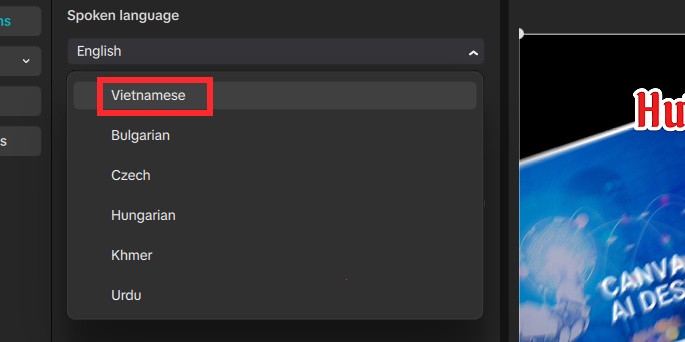
Step 2: Open the spoken-language setting and choose the language actually used in the audio.
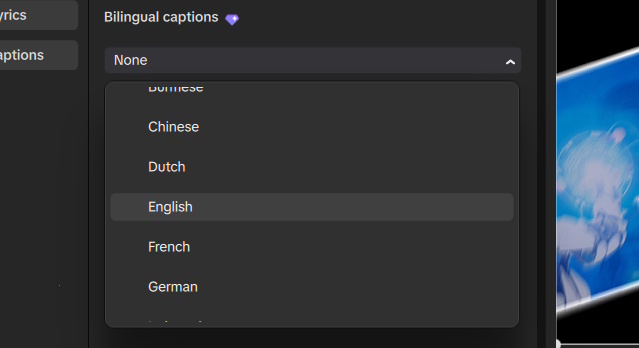
Choose the second language for the translated captions.
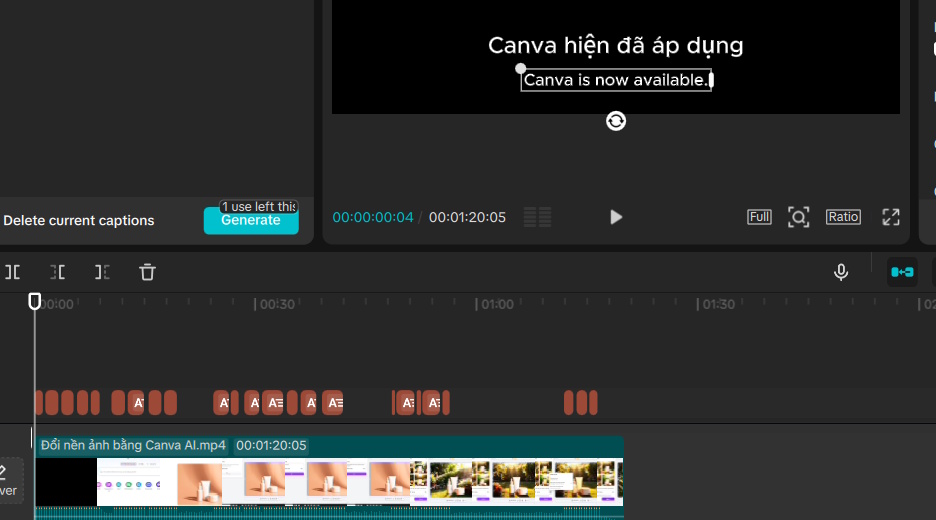
Step 3: Select Generate. CapCut transcribes the speech, creates timed captions, and generates the translated track.
Edit the two subtitle tracks
Select a caption to correct its text or timing. Review the original-language transcript first; a transcription error can produce a second error in the translation.
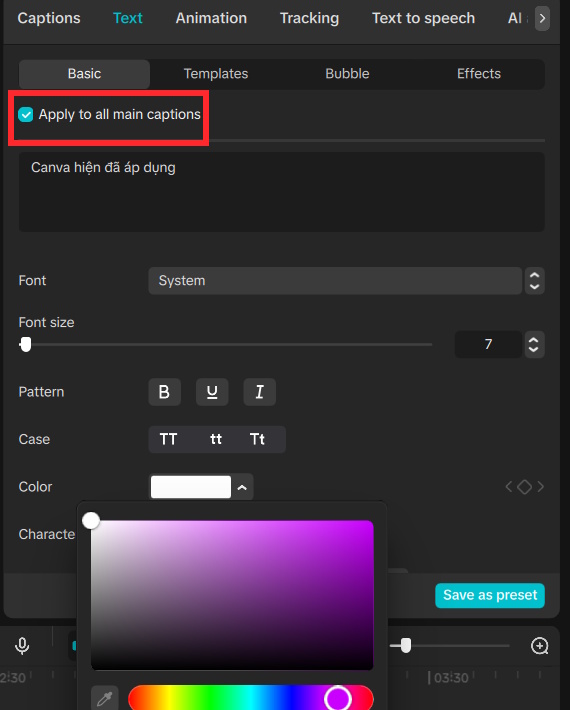
Each language can have separate styling. Select the relevant track before changing the font, size, color, outline, background, or position. Use Apply to all main captions or the comparable current control only after confirming that the intended track is selected.
Place the two languages in consistent positions and leave enough space around the edge of the frame. Use high contrast and avoid decorative effects that make text harder to read.
Check accuracy and timing
- Correct names, places, numbers, technical terms, and brand names.
- Keep each caption concise enough to read during its screen time.
- Split captions at natural phrase boundaries rather than in the middle of an expression.
- Check whether the translation preserves meaning, tone, and speaker intent.
- Identify different speakers when the conversation would otherwise be confusing.
- Listen with headphones for words obscured by music or background noise.
- Review the entire video after timing or style changes.
For important educational, legal, medical, or public communication, have a proficient speaker review the translated track. Automatic translation may sound fluent while changing a critical detail.
Export the finished video
Preview the complete timeline, confirm that neither caption track is cut off, and export a short sample if the project is long. Check the sample on the device or platform where viewers will watch it.
If CapCut requires a paid plan for bilingual subtitle export or a particular caption feature, the app should show that requirement before final export. Do not assume an older plan rule still applies.
Related Articles
 How to Add Subtitles and Lyrics Automatically on CapCut5 minutes read
 How to Add Voiceovers to Videos Using CapCut4 minutes read
 How to Create AI Manga Videos on Capcut3 minutes read
 Instructions for Using Capcut on the Latest Computer4 minutes read
 Instructions for Inserting Text into Videos Using Capcut: Main Insights4 minutes read
 How to Create Lip-syncing Animal Videos on CapCut3 minutes read
Reader Comments 0
Sign in with email or Google to join the discussion.