Table of Contents
You can create flashcards in Canva by opening Apps, searching for an AI flashcard generator, choosing a text or image workflow, and adding the generated cards to a design. The AI can speed up the first draft, but it cannot verify that each question, answer, image, or example is correct. Review every card against the lesson source before students use it.
The screenshots in this guide show an app named AI Flashcard Maker. Canva Apps can be supplied by third-party developers, so its interface, provider, pricing, credit limits, and availability may change.
Prepare the learning material first
Decide what the learner should retrieve from memory. A source paragraph is not automatically a good flashcard set. Extract the smallest useful facts, terms, processes, equations, or image labels and choose a suitable card type.
| Learning goal | Front of card | Back of card |
|---|---|---|
| Vocabulary | Term or target-language word | Definition, translation, and a short example |
| Concept | Focused question | Concise explanation in the learner's own words |
| Process | “What is the next step after…?” | One step plus the reason it follows |
| Diagram | Unlabeled or partly labeled image | Correct label and brief function |
| Formula | Problem condition or formula name | Formula, units, and one constraint |
Keep one main idea per card. If an answer needs a long paragraph, split it into smaller prompts or use a worksheet instead.
1. Open Apps in Canva
Open the Canva design where you want the cards or create a blank design. Select Apps from the editor sidebar; on a compact layout it may appear under a three-dot or More menu.
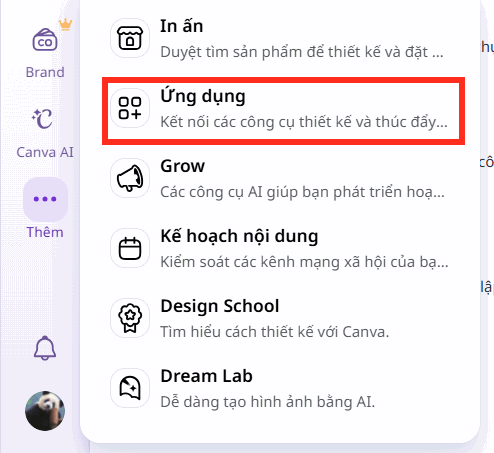
2. Find and verify the flashcard app
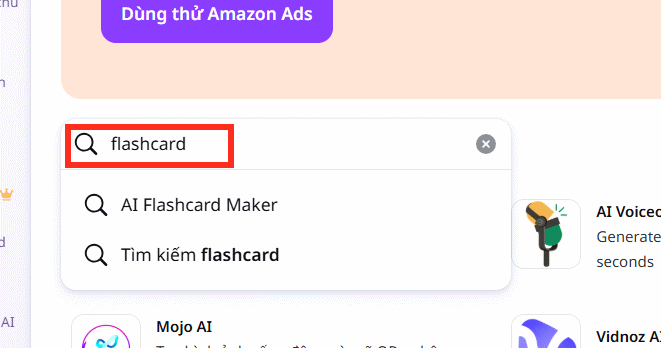
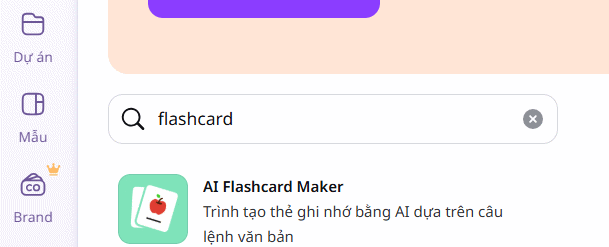
Search for flashcard. Select the app shown in this guide only after checking its name, developer, permissions, privacy information, and current usage terms. Do not assume that every result is built or operated by Canva.
Avoid pasting student names, grades, unpublished assessments, copyrighted textbook chapters, medical records, or other sensitive material into an app unless the provider's terms and your organization's policy permit it.
3. Choose a new or existing design
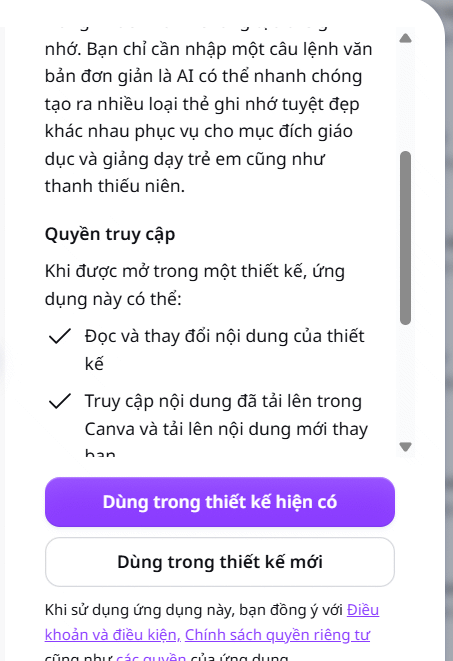
The app may ask whether to start in a new design or add content to the current one. A new design is useful when the card set needs a consistent size and layout. An existing classroom presentation is useful when the cards will become part of a lesson.
4. Select text or image flashcards
Choose the mode that fits the learning objective:
- Text cards work for definitions, questions and answers, dates, formulas, and short explanations.
- Image cards work for anatomy, maps, art, equipment, species, symbols, and other visual identification tasks.
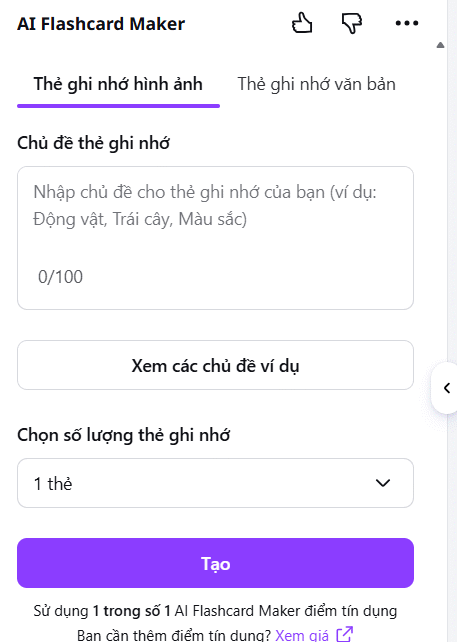
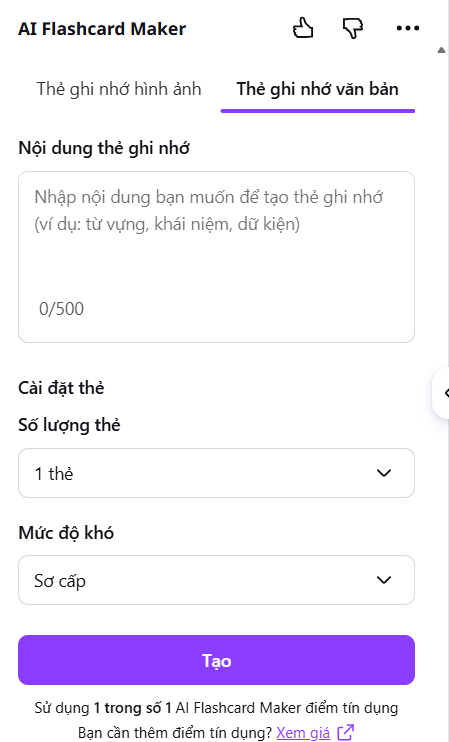
If the app accepts a prompt, specify the learner level, source material, number of cards, language, answer length, and what not to invent. For example:
Create 12 question-and-answer flashcards for a beginner biology class using only the notes below. Put one fact on each card. Keep each answer under 25 words. If the notes do not contain an answer, do not create that card.
5. Generate a small batch
Start with a small set so errors are easy to catch. Select Create and wait for the draft. Current plans may use credits or impose generation limits; check the app's listing at the time you use it rather than relying on a fixed “one credit” rule.
6. Review every generated card
Before adding the set to your design, compare each card with the source. Check:
- the question has only one reasonable interpretation;
- the answer is factually correct and complete enough;
- the card does not reveal the answer on its front;
- technical terms, names, dates, equations, and units are accurate;
- an image is relevant, licensed for the intended use, and not misleading;
- similar cards are not redundant; and
- the difficulty matches the learner.
AI-generated distractors, examples, citations, and illustrations deserve extra scrutiny because they may look plausible while being wrong.
7. Add the cards to Canva and refine the design
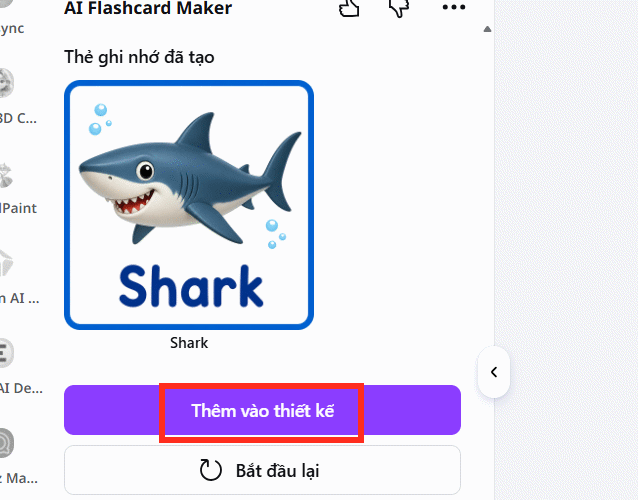
Select Add to design, then edit the cards with Canva's normal tools. Canva's card design tools can help with size, typography, graphics, sharing, and export.
- Use large, high-contrast text that remains legible on a phone and when printed.
- Keep the same placement for question, answer, card number, and category.
- Do not decorate cards so heavily that visual detail competes with the prompt.
- Use color to encode a meaningful category, not as the only way to convey an answer.
- Add source or chapter references in small text when learners need to verify an answer.
- Number card pairs if fronts and backs must stay aligned during printing.
Export for print or digital review
For digital use, share a view-only link or export images/PDF according to the classroom workflow. For printing, choose a print-quality PDF, confirm page size and margins, and print a test sheet before producing the full set. Double-sided printing can flip or reorder card backs differently across printers, so mark one test page and verify the correct flip edge.
A Canva design is primarily a visual set; it does not automatically provide spaced-repetition scheduling. If long-term review intervals matter, consider importing the verified question-answer pairs into a dedicated flashcard system. TipsMake compares AI flashcard generators and discusses Anki-based review in its guide to language-learning apps.
Make the cards improve recall
- Ask the learner to answer before revealing the back.
- Mix new cards with earlier material instead of reviewing one chapter only once.
- Separate commonly confused concepts into contrast cards.
- Rewrite cards that are repeatedly missed because the wording is ambiguous.
- Retire cards when the information is obsolete or the learning goal changes.
AI is most useful for producing a first batch quickly. The educational value comes from accurate content, focused prompts, active recall, and a review schedule—not from the number of decorative cards generated.
If AI Flashcard Maker is unavailable
The app may be renamed, removed, restricted by a Canva team administrator, or unavailable in a region. Search Canva's current Apps Marketplace, confirm the provider, or build the cards manually with a consistent Canva template. A manual template takes longer for the first card but is often faster and safer for a large verified set.
Related Articles
 Guide to Creating 3D Designs Using AI in Canva4 minutes read
 Instructions on Creating Flashcards and Quizzes on NotebookLM5 minutes read
 How to Design Greeting Cards on Canva AI4 minutes read
 minutes read
 Quickly Create Gameshows on Canva4 minutes read
 Guide to Creating Canva Designs in ChatGPT5 minutes read
Reader Comments 0
Sign in with email or Google to join the discussion.