Table of Contents
NotebookLM organizes work by notebook. To revisit an earlier research session, reopen the notebook that contains its sources, saved notes and any conversation history still available in the interface. Important findings should be saved as notes rather than left only in a long chat.
Reopen the correct notebook
Go to NotebookLM and select the notebook you used for the topic. Use the notebook title, source list and modification information shown on the home screen to identify the right project.
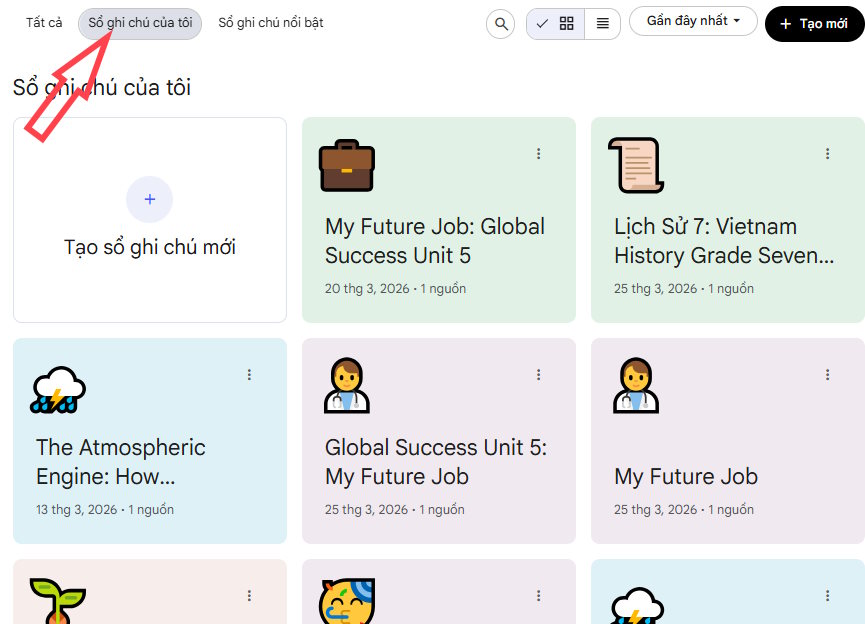
NotebookLM's interface and chat-retention behavior can change, and not every transient answer should be treated as a permanent record. If a conclusion matters, preserve it in a named note with its supporting citations.
Search the visible chat and notes
Open the chat or note that contains the earlier work. For a long page, use Ctrl+F on Windows or Linux, or Command+F on macOS, and search for a distinctive term, name or phrase. Browser search finds text currently rendered on the page; it is not a cross-notebook search and may not find collapsed or unloaded content.
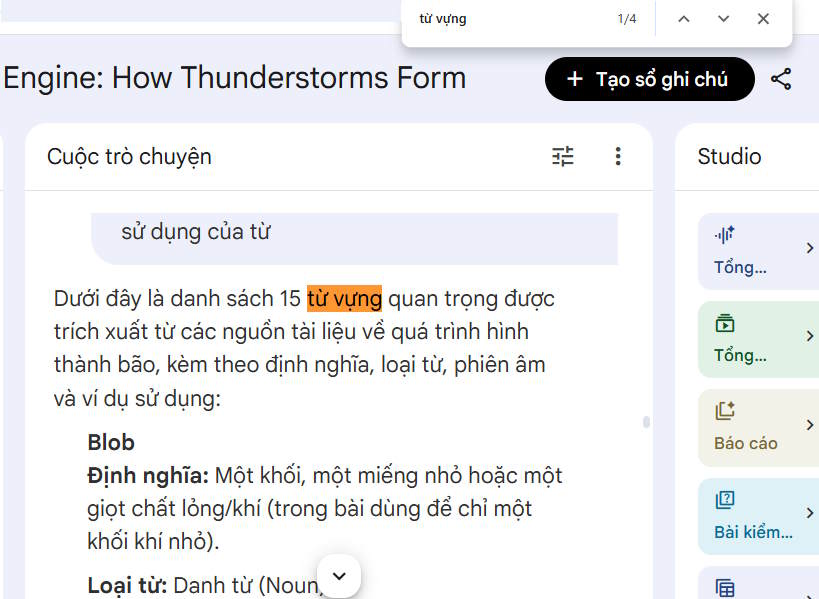
If a broad term produces many matches, try a more specific source title, product name, date or quoted phrase. When the needed answer is missing, return to the relevant sources and ask the question again instead of assuming the earlier response is recoverable.
Turn useful discussion into a saved note
Ask NotebookLM to summarize only the material you need and to preserve citations. The original Vietnamese instruction means “summarize the main points from the conversation into a concrete note, clearly organized by idea”:
tóm tắt các điểm chính từ cuộc trò chuyện thành ghi chú cụ thể, rõ ràng từng ýA more controlled instruction is:
Summarize the useful conclusions from this conversation as a structured note. Separate confirmed source-backed findings, open questions and next actions. Keep the source citations beside each factual finding. Do not add information that is not supported by the notebook sources.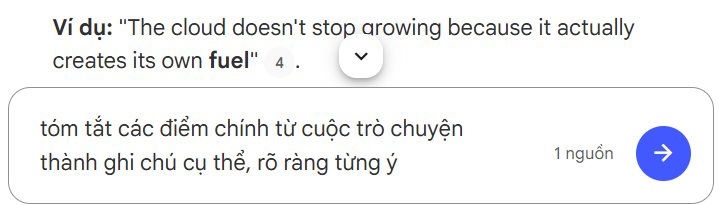
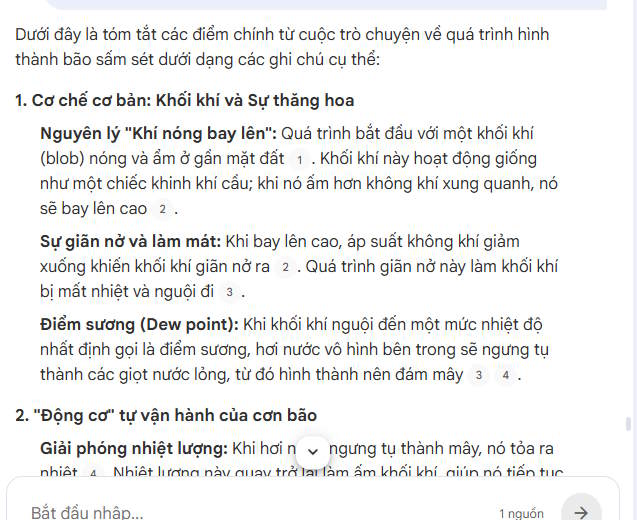
Review the summary before saving it. Open the cited passages for important claims, remove repeated points and rename the note so it can be found later.
A practical note structure
- Question: what the session was trying to determine.
- Sources: the documents or links actually used.
- Confirmed findings: concise claims with citations.
- Uncertainties: conflicts, gaps or items that still need checking.
- Next actions: decisions, follow-up research or deliverables.
- Updated: the date you last verified the note.
This format makes an old session easier to resume than a raw chronological transcript. It also separates NotebookLM's generated wording from conclusions you have personally checked.
Keep notebooks easier to review
- Use descriptive notebook and note titles instead of generic labels.
- Create a summary note at the end of each substantial session.
- Keep unrelated projects in separate notebooks.
- Remove obsolete sources only after confirming they are no longer needed.
- Do not store sensitive material unless its use is authorized.
For more ways to organize generated outputs, see NotebookLM's newer features. The guide to building an AI-assisted second brain provides a broader structure for turning notes into a durable knowledge system.
Related Articles
 Guide to Self-studying Knowledge on NotebookLM4 minutes read
 15 Best Gemini Notebook (NotebookLM) Alternatives in 202623 minutes read
 3 Best Chrome Extensions for Gemini Notebook (NotebookLM)12 minutes read
 NotebookLM's New Features Will Amaze You8 minutes read
 NotebookLM Alternatives Worth Trying5 minutes read
 NotebookLM App Adds Built-in Camera: Explained3 minutes read
Reader Comments 0
Sign in with email or Google to join the discussion.