Table of Contents
Gmail's Reading pane lets you select a message and read it beside or below the inbox list. This split view reduces back-and-forth navigation when you need to scan several messages on a computer.

The feature was previously called Preview Pane and was once located in Gmail Labs. In the current interface, it is called Reading pane and appears in the Inbox settings.
Enable the Reading pane in Gmail
Step 1: Open Gmail in a desktop web browser and sign in to the account you want to change.
Step 2: Select the gear-shaped Settings icon, then choose See all settings.
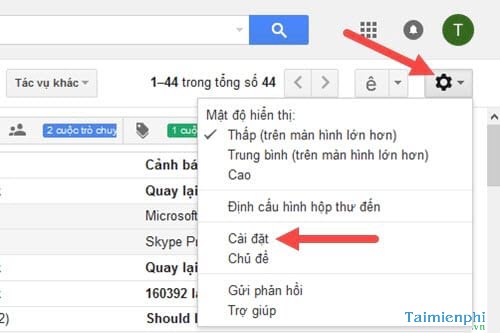
Step 3: Open the Inbox tab and scroll to the Reading pane section. Select Enable reading pane.
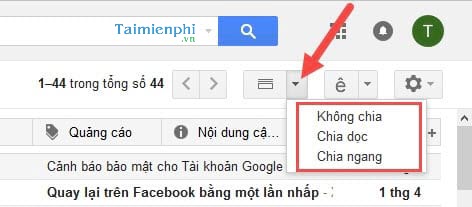
Step 4: Choose one of the available layouts:
- No split keeps the standard inbox view.
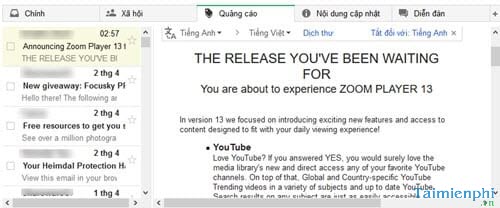
- Right of inbox places the message list on the left and the selected message on the right.
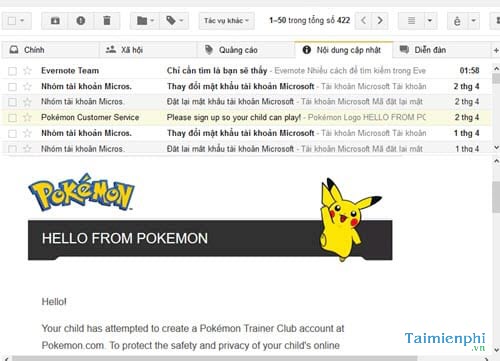
- Below inbox places the message list above the selected message.
Step 5: Scroll to the bottom of the settings page and select Save changes. Gmail reloads the inbox with the selected layout.
Choose the best preview layout
Right of inbox works well on a wide monitor because it keeps the message list visible while providing a tall reading area.
Below inbox gives the message more horizontal space and can be easier to read on a narrower browser window.
You can drag the divider between the list and the message to adjust their sizes. If the pane feels cramped, maximize the browser window or hide Gmail's side panel.
Turn off the Reading pane
Return to Settings > See all settings > Inbox, clear Enable reading pane, and save the change. Selecting No split changes the current layout without disabling the feature entirely.
If the Reading pane option is missing
- Confirm that you are using Gmail in a desktop browser; the mobile app uses a different layout.
- Look under the Inbox tab, not the old Labs or Advanced sections shown in older tutorials.
- Refresh Gmail after saving the setting, and try a current version of the browser if the layout does not appear.
- On a work or school account, some settings may be controlled by the organization's administrator.
Google maintains the current controls in its Gmail Reading pane instructions. New Gmail users can also review how to create a Gmail account, while readers looking for other inbox tools can compare AI extensions for Gmail.
Related Articles
 How to Display the File Pane Preview Pane on Windows 103 minutes read
 Share How to Fix Preview Pane Error of Not Being Able to View6 minutes read
 How to Display a Preview in Gmail?2 minutes read
 How to Display File Explorer's Preview Pane on Windows 10/115 minutes read
 How to 4 Ways to Preview Files Without Opening Them on Windows 114 minutes read
 Instructions for Snoozing Emails in Gmail: Main Insights6 minutes read
Reader Comments 0
Sign in with email or Google to join the discussion.