Table of Contents
The Excel VALUE function converts text that Excel recognizes as a number into a numeric value. It is useful when imported data, extracted characters, or formula results look like numbers but cannot be calculated reliably.
The basic syntax is:
=VALUE(text)
text can be a quoted value, a cell reference, or another formula that returns text. For example, =VALUE("125.50") returns a number that can be added or multiplied.
Example: convert digits extracted from an ID
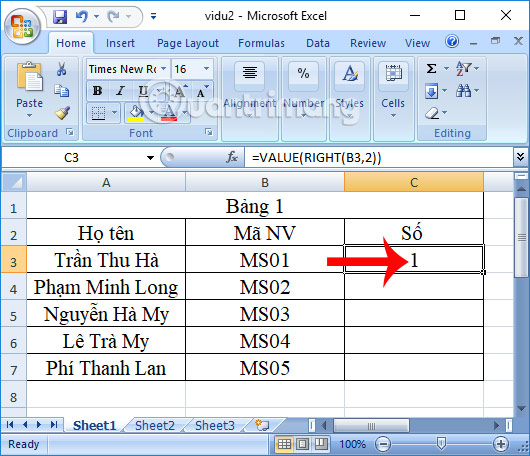
Suppose cell B3 contains an employee code whose final two characters represent a numeric sequence.
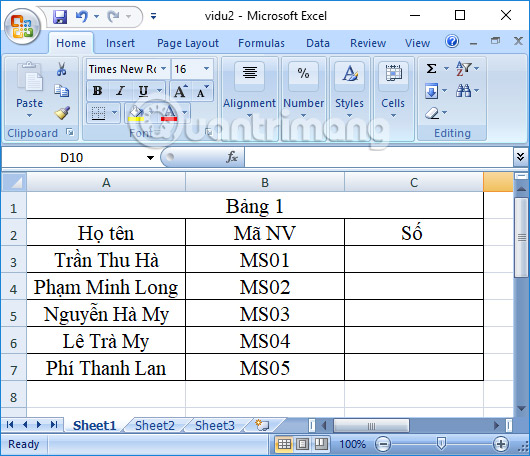
1. Extract the final two characters
Enter this formula:
=RIGHT(B3,2)
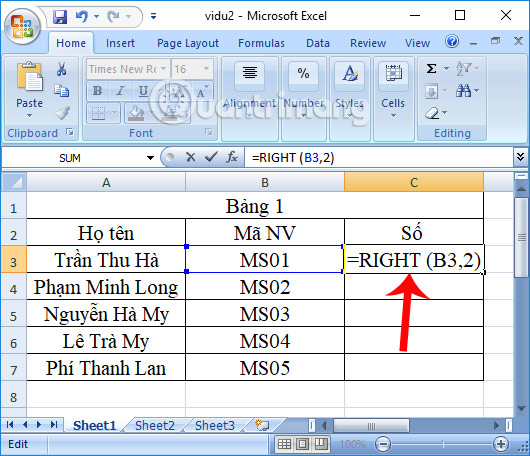
RIGHT is a text function, so a result such as 01 remains text even though it contains digits.
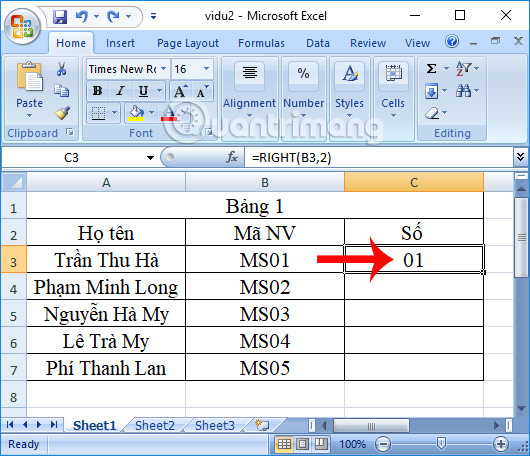
2. Convert the extracted text to a number
Nest RIGHT inside VALUE:
=VALUE(RIGHT(B3,2))
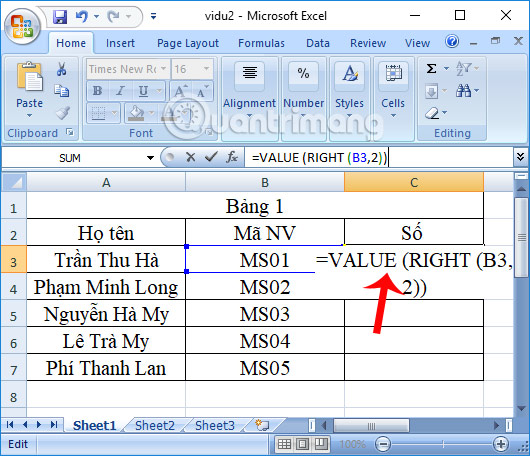
The text 01 becomes the number 1. The leading zero disappears because it was formatting, not part of the numeric value.
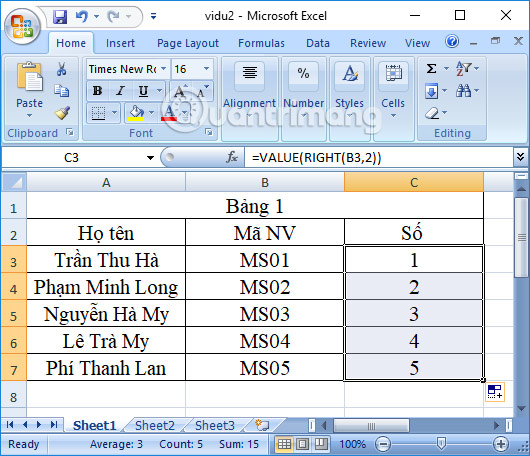
Copy or fill the formula down to process the remaining rows.
Numbers, dates, and times
Excel stores dates and times as numbers, so VALUE can also convert recognizable date or time text. Recognition depends on the computer's regional settings. For example, a date written as 04/05/2026 may be interpreted differently in month-first and day-first regions.
After converting a date or time, format the result as Date or Time if Excel initially displays its serial number.
Why VALUE returns #VALUE!
#VALUE! means Excel could not interpret the input as a valid numeric value. Common causes include:
- letters or symbols mixed into the value, such as
USD 45; - hidden spaces or nonbreaking spaces copied from a website;
- decimal and thousands separators that do not match regional settings;
- a date or time written in an unrecognized format;
- an empty-looking cell that actually contains other characters.
Inspect the source text before removing characters. Functions such as TRIM, CLEAN, SUBSTITUTE, LEFT, RIGHT, or MID can prepare a consistent string, but they should not be used to guess at inconsistent data.
Use NUMBERVALUE for explicit separators
When imported numbers use known decimal and group separators, NUMBERVALUE is clearer than relying on regional settings. For example:
=NUMBERVALUE(A2,".",",")
This tells Excel that a period is the decimal separator and a comma is the group separator. Reverse the arguments for data that uses comma decimals and period groupings.
Do you always need VALUE?
Excel often converts numeric text automatically during arithmetic, and expressions such as --A2 or A2*1 can coerce text to a number. VALUE is more readable when conversion is the formula's purpose. Whichever method you use, confirm that leading zeros are not meaningful identifiers before converting them.
Related Articles
 How to Use Excel's VALUE Function: Excel Value Function5 minutes read
 Instructions on How to Count Words in Cells in Excel3 minutes read
 The VALUE Function Converts a Numeric String to a Number3 minutes read
 How to Use MID Functions to Get Strings in Excel5 minutes read
 The LEFT Function, How to Use the Left-Hand String Cutting Function6 minutes read
 How to Use Concatenate Function on Excel: Concatenate Excel5 minutes read
Reader Comments 0
Sign in with email or Google to join the discussion.