Table of Contents
Rules in the Mail app on a Mac can automatically move, flag, color, delete, redirect, or otherwise process incoming messages. A rule combines one or more conditions with one or more actions. For example, you can move newsletters from a particular sender into a mailbox or color messages whose subject contains a project name.
This guide covers rules in the macOS Mail app. iCloud Mail rules created on iCloud.com or in iCloud settings are server-side filters with a different interface and a smaller set of actions.
Create a rule in Mail on Mac
- Open Mail.
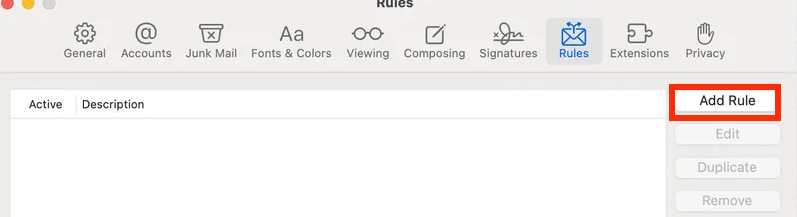
- Choose Mail > Settings from the menu bar.
- Select the Rules pane.
- Click Add Rule.
Enter a clear description such as “Move project updates” or “Color subscription notices.” A specific name makes the rule easier to find and troubleshoot later.
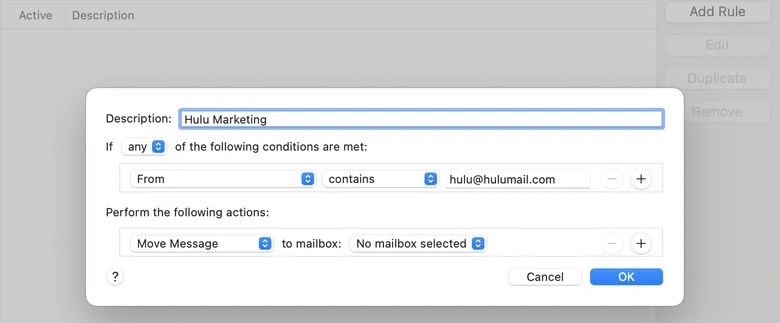
Choose whether any or all conditions must match
The menu at the top of the rule controls how multiple conditions are combined:
- Any: the rule runs when at least one condition is true. This is equivalent to OR logic.
- All: every condition must be true. This is equivalent to AND logic.
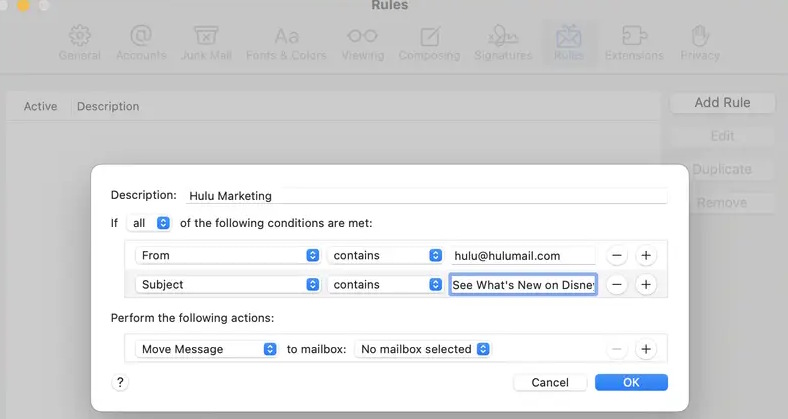
Use All when the rule should be narrow. For example:
- From contains
@example.com - Subject contains
Weekly update
With All, a message must satisfy both lines. With Any, a message from that domain or any message with that subject would match, which may catch far more mail than intended.
Click the plus button at the end of a condition row to add another condition. The minus button removes a row.
Add one or more actions
Under Perform the following actions, choose what Mail should do when a message matches. Available actions can include:
- Move or copy the message to a mailbox.
- Set a color, flag, or read status.
- Play a sound or send a notification.
- Forward, redirect, or reply to a message.
- Delete the message.
- Run an AppleScript.
- Stop evaluating later rules.
For a low-risk first rule, choose a reversible action such as setting the message color or moving it to a dedicated mailbox. The example below colors matching messages red.
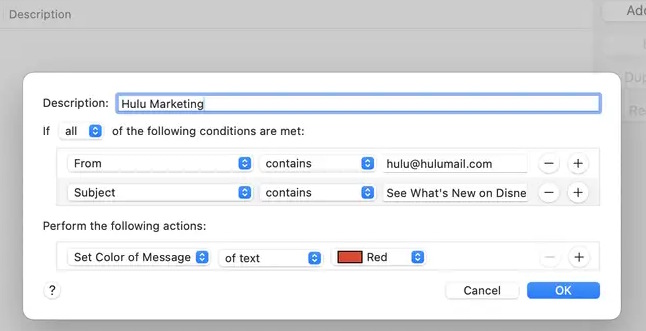
Click the plus button to add multiple actions. If a rule both moves and marks a message, consider the action order and test it with a small set of mail.
Save and apply the rule
Click OK when the rule is complete. Mail may ask whether to apply it to existing messages in open mailboxes. Choose carefully: a broad rule can move or recolor many old messages at once.
To apply rules later:
- Select the messages you want to process. Avoid selecting the entire inbox until the rule has been tested.
- Choose Message > Apply Rules.
- Check the destination mailbox or other result.
New matching messages are processed when Mail applies its incoming-message rules. If you need filtering even while the Mac is off, use rules supplied by the email provider, such as iCloud Mail, Gmail, or Exchange, instead of relying only on a local Mail rule.
Rule order matters
Mail evaluates enabled rules in the order shown in Mail > Settings > Rules. Drag a rule up or down to change its position. Put narrow, high-priority rules above broad catch-all rules.
The Stop Evaluating Rules action prevents later rules from processing the same message. It is useful when one rule should be final, but it can also explain why a lower rule appears not to work.
A message moved by a server rule, another device, or a previous rule can also behave differently from what a later local rule expects. When troubleshooting, start with the first matching rule in the list.
Edit, duplicate, disable, or remove a rule
- Edit: change its conditions or actions.
- Duplicate: copy a working rule and modify the copy.
- Disable: clear the rule's checkbox to keep it without running it.
- Remove: delete the rule from the list.
If iCloud Drive is enabled for Mail, macOS can make rules available on your other Macs. Files referenced by a rule, such as sound files or scripts, are not transferred with the rule, so test those actions separately on each computer.
Safer rule-building practices
- Start with an exact sender or domain and one obvious subject phrase.
- Use a temporary mailbox or color action before enabling deletion, forwarding, or an AppleScript.
- Check whether the sender address changes between messages from the same service.
- Do not filter only on a display name; it can be imitated.
- Avoid automatic replies to broad mailing lists, which can create loops or unwanted messages.
- Review active rules periodically and remove obsolete project names, addresses, or destinations.
If a rule does not work
- Confirm that the rule is enabled in the Rules list.
- Check Any versus All.
- Open a message and inspect the real sender address and exact subject.
- Move the test rule above broader rules temporarily.
- Look for an earlier Stop Evaluating Rules action.
- Select one known matching message and use Message > Apply Rules.
- Confirm that the destination mailbox still exists and is available.
For alternative clients, compare these email apps for Mac. Apple's official guides explain the current rule conditions and actions, rule list settings, and iCloud Mail filtering rules.
Related Articles
 How to Use Rules in Outlook to Manage Your Inbox7 minutes read
 How to Choose Which Tasks Should Be Automated with AI9 minutes read
 Why Do More People Still Not Use Apple Mail, Even Though It Has Been8 minutes read
 How to Create Rules (Rules) in Outlook5 minutes read
 Limit Sending and Receiving Mail in Exchange 200711 minutes read
 Account: How to Set up Apple Mail16 minutes read
Reader Comments 0
Sign in with email or Google to join the discussion.