How to delete apps on a MacBook easily and quickly.
How to quickly and cleanly delete apps on your MacBook? Discover simple methods to optimize storage and performance.
- When should you delete apps on your MacBook?
- How to delete apps on a MacBook using Finder
- How to uninstall apps on a MacBook using Launchpad
- Completely uninstall apps on your MacBook using Terminal.
- Use dedicated uninstallation software for Mac.
- Common errors encountered when deleting apps on a MacBook.
- Important notes when deleting apps from your MacBook.
- AppCleaner - The most popular free cleaning tool
- CleanMyMac X - a comprehensive solution for macOS
- Unable to delete apps on MacBook
- The application is running.
- Deleting the app doesn't reduce storage space.
- System applications should not be uninstalled.
- Back up your data before deleting the app.
- Check for administrator privileges when uninstalling software.
Deleting apps on a MacBook is essential for freeing up storage space and ensuring smoother performance. However, many users still don't know how to properly delete apps on a MacBook, resulting in leftover app data. This article will guide you through the most detailed, simple, and effective way to delete apps on your MacBook.
When should you delete apps on your MacBook?
While using your Apple laptop , many applications may become unnecessary or take up space. In such cases, you should uninstall applications on your MacBook to free up storage space and improve device performance.
- The software is no longer in use but is still occupying memory.
- MacBooks are running slowly due to too many programs running in the background.
- The application is malfunctioning or incompatible with the new version of macOS.
- I want to free up memory to install other software.
- The software causes system conflicts or makes the computer run unstably.
Situations when you should delete apps on your MacBook
How to delete apps on a MacBook using Finder
Deleting applications on a MacBook using Finder is a popular and recommended method because it's simple, easy to do, and doesn't require installing any additional software. Finder allows you to directly access the Applications folder to quickly uninstall applications.
How to do it:
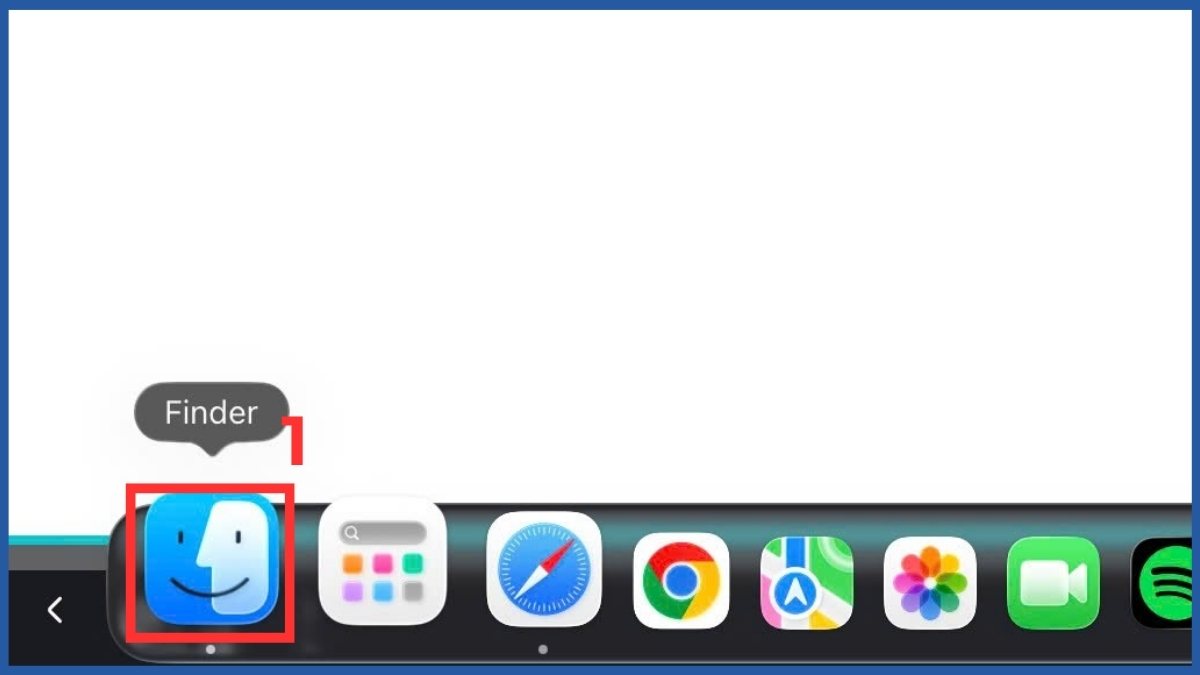
- Step 1: Open Finder from the Dock.
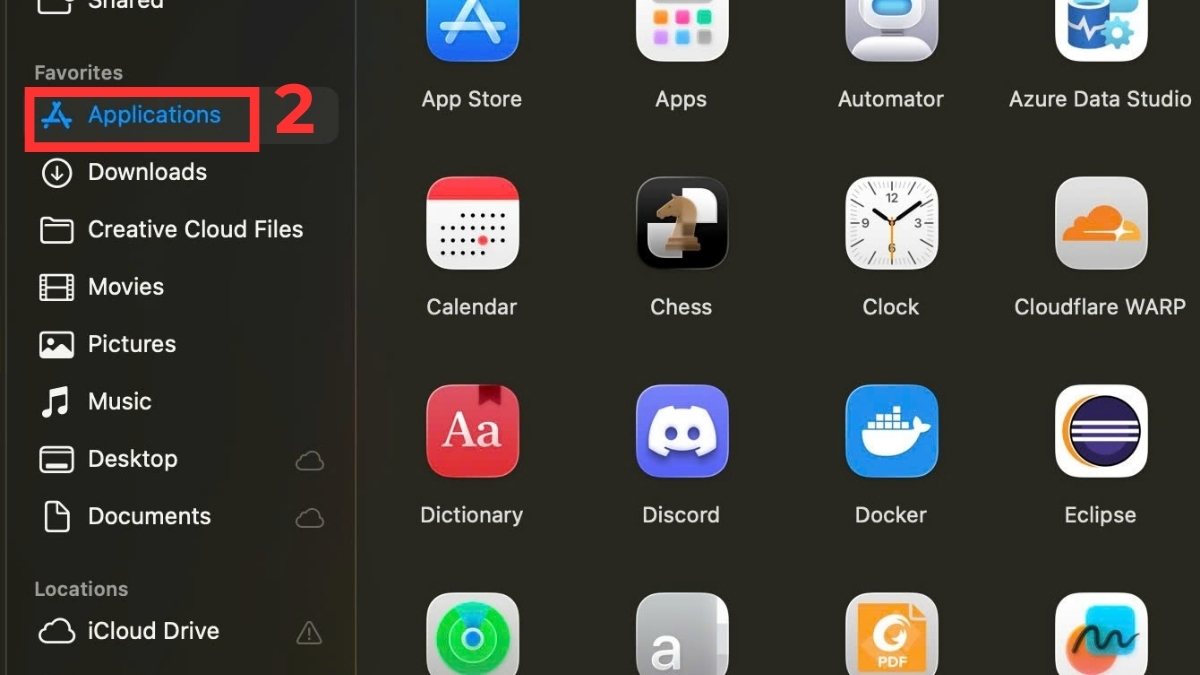
- Step 2: Select the Applications tab in the left sidebar.
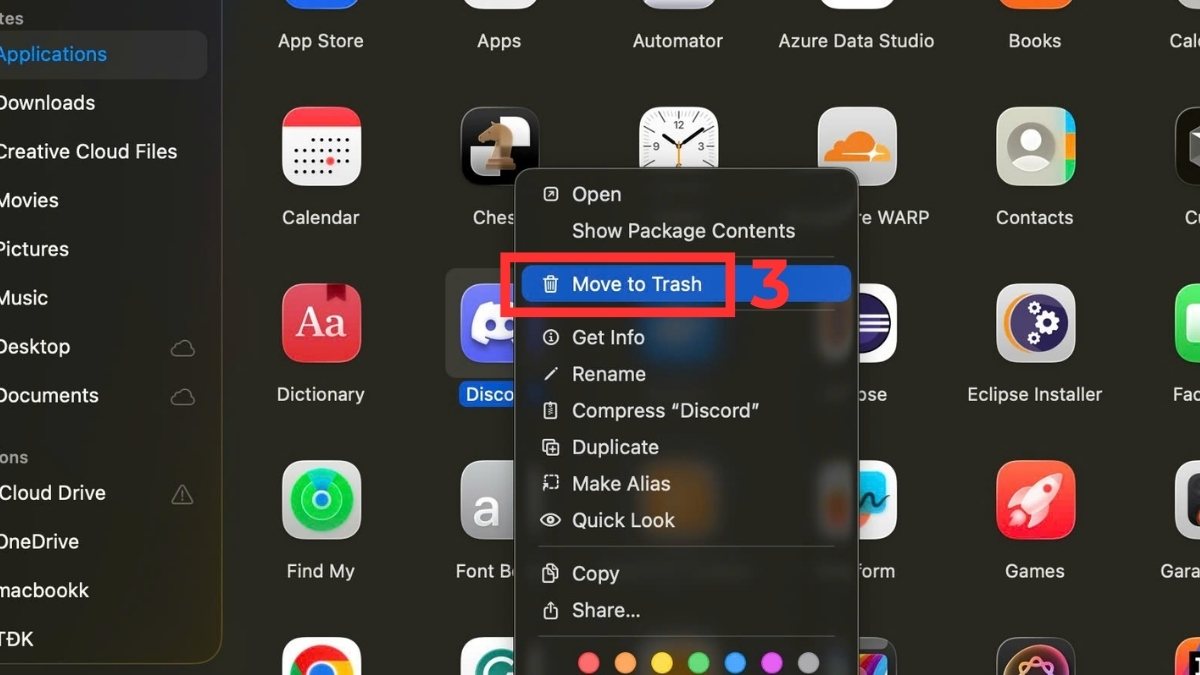
- Step 3: Right - click on the application you want to delete and select Move to Trash .
- Step 4: Go to Trash .
- Step 5: Select Empty Trash to completely remove the application from your MacBook.
This method works with most third-party software and is a popular way for many users to uninstall apps on their MacBooks.
Is your MacBook running out of storage and causing it to slow down and lag? Upgrade to a new generation MacBook with large storage capacity and powerful performance for smooth task handling. Enjoy attractive 0% installment plans, trade-in options , and additional benefits for Smember members!
How to uninstall apps on a MacBook using Launchpad
Besides Finder, you can also uninstall applications on your MacBook directly from Launchpad. This interface displays all the applications installed on your device, similar to the app screen on an iPhone or iPad .
How to do it:
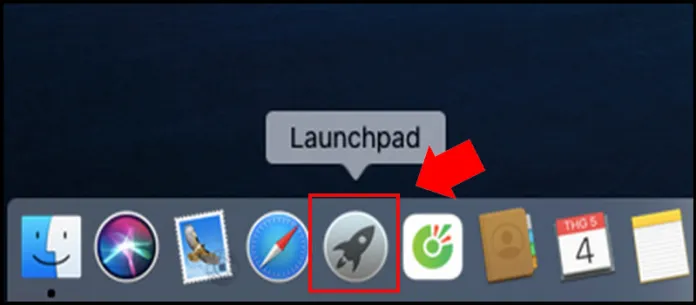
- Step 1: Open Launchpad from the Dock or by pressing the F4 key.
- Step 2: Press and hold the app icon until the icons start shaking, then tap the X in the corner of the app icon.
- Step 3: Click Confirm Delete to complete the uninstallation process.
Note: This method works on macOS versions with Launchpad (OS X 10.7 and later) and is primarily for applications downloaded from the Mac App Store. For software installed from external sources, Launchpad usually does not display the X to uninstall.
Completely uninstall apps on your MacBook using Terminal.
If you want a more thorough way to uninstall apps on your MacBook, you can use Terminal. This method is suitable for experienced users who want a more in-depth uninstallation process on their computer.
How to do it:
- Step 1: Press the Command key + Spacebar to open Spotlight .
- Step 2: Type 'Terminal' into the search bar and open the application.
- Step 3: Enter the command to access the application folder:
cd /Applications
- Step 4: Enter the command to delete the application:
sudo rm -rf AppName.app
- Step 5: Enter the administrator password to confirm.
Once complete, the application will be removed from the system. However, you need to be careful when using Terminal to avoid accidentally deleting important files.
Note: The command `sudo rm -rf` will permanently delete data and it cannot be recovered from the Recycle Bin. Make sure you enter the correct application name to avoid accidentally deleting system files.
Use dedicated uninstallation software for Mac.
If you want to uninstall apps on your MacBook faster and more cleanly, you can use specialized uninstallation software. These tools help remove system files, cache, and leftover data.
AppCleaner - The most popular free cleaning tool
To uninstall apps on your MacBook using AppCleaner, you can quickly follow these steps:
- Step 1: Open the AppCleaner app on your MacBook.
- Step 2: Tap the three-line icon in the top right corner of the application.
- Step 3: Type the name of the app you want to delete and select it. AppCleaner will automatically scan related files such as cache, configuration, and temporary data.
- Step 4: Click Remove to delete the entire application and related files from the system.
CleanMyMac X - a comprehensive solution for macOS
To delete apps on your MacBook using CleanMyMac X, you can follow these steps:
- Step 1: Open the CleanMyMac X software on your MacBook.
- Step 2: Select the Uninstaller option in the toolbar.
- Step 3: Select the application you want to uninstall on your computer.
- Step 4: Click Uninstall to remove the application and all related files.
This method helps to uninstall applications on a MacBook more cleanly because the software can detect and delete leftover files, while also optimizing macOS performance.
Common errors encountered when deleting apps on a MacBook.
During the process of uninstalling applications on a MacBook, users sometimes encounter errors that prevent successful uninstallation or leave the device's storage space unchanged. Below are some common errors and how to resolve them.
Unable to delete apps on MacBook
Reason: Some applications are Apple system software, so macOS will not allow uninstallation to avoid affecting system performance. Additionally, applications with restricted access or user accounts lacking administrator privileges may also prevent you from deleting them.
How to fix it: First, check if the account you're using has administrator privileges. If it does, you can try uninstalling the application on your MacBook using Finder, Terminal, or a specialized uninstallation software like AppCleaner to remove the application and related files.
The application is running.
Reason: The application is still running or operating in the background, so macOS will not allow you to delete it to avoid causing software errors or data loss. This often happens with applications that are open or have background processes running.
Solution: You need to completely close the application before attempting to delete it on your MacBook. Open Activity Monitor, find the running application, select the relevant process, and press Force Quit to close it completely. Then, try deleting the application again using Finder or Launchpad.
Deleting the app doesn't reduce storage space.
Reason: After deleting applications on a MacBook, some related files such as cache, configuration files, or temporary data may still remain in the system. These files are usually located in the Library folder, so the amount of storage space may not decrease significantly.
Solution: To fix this, you should use tools like AppCleaner or CleanMyMac to scan your entire system. These programs will find and delete leftover files after uninstalling applications, helping to free up space more effectively.
Important notes when deleting apps from your MacBook.
Before attempting to delete apps on your MacBook, you should note a few important points to avoid affecting the system or losing important data.
System applications should not be uninstalled.
Several default Apple applications, such as Safari, Finder, Mail, and System Settings, are crucial components of the macOS operating system. These applications are deeply integrated into the system to ensure the basic functions of Apple laptops operate smoothly. Therefore, attempting to uninstall or delete these applications can cause system errors, affect performance, and prevent some features from working correctly.
Back up your data before deleting the app.
Before uninstalling an app on your MacBook, you should back up important data to avoid losing essential information. Some apps may store personal files, work documents, or login information in the system. If you uninstall an app without backing up, this data may be permanently lost. Therefore, check and save any necessary data to iCloud, an external hard drive, or other storage services before uninstalling.
Check for administrator privileges when uninstalling software.
Some applications on MacBooks require administrator privileges to uninstall. If your account doesn't have these privileges, macOS will reject the uninstallation attempt to ensure device security. Therefore, before attempting to uninstall an application on your MacBook, check your account permissions in System Settings. If necessary, log in with an administrator account to ensure the uninstallation process runs smoothly.
Removing apps on your MacBook becomes simpler when you use the right method. By using Finder, Launchpad, Terminal, or supporting software, you can quickly uninstall apps on your MacBook and effectively free up storage space on your Apple laptop.
You've just finished reading the article "How to delete apps on a MacBook easily and quickly." edited by the TipsMake team. You can save how-to-delete-apps-on-a-macbook-easily-and-quickly.pdf to your computer here to read later or print it out. We hope this article has provided you with many useful tech tips and tricks. You can search for similar articles on tips and guides. Thank you for reading and for following us regularly.
- Removing original apps on iOS 10 has never been so simple
- List and function all default applications on Mac computers
- How to uninstall installed applications on Mac OS
- How to disable autorun apps when starting MacBook
- How to download YouTube videos on a MacBook quickly
- Top 5 Apps to remove acne quickly, simply, and easily