Table of Contents
A Mac can extract RAR archives with a compatible app such as The Unarchiver or Keka. Built-in Archive Utility support varies by macOS release and archive features, so if double-clicking a RAR does not work, use a reputable local extractor rather than uploading private files to an unknown website.
Check the archive before opening it
- Confirm the extension is
.rarand the download finished. - Scan an unexpected archive and verify the sender through another channel.
- Do not run an extracted app, script, or installer merely because extraction succeeded.
- Make sure free storage exceeds the expected uncompressed size.
A compressed file can expand to many times its download size, and malicious archives can contain deceptive filenames or paths.
Extract with The Unarchiver
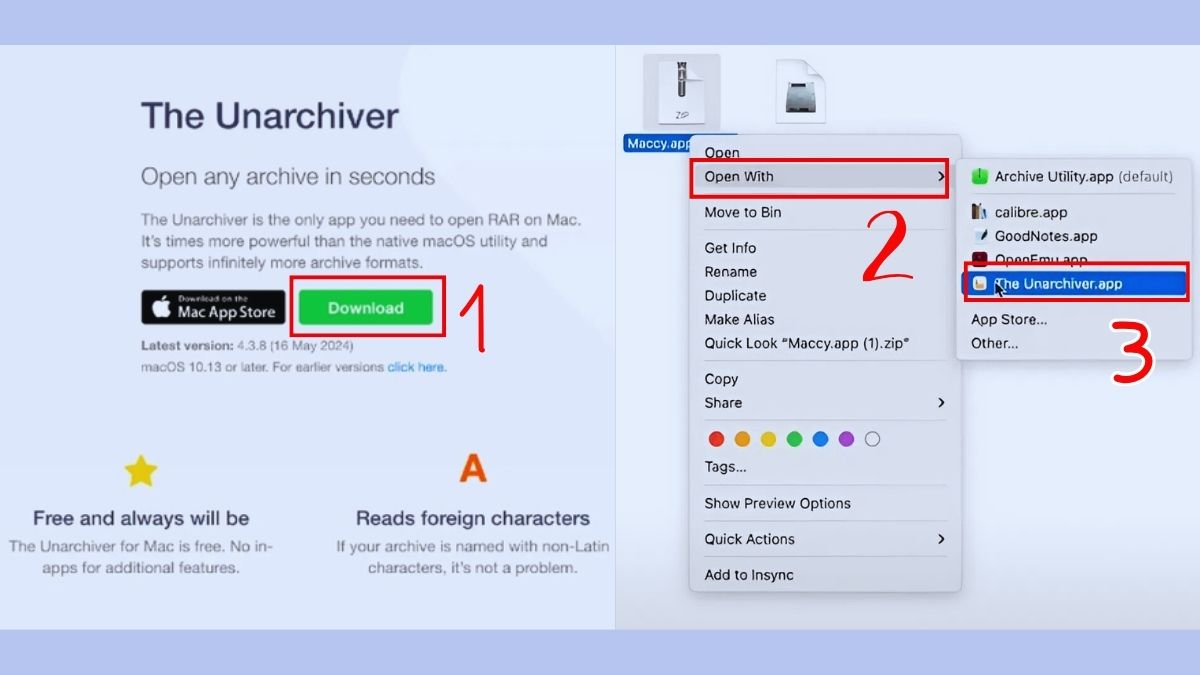
- Install The Unarchiver from its official site or its verified Mac App Store listing.
- Open its preferences and confirm RAR is an enabled format.
- In Finder, right-click the RAR file and choose Open With > The Unarchiver.
- Select a destination and wait for extraction to finish.
This is a straightforward choice when you mainly need to unpack archives.
Extract with Keka
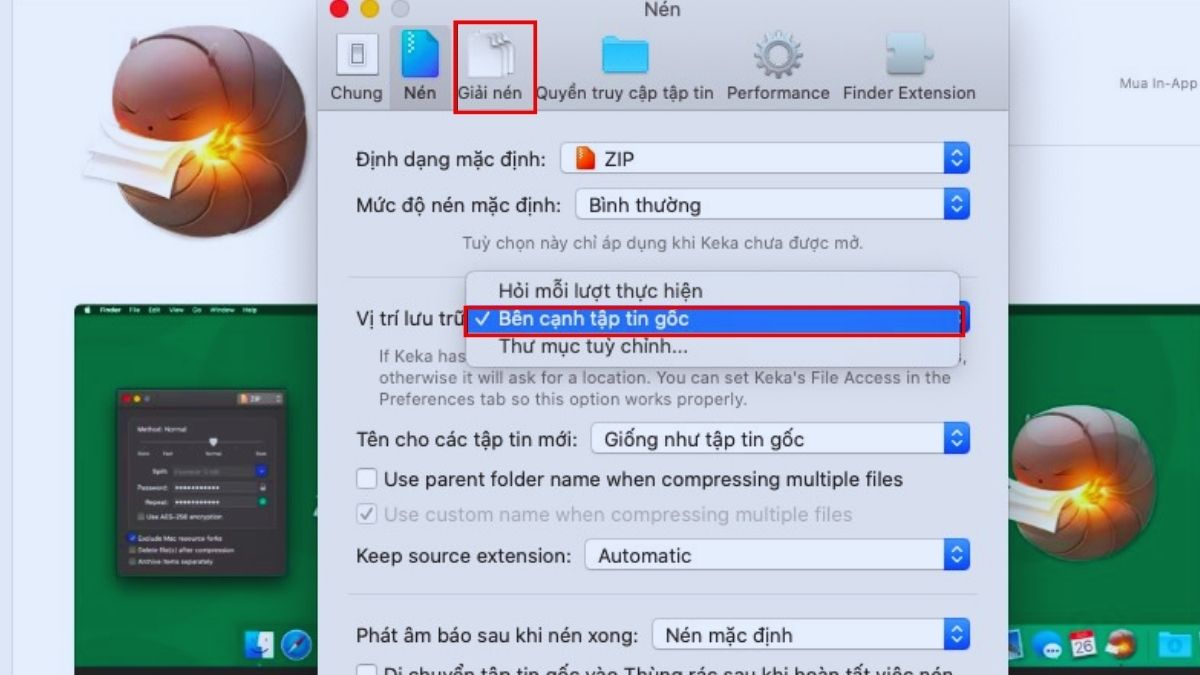
- Install Keka from its official site or verified App Store listing.
- Drag the RAR archive onto Keka, or use Finder's Open With menu.
- Choose the destination and enter a password if the archive legitimately requires one.
Keka can also create several archive formats. RAR creation and extraction capabilities are not the same, so check the app's current format list for your need.
Extract a multi-part RAR
Download every part into the same folder. Names may end in .part1.rar, .part2.rar, and so on, or use older .rar/.r00 sequences. Start extraction from the first part only. A missing or renamed segment prevents complete extraction.
Password-protected archives
Enter the password supplied by the legitimate sender. An extraction error can mean the password is wrong, a part is missing, or the archive is damaged. Do not use password-cracking tools on data you are not authorized to access.
Should you use an online extractor?
Online tools may upload the entire archive and extracted files to a third party. Do not use them for personal, work, financial, medical, source-code, or credential-related content. Even a service that claims browser-only processing should be evaluated carefully; a local, signed application is easier to control and handles large or multipart archives more reliably.
Fix common extraction errors
- Unexpected end of archive: download again and verify all parts are present.
- CRC or checksum error: the file is corrupted or the password may be wrong.
- No space: free storage on both the destination and system volume.
- Extracted file will not open: install an app that supports the extracted format; extraction and file compatibility are separate.
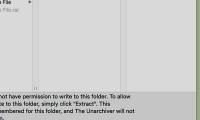
- Permission denied: extract to a folder you own, such as Downloads, rather than changing broad permissions.
Filename or font problems
Garbled filenames may come from legacy filename encoding used when the archive was created. Try another reputable extractor, or ask the sender to recreate the archive with Unicode filenames. If a document opens but its text looks wrong, it may require the original font or text encoding; do not install fonts from an untrusted archive.
After extraction
Review the file list, scan suspicious contents, and keep the archive until you verify the output. For other formats, see how to zip and unzip files on a Mac and show file extensions in Finder.
Related Articles
 How to Safely Extract RAR Files on MacBook: Practical Guide9 minutes read
 How to Extract a File or Folder from a TAR or Tar.gz File6 minutes read
 How to Extract IMG Files in Windows 104 minutes read
 How to Extract Zip Files on Your Computer10 minutes read
 Unzip Zip, RAR,. Files Online Without Software: Extract Files7 minutes read
 How to Open Rar Files10 minutes read
Reader Comments 0
Sign in with email or Google to join the discussion.