Table of Contents
Converting PDF to Word on Mac OS is not complicated at all. Google Docs, OCR, and Adobe Acrobat are tools that help you convert easily without worrying about losing formatting.
Method 1: Using Google Docs
Google Docs, built on a web platform, has a rather impressive built-in PDF converter that works quite well.
Step 1 : Access the Google Docs website and log in with your Google account.
Step 2 : Click the Upload button and select the PDF file you want to convert to Word on your Mac.
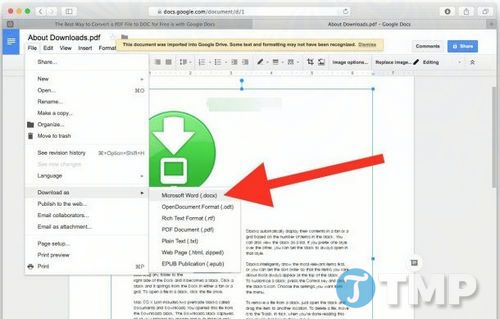
Step 3 : In Google Docs, select the File menu, then select Download As => Microsoft Word (DOCX) , and save the Word DOCX file to your Mac.
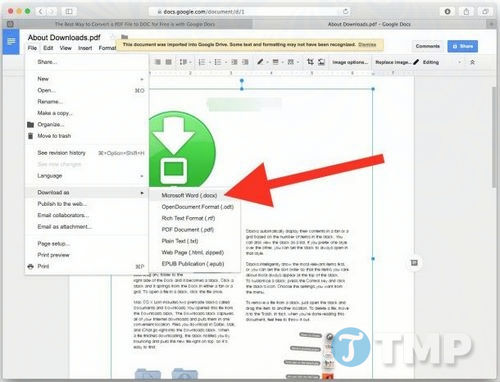
The biggest drawback of this solution is that Google Docs requires an internet connection to access and use the website. The biggest advantage is that it's easy to implement and you don't have to pay any fees.
Method 2: Copy the content from the PDF file and paste it into the DOC file.
You can use this method to convert PDF files to other file formats such as DOC, DOCX, RTF, etc.
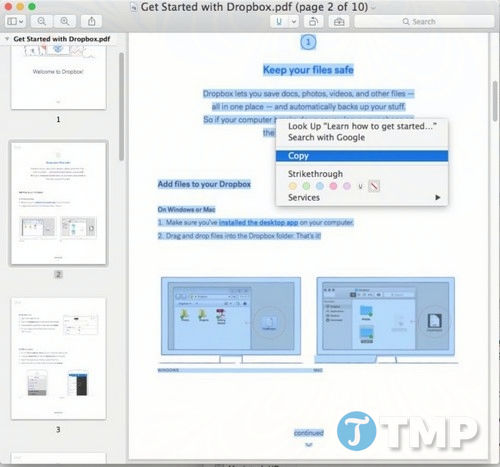
Step 1 : Open the PDF file in the Preview application on your Mac.
Step 2 : Using your mouse, select the text you want to copy, then press the Command + C key combination .
Step 3 : Open Microsoft Office, Word, Pages, or your preferred word processor, press Command + V to paste the document, and save the file as usual.
Alternatively, to select the entire document, use the keyboard shortcut Command + A , then use the keyboard shortcut Command + C to copy all the content in the PDF file.
Method 3: Use Adobe's paid software.
The application provided by Adobe is a web application, so it works on all platforms, including Mac OS X, iOS, Windows, or Linux, and can convert PDF files to file formats such as DOC, DOCX, RTF, or even Excel XLSX files.
If you need to convert dozens of PDF files to Word on macOS, Adobe's converter is probably the best solution. But if you only need to convert one or two PDF files to Word, you should consider other options. Since this is a paid tool, the cost might not be worth it if you only need to convert one or two files.
The biggest limitation of Adobe's converter tool is that there is no free trial.
Method 4: Another tool to convert PDF to Word on Mac OS
Besides Adobe's paid conversion software, you can choose and use other software to convert PDF to Word on Mac OS. The software that TipsMake wants to mention here is OCR (Optical Character Recognition). OCR helps you identify and extract content in PDF files more accurately.
OCR offers a free trial version, which you can try to see if the software is suitable for your needs and work requirements.
Step 1 : CISDEM PDF Converter OCR costs $60 USD, with a free trial available that allows you to test it to extract PDFs, download the application, and download the disk image.
Download and install CISDEM PDF Converter OCR here: Download CISDEM PDF Converter OCR
Step 2 : After installation is complete, open the application and drag and drop the PDF file you want to convert into it.
Step 3 : Adjust the PDF file if necessary and choose the output format.
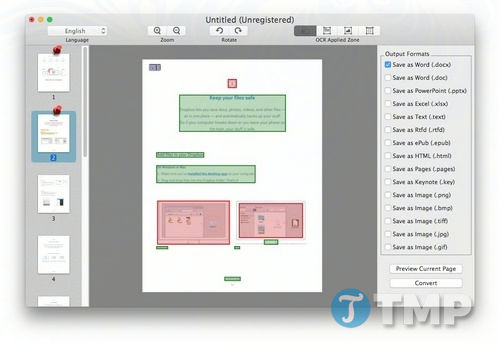
Step 4 : Click on Preview or Convert . After the conversion process is complete, you will receive a DOC or DOCX file.
OCR works quite well at extracting all PDF data and converting PDF files to DOCX format. However, a drawback of this conversion tool is that the data location after conversion will be slightly 'disorganized'. The advantage of OCR is that it does not require an internet connection and does not require a web browser to access like Google Sheets.
Compared to copying and pasting PDF content into DOC files or other automated methods, OCR is clearly better. In particular, you can try the application before deciding to 'commit' and pay to purchase and use OCR.
Method 5: Using Automator
Essentially, this is an automated copy-and-paste approach as TipsMake mentioned above. In fact, this isn't a solution for converting PDF to Word on Mac OS, but rather it extracts the text and content from the PDF and outputs it as an RTF or TXT file, which you can then save as a Word DOC or DOCX document if desired.
Automator is considered a slightly more advanced solution. Essentially, Automator automatically creates macros for the task you're setting up, and the process isn't as complicated as you might think:
Step 1 : Open Automator on your Mac (in the /Applications/ folder) and create a new workflow, application, or service.
Step 2 : Find and select Get Selected Finder Items from the context menu (the menu you right-click on) if you want to use this service (or select Ask for Finder Items if you want to activate the dialog box when opening the application or service), then drag the slider to the right of the active screen.
Step 3 : Next, find Extract PDF Text and scroll down below the previous option you selected, then choose the PDF output you want, such as Plain Text (TXT) or Rich Text (RTF).
Step 4 : Click the Run button to start the Automator Action, select the PDF file, and the tool will convert the PDF to a Word document for you.
Step 5 : Finally, open the file you just converted and view or check its contents.
It's best to check the PDF file you just exported to see if there are any errors or missing content. A 'stylized' PDF file might have some letters and characters missing, but the rest of the content will still be complete, as you can see in the example below:
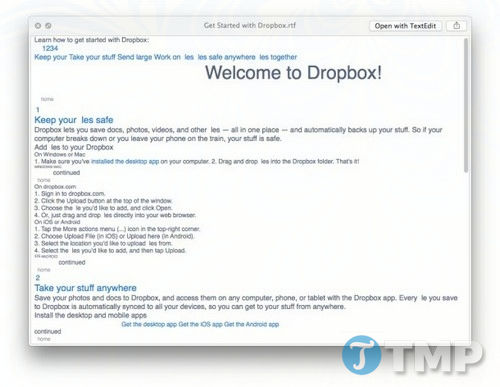
Clearly, compared to copying from a PDF file and pasting it into a DOC file on Mac OS X, this method is much more efficient, especially if you have to work with many PDF files, simply because it's an automated process.
Note that the simpler the PDF file, the better this solution will work. Automator does not work with complex PDF files or PDF files containing images because it cannot recognize the text.
Why can't I open a PDF in Pages, Office, TextEdit, or XYZ App?
You'll notice that you can't use generic text editors in Mac OS or any other operating system to open PDF files, simply because these editors will open them with incorrect grammar, fonts, etc. That's why you have to extract the contents of the PDF file manually, then convert the PDF to your desired format, or use available conversion tools.
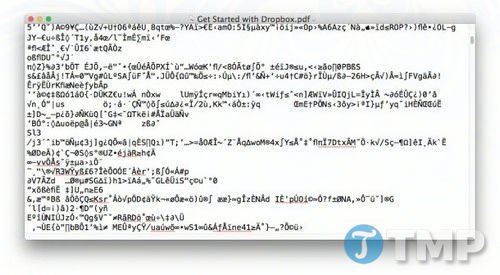
For example, here's what happens when you load a PDF file into a word processor on Mac OS X: the content and text in the PDF are jumbled and look messy, font formatting is incorrect, etc., so you have to convert the PDF to Word or copy the content from the PDF file and paste it into a DOC file:
Converting PDFs to Word on Mac OS can be done in several ways, from manual copying to using specialized software. For simple documents, you can open the PDF using Preview on your Mac, then copy and paste the content into Word. For files with complex formatting, using Adobe Acrobat Pro or online tools like Smallpdf or ILovePDF will help preserve the layout. Alternatively, a PDF Converter app from the Mac App Store is also a good option. Choose the method that best suits your needs to obtain the most polished Word document.
Related Articles
 How to Convert PDF to Word Without Font Errors for Free7 minutes read
 How to Fix Font Errors Word, Excel, Transcoding Fonts Super Fast3 minutes read
 Professional PDF File Conversion Software for Word7 minutes read
 Software to Convert PDF to Word Online, PDF to Doc Online8 minutes read
 Convert PDF to Word, Doc Without Font Errors 100%8 minutes read
 How to Convert PDF to Word Online Without Font Errors6 minutes read
Reader Comments 0
Sign in with email or Google to join the discussion.