Table of Contents
Use Phonto if you mainly want to add and position text, Snapseed if you also need to edit the photo, or Picsart if you want to build a collage or social graphic. If you only need one caption, the TipsMake tools directory includes an Add Text to Image option that runs in your browser.

Choose an app for the job
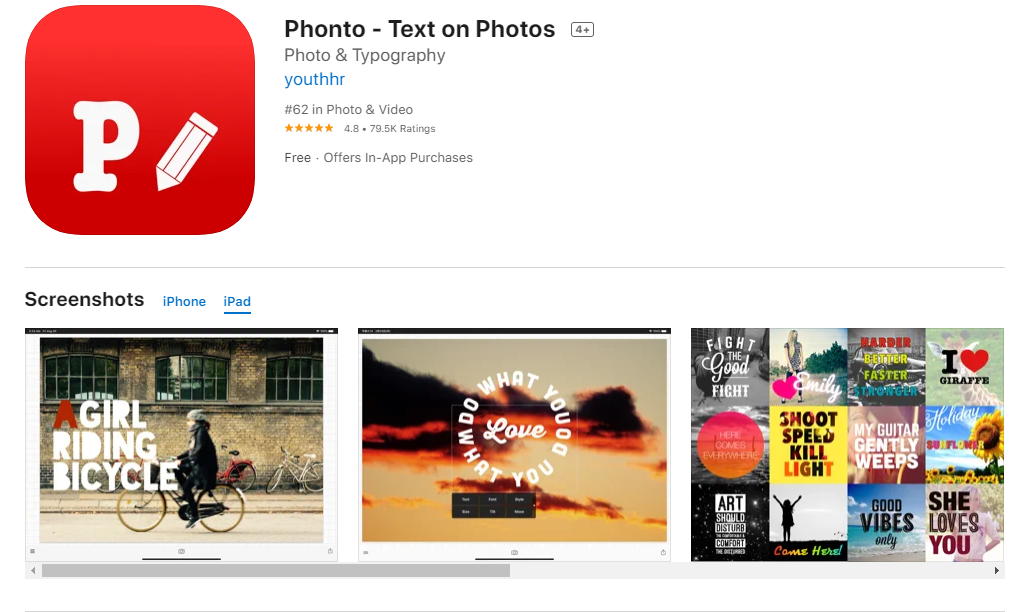
Phonto for custom lettering
Phonto focuses on text controls such as font, size, color, spacing, and rotation. It is listed in the App Store and on Google Play. If you need an imported font, check whether the font license covers your intended use, especially for a logo or advertisement.
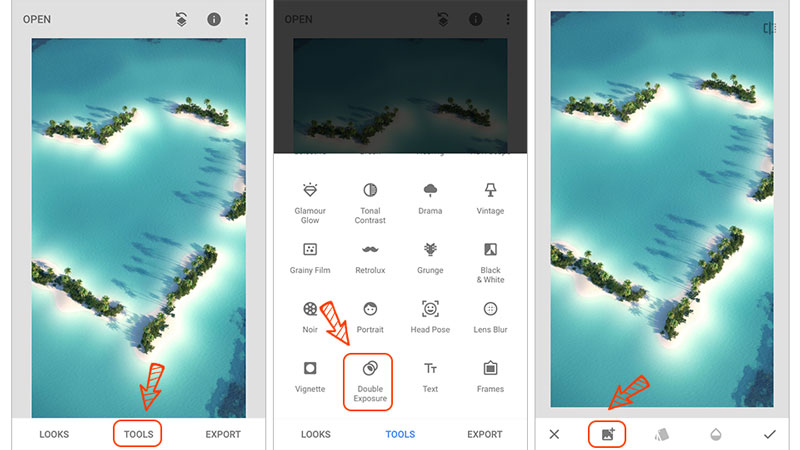
Snapseed for editing the photo first
Use Snapseed when the photo needs cropping, exposure adjustments, or color correction before you add a line of text. In the editor, find the Text tool, replace the sample wording, and position the text where the background is quiet enough to read it.
Picsart for collages and social graphics
Use Picsart if the text is one part of a larger layout with photos, stickers, or shapes. Start with the intended canvas size, then fit the photo and add the text. Check whether your chosen template or font requires a paid plan before building a full design around it.

Other apps from the original comparison
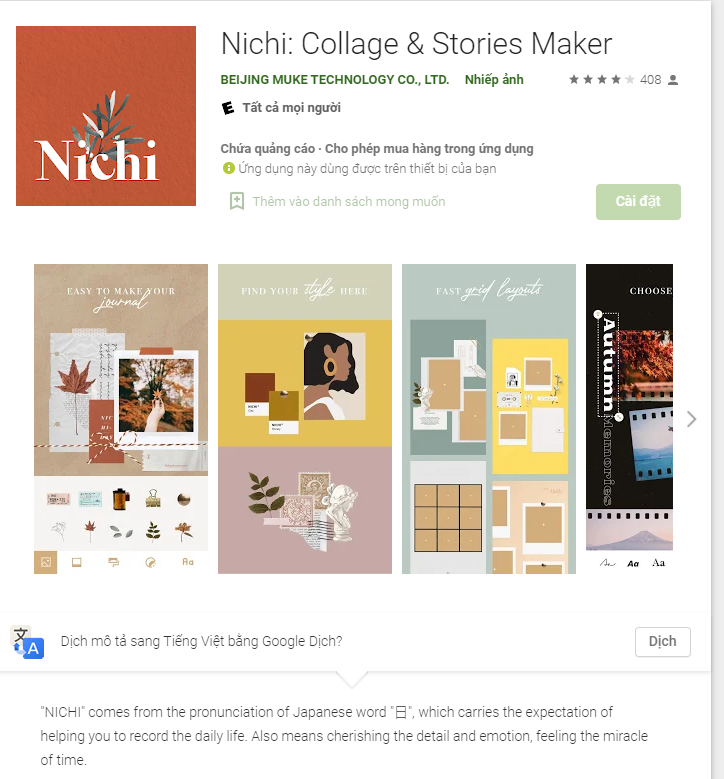
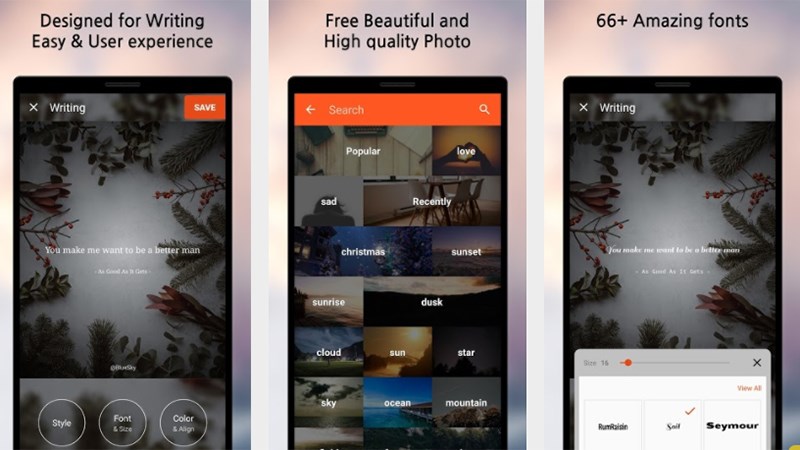
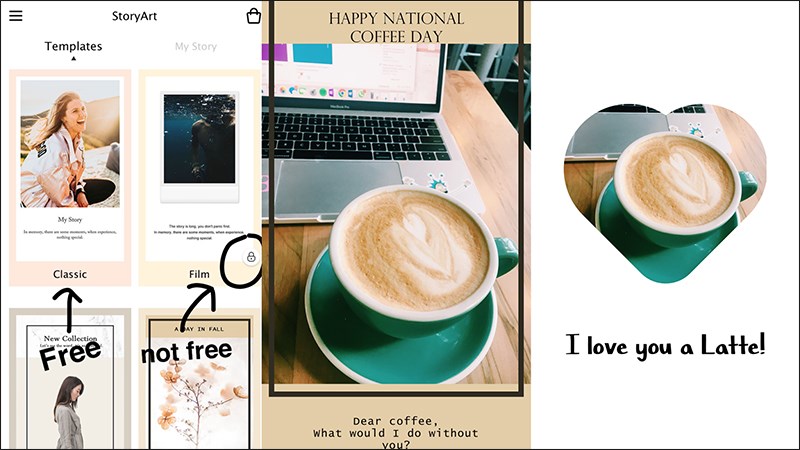
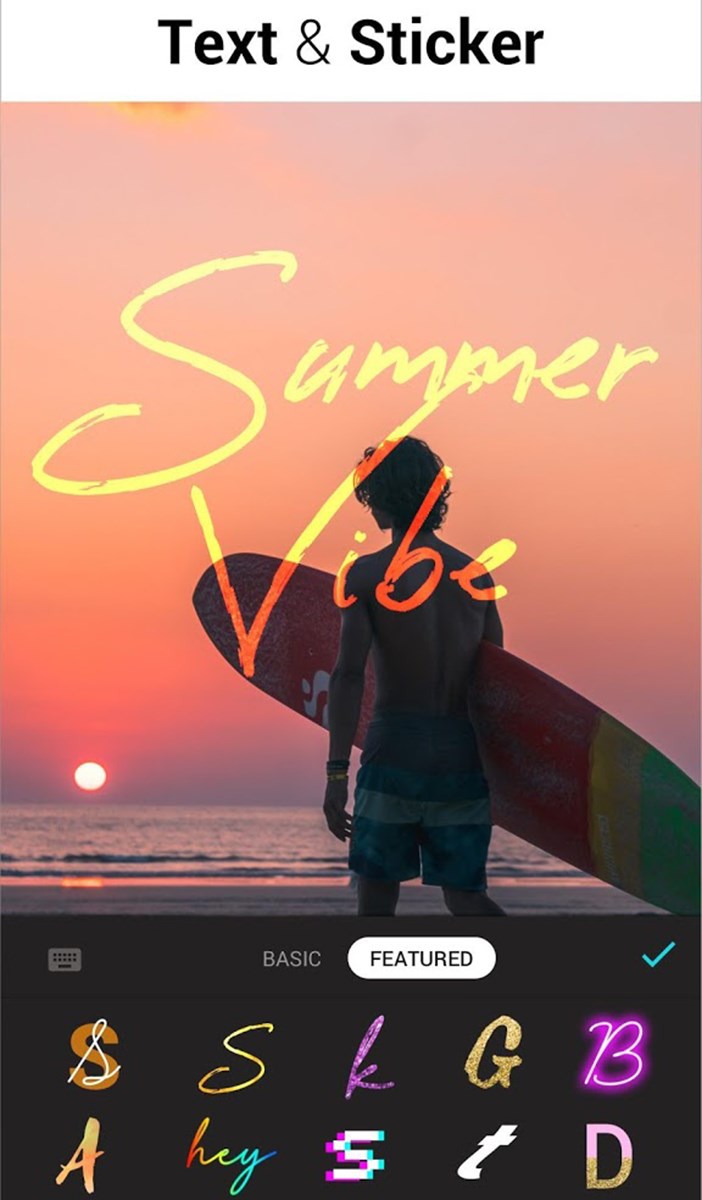
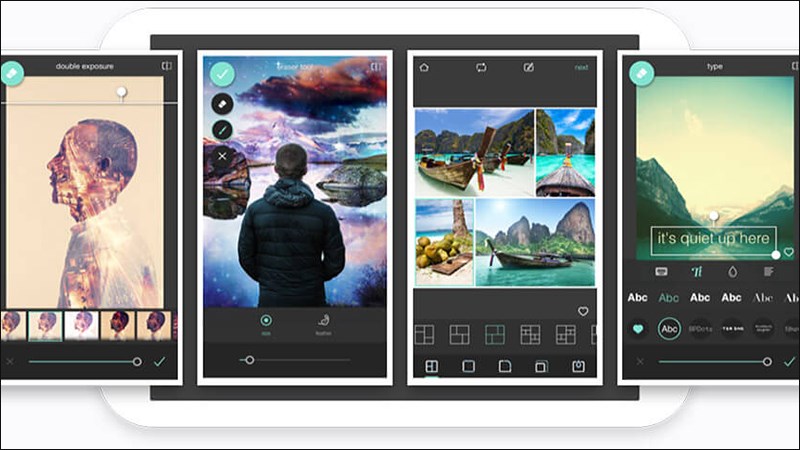
For a simple caption or quote, compare the font and spacing controls in PicLab, Geulgram, or Polish. For a story layout, look at the template approach shown in Nichi and StoryArt. The screenshots below show earlier versions of the editors. Check your device's store for current availability and pricing before installing.


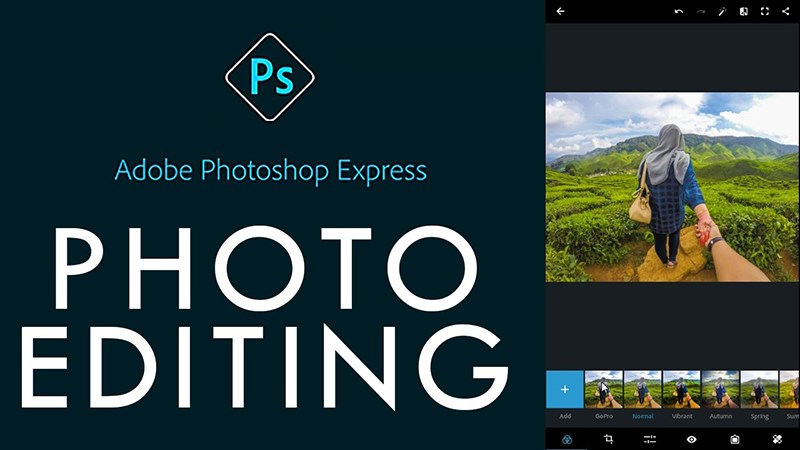
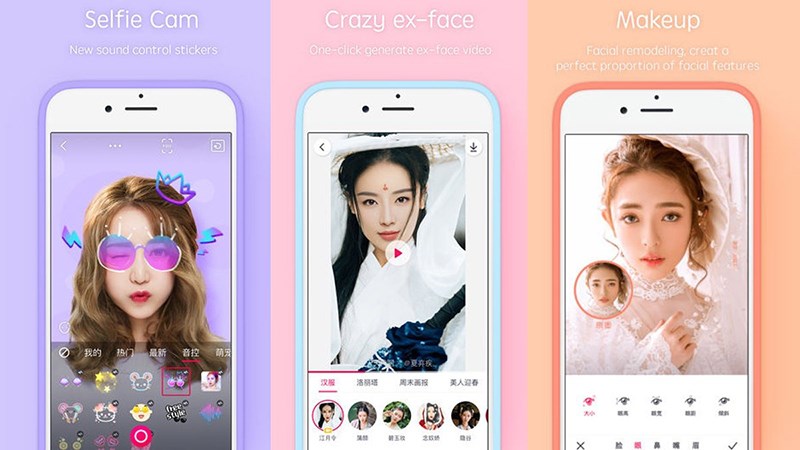
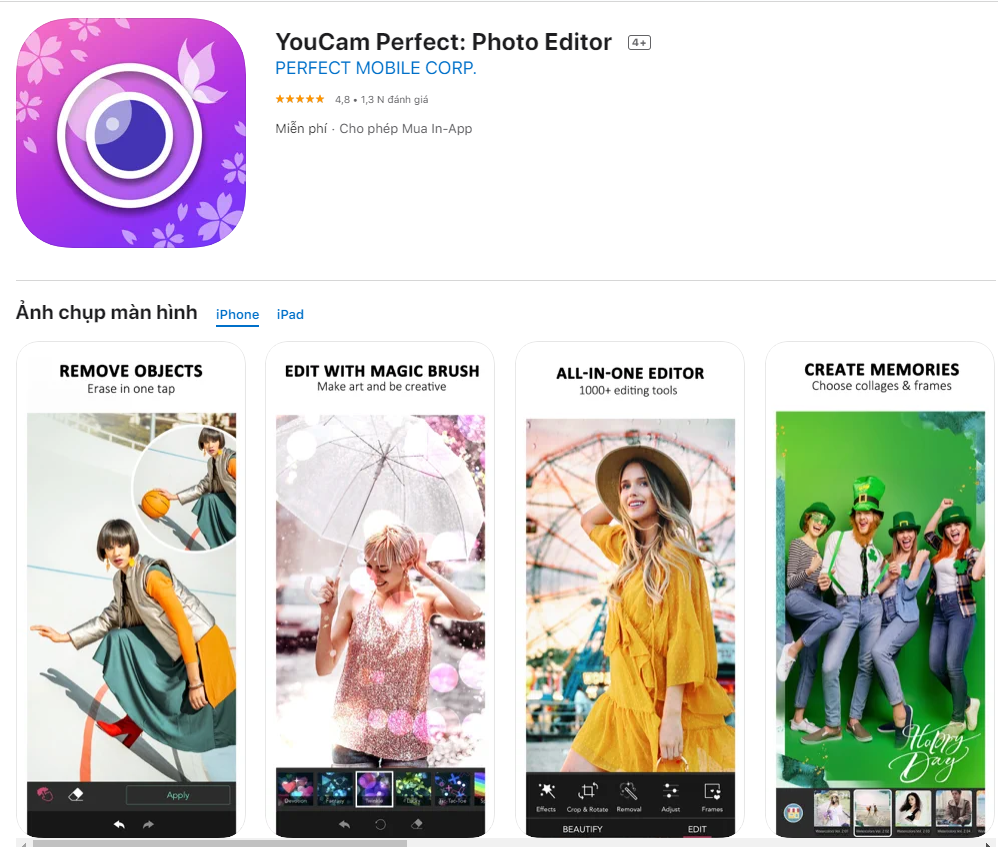
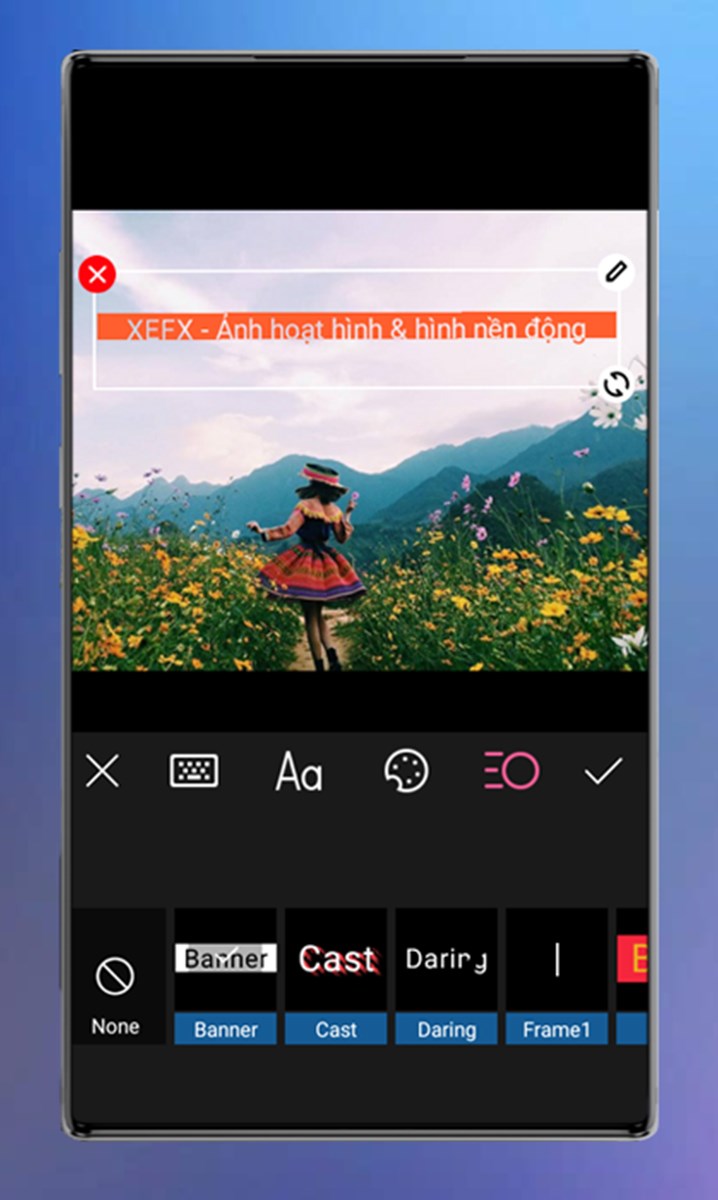
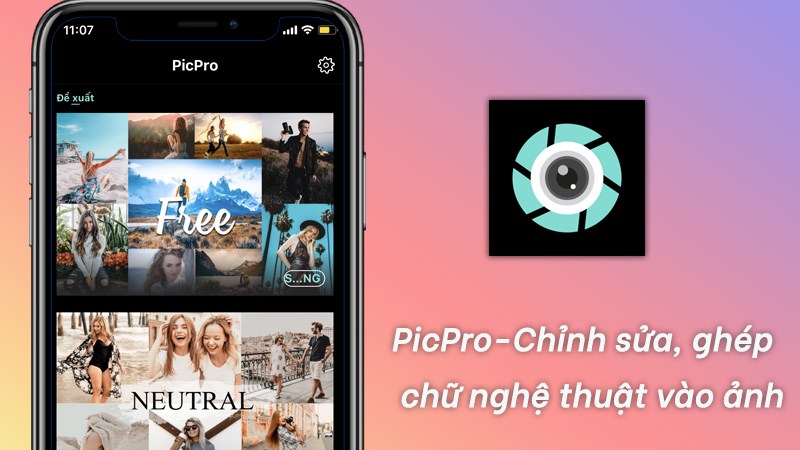
Photoshop Express, Pitu, YouCam Perfect, Lumii, XEFX, PicPro, and Pixlr were also covered as broader editors. Consider one of these if you already use it to prepare your photos. Open a test image and check whether the text controls and export options meet your needs.
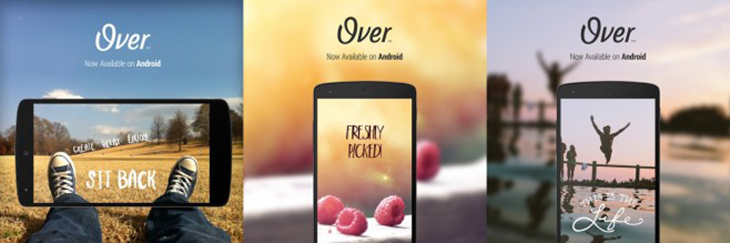
Over later became GoDaddy Studio. GoDaddy says the design features are now part of the GoDaddy app.
Make the text readable before you export
- Crop the image to the shape you plan to share before placing the text.
- Add a short caption. Move it away from faces, busy details, or edges where an app might crop it.
- Choose a color that contrasts with the background. For a busy photo, add a solid or translucent backing shape behind the text.
- Preview at phone size, check any accents or special characters, and export a copy so you keep the original photo.
If you prefer editing on a larger screen, see how to put text on pictures from a computer.




Reader Comments 0
Sign in with email or Google to join the discussion.