Table of Contents
Claude Code is not limited to software development. Because it can work with files in a local project folder, it can also help writers and researchers organize source notes, compare documents, build outlines, revise drafts, and check whether claims are supported. The safest approach is to give it a narrowly scoped workspace, clear project instructions, and only the files needed for the current assignment.
When Claude Code is useful for writing
A regular chat is convenient for one-off questions. Claude Code is more useful when the work spans many related files or repeated steps, such as maintaining a newsletter, preparing a research brief, or revising a long report. It can inspect the current folder, create or edit documents, and follow project-specific instructions stored alongside the work.
It should not be treated as an autonomous fact-checker or a permanent memory system. You still need to verify quotations, dates, statistics, and source URLs before publication.
1. Install and open Claude Code
Anthropic currently recommends its native installer. On macOS, Linux, or WSL, run:
curl -fsSL https://claude.ai/install.sh | bashOn Windows PowerShell, run:
irm https://claude.ai/install.ps1 | iexHomebrew and WinGet packages are also available. The older npm installation method still exists, but the native installer is the simpler default for most users. Check the current requirements in the official Claude Code setup guide.
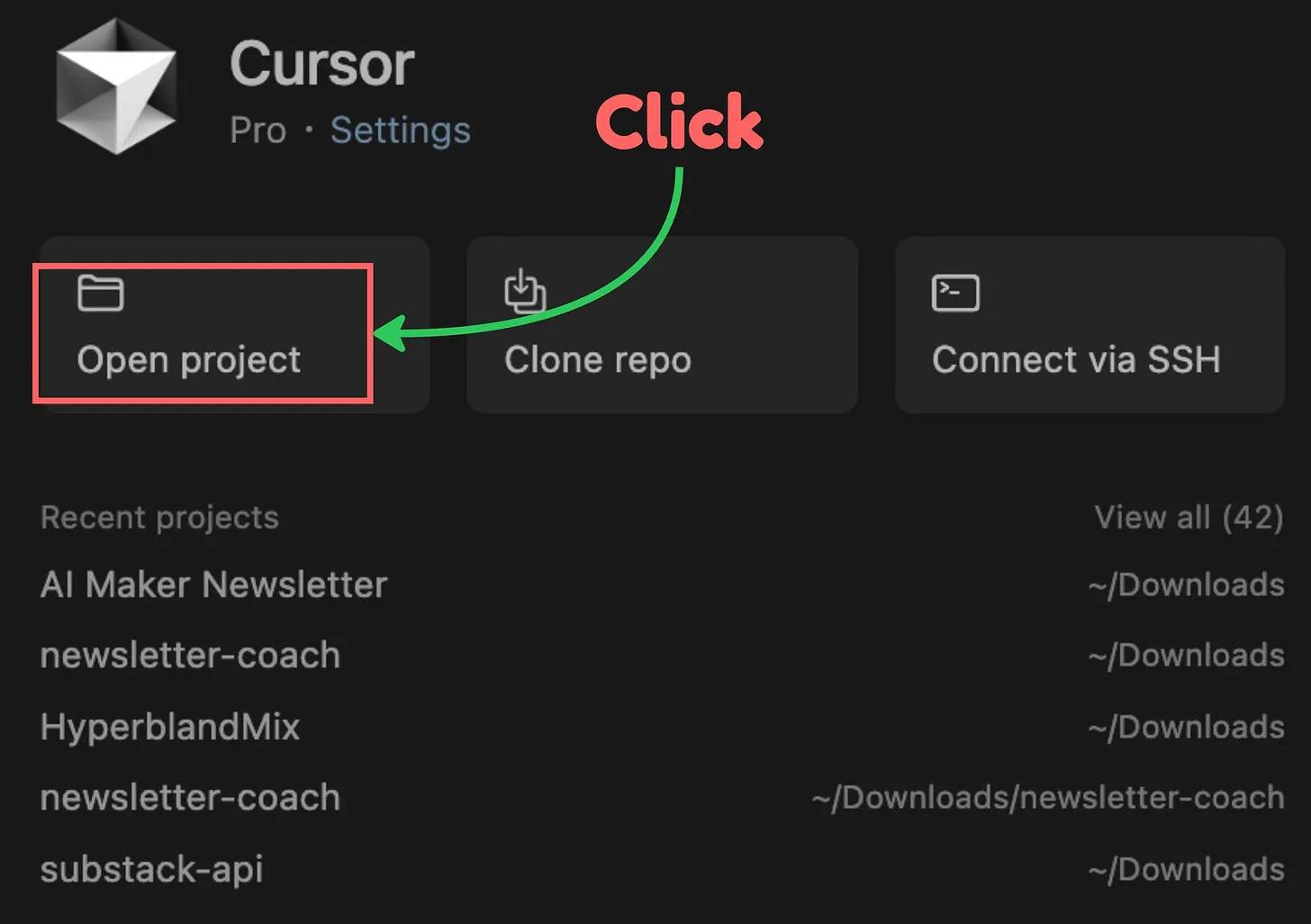
Move to the folder you want Claude Code to work with, then start it:
cd path/to/your-writing-project
claude
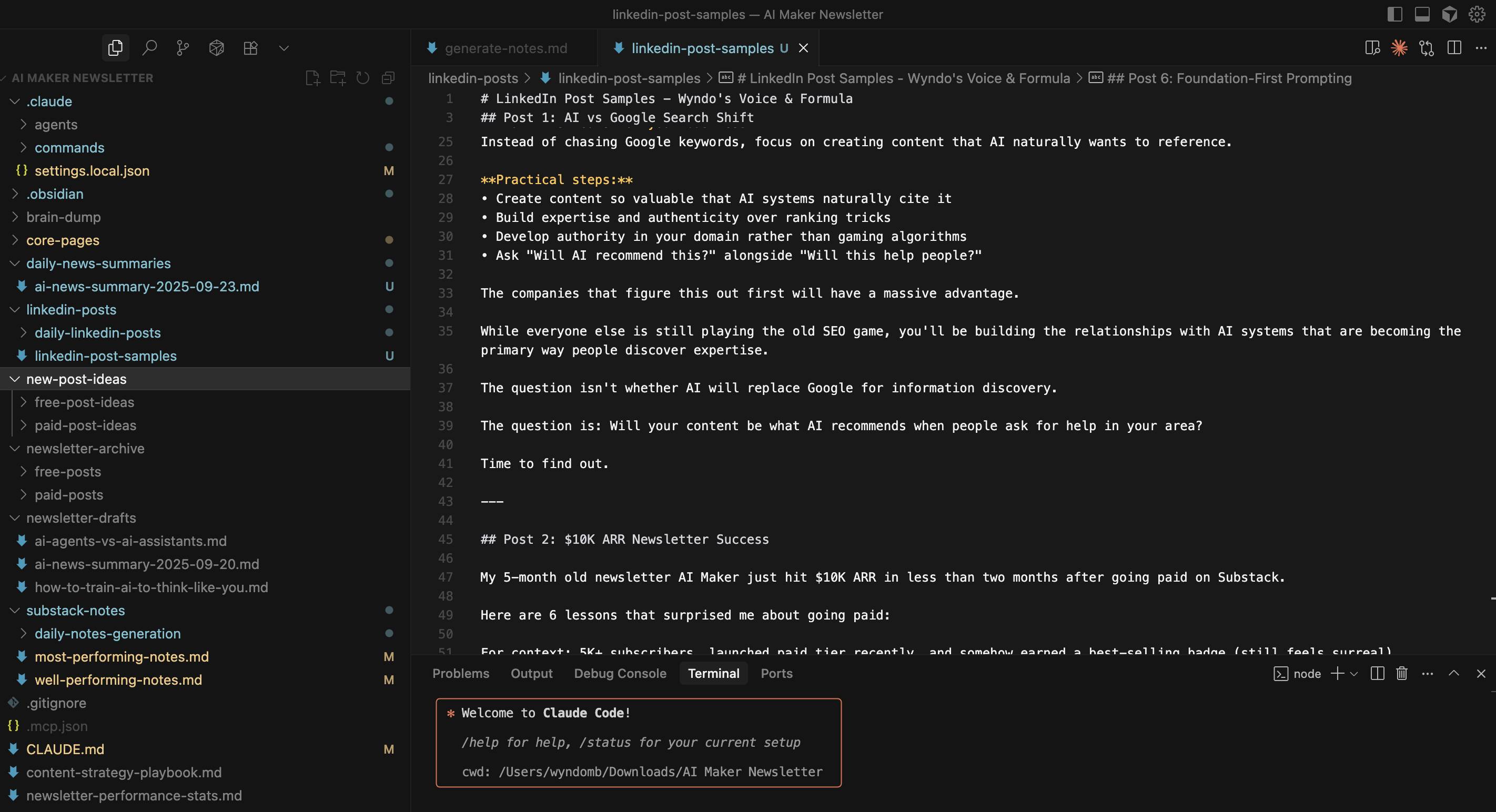
You can use Claude Code directly in a terminal. An IDE such as Visual Studio Code is optional, although it can make reviewing file changes easier.
2. Create a dedicated project folder
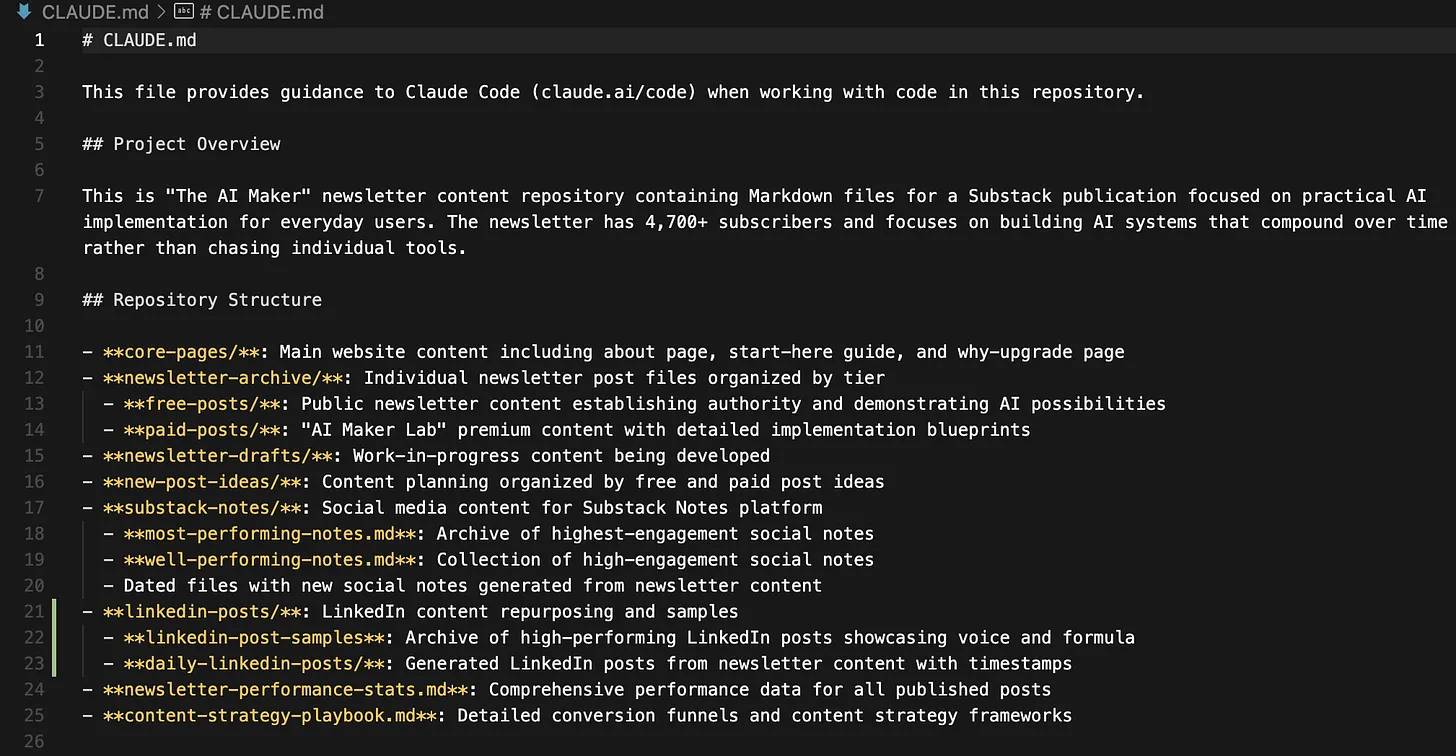
Do not point the tool at an entire home directory or an archive containing unrelated private material. Start with a folder that contains only what the assignment needs. A practical structure might look like this:
newsletter-project/
├── CLAUDE.md
├── sources/
│   ├── source-log.md
│   └── interviews/
├── notes/
├── drafts/
└── published/
Keep raw sources separate from drafts. A source log should record the page title, URL, publication date when available, access date, and the claim each source supports. This makes later verification much easier.
3. Add clear instructions in CLAUDE.md
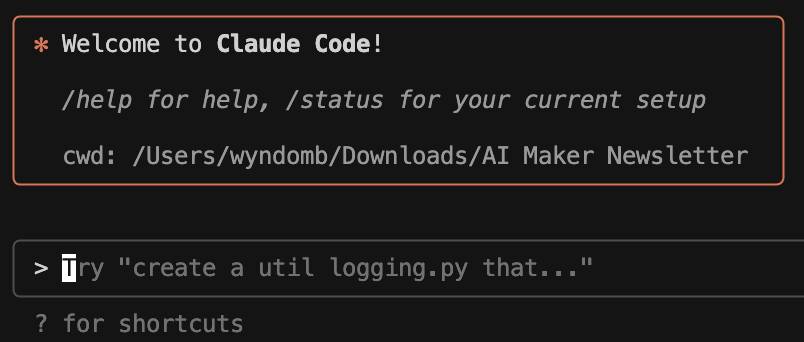
CLAUDE.md is a file for persistent project instructions and context. It is not a database of everything Claude has learned, and its directions are not a substitute for reviewing the output. Keep the file concise and specific. Anthropic recommends refining it as the project develops; see the official documentation on Claude Code memory for the supported locations and behavior.
For a writing project, the file could contain:
# Project
This folder contains weekly technology newsletter drafts.

# Audience
Write for non-specialist readers who want practical explanations.

# Editorial rules
- Never invent quotations, sources, statistics, or dates.
- Preserve source URLs in the source log.
- Mark unsupported claims with [SOURCE NEEDED].
- Distinguish reported facts from analysis.
- Use short paragraphs and descriptive headings.
- Do not publish or send anything without approval.

# Workflow
1. Read the assignment and relevant source notes.
2. Create a brief before drafting.
3. Save drafts in drafts/.
4. Finish with a claim-and-source check.
The /init command can analyze a project and propose a starting CLAUDE.md. Treat that result as a draft: review it, remove irrelevant assumptions, and add the editorial rules that matter to you.
4. Use a source-first research workflow
Begin with a bounded question and a defined set of files. Ask Claude Code to inventory the sources before it writes prose. For example:
Read the files in sources/. Create notes/source-inventory.md with:
- each source's title and URL
- the main claim it supports
- important limitations or disagreements
- any missing information
Do not draft the article yet.
Next, ask for a brief that connects every major claim to a source. Only then request an outline and draft. This sequence makes unsupported leaps easier to spot than asking for a polished article immediately.
Useful follow-up prompts include:
List every factual claim in this draft and the source file that supports it.Flag quotations, dates, and numbers that require manual verification.Compare this draft with the style rules in CLAUDE.md and propose focused edits.Show the proposed changes before editing the file.
5. Review permissions and protect sensitive data
Claude Code asks for permission before potentially risky operations, but you should still inspect every proposed action. Keep API keys, credentials, confidential interviews, personal data, and unpublished business information out of the workspace unless their use is explicitly authorized and properly protected.
Use version control or dated copies for important drafts so changes can be compared and reversed. On supported platforms, sandboxing can further limit file and network access; consult Anthropic's security guidance before working with sensitive material.
Final review before publishing
Before accepting a draft, confirm that every quotation is exact, every link opens the intended source, numerical claims match the originals, and the conclusion follows from the evidence. Also check that Claude Code did not overwrite useful notes or expose information from unrelated files. Used this way, it becomes a capable project assistant while the writer remains responsible for accuracy and publication decisions.
Related Articles
 10 GitHub Repositories to Help You Master Claude Code and AI Agent Coding7 minutes read
 Claude Code Learns from Mistakes7 minutes read
 3 Ways to Use Claude Code for Non-technical Tasks6 minutes read
 What Is Claude Skills?: What You Need to Know14 minutes read
 What Is the Claude Code: Clear Explanation7 minutes read
 Claude Code in VS Code: How to Use AI for Efficient Multi-File Programming9 minutes read
Reader Comments 0
Sign in with email or Google to join the discussion.