Table of Contents
10 Finger BreakOut turns a Breakout-style game into a keyboard drill: instead of moving the paddle with arrow keys, you type the letters shown on screen. The software was designed for much older Windows versions, so this guide is most useful if you already have a working copy. Avoid unfamiliar download sites, and do not weaken Windows security settings just to install it.
Start the game and choose settings
Open 10 Finger BreakOut. The controls appear in the right-hand panel:
- Start: begins a new game.
- Stop: ends the current attempt.
- Top 10: opens the saved high-score list.
- Level: selects Beginner, Intermediate, or Advanced difficulty.
- Keyboard skin: changes the on-screen keyboard design.
- Sound: turns game audio on or off.
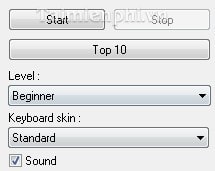
Choose Beginner for the first session. Higher levels increase the pace and are useful only after you can identify the required letters without looking down.
How to play 10 Finger BreakOut
1. Read the instructions
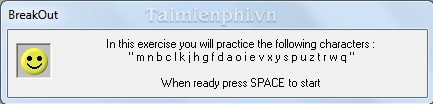
Click Start. A small instruction window explains the controls. Press the Space bar when you are ready to begin.
2. Type the letters shown
Letters appear above the paddle or ball positions. Type the left letter to move toward the left, the right letter to move toward the right, and the center prompt to strike the central area. The exact positions change as the game continues.
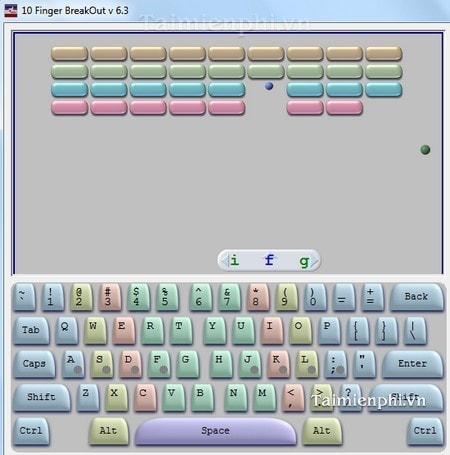
Use the finger assigned to each letter. Pressing the correct key with the wrong finger may produce a higher score in the short term, but it does not build reliable touch-typing technique.
3. Watch the score panel
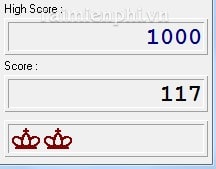
The right side shows the current score, a target or high-score value, and progress indicators. Treat the score as game feedback rather than a complete measure of typing ability; the game emphasizes quick letter recognition more than realistic words and sentences.
4. End the attempt and save a score
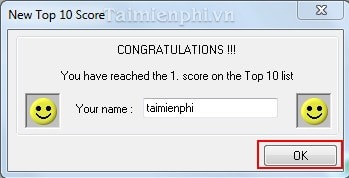
Click Stop to finish. If the game asks for a name, enter a nickname and confirm it. Avoid using a full real name on a shared computer.
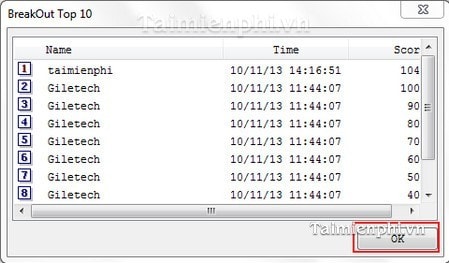
Open Top 10 to view locally saved scores, then click OK to close the window.
Use the game as part of a typing routine
10 Finger BreakOut is useful for key-location reflexes, but it does not replace structured lessons. A balanced 15-minute session could be:
- 5 minutes: complete a home-row or finger-placement lesson.
- 5 minutes: play at a level where you can use the correct fingers.
- 5 minutes: type real words or a short paragraph and review mistakes.
What to practice after the game
Measure a baseline
Take a timed test that reports both WPM and accuracy. Use the same language, duration, and keyboard each time so the results are comparable.
Work on weak keys
Write down the letters you miss repeatedly in the game and create a short drill containing those keys. Practice slowly until the correct finger movement becomes automatic.
Move to realistic text
Once single-letter prompts are comfortable, practice words, punctuation, and sentences similar to what you type at school or work. Real text develops rhythm and correction skills that an arcade game cannot measure.
Keep sessions short and regular
Ten minutes on most days is more useful than a long session followed by no practice. Stop when tension or repeated errors show that your technique is deteriorating.
Compatibility and safer alternatives
10 Finger BreakOut was built for Windows 2000/XP-era systems. It may fail to install, display incorrectly, or save scores on a current Windows PC. Do not download random DLL files, disable antivirus protection, or run the program as administrator unless you understand and accept the risk.
For a current browser-based option, use TipsMake's list of touch-typing websites. You can learn the home-row finger method, compare progress with online typing tests, or install RapidTyping for guided Windows lessons.
Related Articles
 Tux Typing - Free Typing Practice Tool for Kids: Main Insights6 minutes read
 Practice Typing with 10 Fingers, Effective 10-Finger Typing Practice Software5 minutes read
 How to Practicing Fast and Efficient 10-Finger Typing for Beginners7 minutes read
 Top 5 Best Free 10-Finger Typing Practice Software 20245 minutes read
 minutes read
 How to Practice 10-Finger Typing Online6 minutes read
Reader Comments 0
Sign in with email or Google to join the discussion.