Table of Contents
Mario Teaches Typing is a DOS program, not a native Windows 7 application. If you own legitimate installation files, the reliable approach is to install and run them inside DOSBox. Windows 7 itself is no longer supported, so keep an old PC offline and use a supported operating system for everyday browsing.
Important safety and compatibility notes
- Windows 7 no longer receives Microsoft security updates.
- Do not download Mario Teaches Typing from an unofficial archive. Use original media or files you are licensed to use.
- Download DOSBox only from the official DOSBox site.
- Store DOS software in a dedicated folder such as
C:DOSGAMES; never mount the entire Windows drive.
Prepare the installation files
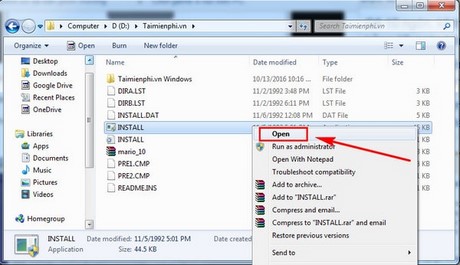
Copy your legitimate Mario installer into a subfolder such as C:DOSGAMESMARIOSETUP. Scan the files, then extract them fully. Do not run INSTALL.EXE
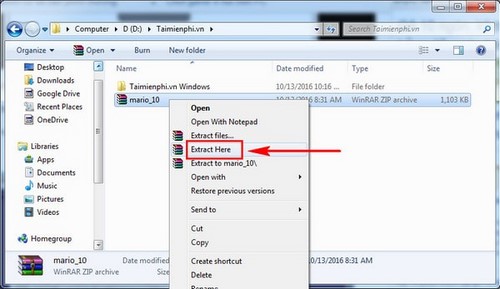
Open the extracted folder and confirm that it contains the expected DOS installer files.
Install Mario inside DOSBox
Start DOSBox and mount the dedicated parent folder:
mount c C:DOSGAMES
c:
cd MARIOSETUP
install.exe
The virtual drive C in DOSBox now maps only to C:DOSGAMES on Windows. If your source folder has a different name, use that name after cd.
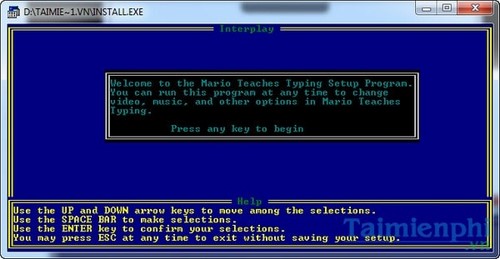
1. Start the installer
At the first DOS setup screen, press Enter to continue.
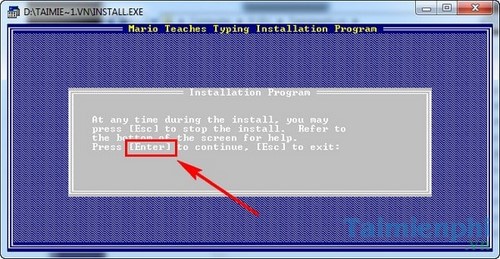
Read the next prompt, then press the key shown by your copy of the installer.
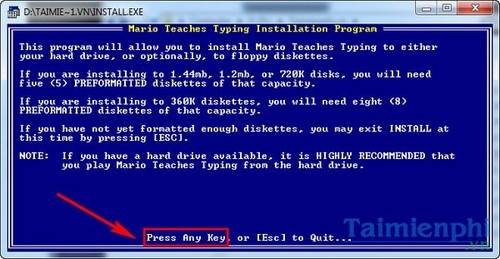
2. Choose the hard-disk installation
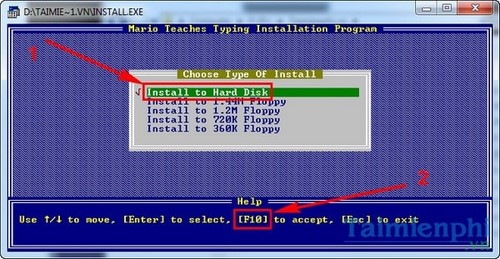
Select Install to Hard Disk and press F10 if the installer shows that shortcut.
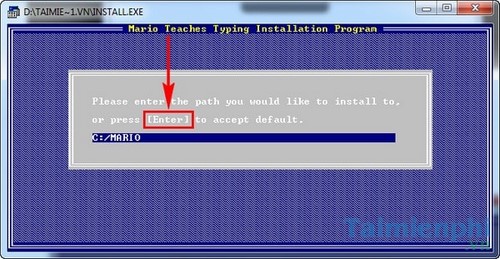
Accept a destination on virtual drive C. A path such as C:MARIO inside DOSBox will be created under the dedicated Windows folder you mounted, not at the root of the real system drive.
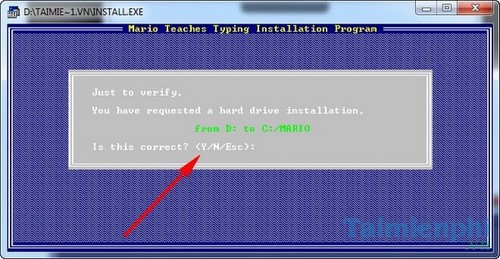
Choose Y to confirm only after verifying the destination.
3. Complete file copying
If the installer pauses partway through, read the prompt and press Enter to continue. A pause at a particular percentage can vary by release and media.
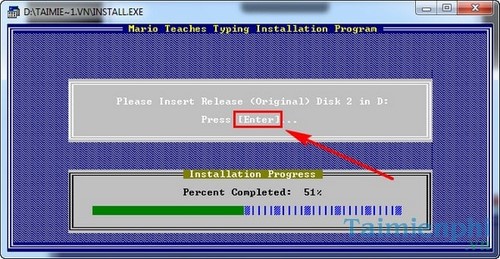
When copying finishes, press the requested key, then use Esc if the installer instructs you to exit.
Run Mario Teaches Typing
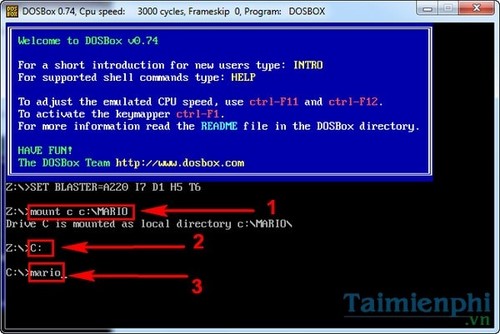
Restart DOSBox if necessary and enter:
mount c C:DOSGAMES
c:
cd MARIO
mario.exe
If the installation created a different folder, use dir to list directories and change into the correct one.
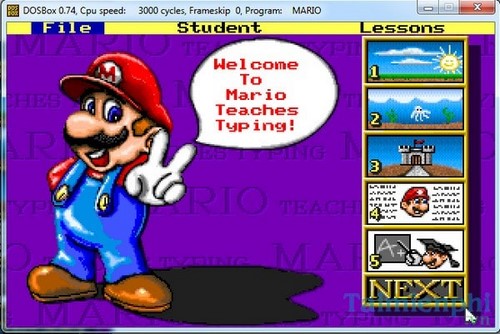
The Mario Teaches Typing menu should appear. Create a local player profile, select the introductory lesson, and keep your fingers on the home row.
Fix common problems
“Illegal command” or “file not found”
Use dir to check the current directory. Confirm that the installer or game file is present and that you mounted the parent folder rather than an unrelated location.
The installer cannot write files
Move the DOSGAMES folder to a location your Windows account can write to, such as your Documents folder. Avoid Program Files and Windows system directories.
The game is too fast, slow, or has no sound
Adjust DOSBox CPU cycles and check the game's sound setup inside the emulated environment. Do not install random DLL files or drivers from download sites.
Use a current alternative when possible
A browser-based tutor is easier and safer on a modern PC. See TipsMake's list of touch-typing websites or follow the home-row practice guide. If you already own Mario and want lesson details, read the Mario Teaches Typing gameplay guide.
Related Articles
 How to Install Mario, a Software for Practicing 10-Finger Typing on a PC or Laptop4 minutes read
 How to Practicing Fast and Efficient 10-Finger Typing for Beginners7 minutes read
 Tux Typing - Free Typing Practice Tool for Kids: Main Insights6 minutes read
 Software for Practicing 10-Finger Typing and Increasing Typing Speed11 minutes read
 5 Best 10-finger Typing Software That Is Easy to Download and Fastest4 minutes read
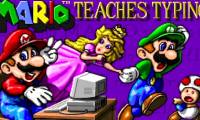 Practice Typing with 10 Fingers with Mario Teaches Typing Online7 minutes read
Reader Comments 0
Sign in with email or Google to join the discussion.